This guide explains how to install Nuvio on Google TV/Android TV and FireStick. I’ll also show you how to create a free Nuvio account and set up the app on your device.
What is Nuvio?
Nuvio self-describes as a modern content hub. It is a media center that lets you stream a variety of content online, including movies, TV shows, live TV, live sports, and other on-demand content.
Nuvio is a new alternative to Stremio and Kodi. Like the two predecessors, it doesn’t host any content. Instead, it relies on addons and plugins.
A few official add-ons come preinstalled on Nuvio. We recommend using the official ones because they are safe and legal. Nuvio also lets you add third-party add-ons and plugins. However, these fall into a legal and safety gray area.
The application is available for Android, iOS, and Android TV. However, it is still in beta. This has not stopped early adopters from exploring the new media center.
I installed the app on my FireStick 4K and Android TV, and it is working smoothly for a beta version. Keep reading to discover how to install and set up Nuvio on your device. You will also find my honest review of the app and ways to troubleshoot emerging issues as we wait for the stable version.
For FireStick Users
ISPs, hackers, and other third-party entities worldwide may monitor your online activities. For security, privacy, and smooth streaming, it is recommended to use a reliable VPN for FireStick. Your IP address is visible to sites you visit.
I recommend ExpressVPN, a fast and secure VPN. It is very easy to install on any device, including an Amazon Fire TV Stick. Also, it comes with a 30-day money-back guarantee. If you don't like their service, you can always ask for a refund. ExpressVPN also has a special deal where you can get 4 months free and save 81% on the 2-year plan.
Read: How to Install and Use the Best VPN for FireStick
Is Nuvio Safe & Legal?
- Safety: Zero red flags
- Legality: Unverified
As I mentioned earlier, Nuvio is still in beta. It’s unavailable on official app stores like Amazon and Google Play. This raises legal and safety concerns.
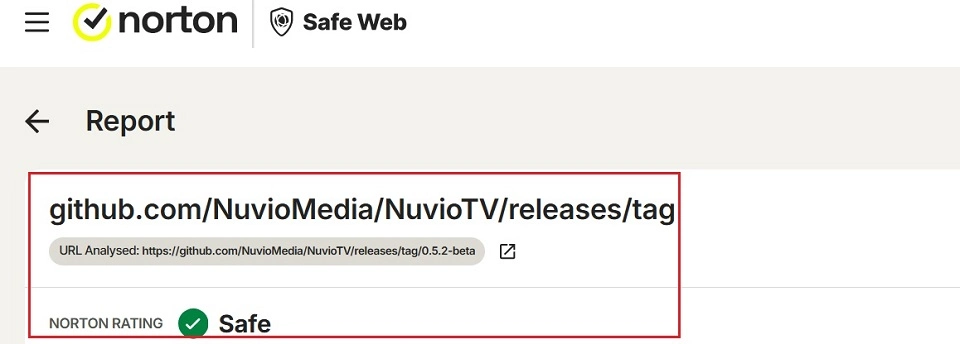
While we can’t be sure about the app’s current safety status, we scanned the APK on VirusTotal and Norton Safe Web.
No security vendors on VirusTotal flagged the file as malicious.

Norton Safe Web marked the Nuvio GitHub release page as safe.
FireStickTricks.com can’t vouch for Nuvio’s legality. The app is unavailable on official app stores. It also allows the installation of unofficial add-ons and plugins that may distribute unlicensed content.
We don’t condone piracy, and thus urge you to stick to official addons when using Nuvio.
How to Install Nuvio on Google TV/Android TV & FireStick
Because Nuvio isn’t available on official app stores, we need to sideload it onto our devices. The installation process is similar for Google TV, Android TV, and FireStick devices.
I’m using a FireStick 4K for demonstration, but the steps apply to all the devices above.
Part 1: Prepare Google TV/Android TV/FireStick to Sideload Nuvio
If you already have the Downloader app on your device, skip the steps below. See our detailed guide on how to use the Downloader app to sideload third-party apps.
Follow these steps:
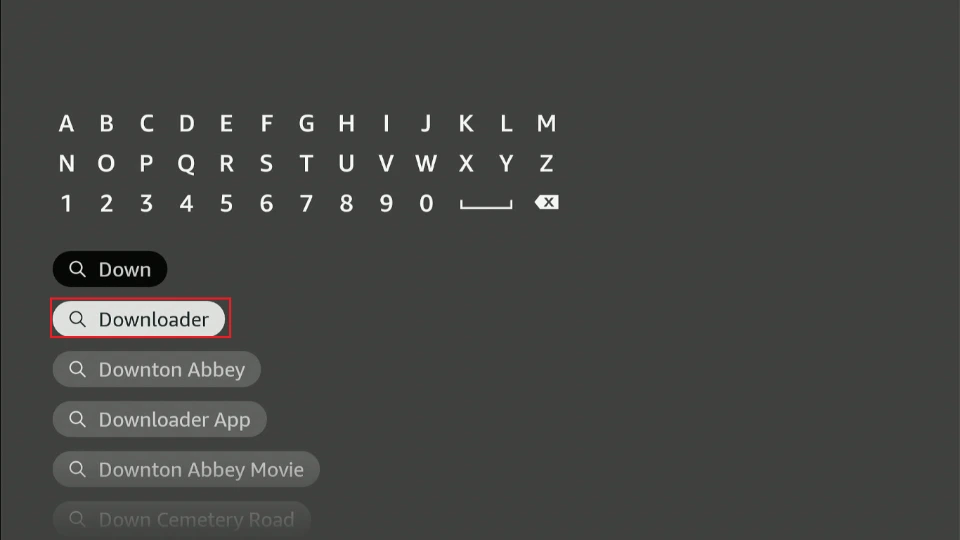
1. Click Find>Search on the FireStick homescreen. Type the word Downloader in the search bar, and select Downloader by AFTVNews from the suggested results. Click Download or Get to install the Downloader app on your device.
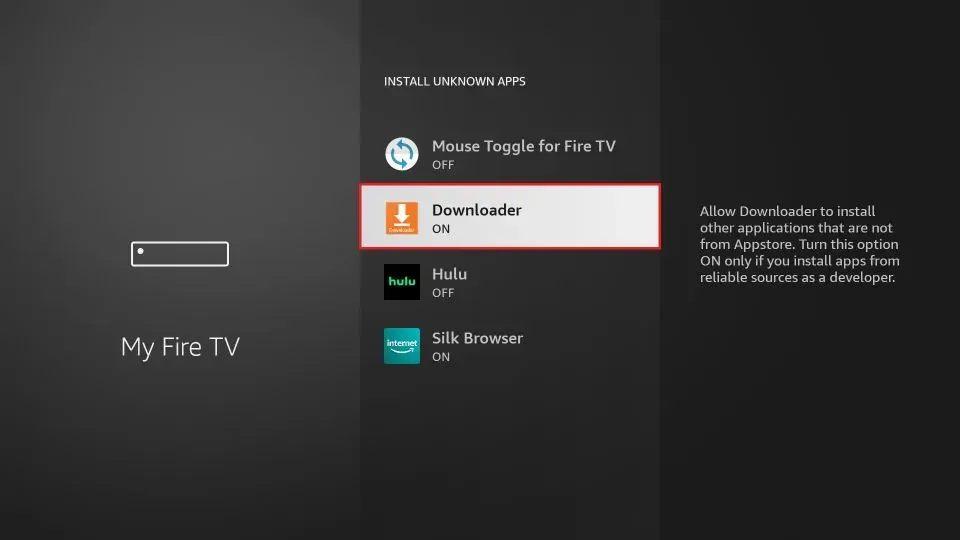
2. Return to the FireStick homescreen and go to Settings> My Fire TV>Developer Options. You’ll see one of the following options:
You will see one of the following two options depending on your FireStick device version:
- Option 1 (new devices) - Install Unknown Apps: Click it and proceed to the next step to enable Downloader.
- Option 2 (old devices) - Apps from Unknown Sources: Click this option and then click Turn On on the following prompt. Skip the next step.
Note: For Google TV and Android TV devices, go to Settings>Apps>Downloader and enable unknown sources.
Part 2: Install Nuvio on Google TV/Android/FireStick
Follow these steps to install Nuvio on your device:
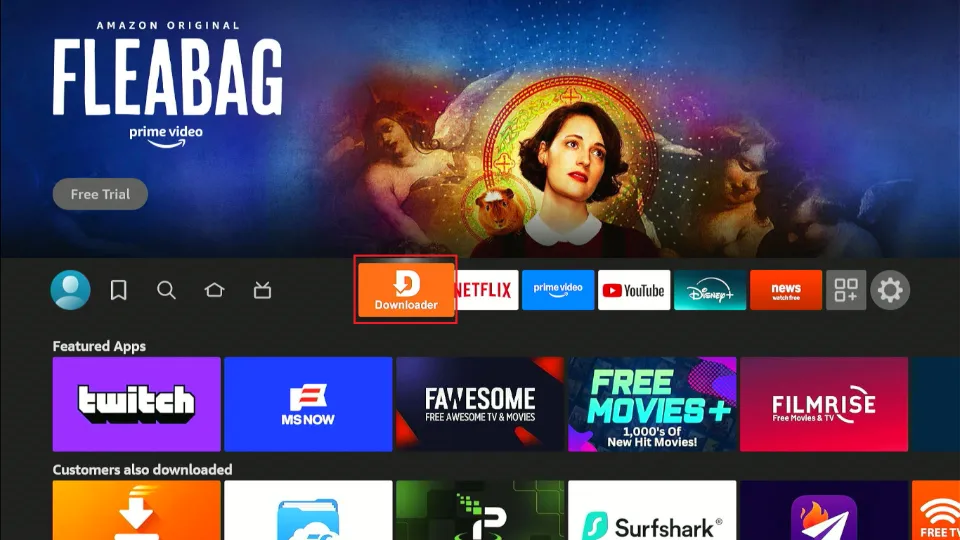
1. Launch the Downloader app from the app library.
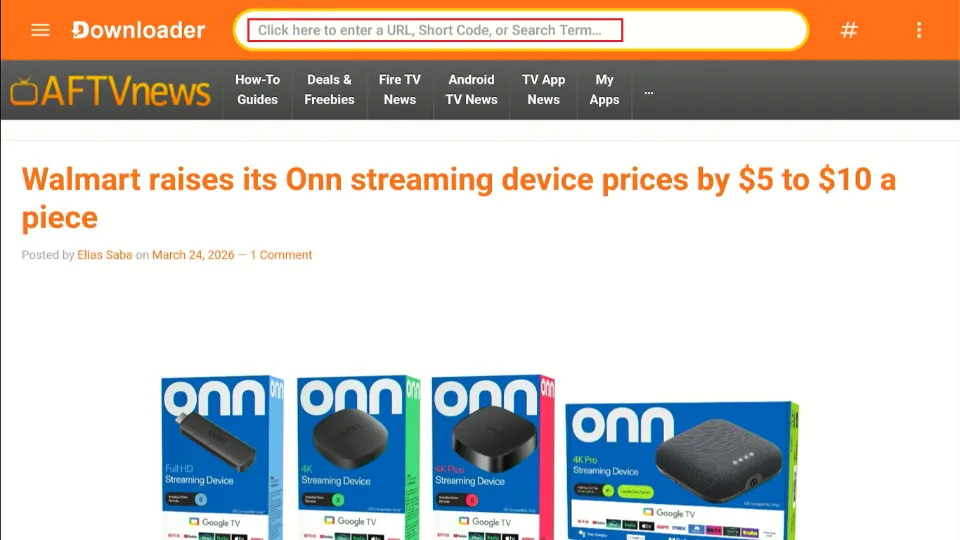
2. Click on the URL /Code field.
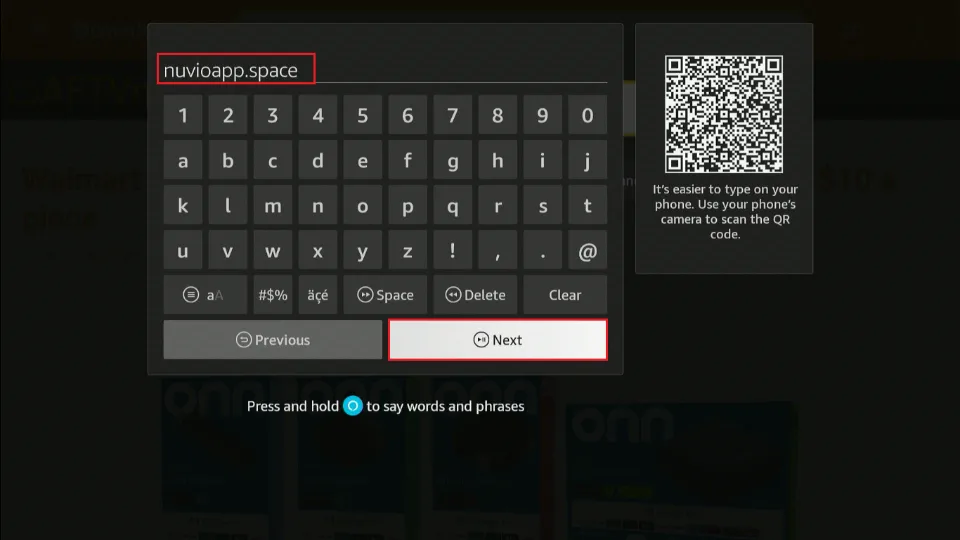
3. An on-screen keyboard appears. Enter the following URL: nuvioapp.space, and click Next.
⚡ DON'T MISS THIS LIMITED-TIME 🕒 DEAL

Protect your privacy with ExpressVPN
DEAL OF THE DAY
73% DISCOUNT ON ExpressVPN + 4 EXTRA MONTHS
Risk-free with a 30-day money-back guarantee
🔒 GET ExpressVPN↗️
Note: FireStickTricks.com does not host this URL. We are not affiliated with the developer of this app.
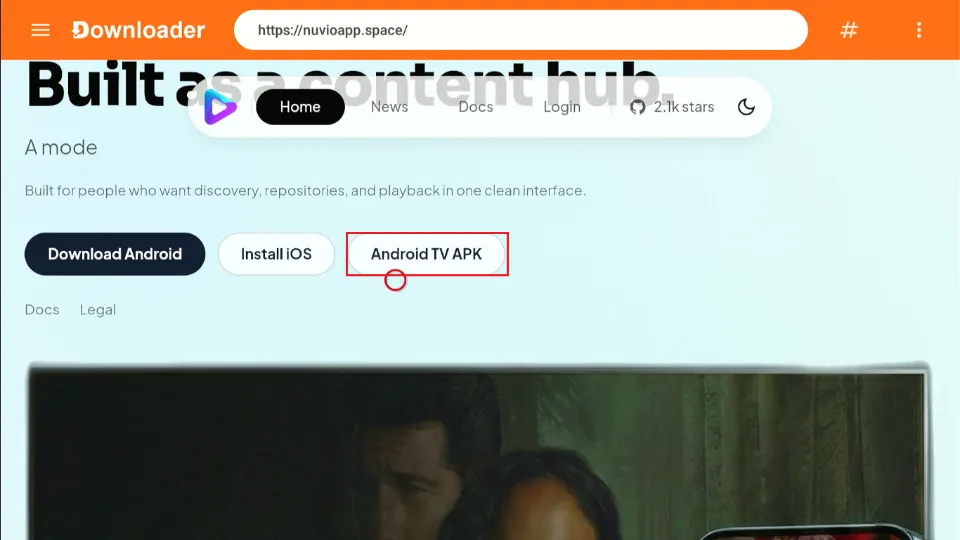
4. The official Nuvio website will load. Navigate to the Android TV APK and click on it.
5. You’ll be redirected to the Nuvio GitHub page. Scroll down to the releases section and select app-armeabi-v7a-release.apk.
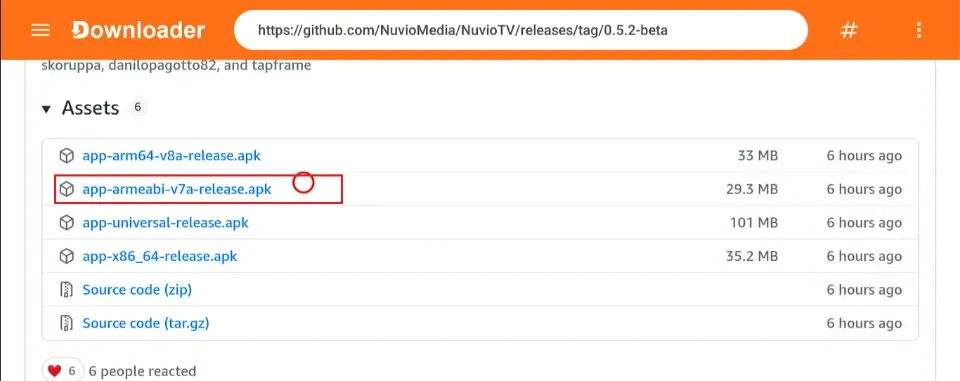
6. The Nuvio APK will start downloading.
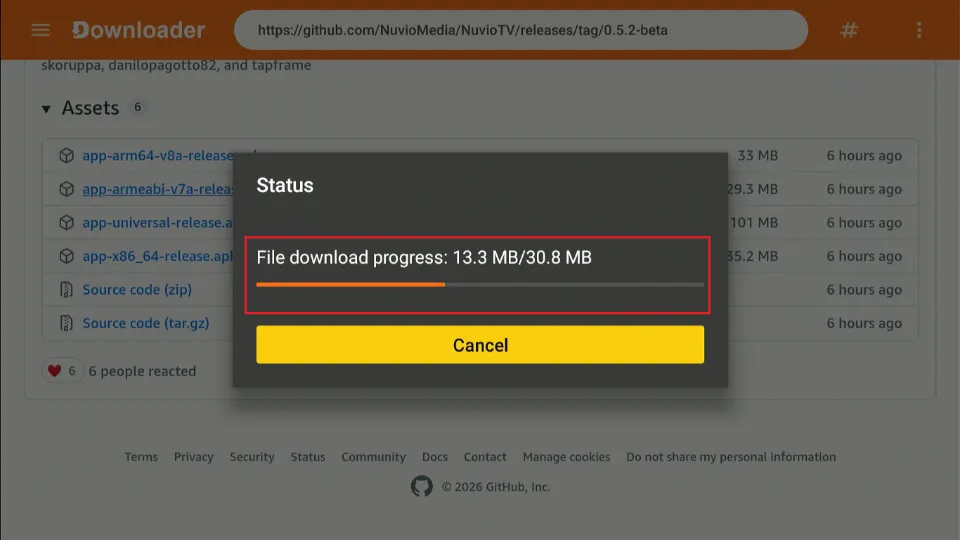
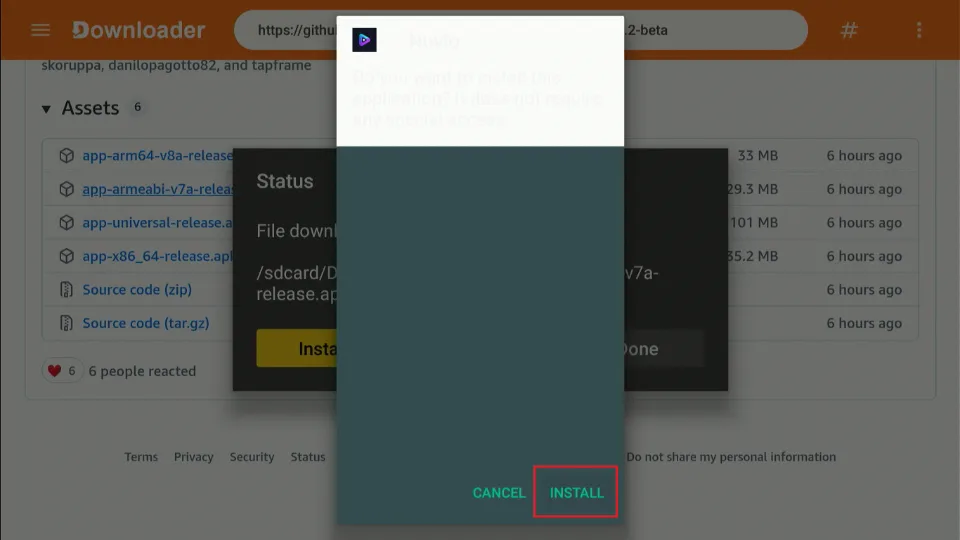
7. Once the APK has downloaded, the Downloader app will prompt you to install the Nuvio app. Choose Install.
8. Wait for the app to install.
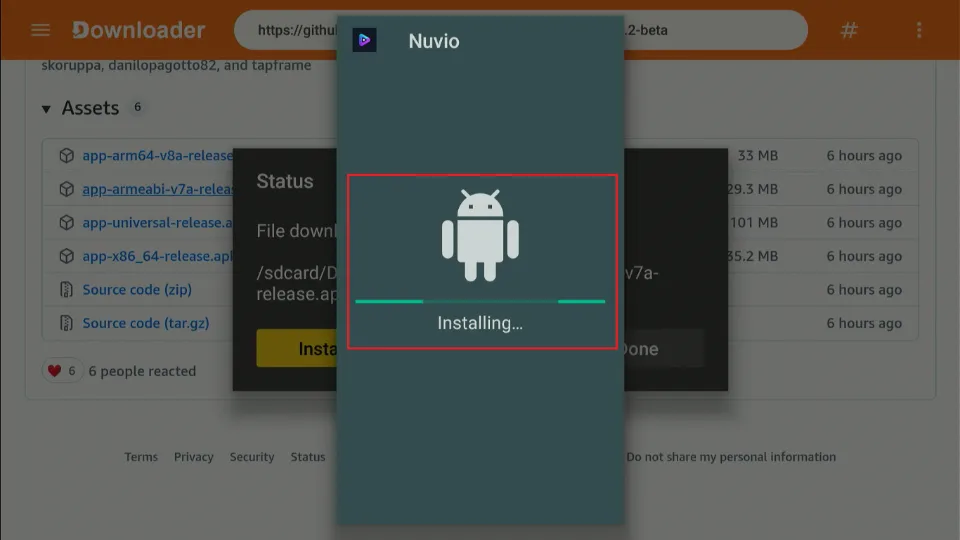
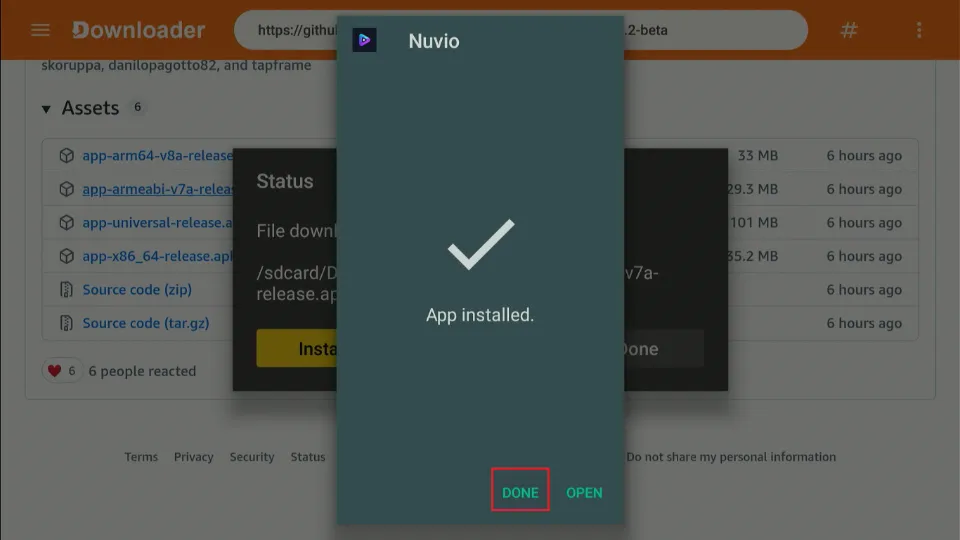
9. Click Done once the installation is complete.
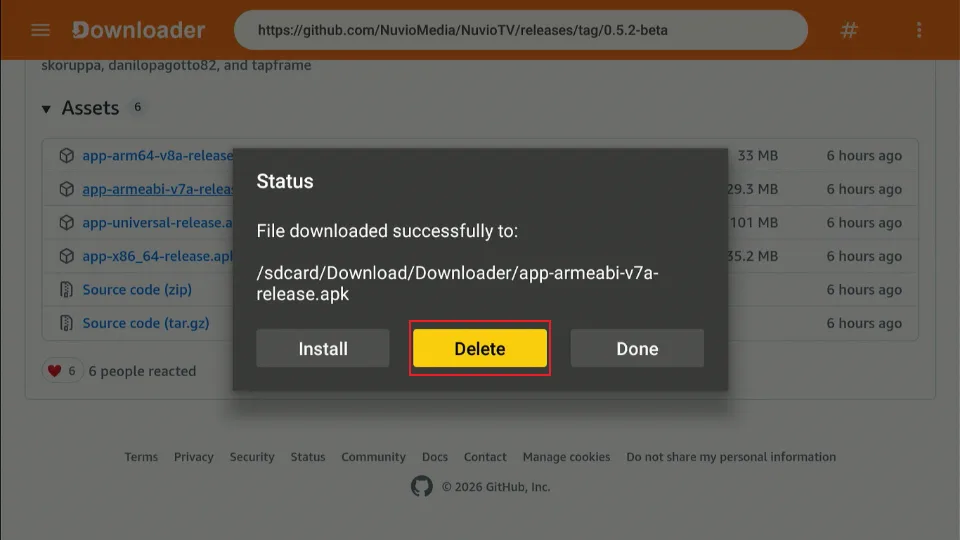
10. Select Delete to remove the APK file from your device. This saves storage, and you no longer need the APK file.
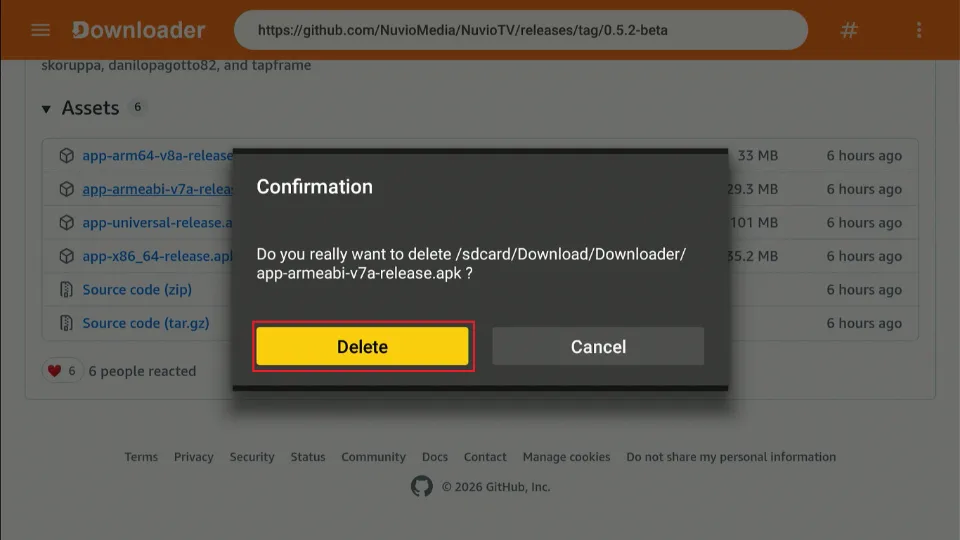
11. Click Delete again to confirm.
Congratulations! You have successfully installed Nuvio on FireStick, Google TV/Android TV.
How to Set Up Nuvio on Google TV/Android TV/FireStick
To use Nuvio, you need to open a free account. I’ll show you how to register for an account on the Nuvio website and configure the media center. You can do so on any browser-supported device, including a PC, tablet, or smartphone. In my case, I’m using a Windows PC.
How to Create a Free Nuvio Account
Follow these steps to create a Nuvio account for free:
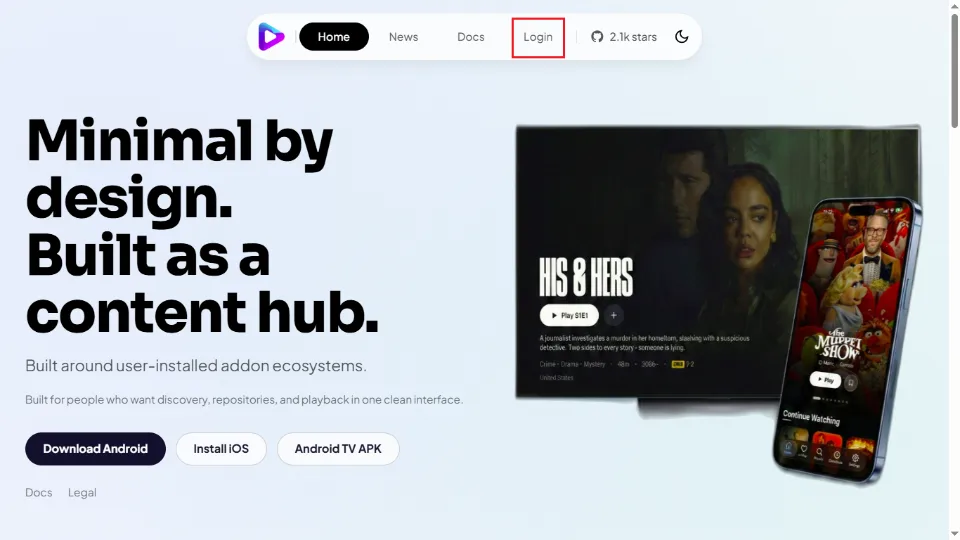
1. Open your web browser and go to https://nuvioapp.space/. Click Login.
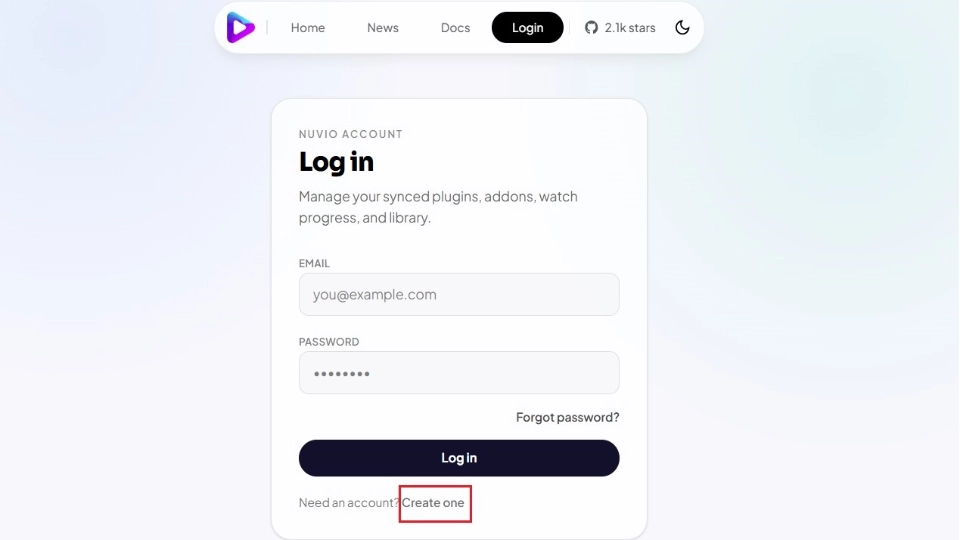
2. On the login window, scroll to Need an account? and select Create one.
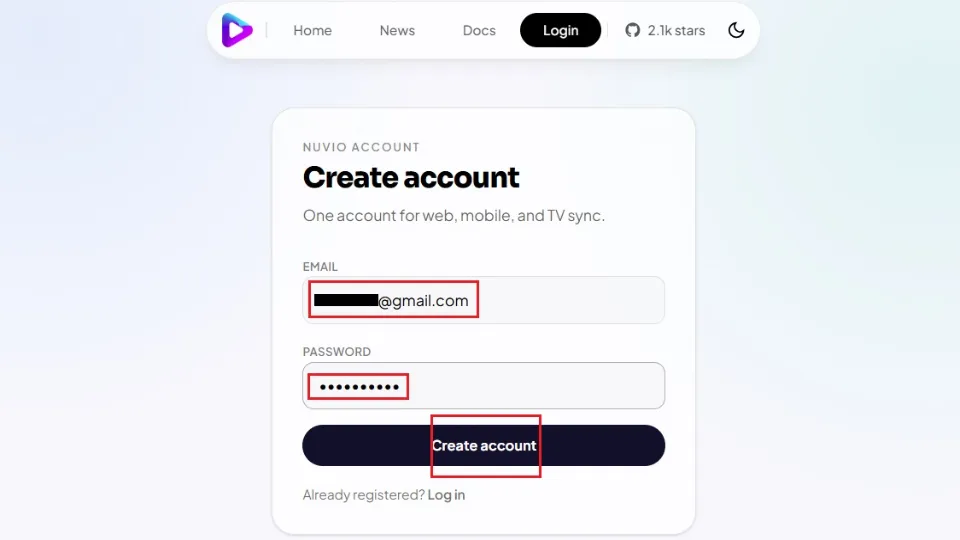
3. Enter your email address and a strong password in the respective fields, and click Create account.
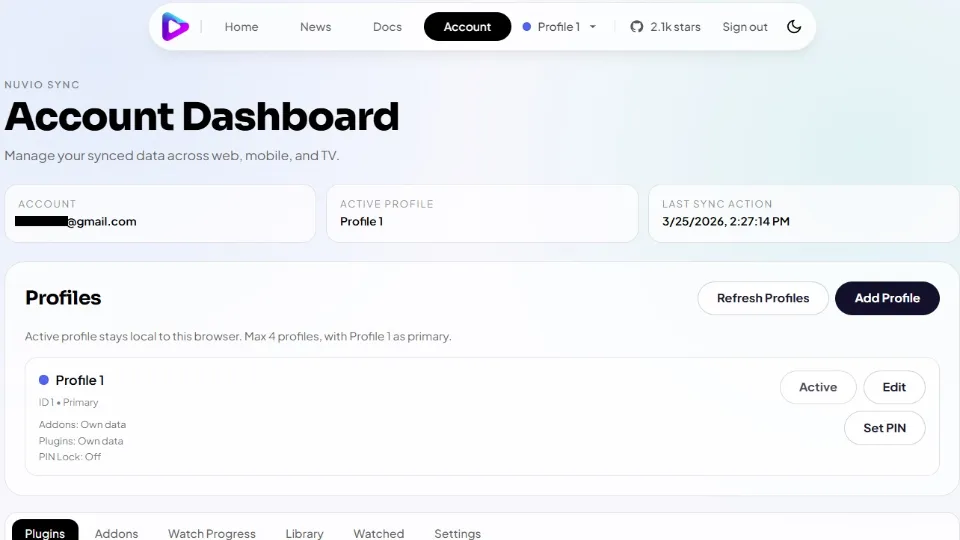
4. Once you’ve successfully created an account, you’ll land on the Nuvio Account Dashboard.
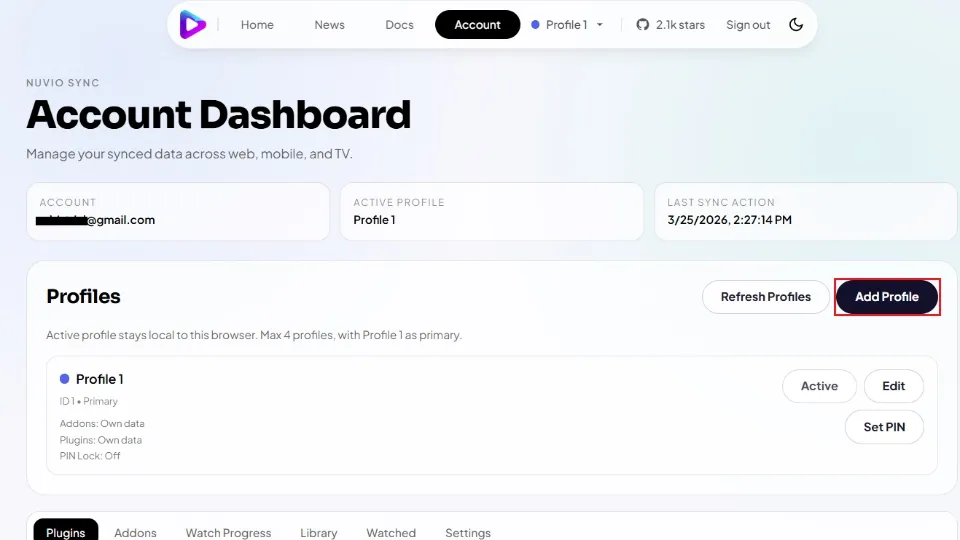
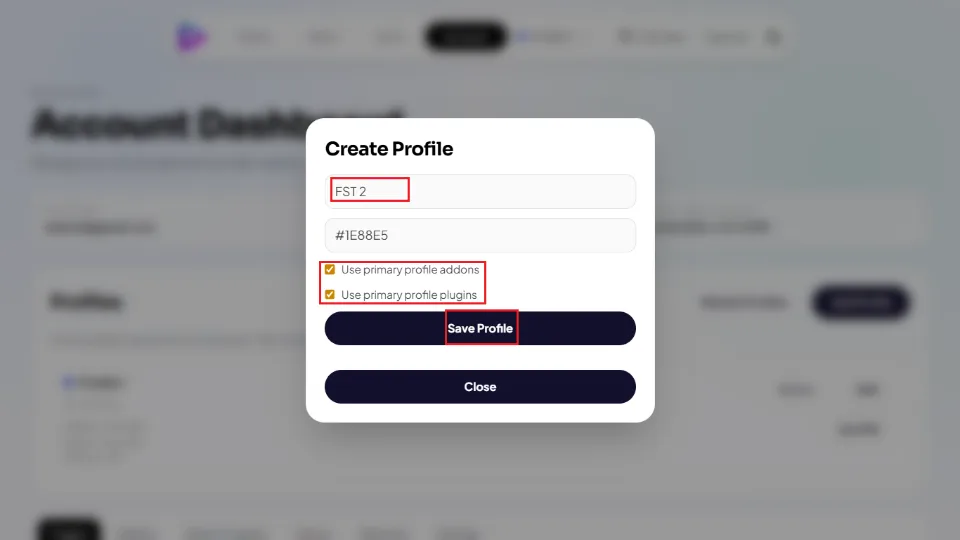
5. Nuvio lets you create several user profiles. This comes in handy when several family members are using the media center to stream different content. For instance, you could have one profile for sports lovers, another for kids, and another for TV show lovers. To create an additional profile, click Add Profile on the dashboard.
6. Name the profile and check the boxes if you want this profile to use the primary addons and plugins. Click Save Profile.
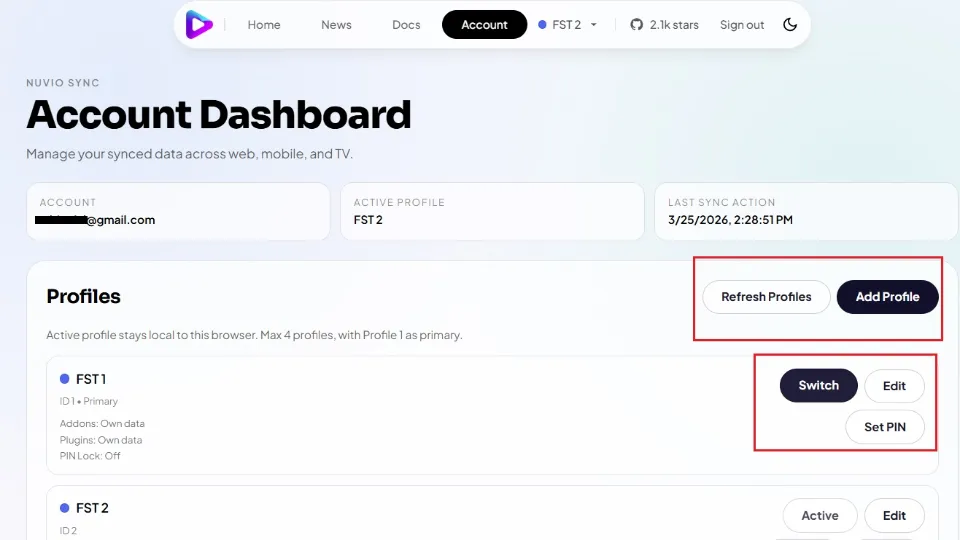
7. You can choose the Active profile, edit profiles, and switch between profiles. You can also set a PIN for profiles to protect your privacy.
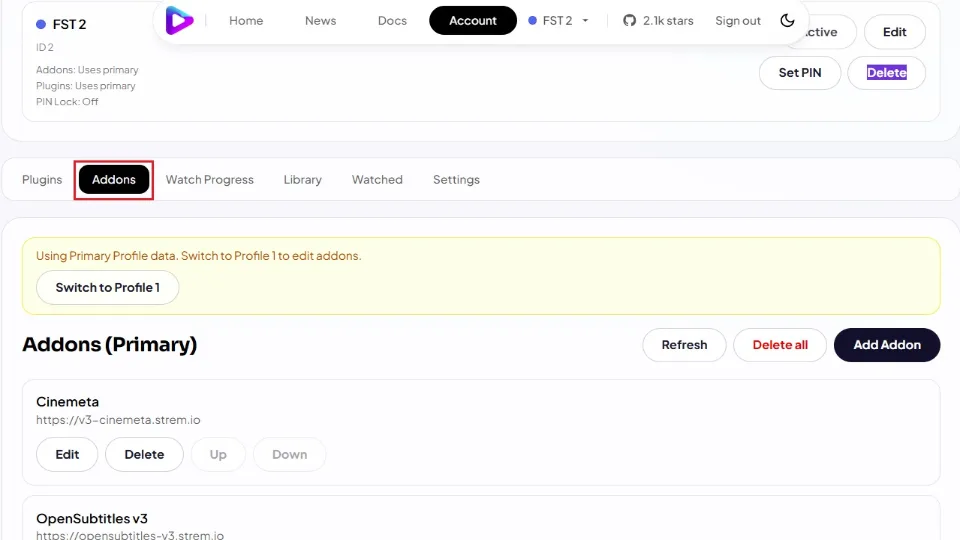
8. The next configuration step is to install addons and plugins. Nuvio relies on these addons to provide streaming content. Click Addons on the dashboard to get started.
9. Some official addons come pre-installed on Nuvio. These include Cinemeta and OpenSubtitles. To install more addons, click Add Addon.
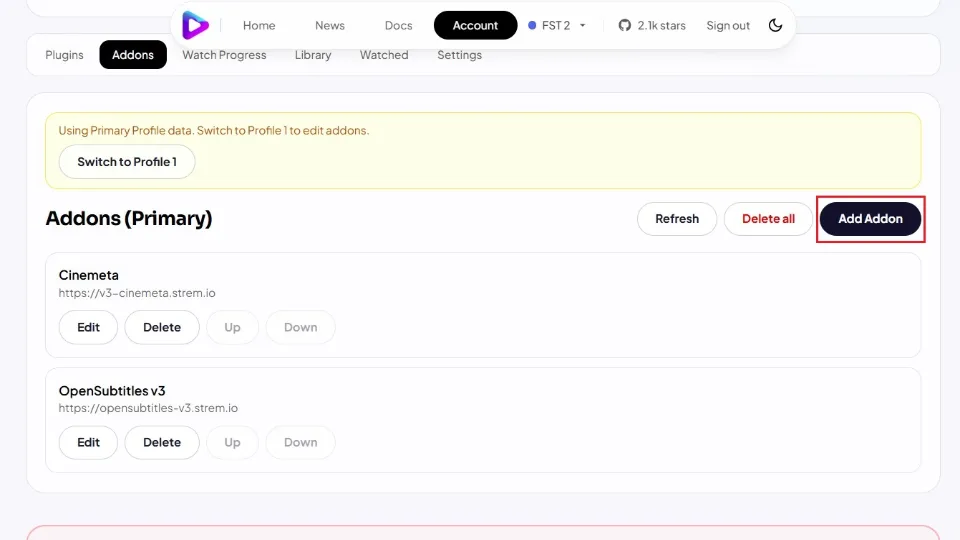
10. Nuvio lets you integrate Stremio addons using manifest URLs. To do that, enter the URL in the URL field, enter a name for that addon, then click Save.
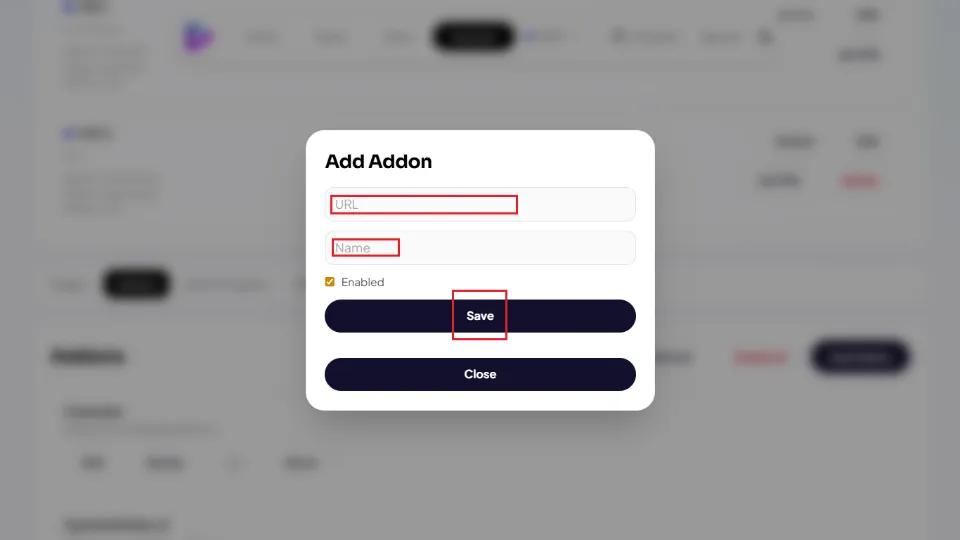
Note: You can also install addons and plugins within the Nuvio app. However, adding the addons from your Nuvio account dashboard is faster and more straightforward.
Log In With New Account and Explore Nuvio
Once you’ve created a free Nuvio account and configured your preferred settings, return to your device and launch the Nuvio app.
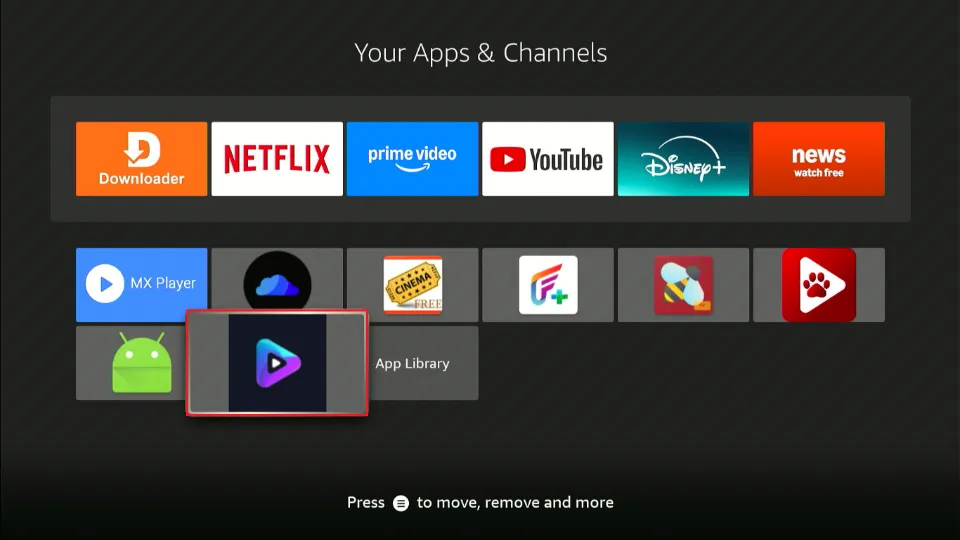
At the moment, Nuvio only supports signing in with a QR code.
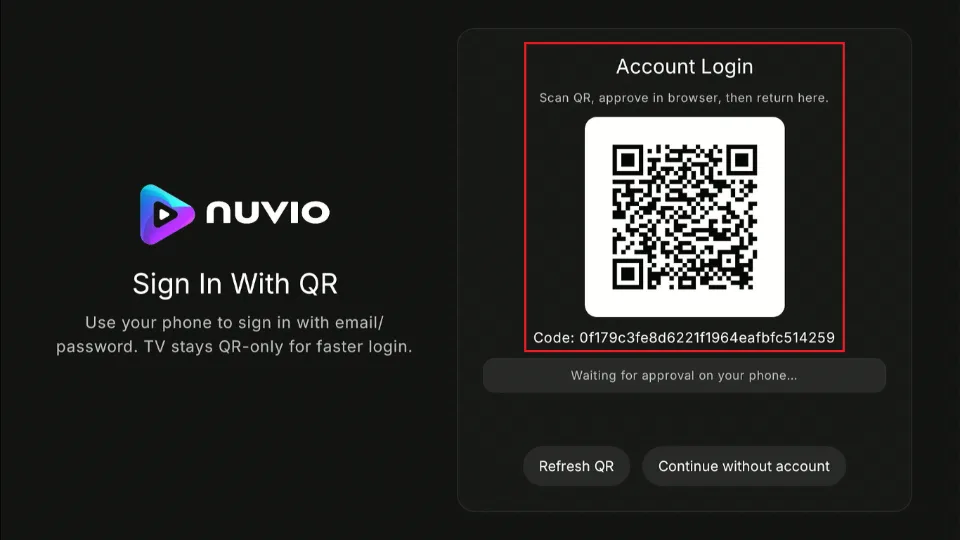
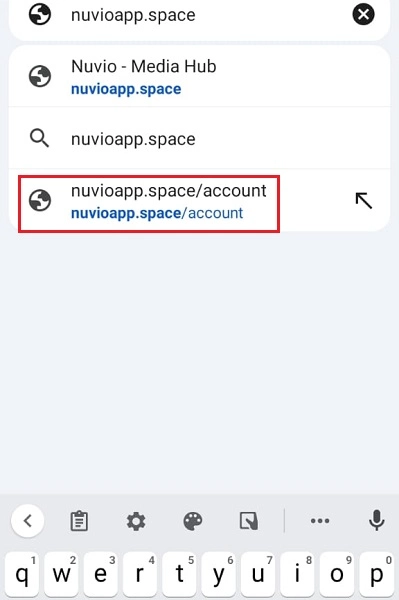
You need to have a QR code scanner on your smartphone or tablet for this step. But before you scan the QR code, log in to your Nuvio account on mobile. Open your web browser and go to nuvioapp.space/account.
Click on the three horizontal lines at the top right.
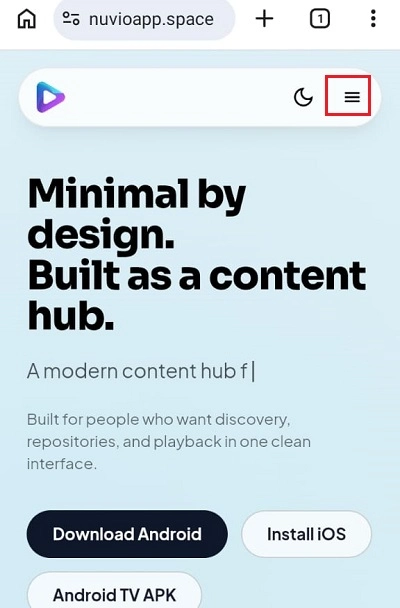
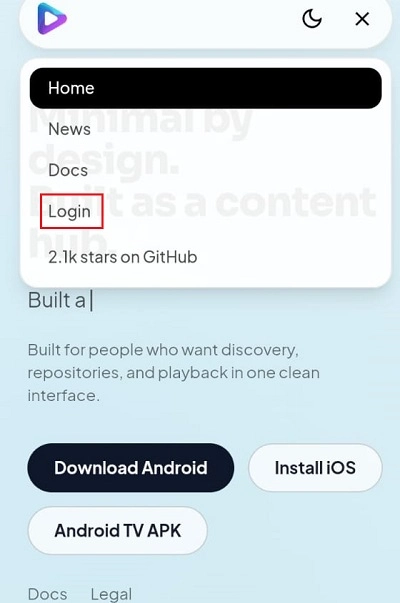
Tap Login on the main menu.
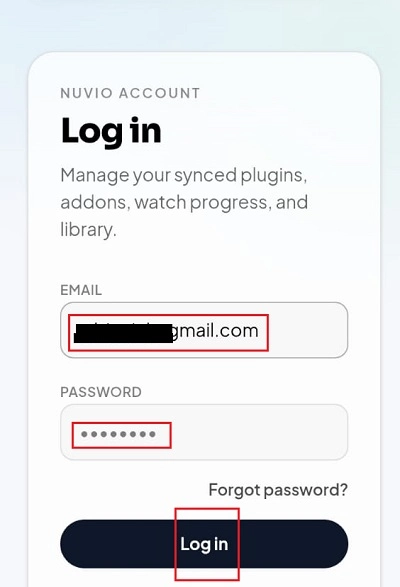
Enter your email address and password, and press Log in.
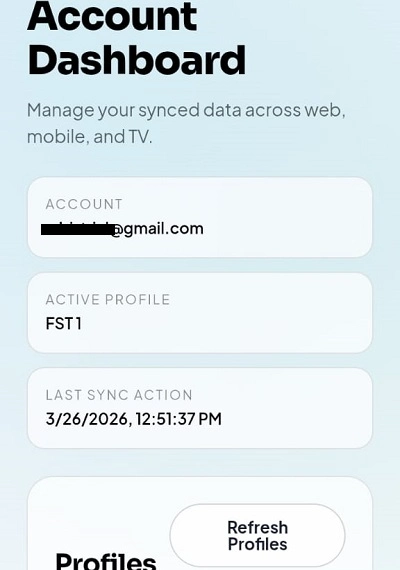
Once you’re logged in to your Nuvio account on mobile, close the tab.
Open your QR reader app on your mobile device and scan the QR code on your TV device. Click on the generated link. You’ll land on the following page. Re-enter your email address and password, then click Sign in & Approve TV.
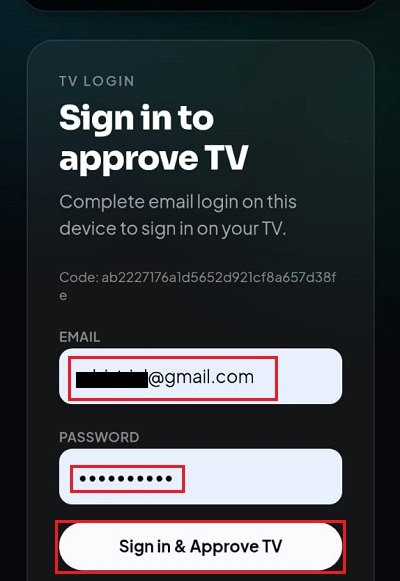
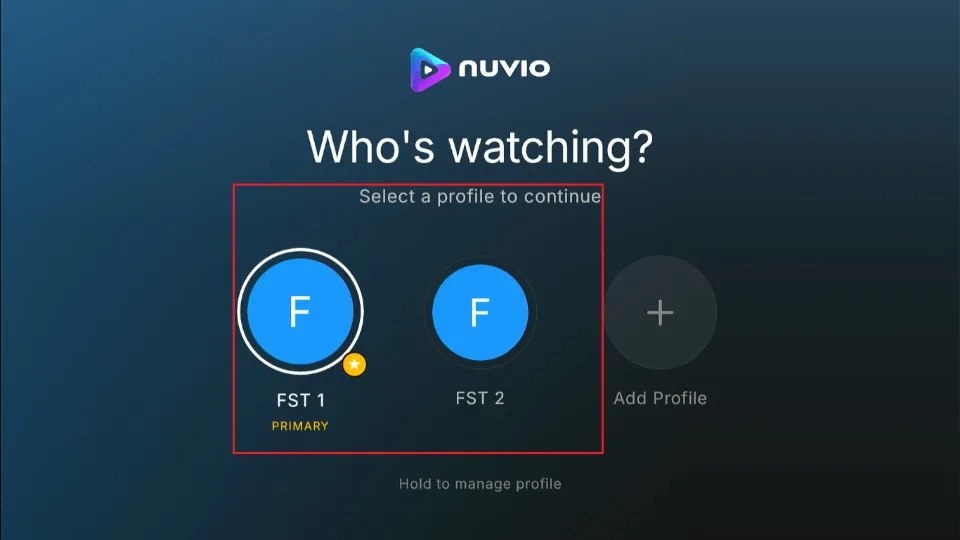
You’ll be automatically logged in on your TV device. Choose the active profile.
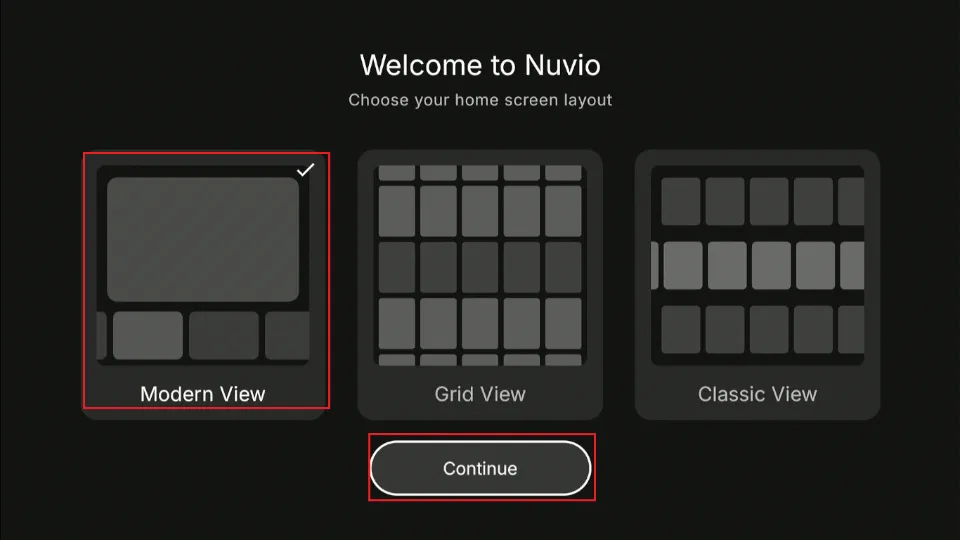
Select your preferred layout and click Continue.
This is what the Nuvio home screen looks like.
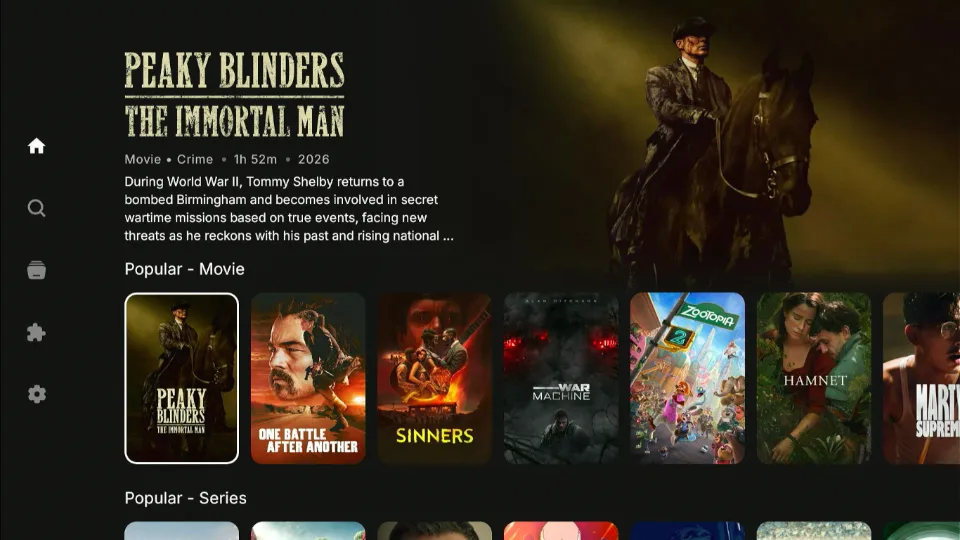
You can begin exploring the app using the main menu on the left panel.
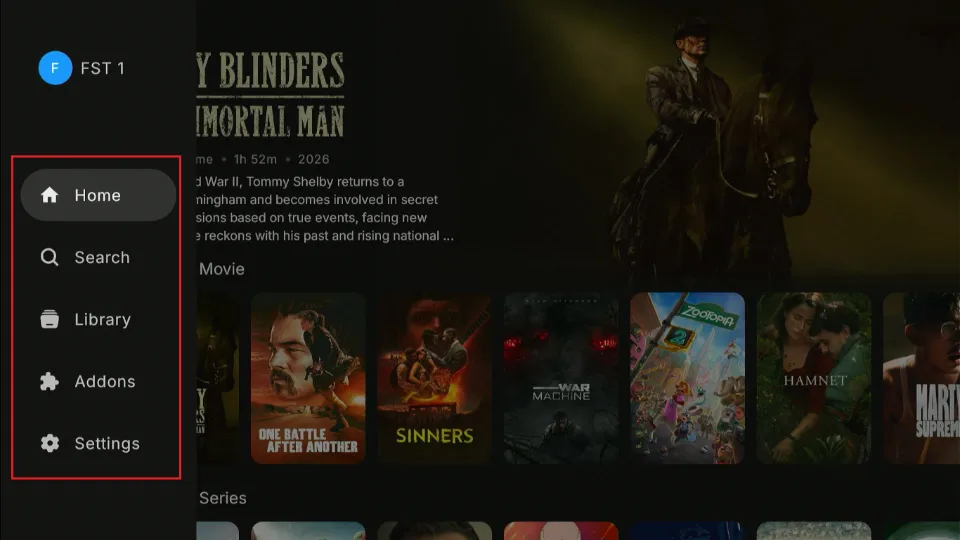
How to Use Nuvio on Google TV/Android TV/FireStick
Nuvio has a user-friendly, intuitive interface. The home tab features posters for popular movies and TV shows.
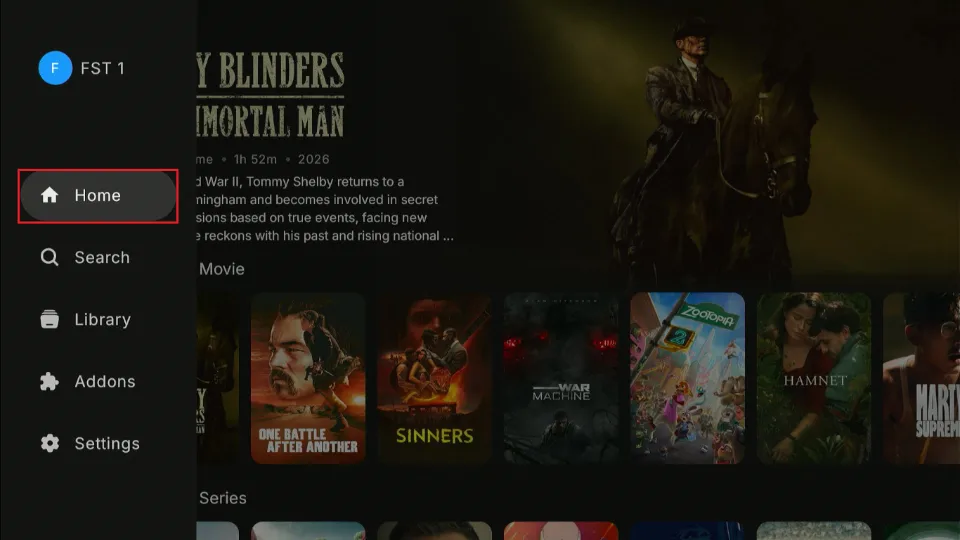
The main menu is on the left and includes the following sections:
- Home
- Search
- Library
- Addons
- Settings
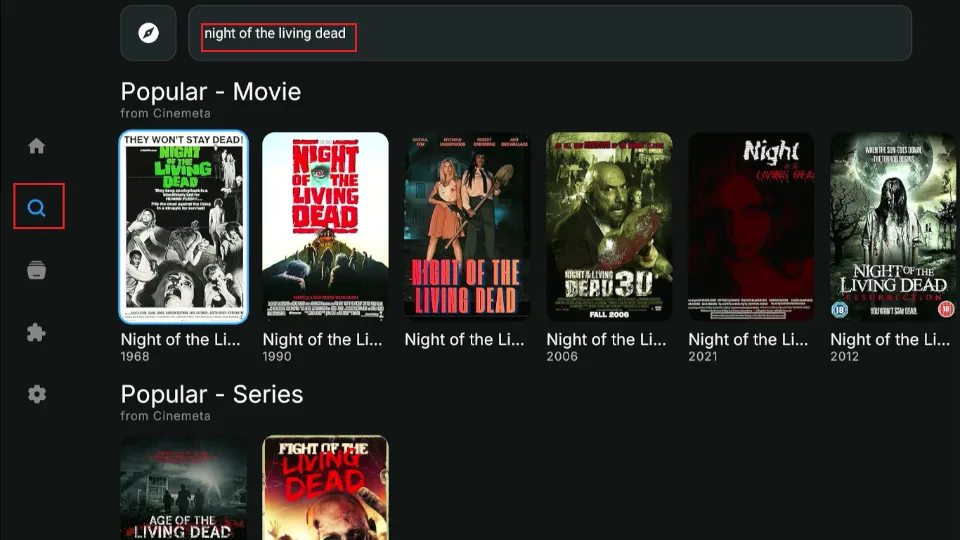
I like Nuvio’s search function. It is highly responsive, returning suggested results in seconds.
The Addons tab lets you manage your installed addons. You can remove and rearrange addons as you wish.
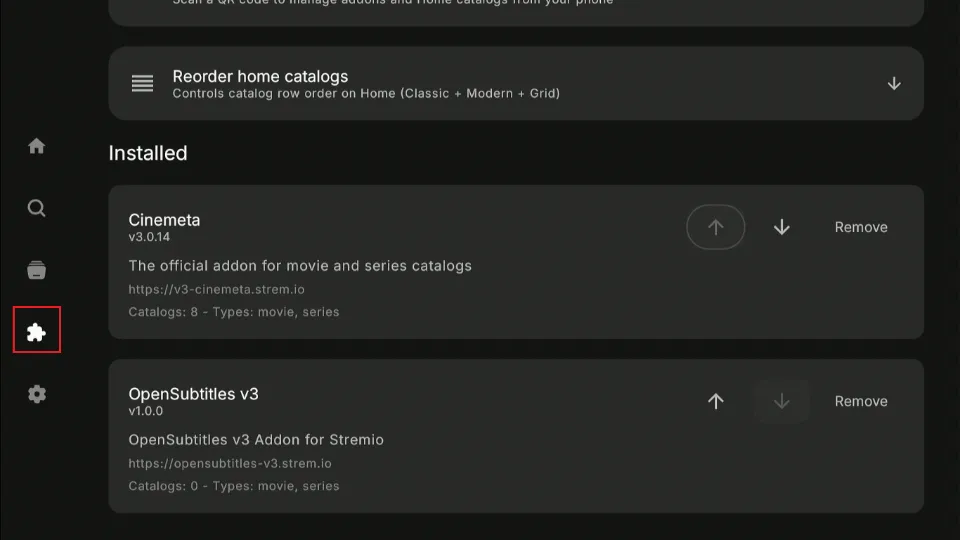
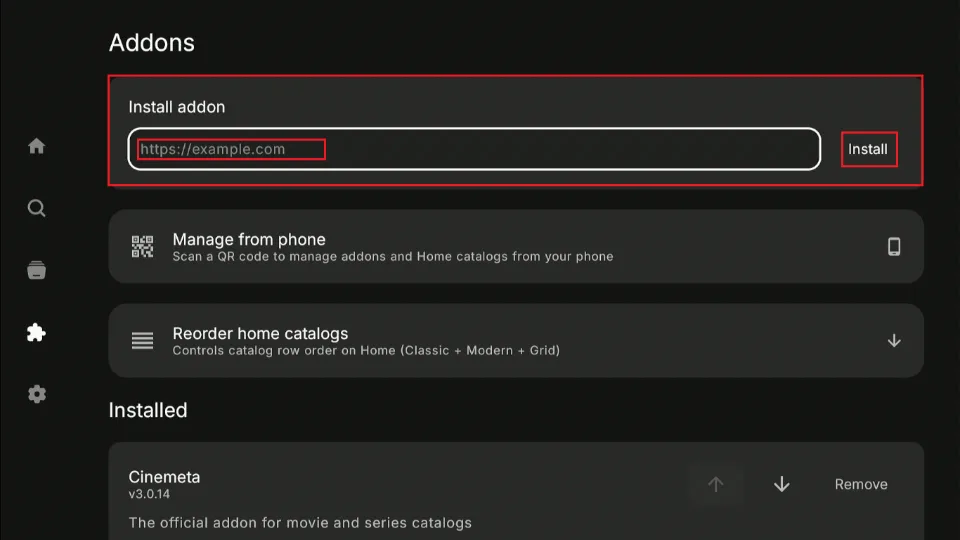
If you didn’t add your preferred addons from the account dashboard, you can do so in the app. Navigate to Install Addons, enter the manifest URL of your addon in the URL field, and click Install.
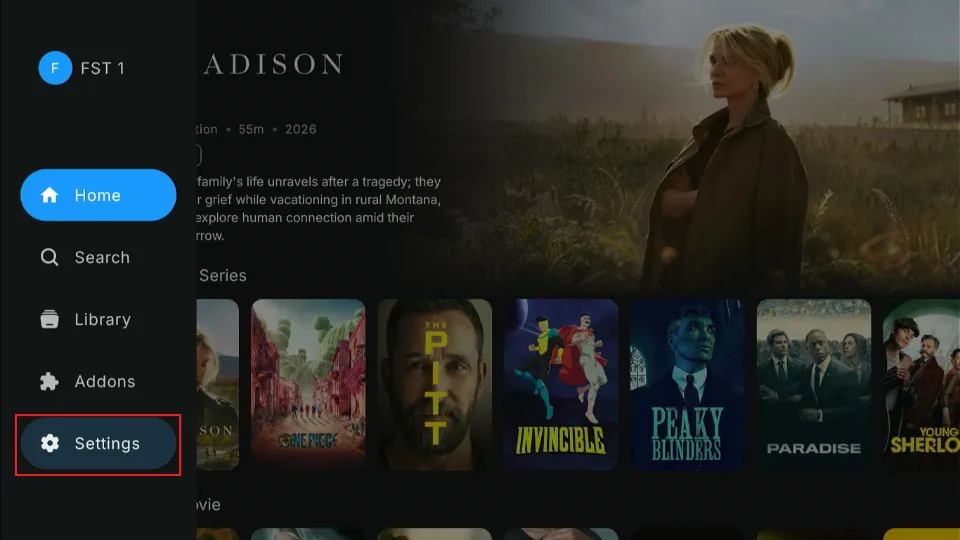
Customization is one of the best aspects of the new Nuvio media hub. To customize your app, click on Settings.
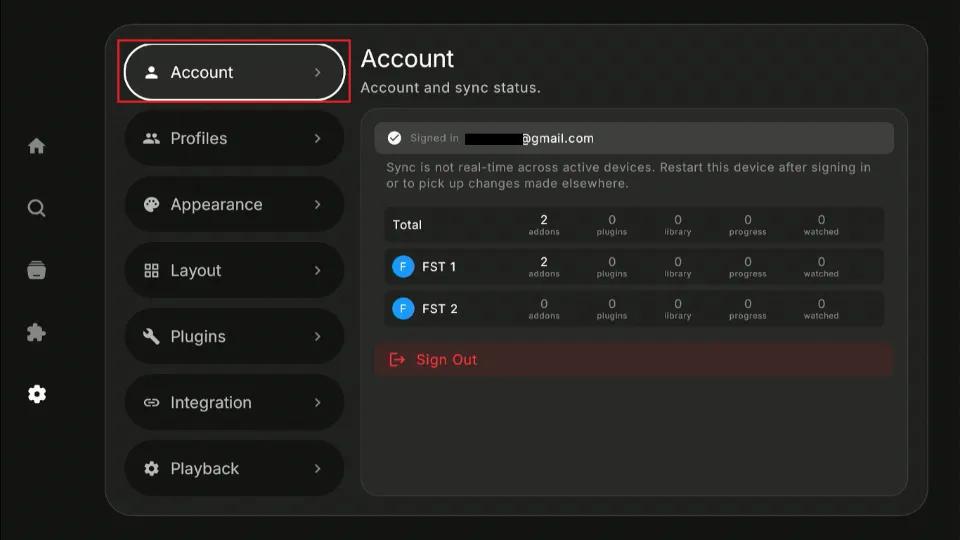
The Account section lets you manage your Nuvio account details and sign out.
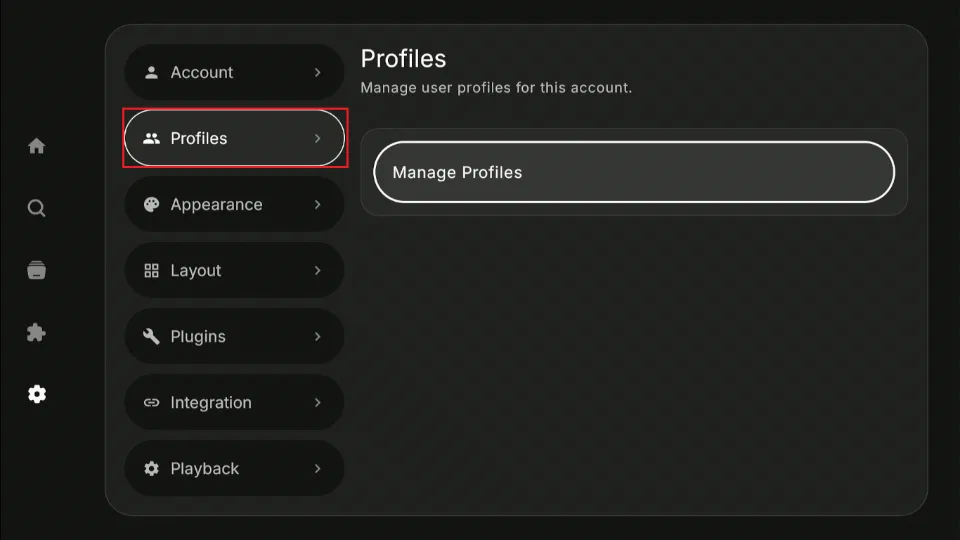
The next section is the Profiles. This tab lets you manage your various profiles in the Nuvio app. You can edit, switch, or add profiles as you wish.
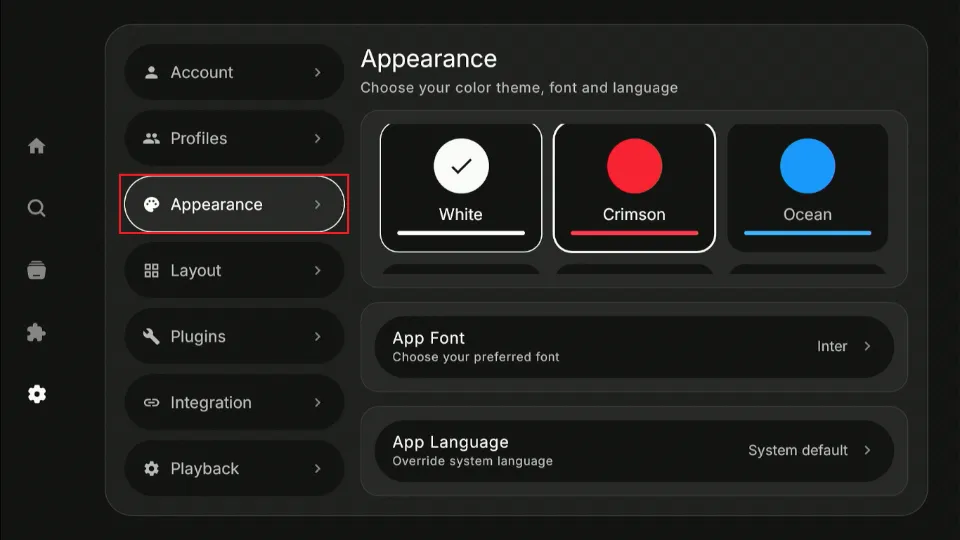
The Appearance section lets you choose your preferred color palettes, themes, fonts, and language.
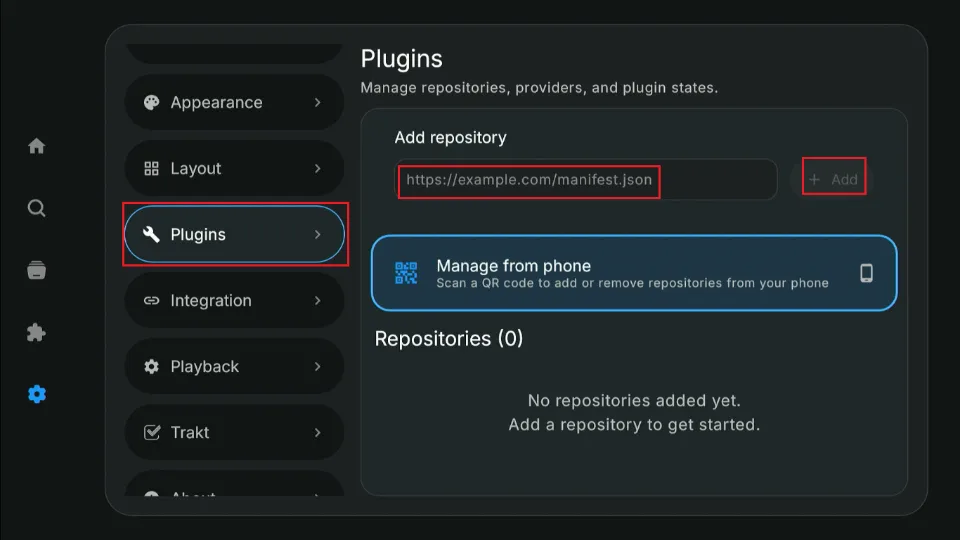
As I mentioned earlier, Nuvio supports both addons and plugins. These plugins can be repositories or providers that are directly accessible via an HTTPS link. They work the same way as Cloudstream plugins and extensions. Navigate to the Plugins tab to add these repositories. Enter the repository or plugin URL and click Add.
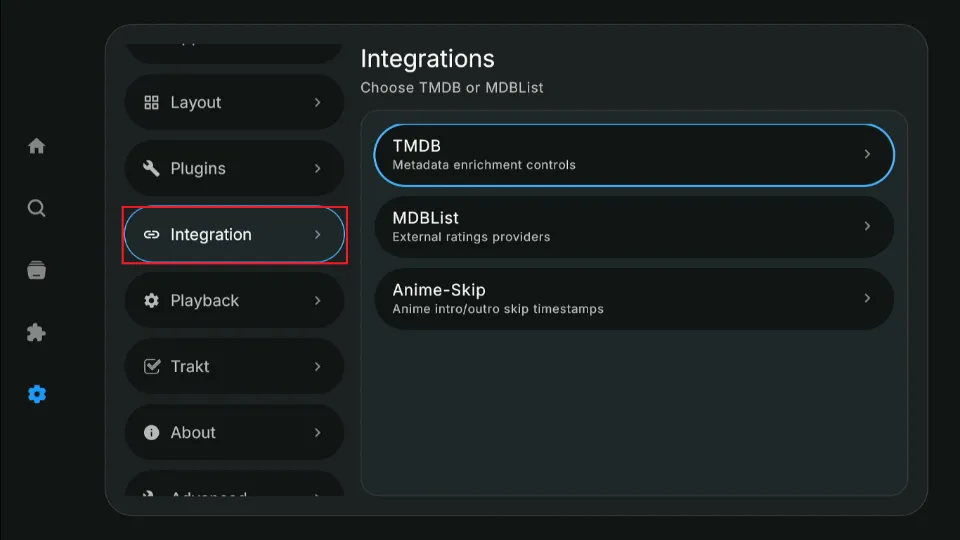
The Integrations section allows you to integrate Nuvio with movie and TV databases like IMDb and TMDb.
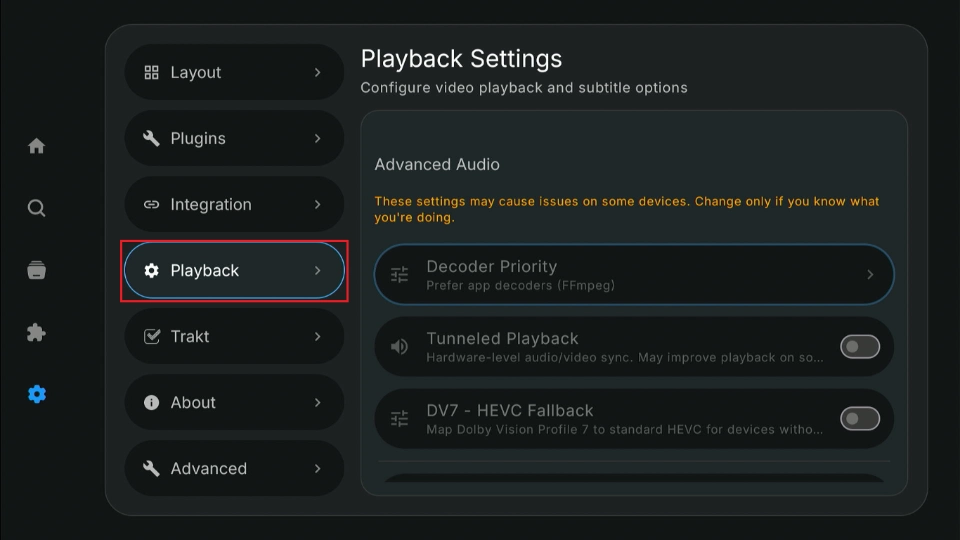
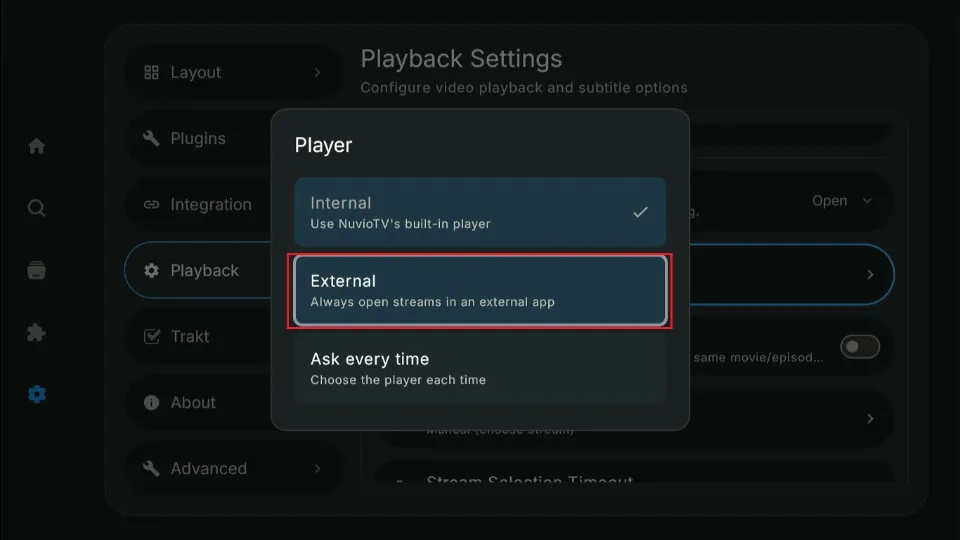
Nuvio has many features that make it stand out among media centers. For instance, the Playback tab lets you configure and personalize your video and subtitle preferences. You can select your preferred media player, audio behavior, subtitle language, font, and style.
For the best playback experience, use an external media player.
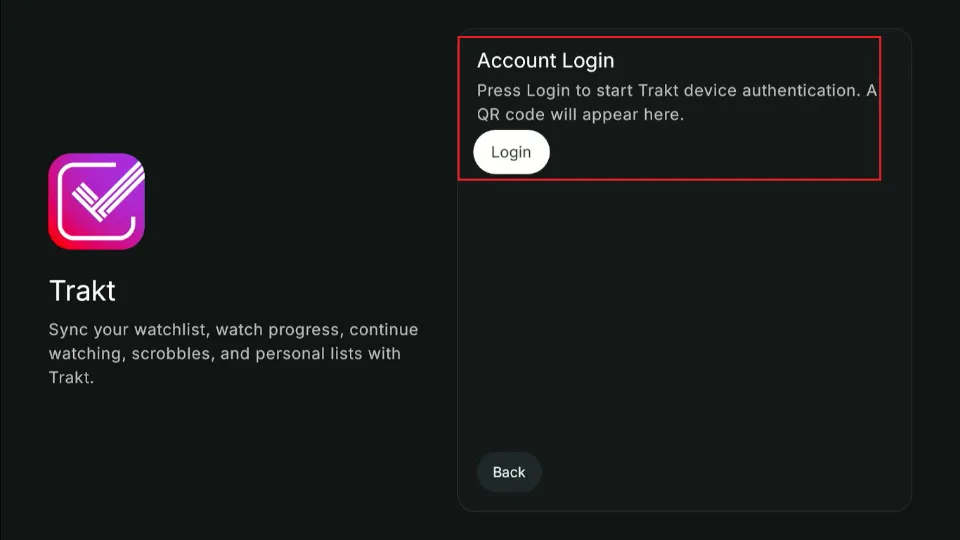
Another notable integration that I like for Nuvio is Trakt. Trakt lets you track your viewing habits and progress. If you want to sync your watchlists across devices, integrate Trakt with the Nuvio app.
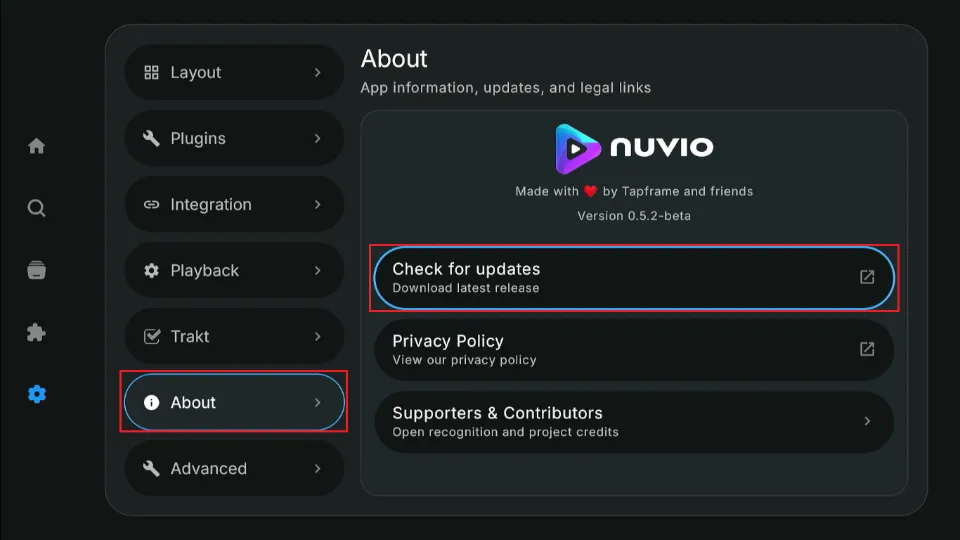
Finally, the About section provides more information about the Nuvio media center and available updates. Because the app is in beta, use the Check for Updates option to track new versions and keep the app up to date.
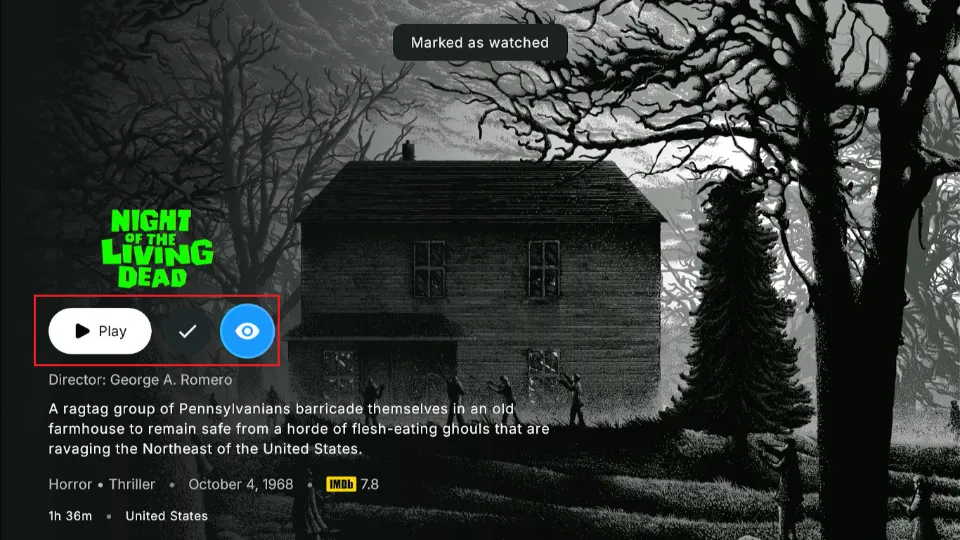
Additional customization available includes the content manager. Once you select your preferred content, you can play it right away, add it to your library, or mark it as watched.
For a new app that’s still in beta, Nuvio looks promising.
Troubleshooting Common Issues on the Nuvio App
Some users have reported audio issues when playing movies and TV shows on Nuvio. If you run into the same issue, follow the steps below to fix it:
1. Go to Settings.
2. Select Playback.
3. Go to Audio & Trailer.
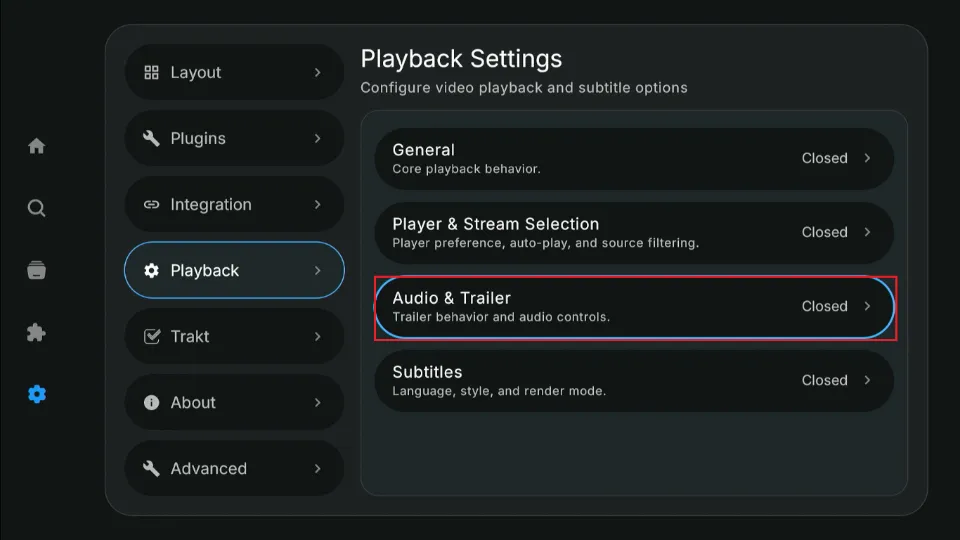
4. Scroll down to the Advanced Audio Section. Select Decoder Priority.
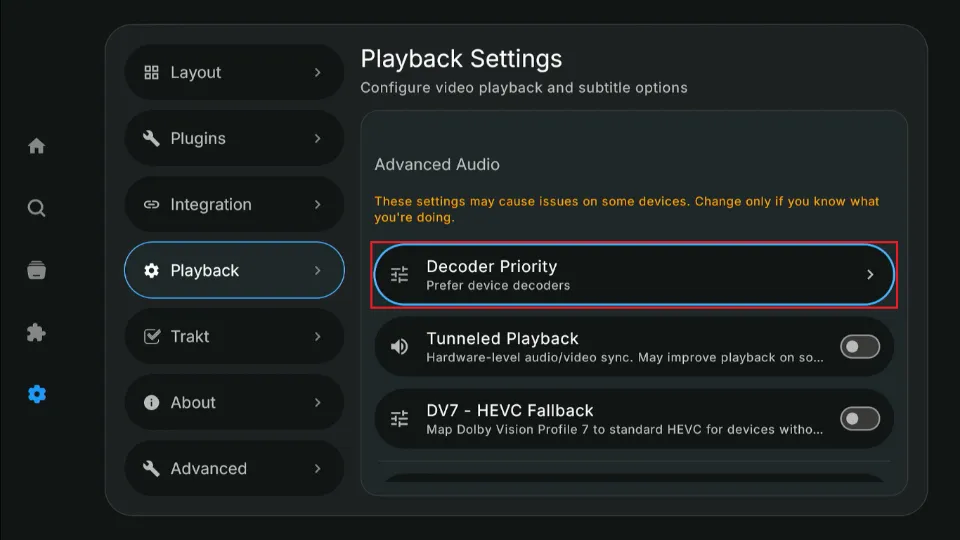
5. Choose Prefer app decoders (FFmpeg).
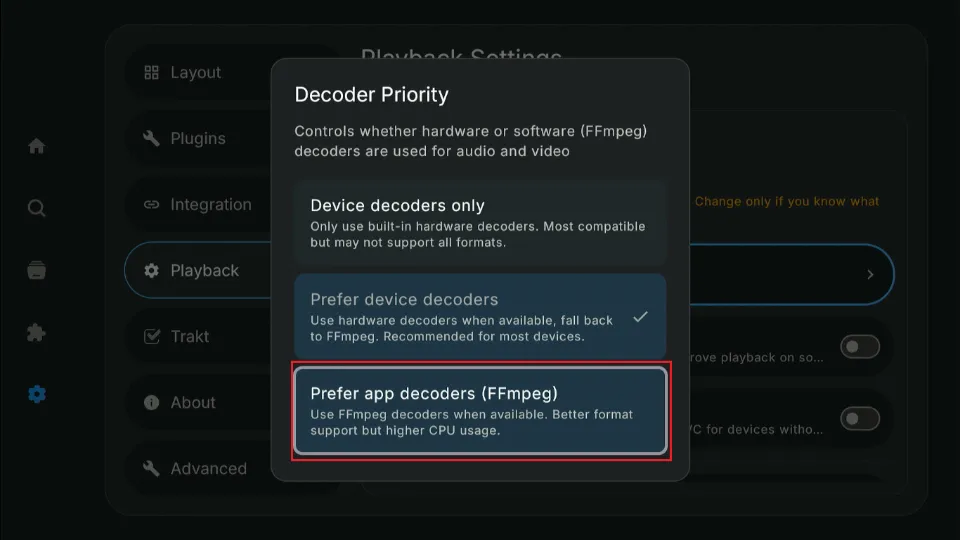
The issue should be fixed.
Wrapping Up
Nuvio is a new media center that lets you stream movies, TV shows, live TV, sports, and other online content in one place. Like Stremio, it relies on add-ons and plugins that provide content from external sources. This guide shows how to install Nuvio on Google TV, Android TV, and FireStick, set up a free account, and use the app on your device.
Have you installed the new Nuvio app on your device? Share your experience, thoughts, and questions below in the comments section.
Suberboost Your FireStick with My Free Guide
Stay Ahead: Weekly Insights on the Latest in Free Streaming!
No spam, ever. Unsubscribe anytime.