
This guide will show you how to set up and use Sling TV on FireStick. This app works on the Amazon FireStick, FireStick Lite, FireStick 4K, FireStick 4K Max, Android, iOS, and Web platforms.
What is Sling TV?
Sling TV is Dish Network’s internet arm. The streaming service provides live TV and on-demand content, offering an affordable alternative to traditional cable TV.
Sling TV is not related to Slingbox. They are two different services.
With Sling TV’s flexible plans, you can access popular US channels for news, entertainment, and sports. One of the best parts of Sling TV is its customizability. You can choose a base plan and then add extra channels and services, such as sports, entertainment, and international channels.
Sling TV offers a decent library of on-demand content, including movies, TV shows, and kids’ content. Availability varies by location and subscription package. To get the most out of Sling TV’s on-demand library, you can pair it with add-ons like STARZ, Discovery+, and Showtime.
While Sling TV is known for its subscription-based monthly packages, it recently introduced free content under the Sling FreeStream section. Sling Freestream offers over 600 free TV channels and thousands of on-demand videos.
Sling TV requires no special setup or equipment, no contract, and lets you stream your favorite channels easily. For these reasons and more, the app is on our list of the best FireStick apps.
For FireStick Users
ISPs, hackers, and other third-party entities worldwide may monitor your online activities. For security, privacy, and smooth streaming, it is recommended to use a reliable VPN for FireStick. Your IP address is visible to sites you visit.
I recommend ExpressVPN, a fast and secure VPN. It is very easy to install on any device, including an Amazon Fire TV Stick. Also, it comes with a 30-day money-back guarantee. If you don't like their service, you can always ask for a refund. ExpressVPN also has a special deal where you can get 4 months free and save 81% on the 2-year plan.
Read: How to Install and Use the Best VPN for FireStick
Use a VPN to Watch Sling TV From Anywhere in the World
Sling TV is available only in the United States. However, you can use a VPN service to unblock Sling TV anywhere, regardless of your location.
With a VPN, you can choose one of the many servers in the US and enjoy Sling TV. A VPN also helps you avoid internet throttling and enjoy the internet to its maximum potential.
I use Express VPN and personally recommend it to you. ExpressVPN is the fastest VPN service. It is also FireTV-friendly and has hundreds of servers worldwide (including many in the US).
Sling TV Pricing & Plans
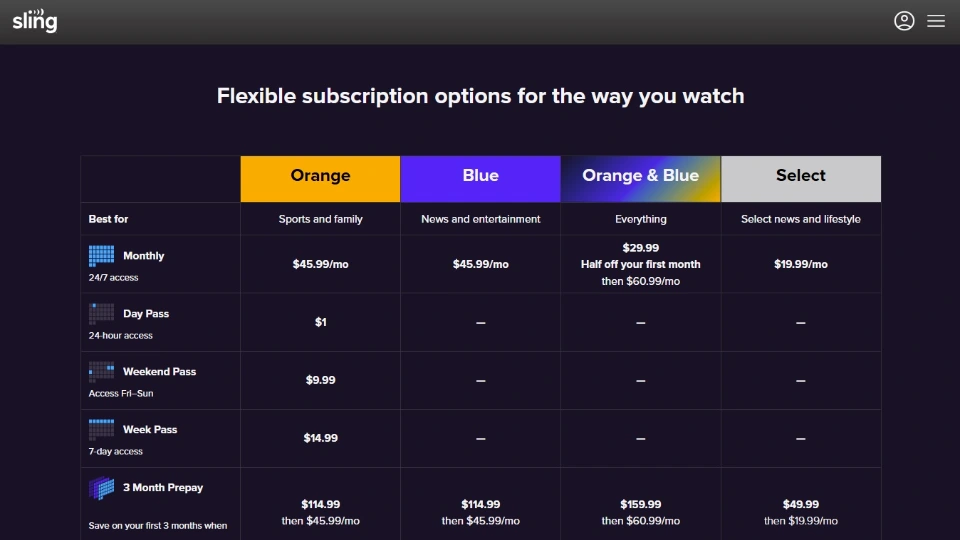
Sling TV offers four base plans and various add-ons.
These are the four base plans:
- Sling Orange (Sports and Family channels) at $45.99 per month
- Sling Blue (News and Entertainment channels) at $45.99 per month
- Sling Orange & Blue (Everything) at $60.99 per month ($29.99 for the first month)
- Sling Select (select news and lifestyle channels) at $19.99 per month
Sling offers additional deals for the Orange plan. These are:
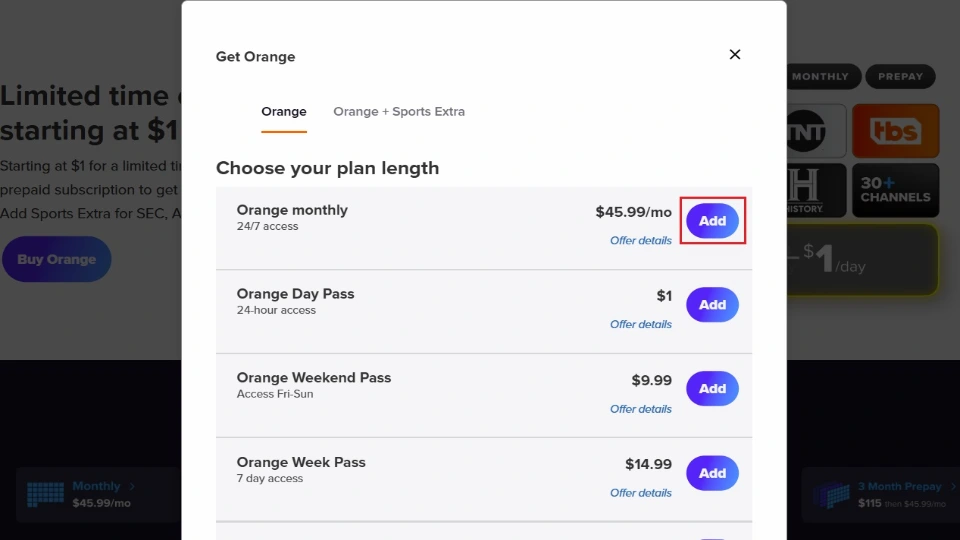
- Day Pass at $1
- Weekend Pass at $9.99
- Week Pass at $14.99
Sling TV Addons include:
- Sports Extra at $11 per month
- Entertainment Extra at $6 per month
- Kids Extra at $6 per month
- News Extra at $6 per month
- Lifestyle Extra at $6 per month
- Hollywood Extra at $6 per month
- Heartland Extra at $6 per month
- 4 Extras Deal at $13 per month
- Total TV Deal $21 per month
Sling TV Sign-Up
You must sign up for an account and purchase a base plan. Sling TV had a free trial, but discontinued it in 2023. Let’s get into the steps to sign up for Sling TV below:
Follow these steps to sign up for Sling TV:
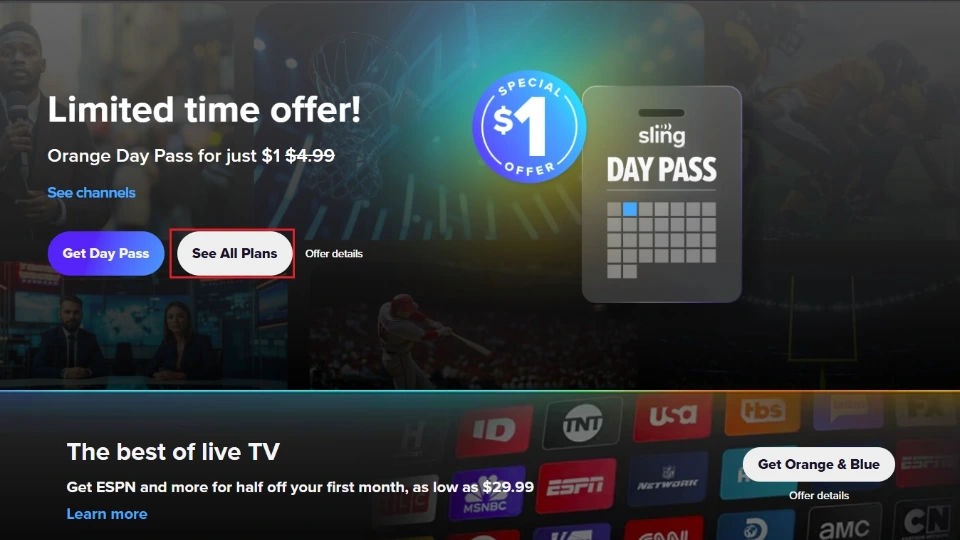
1. Visit https://sling.com on your computer or mobile device and click See All Plans.
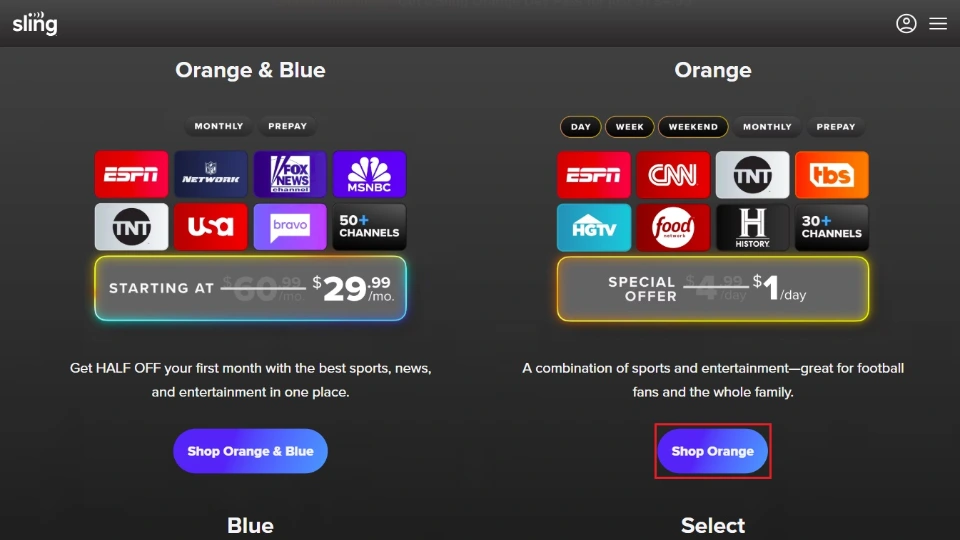
2. Select your preferred plan and click Shop. For instance, I selected Shop Orange.
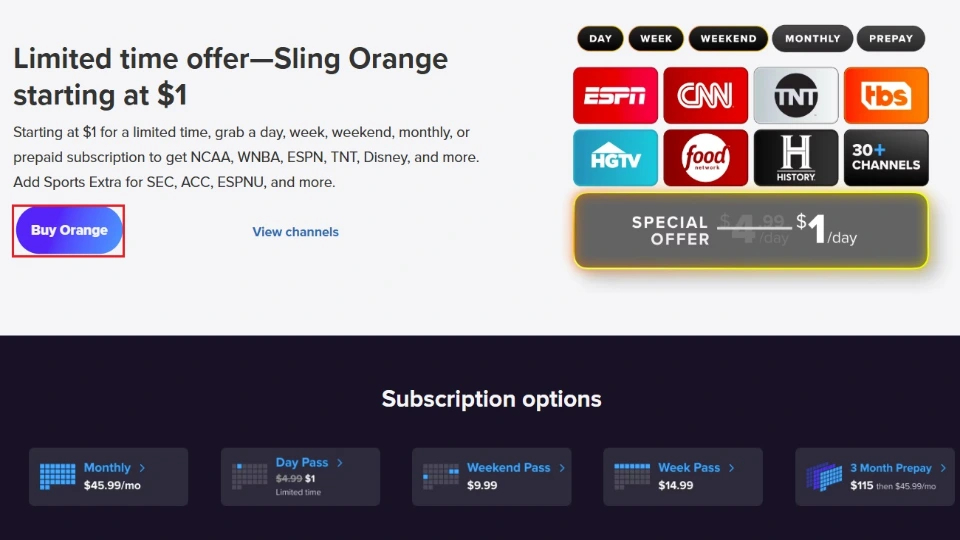
3. You’ll see more details about the plan you picked on the next window. Confirm your choice by selecting Buy. In my case, I clicked Buy Orange.
4. Once you have selected the base, it’s time to customize it. Choose your plan length and click Add. If you’d like to add additional addons, select your choice and click Add too.
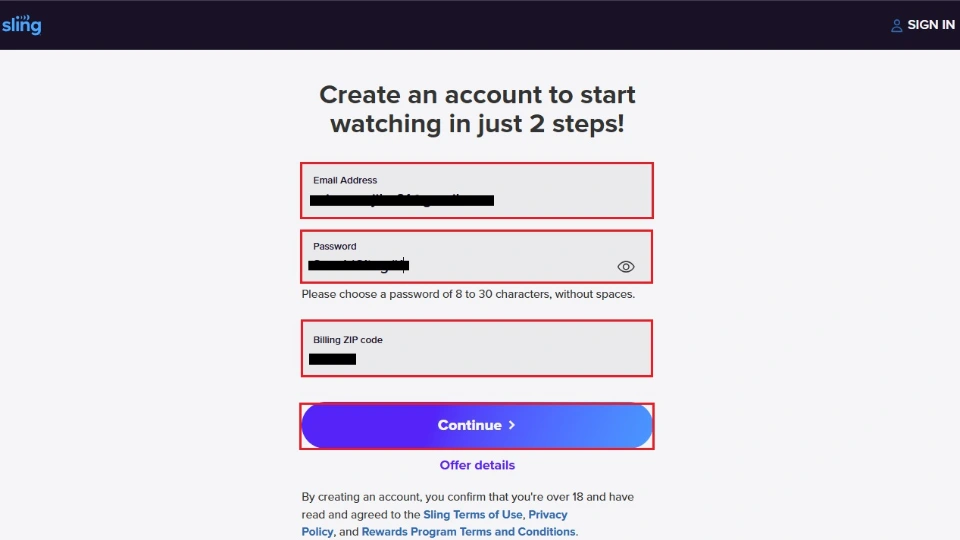
5. On the next page, enter relevant details to create a Sling TV account. These are your email address, password, and billing ZIP code. Click Continue.
6. Fill in your billing information, including card name, card number, and security code. Sling TV accepts credit cards, Apple Pay, PayPal, Amazon Pay, and Google Pay payments.
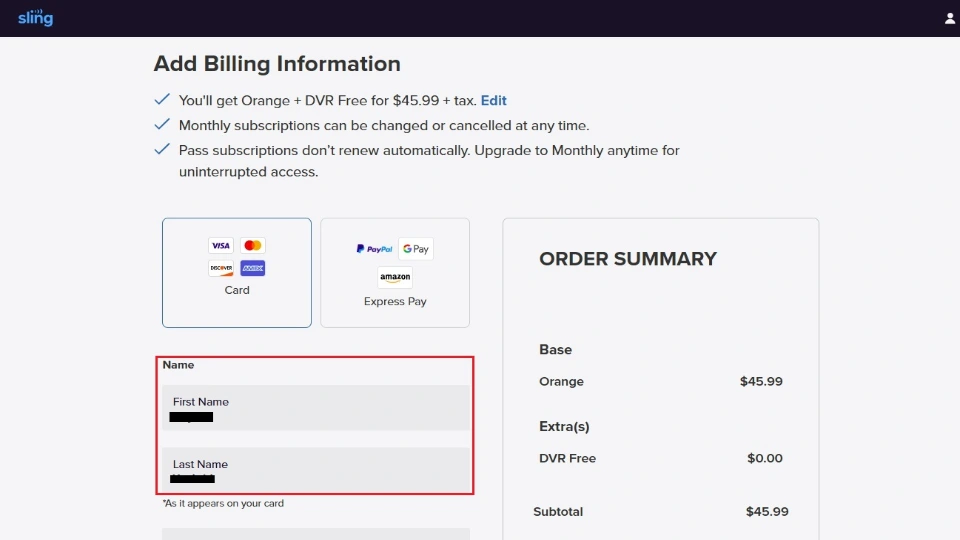
7. Confirm your billing details and click Finish & Submit.
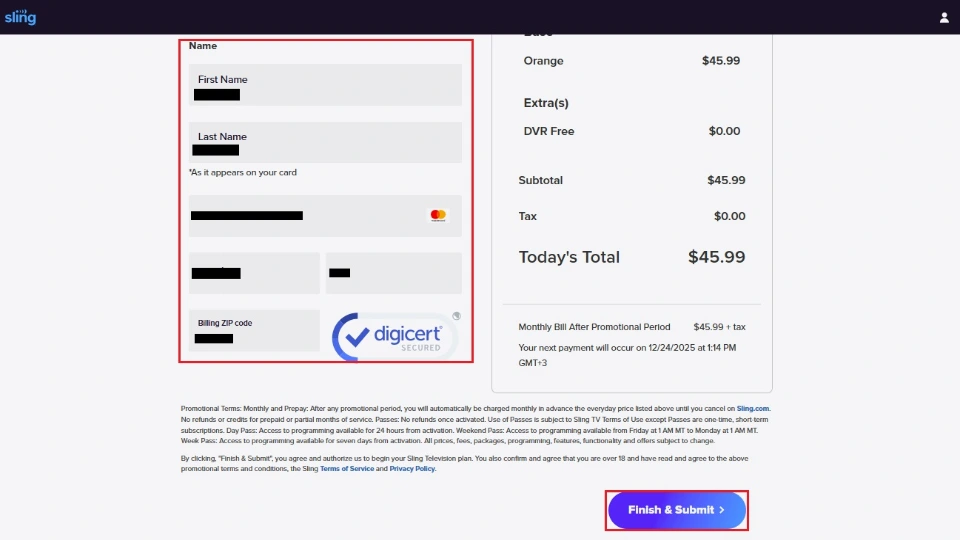
Sling TV will set up your account and process your payment. You’ll receive a confirmation email with your account details. That’s how you sign up for Sling TV.
How to Install Sling TV on FireStick
Now, I will show you how to get Sling TV on FireStick. Fortunately, you won’t have to sideload the app as it’s officially available on the Amazon App Store. Here are the steps:
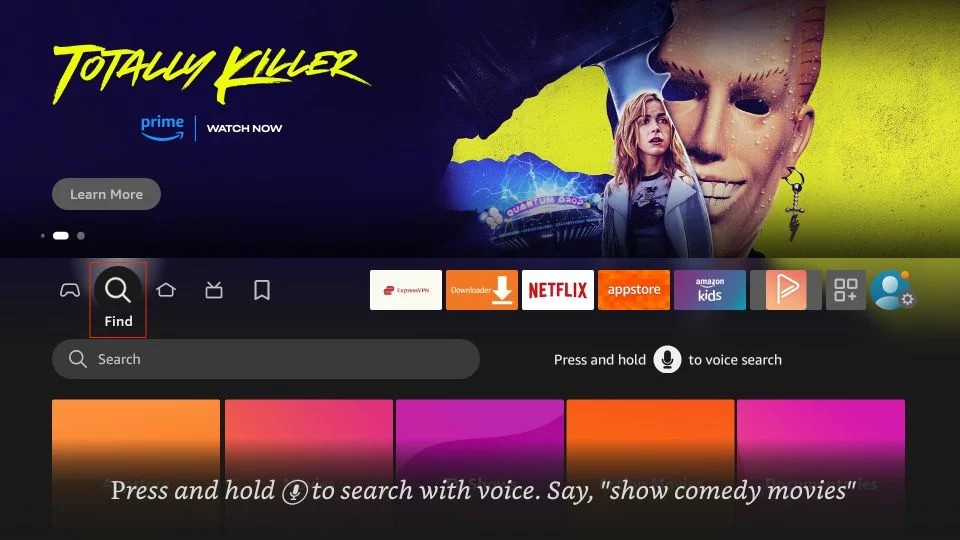
1. Select Search.
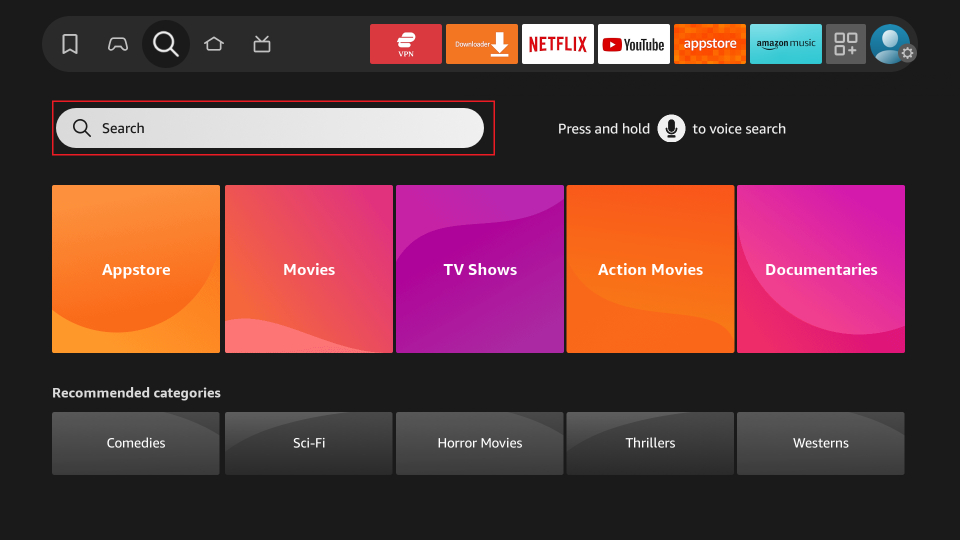
2. Scroll down and click the Search input box.
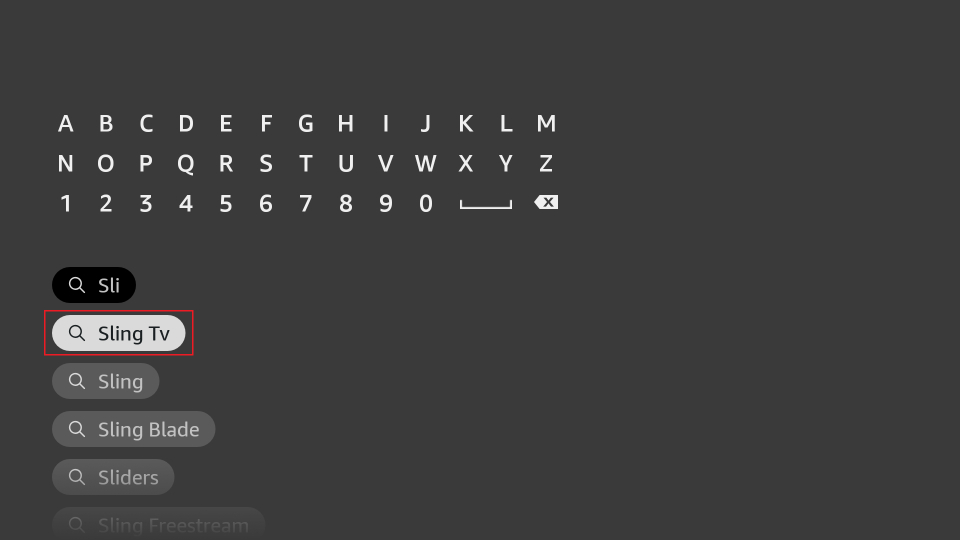
3. Enter Sling TV and select it.
4. Open Sling TV.
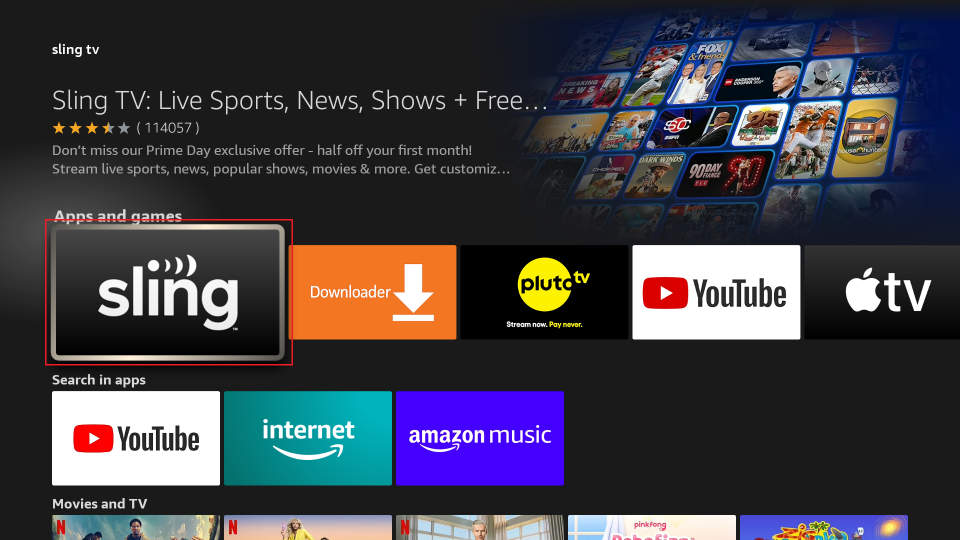
5. Click Download/Get.
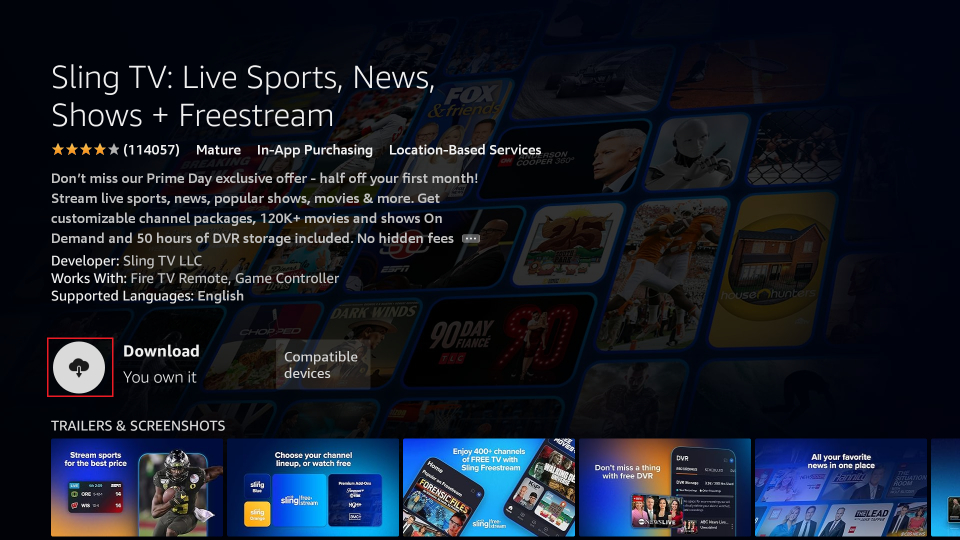
6. Wait for the download and installation to be completed.
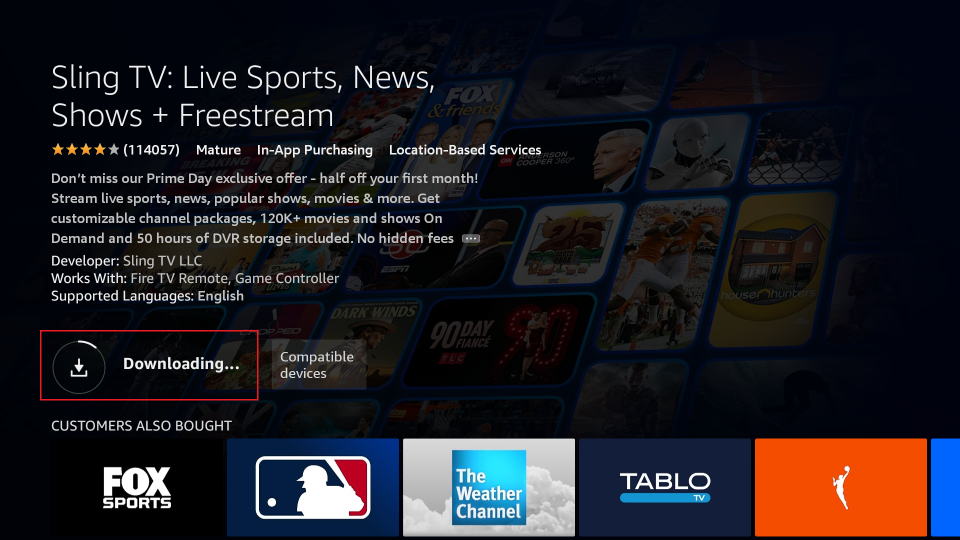
7. Once done, a notification will appear – Sling TV Ready to launch!
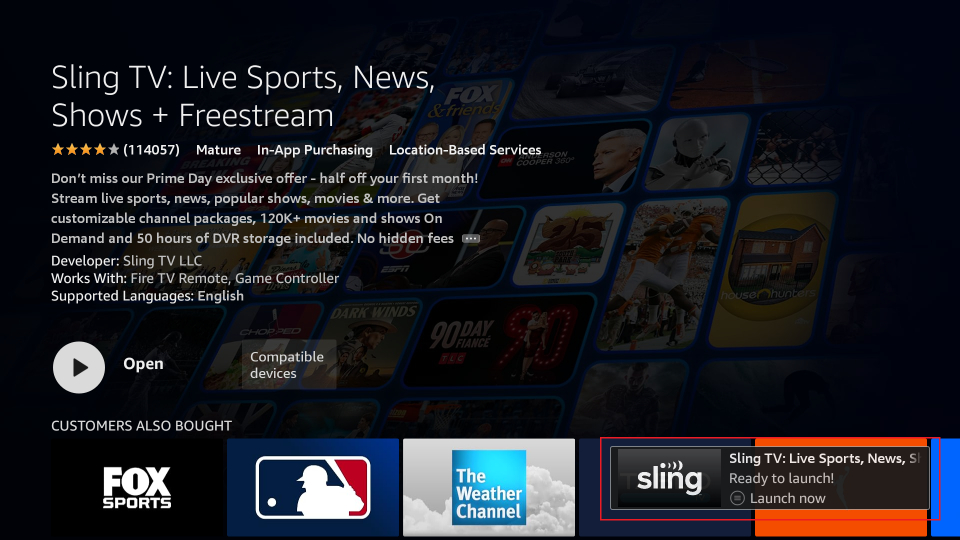
This is how you install Sling TV on FireStick.
How to Stream on FireStick with a VPN
Your internet provider and many websites/apps can see your IP address and some details about your connection. Using a VPN encrypts your traffic and masks your IP address, which helps protect your online privacy.
I recommend ExpressVPN. It’s a reputable VPN with strong encryption and fast connections, and it’s straightforward to install on Fire TV/FireStick and other devices.
Next, I’ll show you how to set up and use ExpressVPN on your Fire TV/Stick.
Step 1: Subscribe to ExpressVPN HERE. It comes with a 30-day money-back guarantee. Meaning, you can use it for free for the first 30 days, and if you are not satisfied with the performance (which is highly unlikely), you can ask for a full refund.
Step 2: Power ON your Fire TV Stick and go to Find, followed by the Search option.
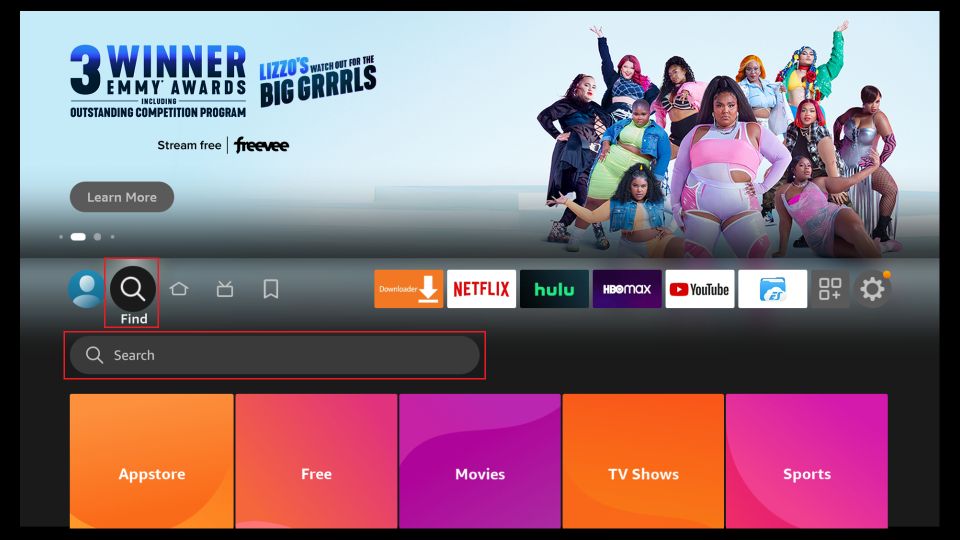
Step 3: Now type “Expressvpn” (without quotes) in the search bar and select ExpressVPN when it shows up in the search results.
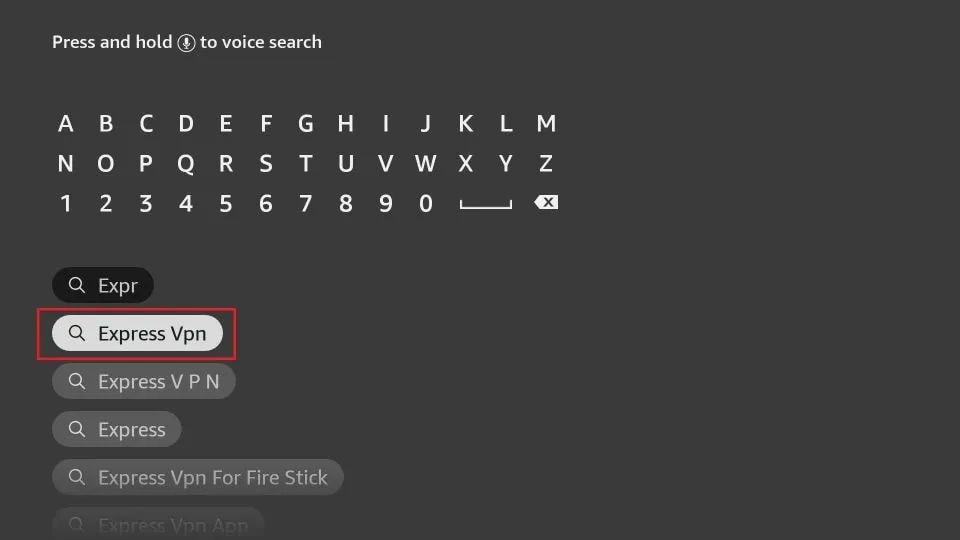
Step 4: Click Download to install the ExpressVPN app on Fire TV / Stick.
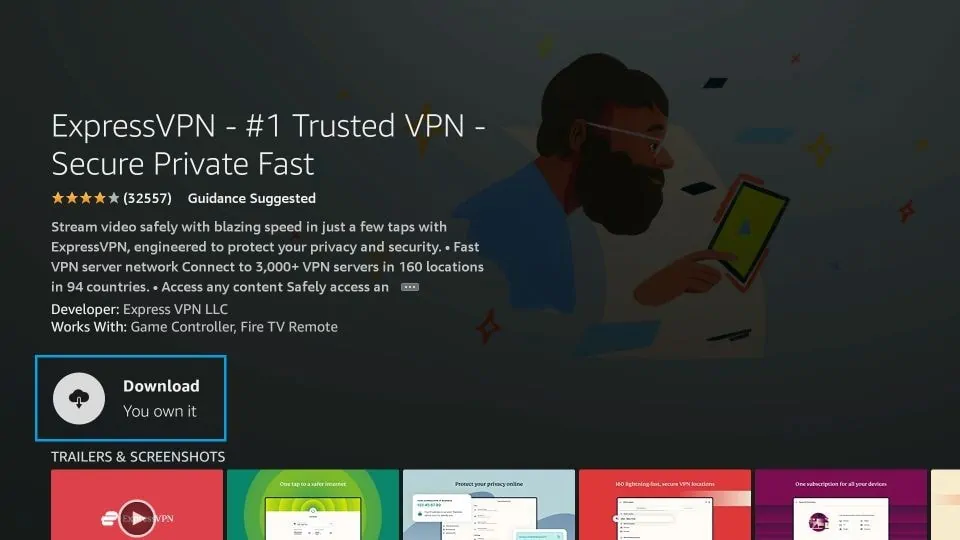
Step 5: Open the app and enter the login credentials that you created when you purchased the ExpressVPN subscription. Click Sign in.
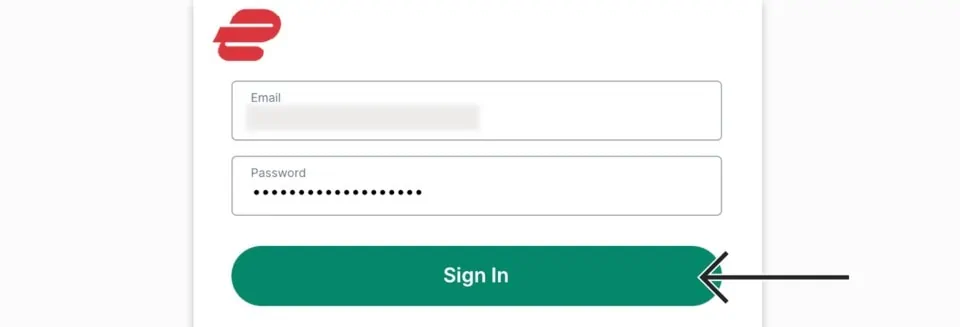
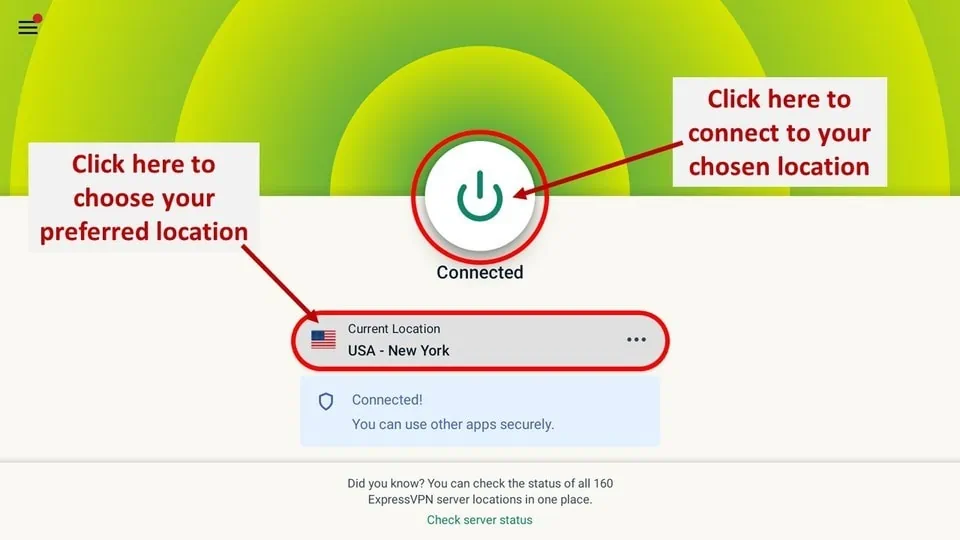
Step 6: Click the Power icon to connect to a VPN server. That’s all. Your connection is now secure with the fastest and best VPN for FireStick.
How to Set Up Sling TV on FireStick
Here’s how you can easily access Sling TV by pinning it to your home screen’s app section and signing in to your Sling account:
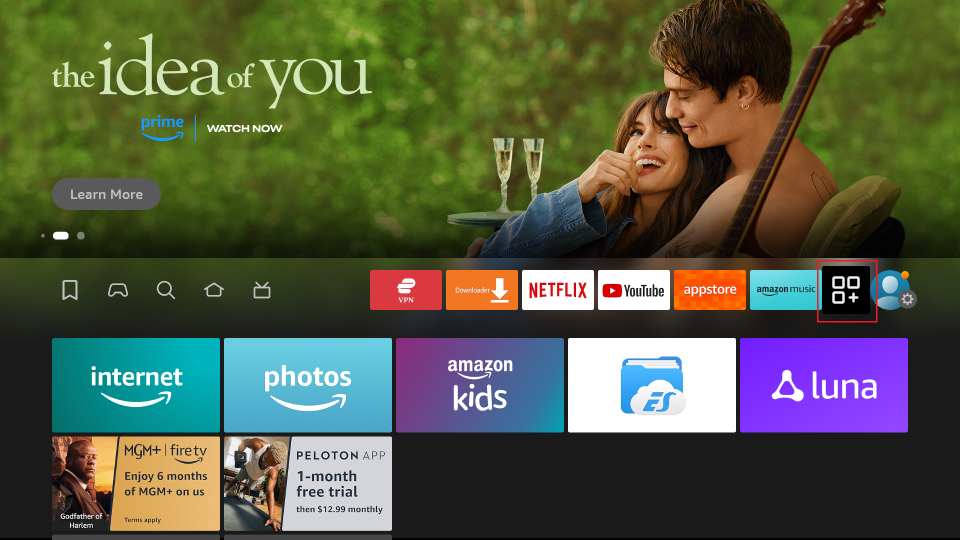
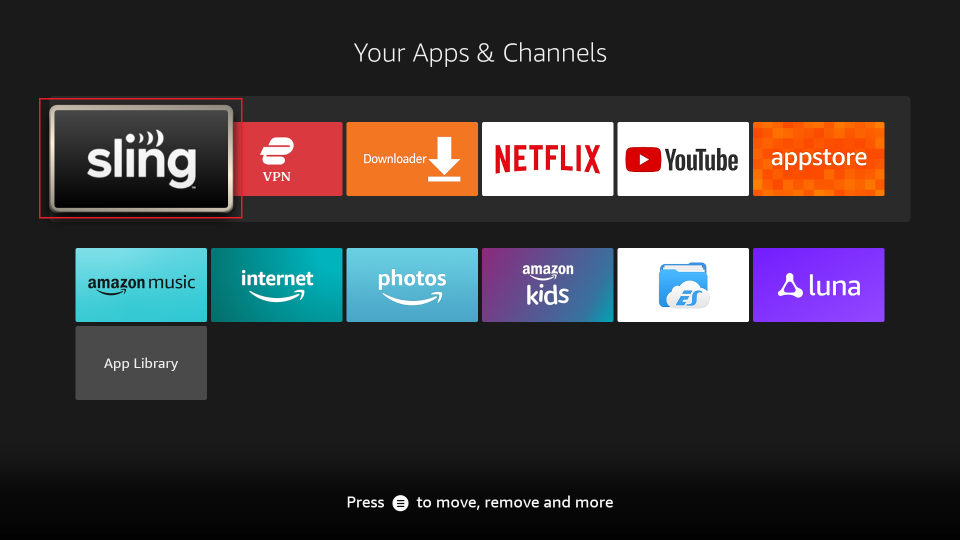
1. Select the App logo.
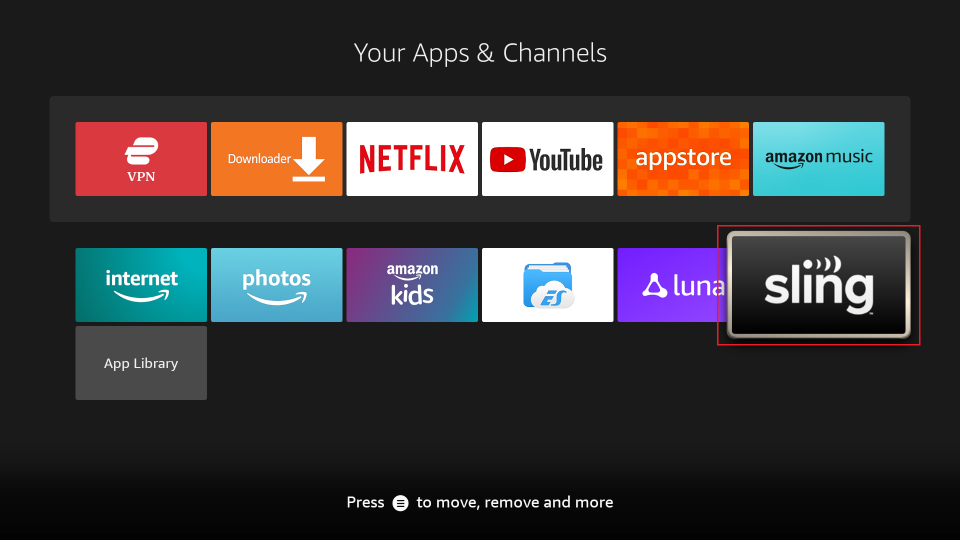
2. Use the navigation buttons to go to the Sling tile, but don’t launch the app. Instead, press the Menu button on your FireStick remote.
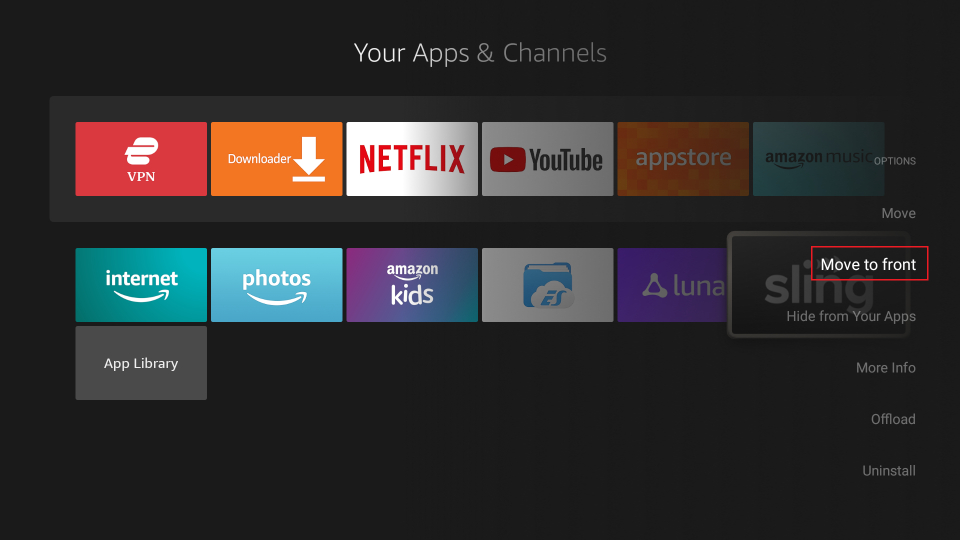
3. Select Move to front.
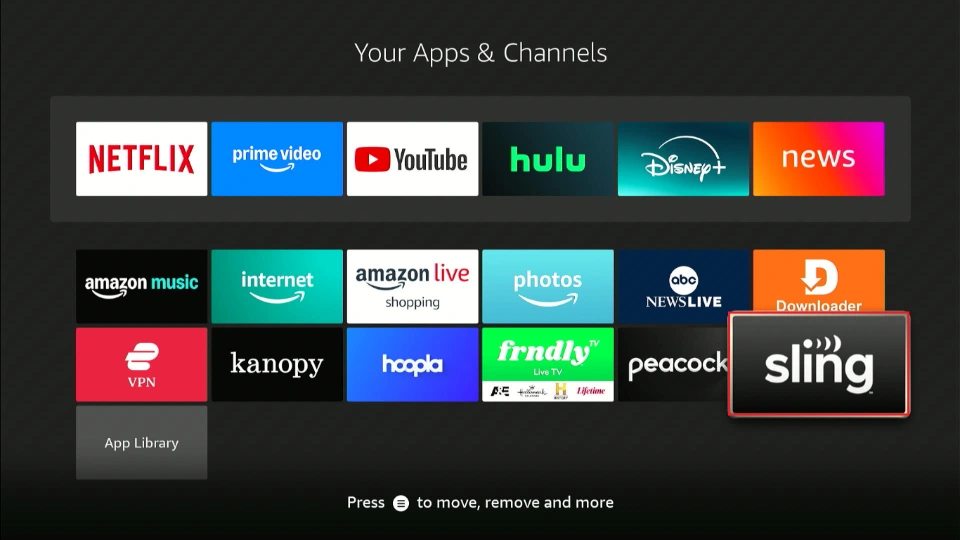
4. The Sling TV app icon is now available on the first tray and your home screen. Next, launch Sling.
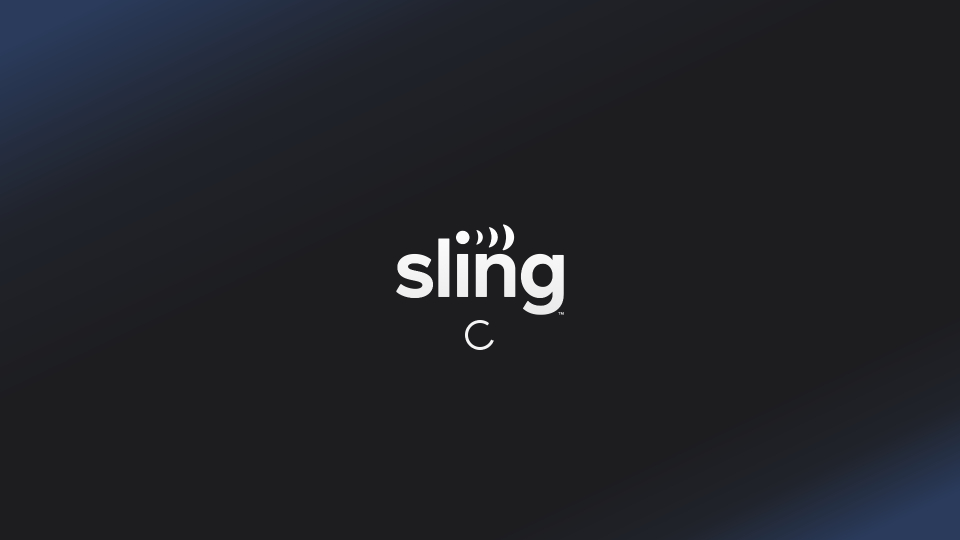
5. Wait for Sling to load.
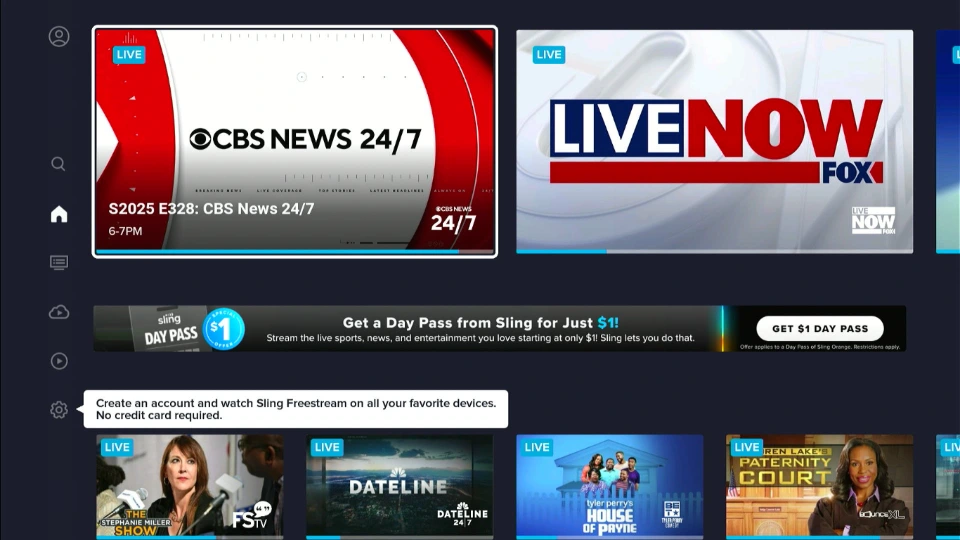
6. This is what the Sling TV home screen looks like. Select a channel or video to start streaming.
You have successfully installed Sling TV on FireStick.
How to Use Sling TV on Amazon FireStick
My Sling TV premium account has expired, so I will use Sling FreeStream to show you around the app. You can also access the service for free without creating an account.
Launch the Sling TV app from the Your Apps & Channels window or from the front row on your FireStick.
Wait for Sling Freestream to load.
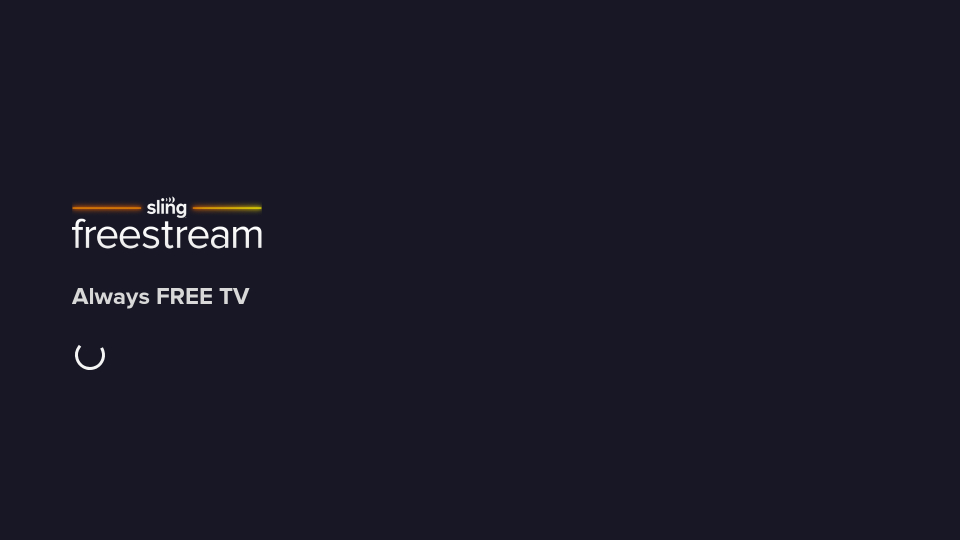
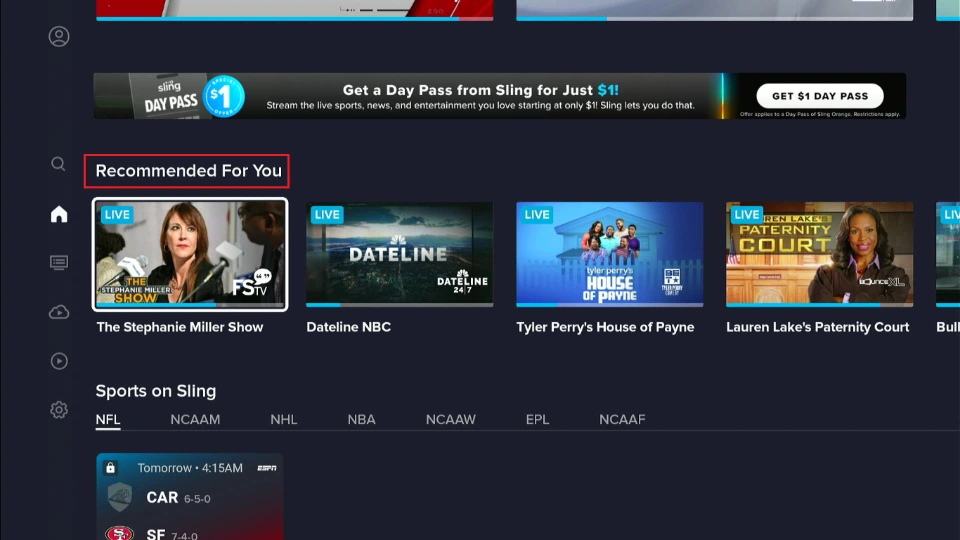
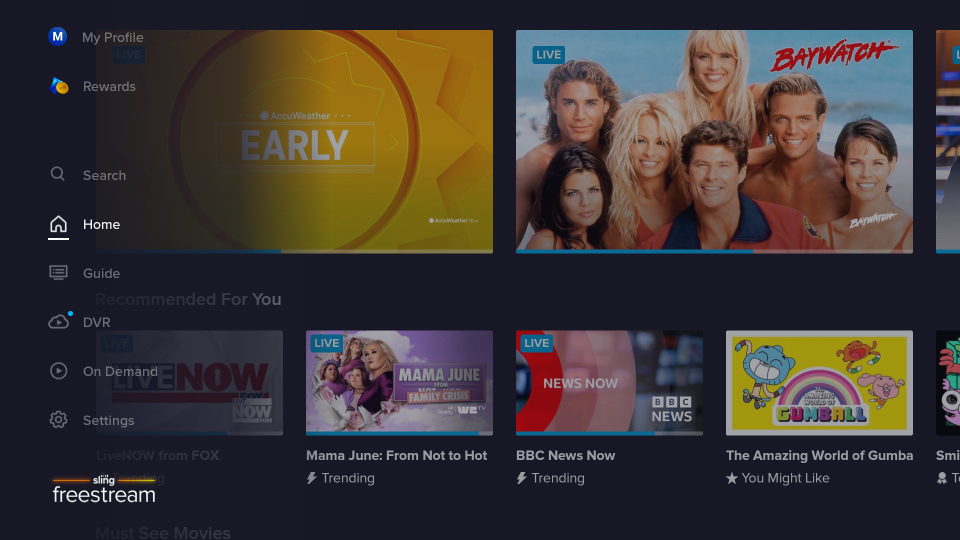
You’ll land on the Sling Freestream home page. Here, you’ll see the Recommended For You section.
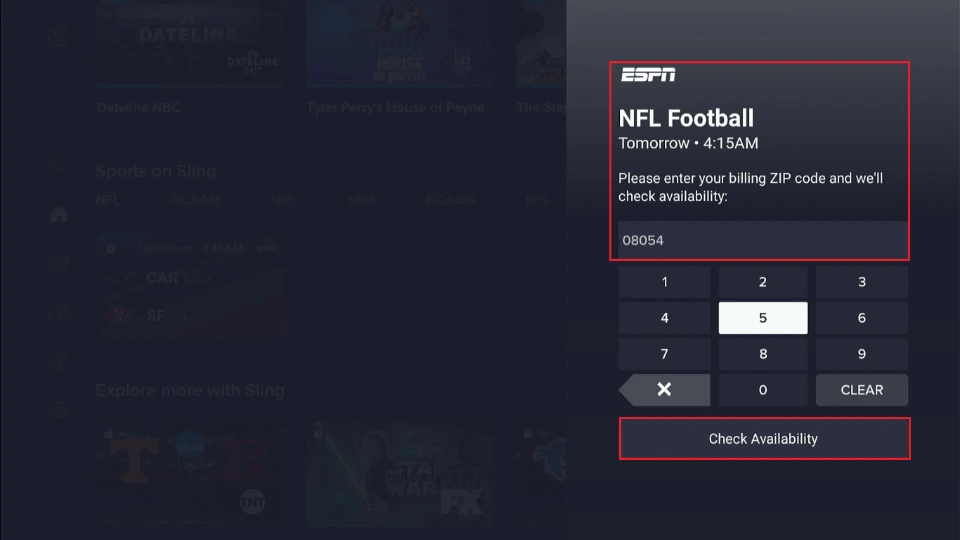
Premium content features a lock icon. The icon sets apart free and paid content on the Sling app on Firestick.

Clicking this content opens a new window prompting you to enter your billing zip code to check availability.
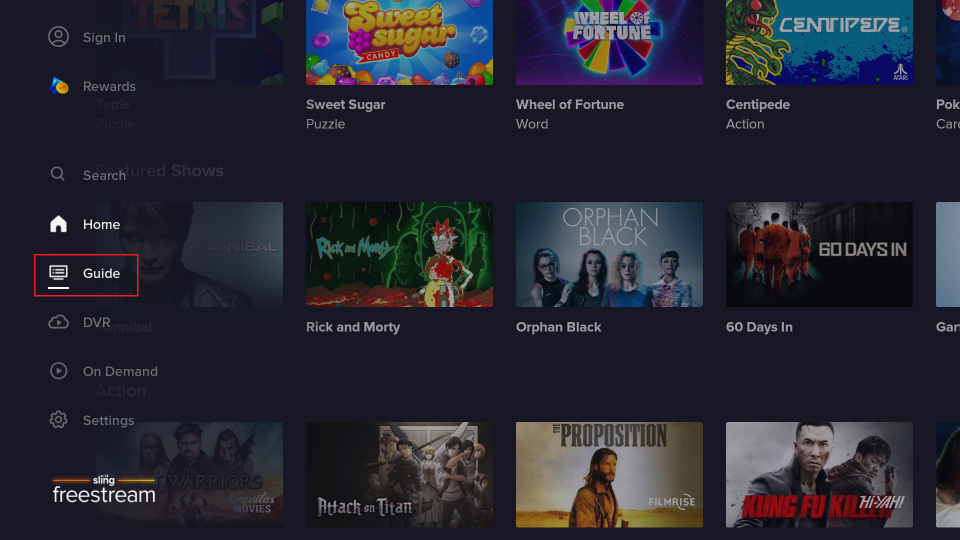
Return to the home page to see other featured sections. Access the side menu by pressing the Left button on your FireStick remote. From there, select Guide.
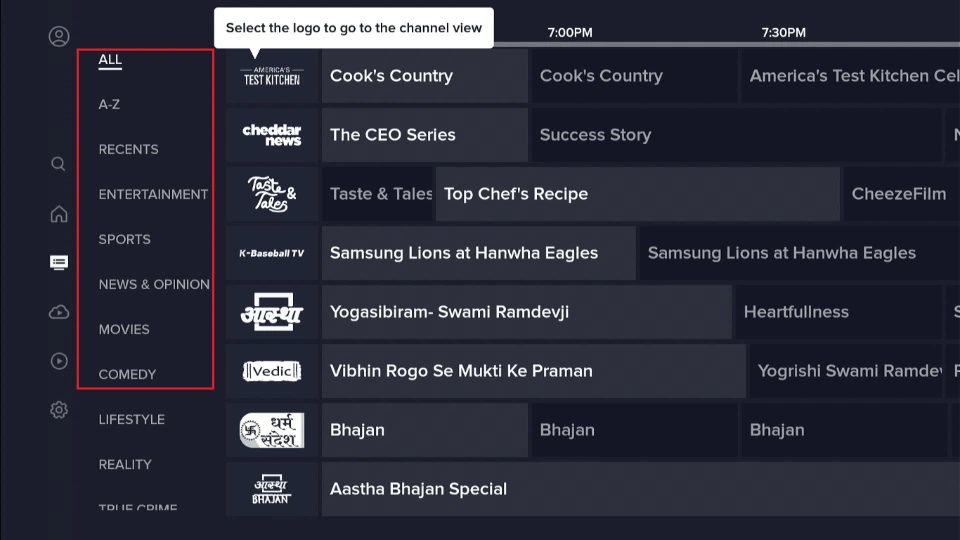
Here, you can access the complete Sling live TV guide. The section is split into sub-parts, such as A-Z, RECENTS, ENTERTAINMENT, SPORTS, LIFESTYLE, etc. To launch a channel, select its icon.
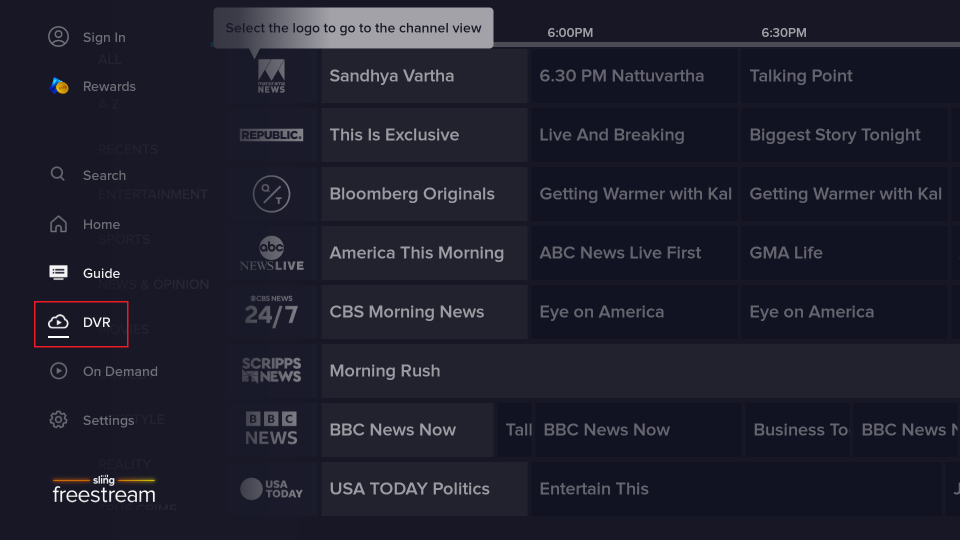
Next, we have the DVR section.
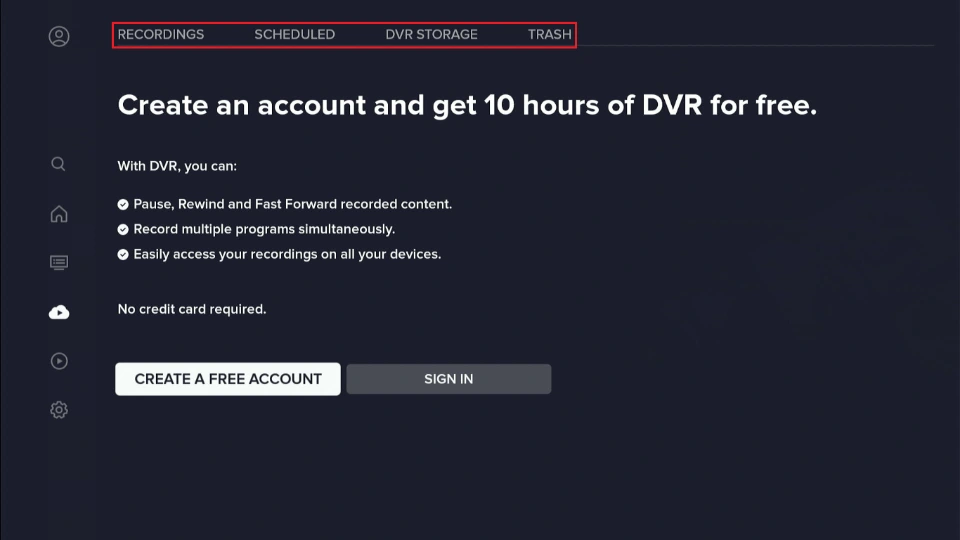
You can check your Recordings, Scheduled, DVR Storage, and Trash here.
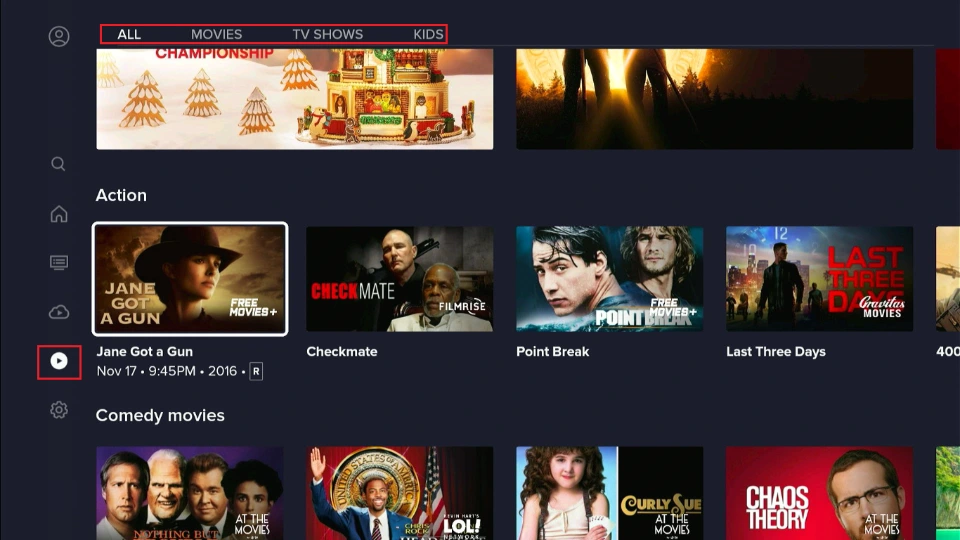
To watch movies & TV shows, open On Demand.
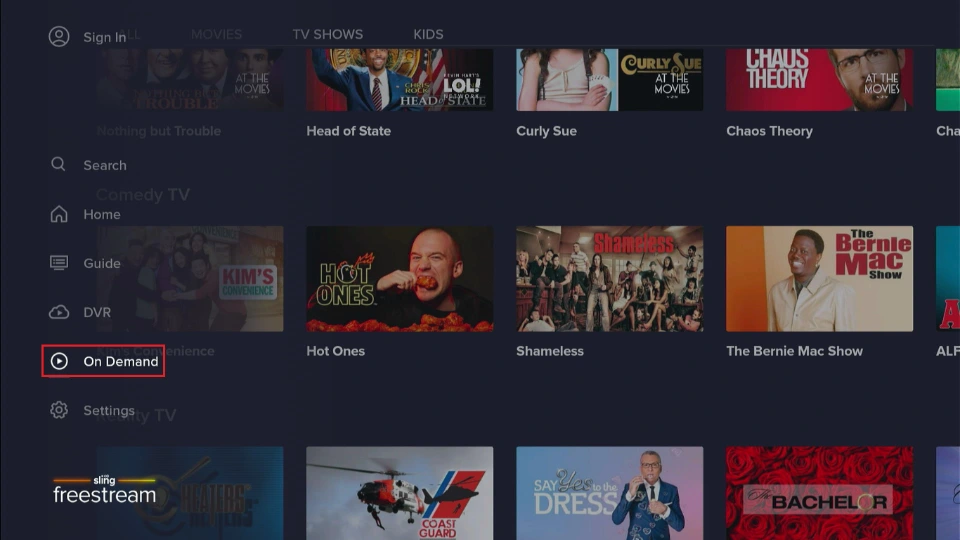
You can access on-demand content like Movies, TV Shows, Kids’ content, and more.
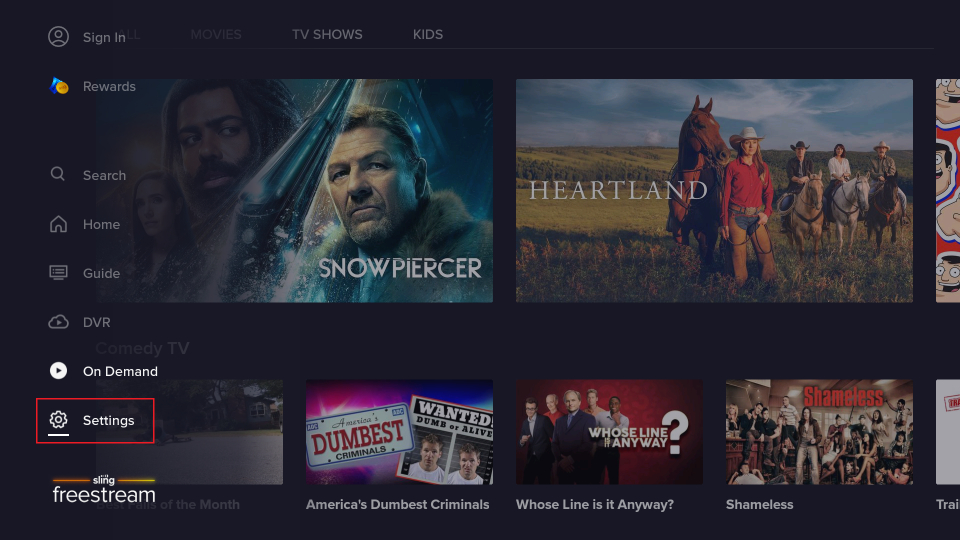
Down at the bottom, we have Settings.
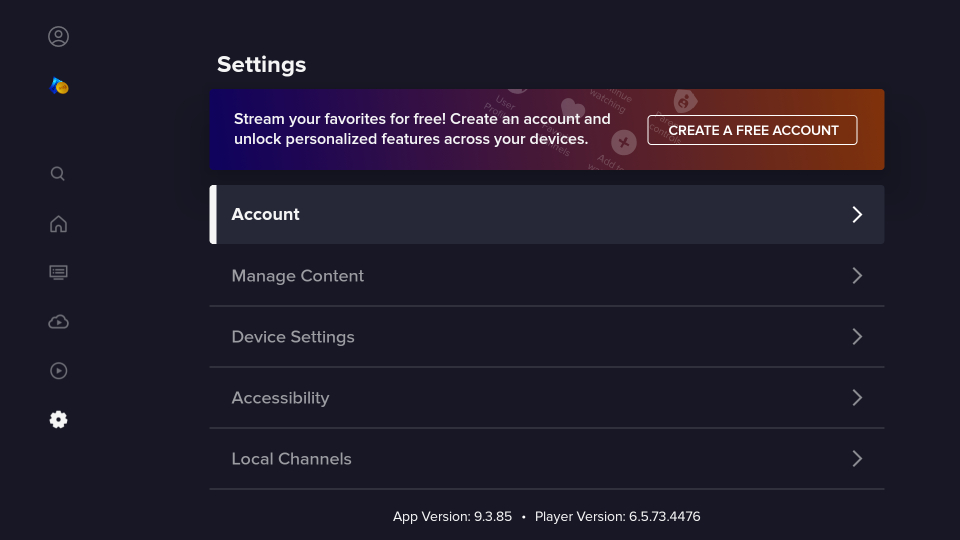
Here, you can access settings such as Account, Manage Content, Device Settings, Accessibility, and Local Channels.
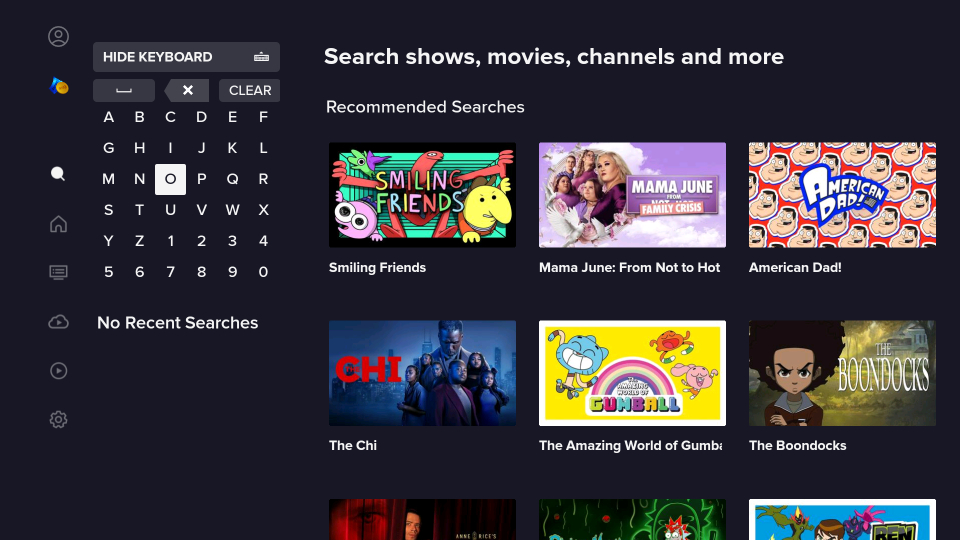
Go to Search to quickly find anything available on Sling TV.
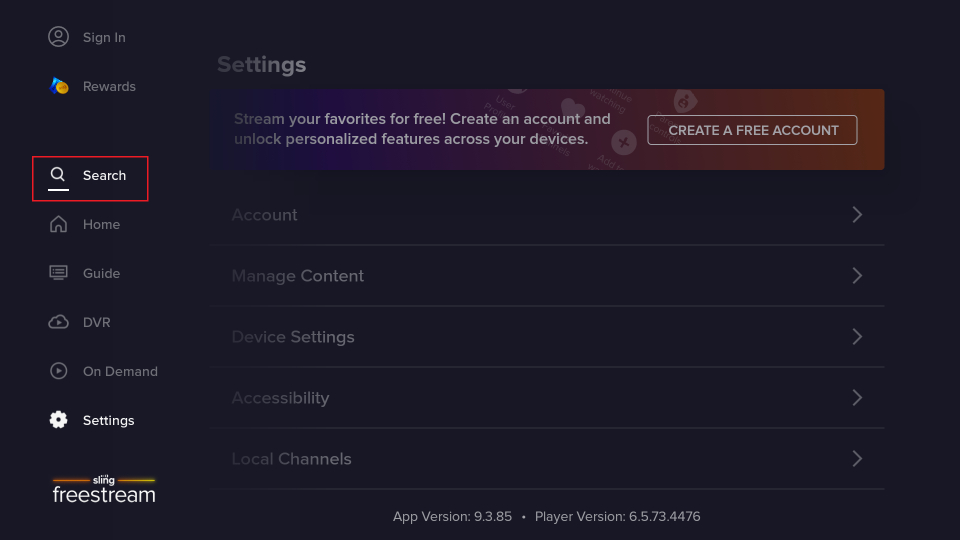
Type what you are looking for using the on-screen keyboard. The results will appear on the right side of your screen.
How to Create a Free Sling Freestream Account
Creating a free account for Sling Freestream is recommended to unlock personalized features.
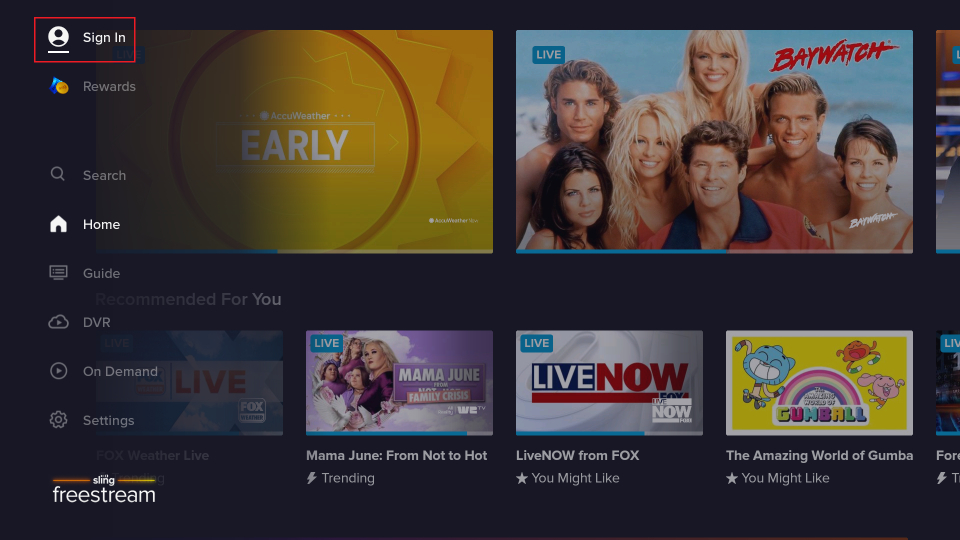
Go to Sign In.
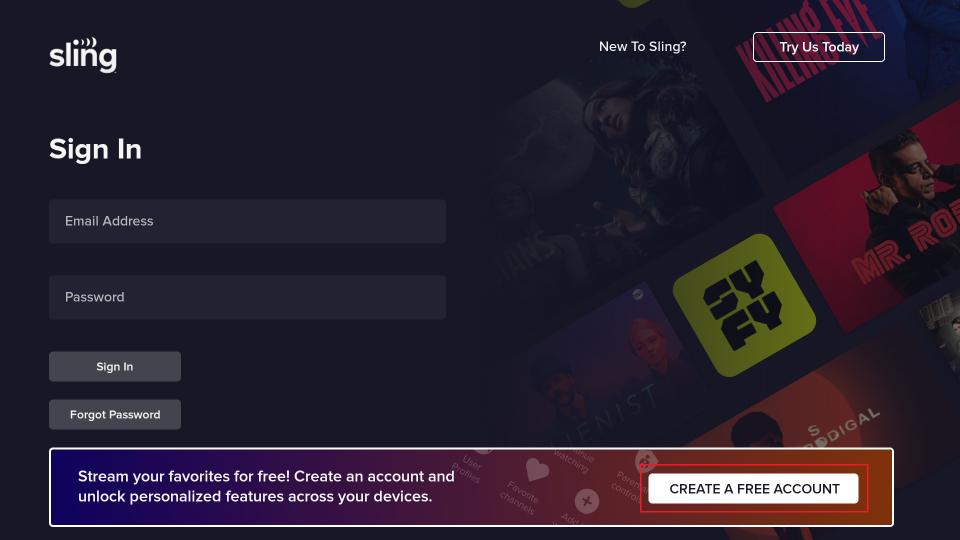
Select CREATE A FREE ACCOUNT.
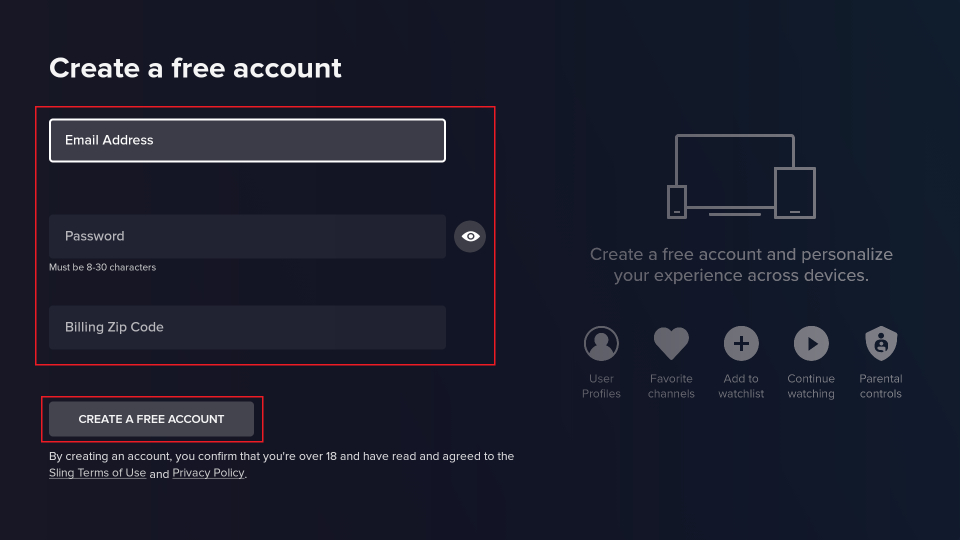
Enter your Email Address, Password, and Billing Zip Code. Then, click CREATE A FREE ACCOUNT.
Wait a few moments while Sling sets up your free account.
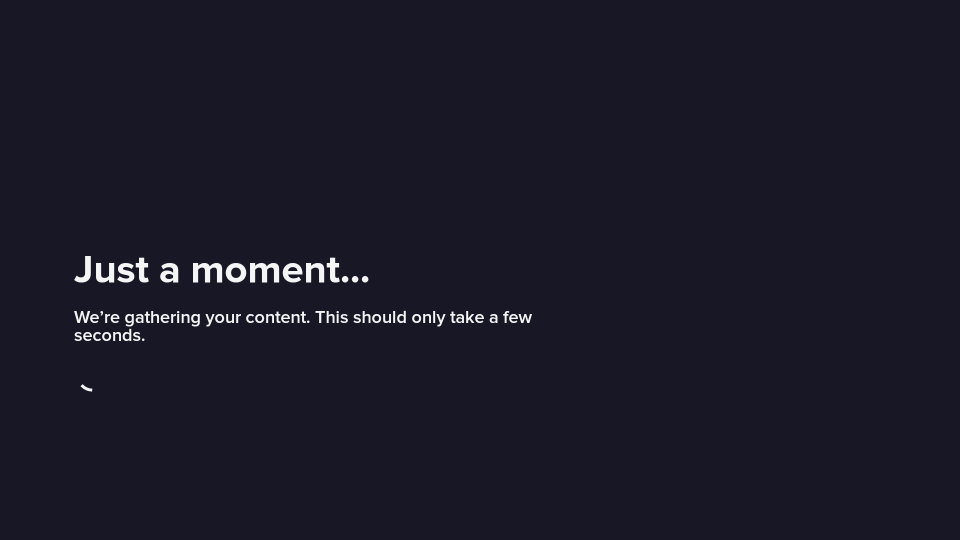
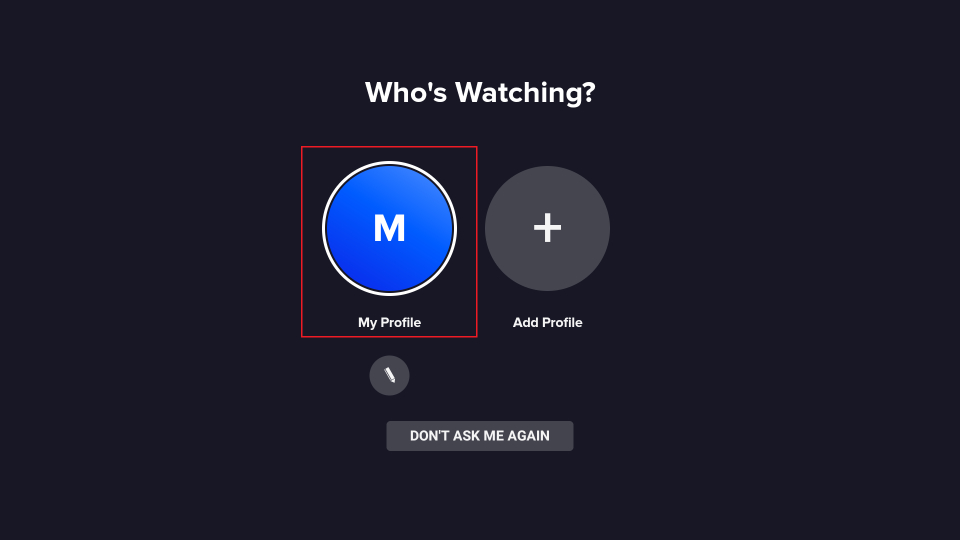
Select the profile to launch the Sling Freestream home screen.
Note: To edit the profile, select the Crayon button; to add a new profile, select Add Profile and follow the on-screen instructions.
Click OK.
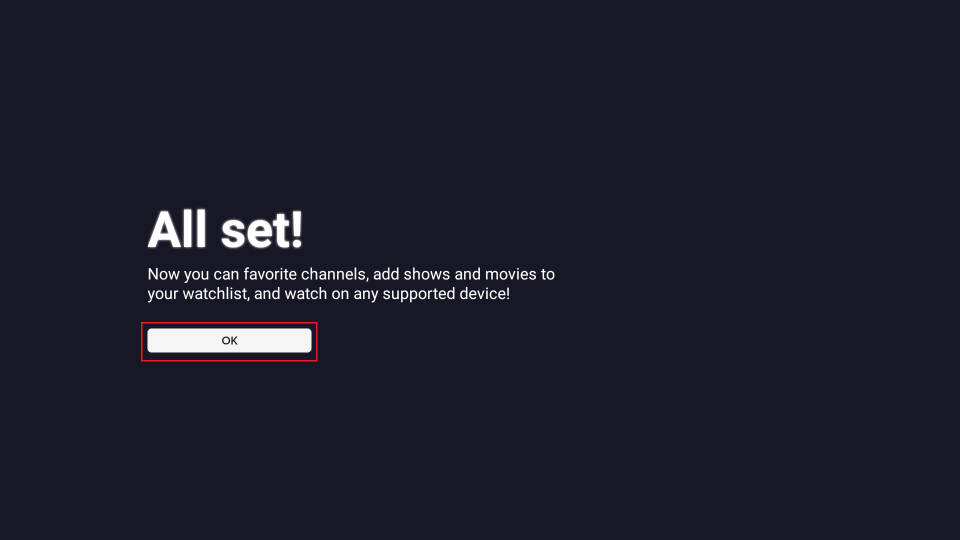
Congratulations! You have now created your free Sling Freestream account.
Fix Sling TV Issues On FireStick
Sling TV works smoothly on FireStick, with relatively few issues. But I can’t guarantee you won’t experience problems.
For instance, the videos sometimes go black repeatedly. The blackout is very brief but frustrating nonetheless. In other cases, users have reported unusual buffering issues, even on high-speed internet connections.
If you encounter such issues, it’s likely because Sling TV’s app data has taken up too much space on the device’s limited storage. You can fix this by clearing the Sling TV data and cache.
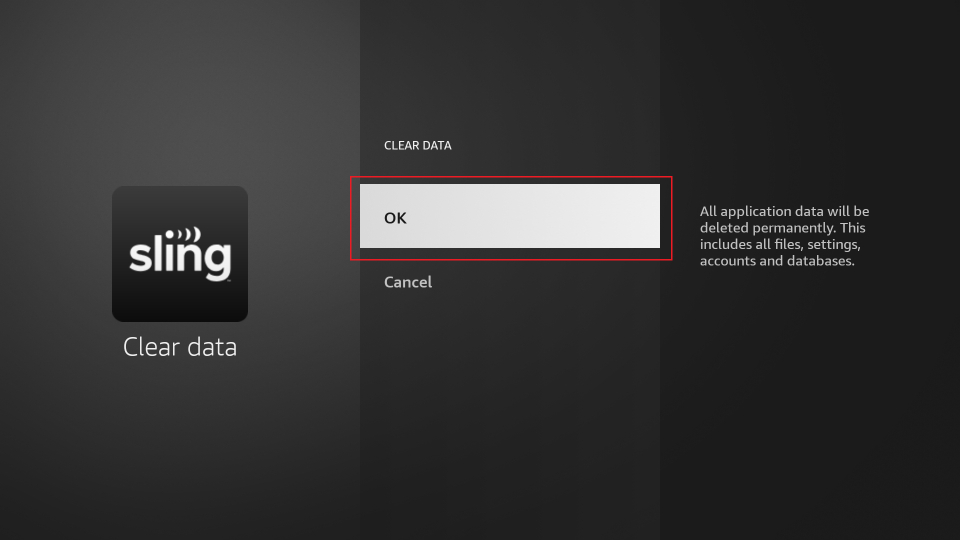
Note: Clearing app data will restore it to factory settings.
Here’s how to do it:
From the FireStick home screen, select Settings.
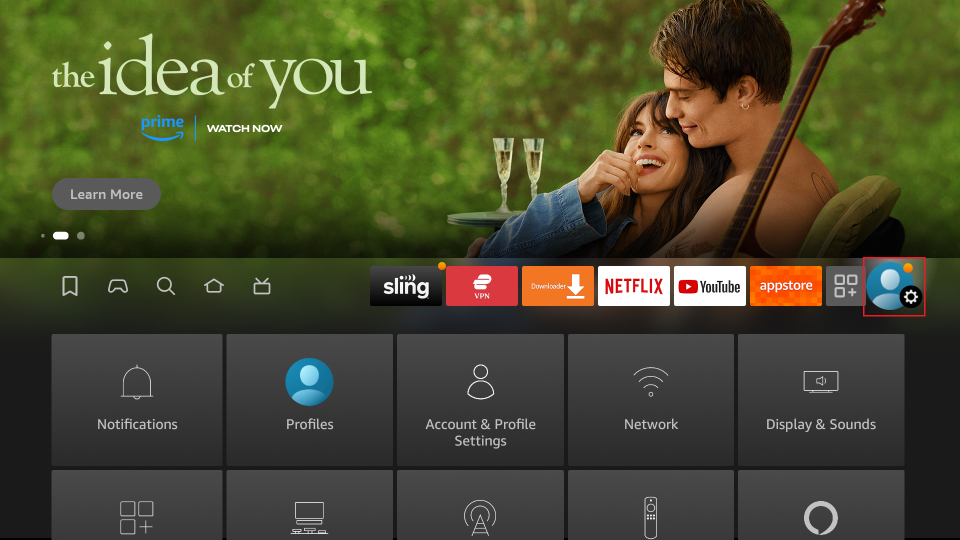
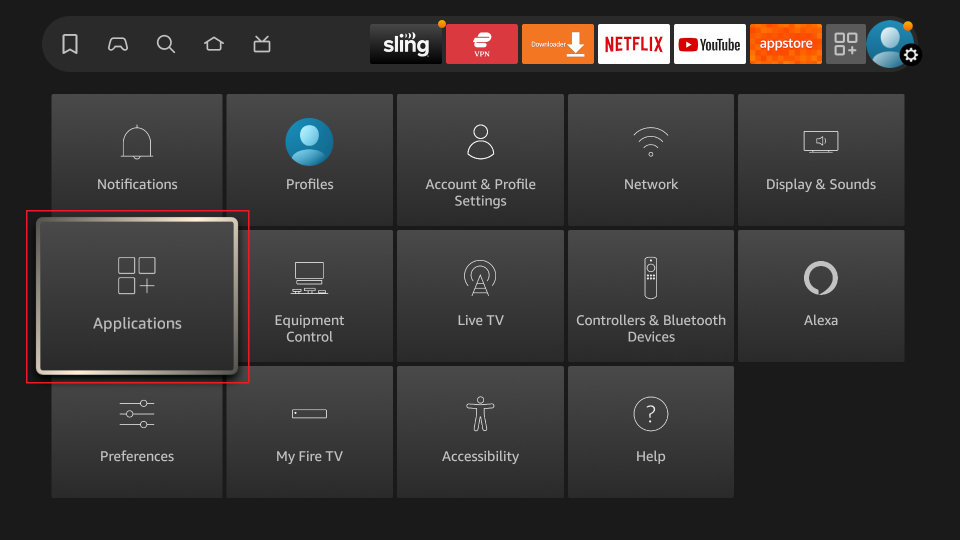
Choose Applications.
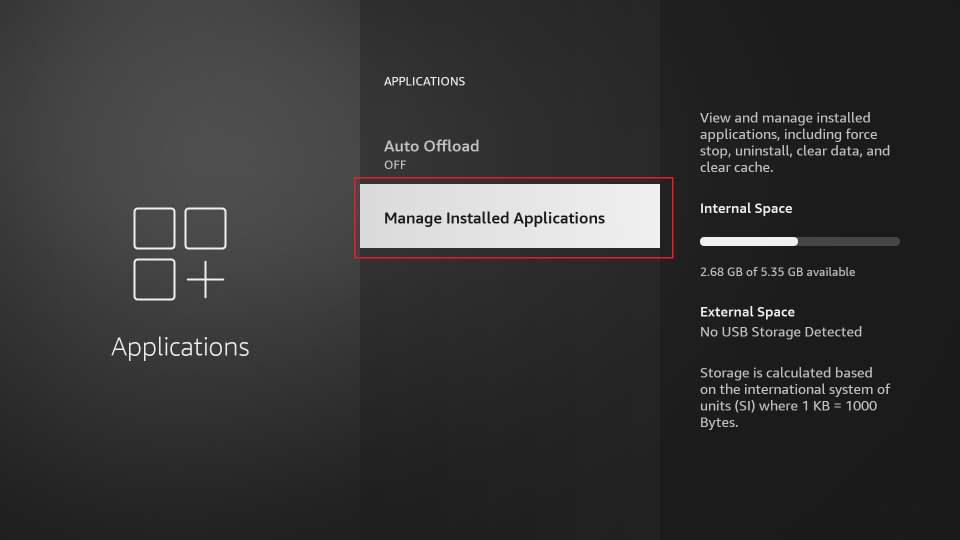
Scroll down and click Manage Installed Applications.
Scroll down again and click Sling TV from the list of installed apps on the next screen.
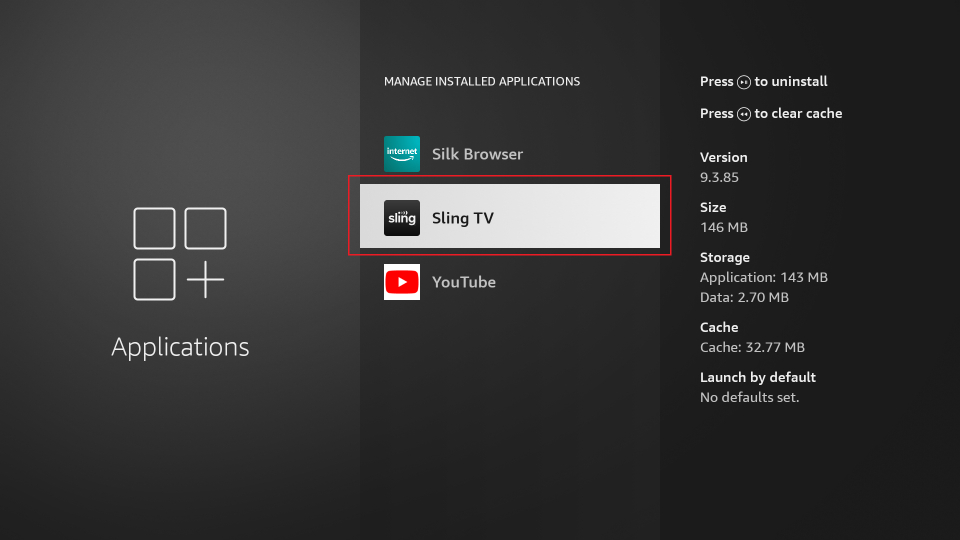
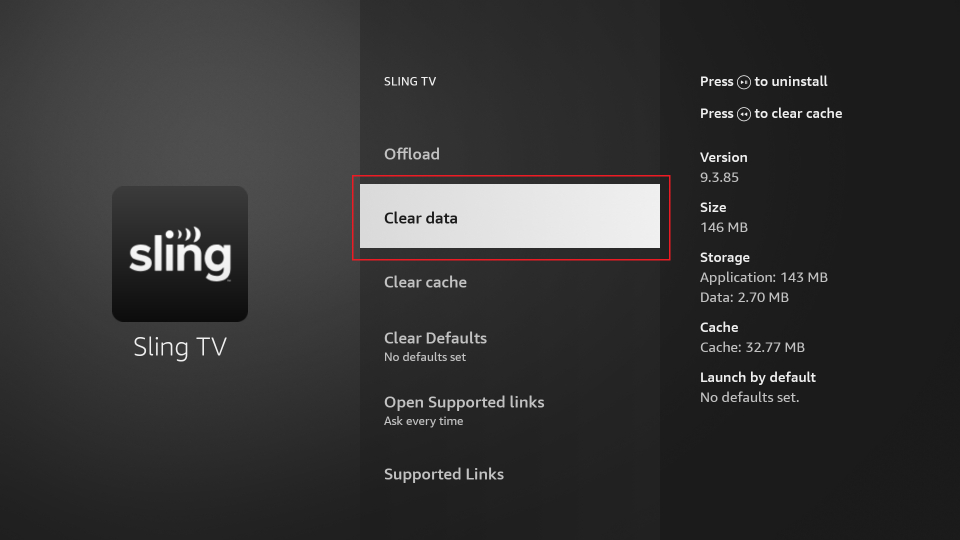
Now click Clear data.
Click OK.
Wrapping Up
Sling TV offers a pocket-friendly alternative to traditional cable. The service is popular for live TV and on-demand content, both free and premium. This guide explained how to install Sling TV on FireStick. Please share your feedback in the comments below.
Suberboost Your FireStick with My Free Guide
Stay Ahead: Weekly Insights on the Latest in Free Streaming!
No spam, ever. Unsubscribe anytime.




How do I get local channels & Fox Midwest