
This guide shows you how to sideload apps on all Amazon Fire TV devices, including FireStick Lite, FireStick 4K, FireStick 4K Max, Fire TV Cube, and Fire TVs running Fire OS. However, if you are using the latest Fire TV Stick HD, you will not be able to sideload apps using the Downloader app.
What Is a Downloader App for FireStick?
Downloader is an app developed by AFTVnews that lets you sideload apps on Firestick and Android TV.
Downloader allows you to:
- Browse websites
- Enter URLs and short codes to download files like APKs
- Open, install, delete, and manage apps
- Favorite your frequently visited URLs
- Navigate websites with your Fire TV remote
AFTVnews.com reports that Downloader has over 100 million users. Streamers highly regard the app, and the Kodi team states, “The only correct way of installing Kodi on Amazon devices is to stop using ES file Explorer!“
Best Features of Downloader
Here are the top features of Downloader:
- It lets you download files via URL, short code, or website
- Comes with an easy-to-manage file manager
- Receive regular updates to fix bugs
- Supported on Google TV, Android TV, Android phones/tablets, Fire TVs, and Fire tablets
- Available on all major app stores, including the Amazon App Store and the Google Play Store
In the next section, I’ll guide you through installing the Version 2 update of Downloader, featuring a redesigned interface and an expanded browser.
For FireStick Users
ISPs, hackers, and other third-party entities worldwide may monitor your online activities. For security, privacy, and smooth streaming, it is recommended to use a reliable VPN for FireStick. Your IP address is visible to sites you visit.
I recommend ExpressVPN, a fast and secure VPN. It is very easy to install on any device, including an Amazon Fire TV Stick. Also, it comes with a 30-day money-back guarantee. If you don't like their service, you can always ask for a refund. ExpressVPN also has a special deal where you can get 4 months free and save 81% on the 2-year plan.
Read: How to Install and Use the Best VPN for FireStick
How to Install Downloader App on FireStick (Updated Sep 2026)
Below are the step-by-step instructions to install Downloader on your FireStick via the Amazon App Store:
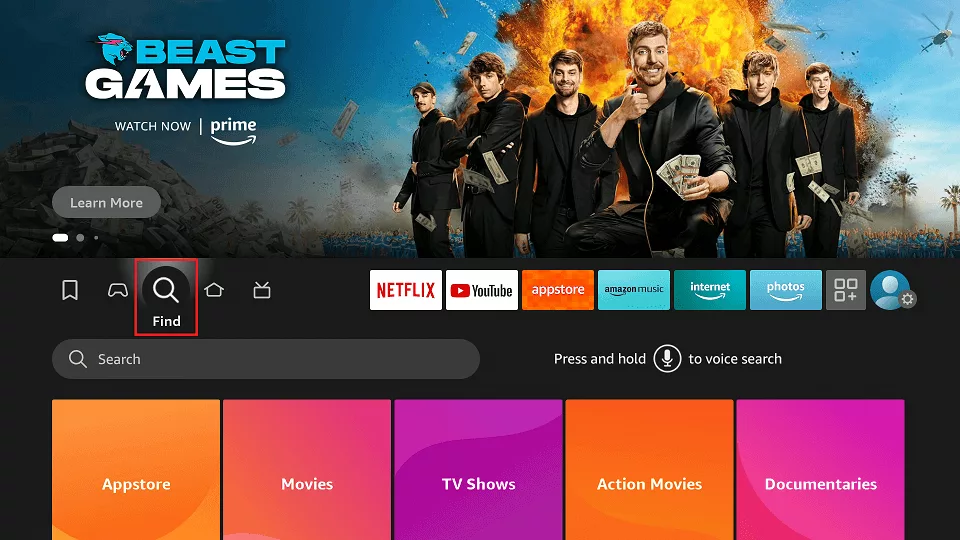
1. Click the Find icon on your FireStick home.
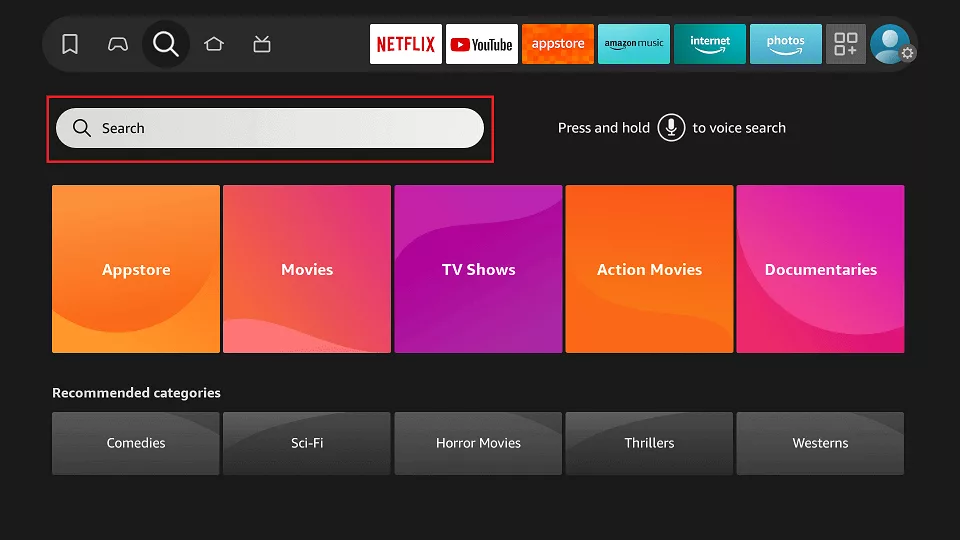
2. Select the Search box.
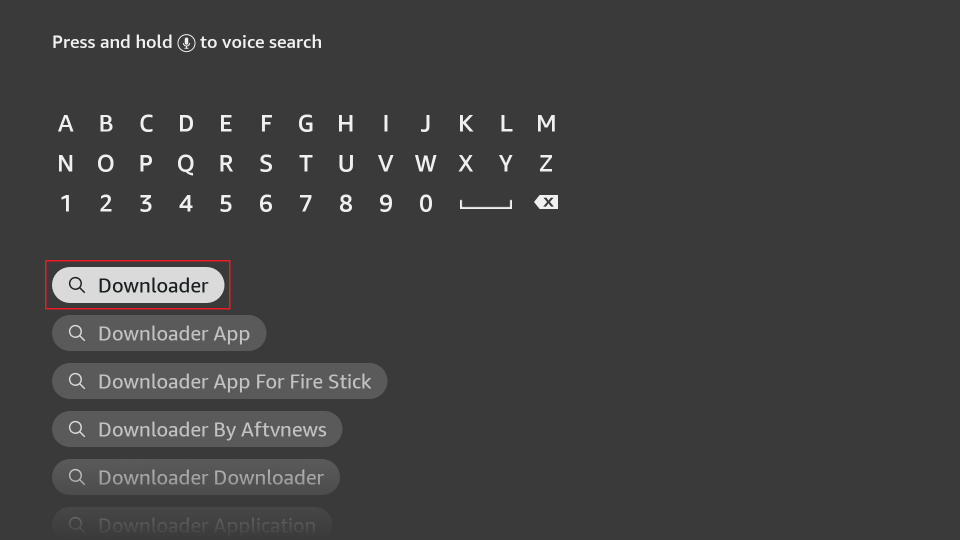
3. Using your FireStick remote, type Downloader using the on-screen keyboard. Then, select the first Downloader suggestion.
Note: If you have a FireStick remote that supports voice control, press and hold the Microphone icon and say “Downloader.”
4. Click on Downloader.
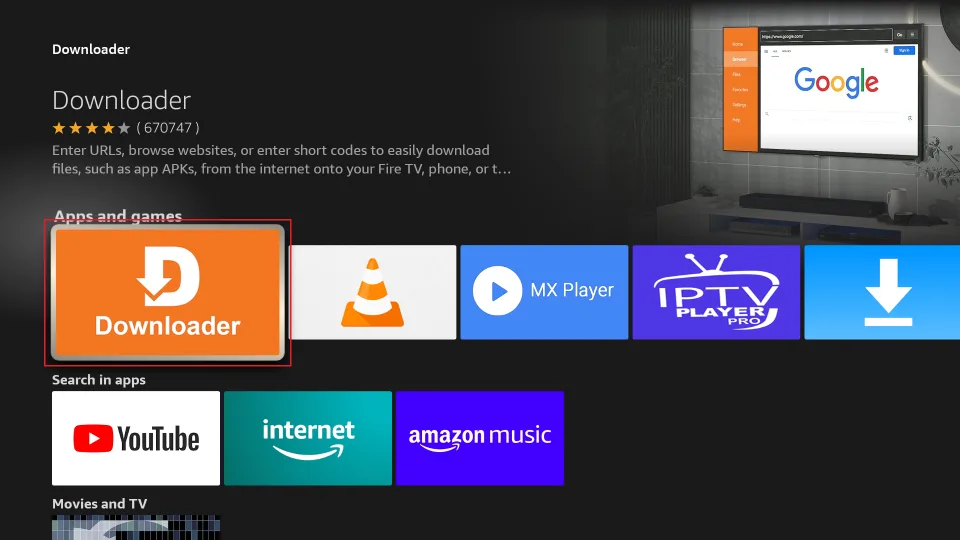
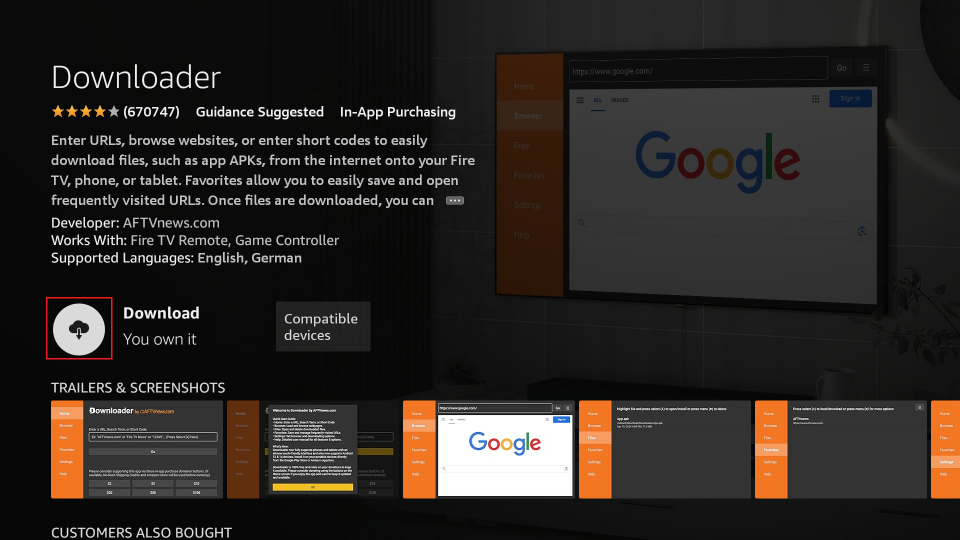
5. Click Get/Download on the Downloader’s dashboard. After a few seconds, the Downloader will be installed.
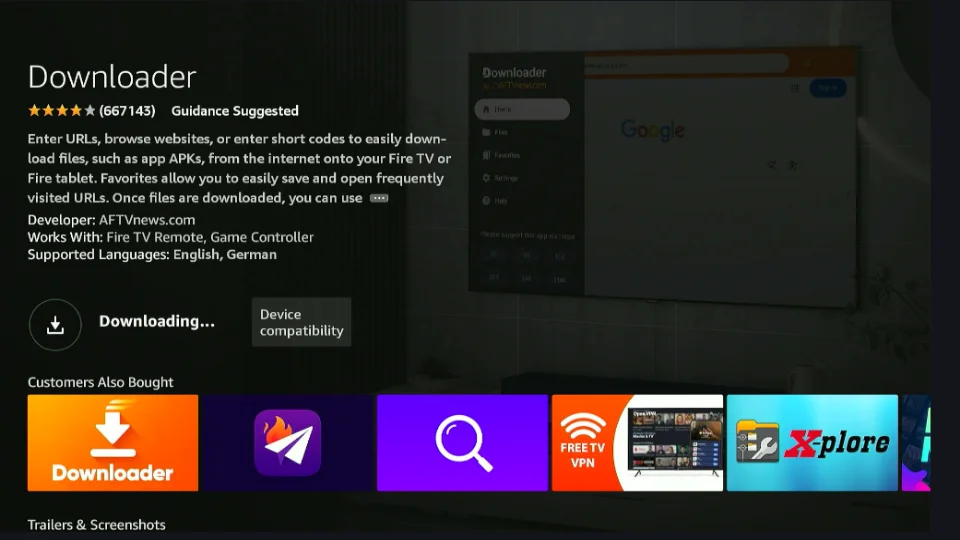
6. Give it a few minutes to download the app.
7. On the pop-up that appears, click Allow to grant Downloader permission to access files on your device.
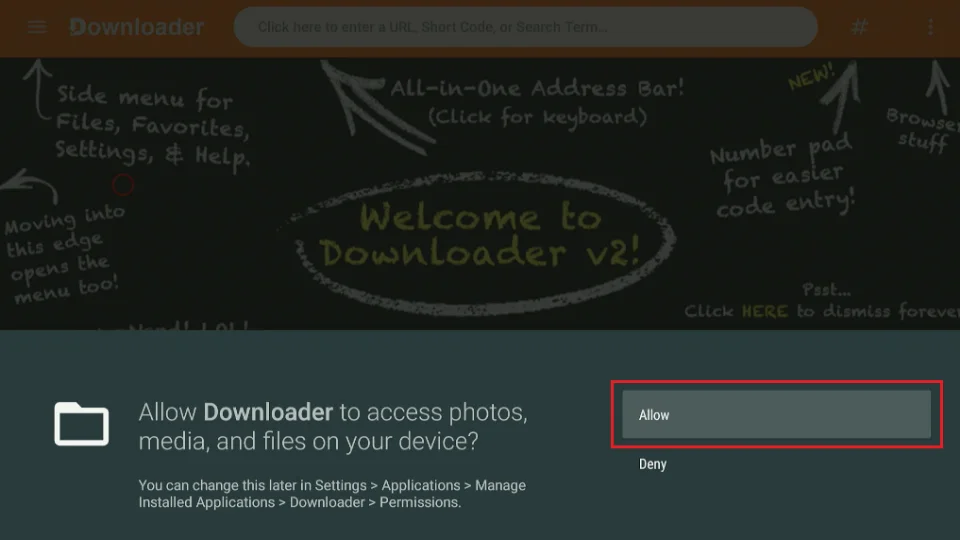
8. You’ve now successfully installed the latest version of Downloader.
How to Prepare FireStick to Use Downloader and Sideload Apps
By default, FireStick does not allow the installation of third-party apps. Therefore, you need to change this setting to enable sideloading first. Please follow the steps below:
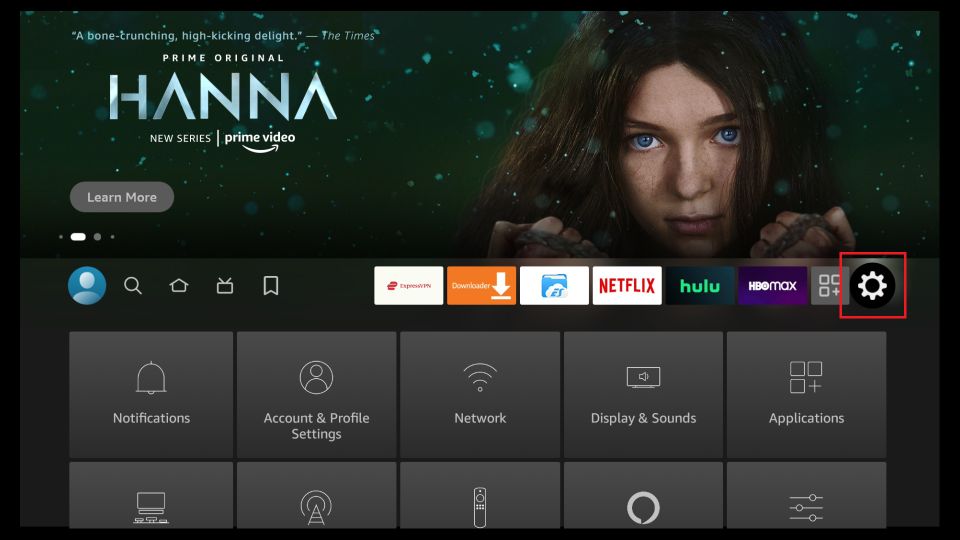
1. Launch your FireStick home screen and navigate to the Settings icon.
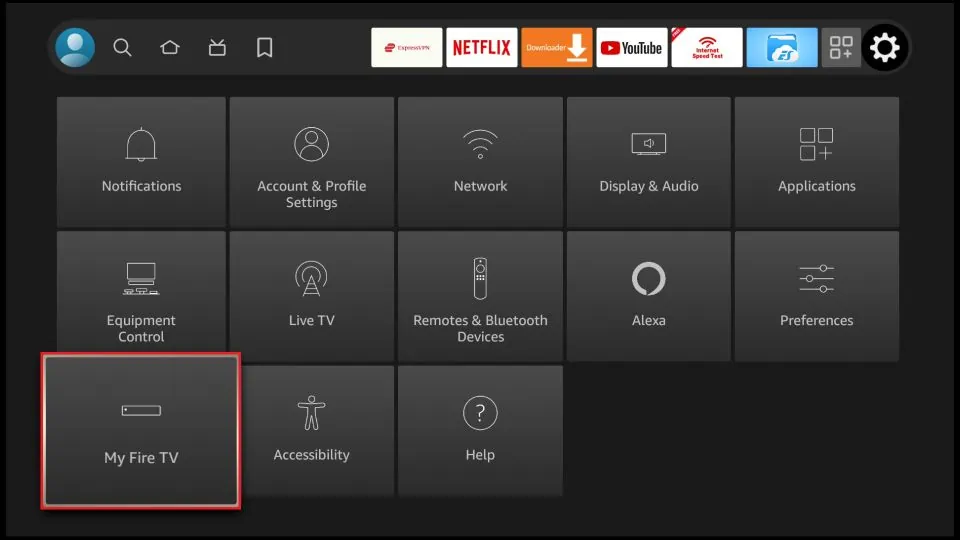
2. Scroll down to the My Fire TV tile in the bottom left corner and click on it.
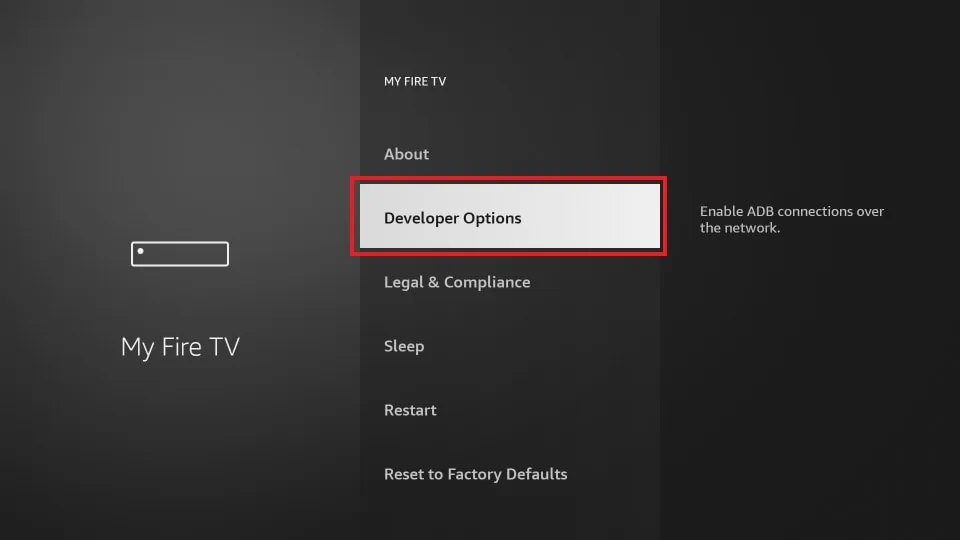
3. Click on Developer Options.
Now, select Fire TV Stick and click it 7 times to enable Developer Options. If you’re still not sure how to do it, here’s a step-by-step guide to enable developer options.
4. You will see one of the following two options depending on your FireStick device version:
- Option 1—Install Unknown Apps: Click it and proceed to the next step to enable Downloader.
- Option 2—Apps from Unknown Sources: Click this option and then click Turn On at the following prompt. Skip the next step.
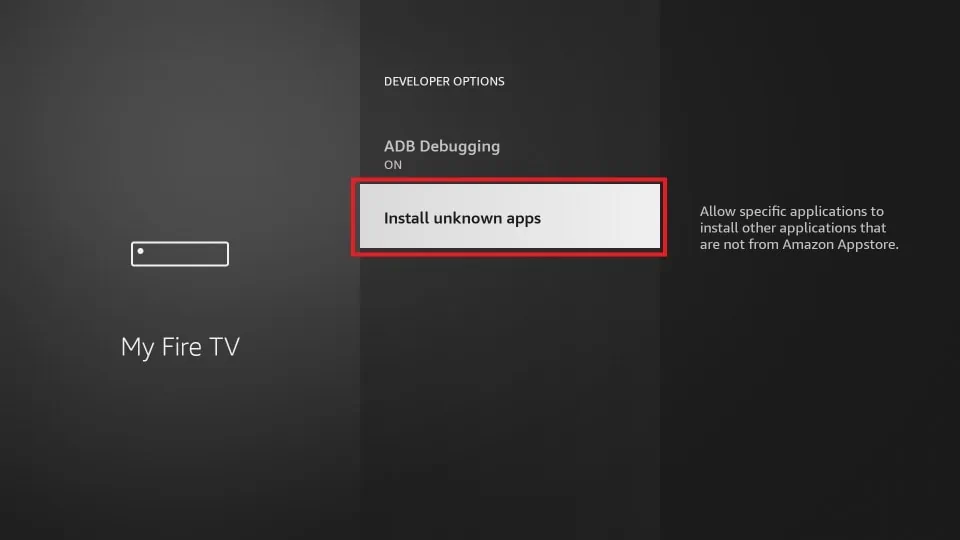
5. Navigate to Downloader and select it to turn it ON.
Note: This window will not appear if your device displays Option 2 in the previous step.
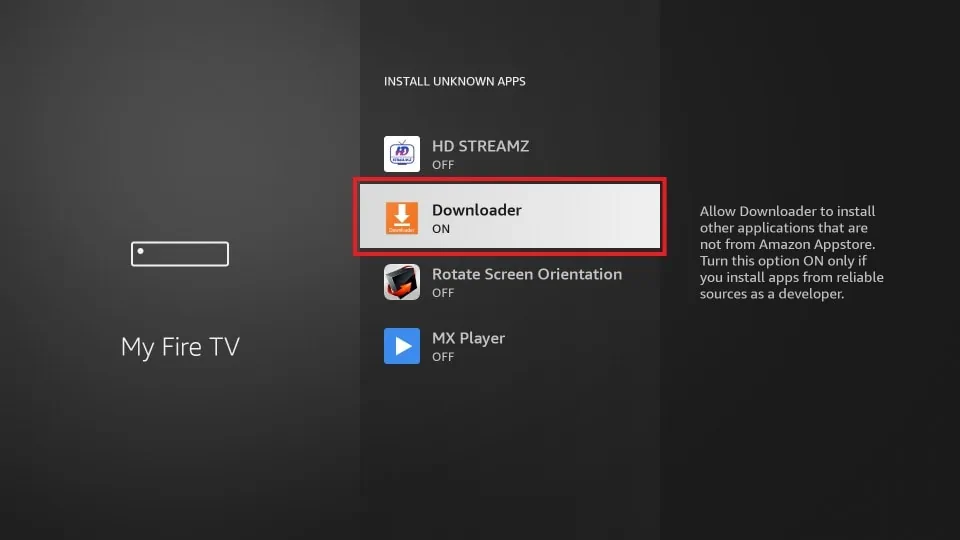
Your FireStick is now prepared to install various third-party apps using Downloader.
How to Download Apps on FireStick Using Downloader App
Legal Disclaimer: This tutorial is purely educational. FireStickTricks.com doesn’t own, host, operate, resell, or distribute any streaming apps, addons, websites, IPTV or services. The page contains some unverified services, and we are not certain whether they hold legal licenses to distribute the content. FireStickTricks.com does not verify the legality of each app/service in all regions. Do your due diligence if you use any of the unverified apps/services, and stream only content that is available in the public domain. The end-user shall be solely responsible for the media accessed.
Now that you have prepared your FireStick, let’s sideload apps on Fire TV or FireStick in minutes. But before that, here is some extra information to help you access Downloader.
Access Downloader From Your Home Screen
You can always access any app from your home screen by following this guide on how to create a home screen shortcut. Here’s how you can easily access Downloader by pinning it to your home screen’s app section:
1. Select the app icon on the home screen, the one with three squares and a + sign. You can also press the same button on your remote if available.
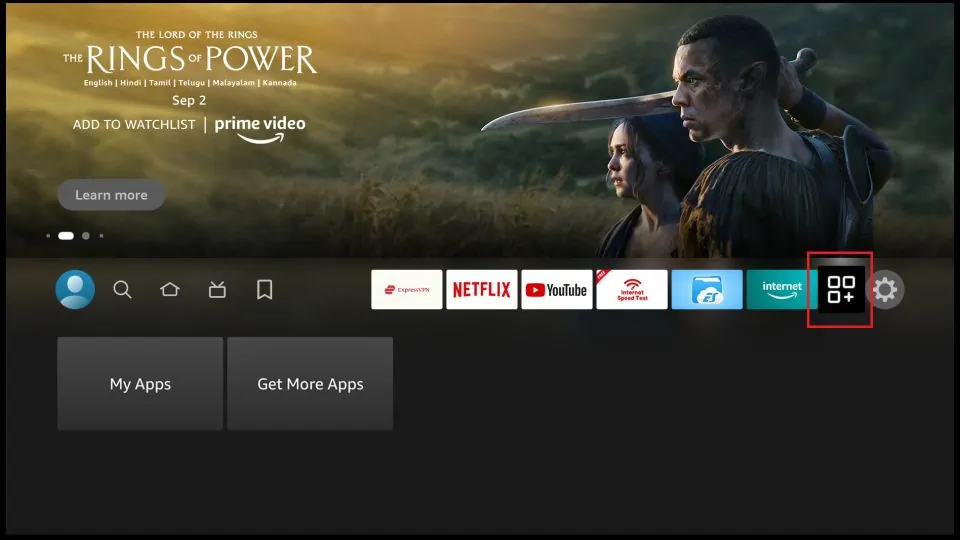
2. Use the navigation buttons to go to the Downloader tile, but don’t launch the app. Instead, press the Menu button on your FireStick remote.
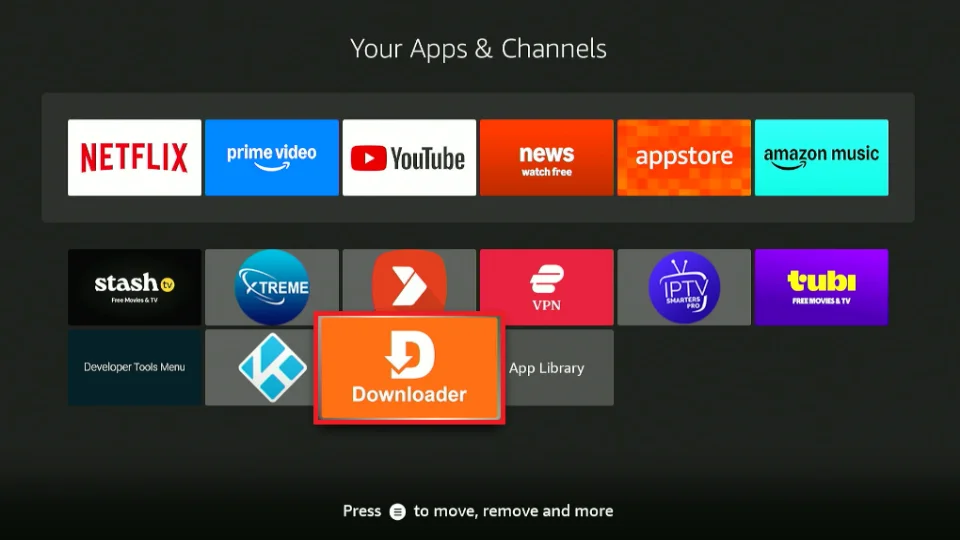
3. Select Move to front.
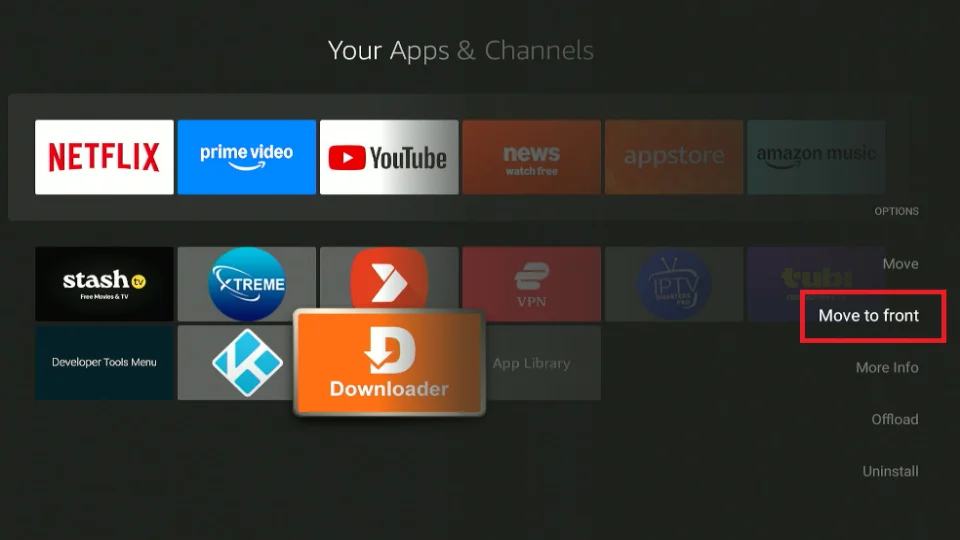
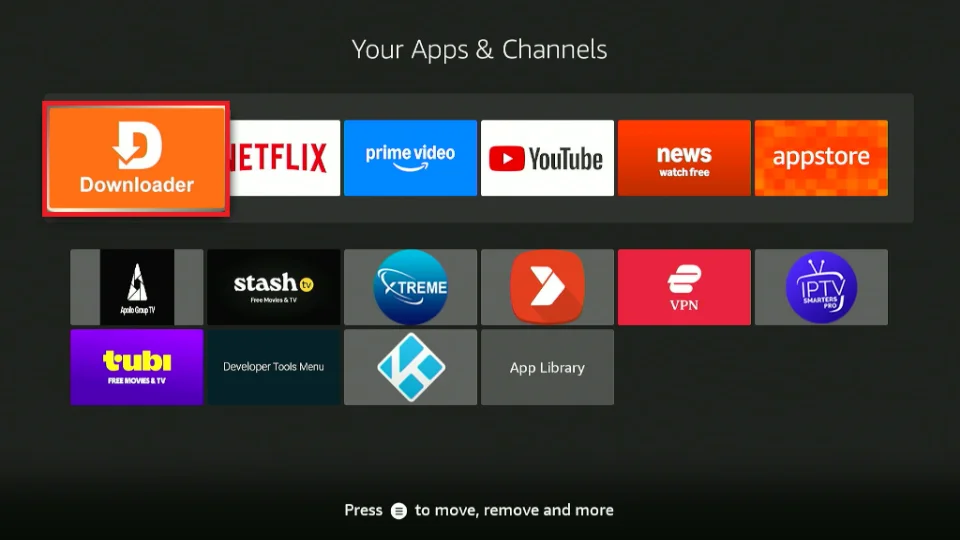
4. The Downloader app icon is now available on the first tray and your home screen.
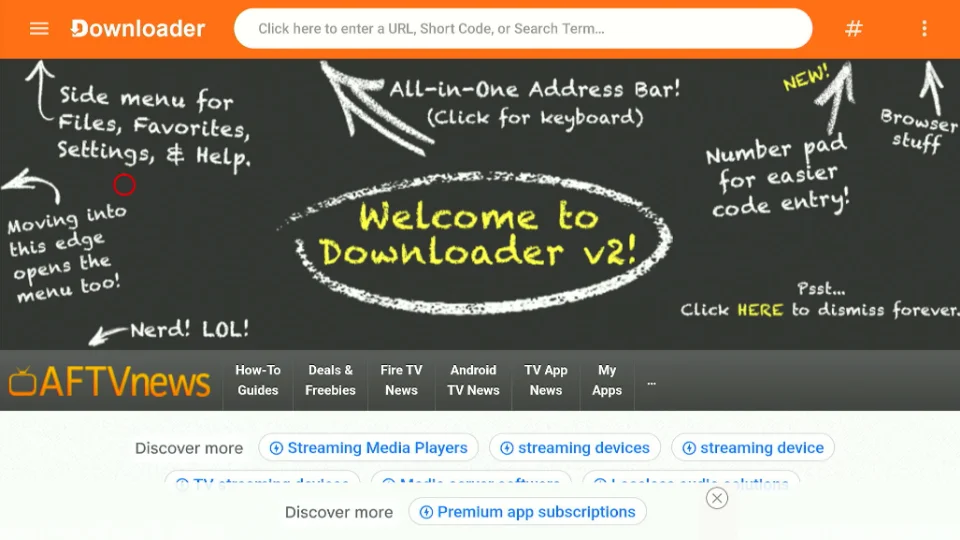
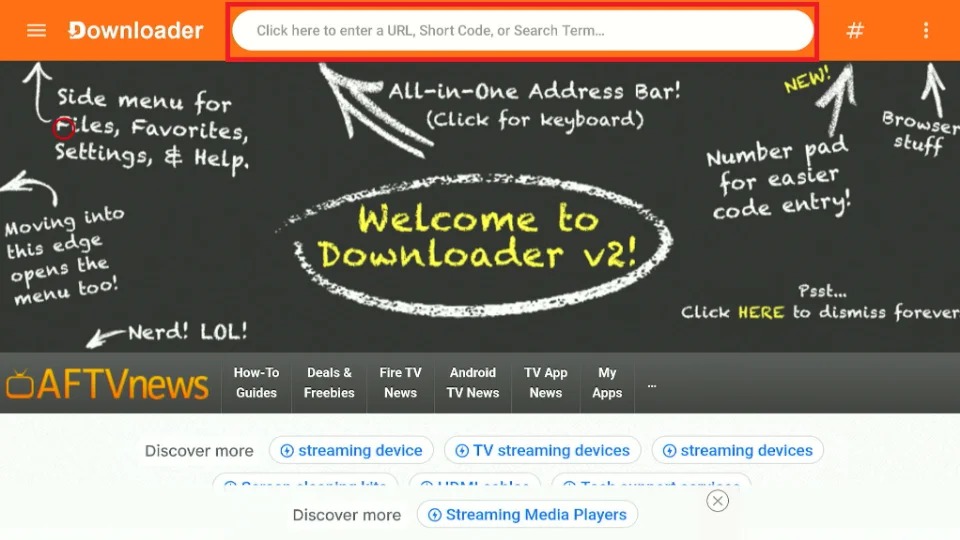
5. Click on the app to launch it. You’ll see a centralized address bar that handles URLs, short codes, and Google searches at the top.
Using Downloader to Sideload Apps on FireStick
Finally, let’s explore how the Downloader app facilitates downloading and sideloading APK files on the Fire TV Stick. Again, it is straightforward.
Unlike the previous version, Downloader 2.0 eliminates the need to switch between the Home and Browser menus and makes it easier to download APKs using direct URLs, short codes, and Google search.
For this guide, I will show you how to download and sideload Kodi using Downloader.
1. Click on the address bar to enter a URL or a short code.
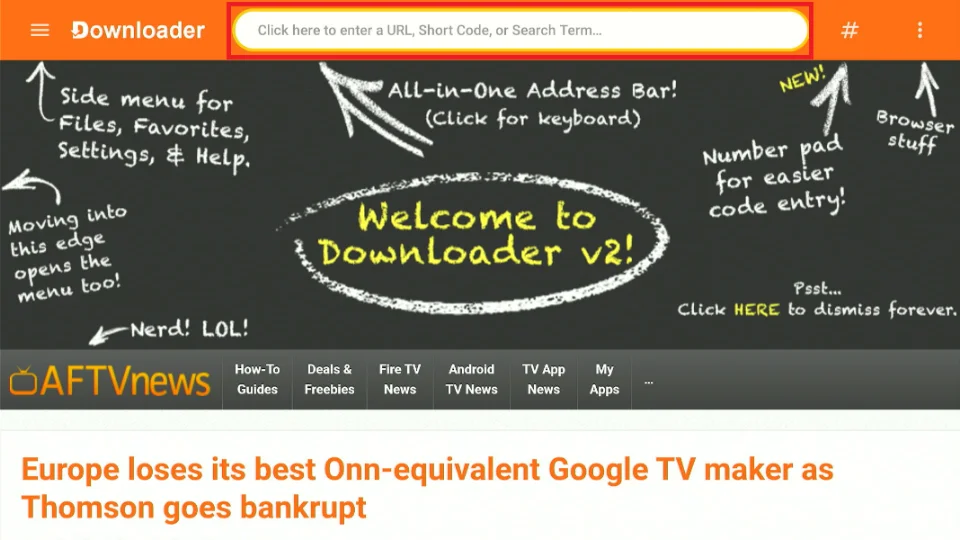
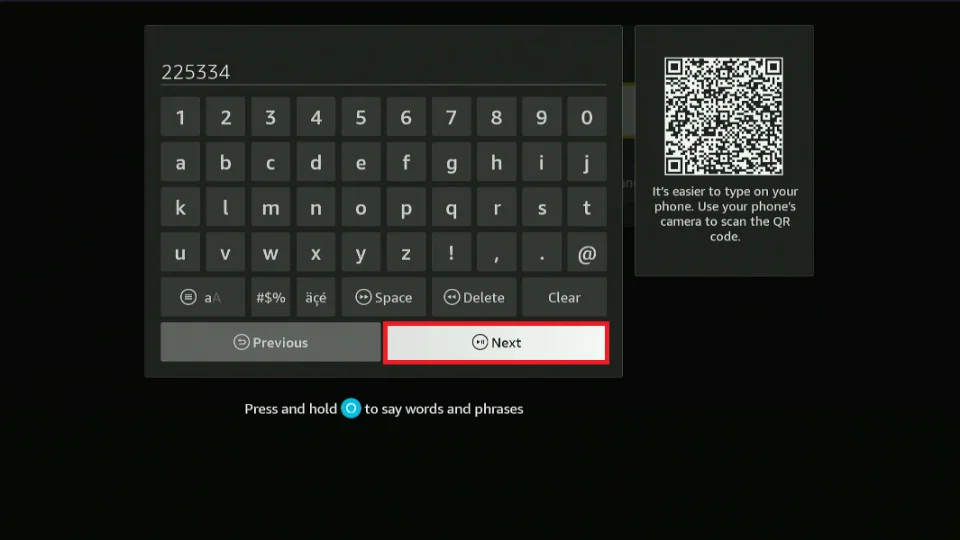
2. Enter the short code 225334 or type the URL kodi.tv/download/android, and click Next.
Note: FireStickTricks.com does not host this URL. It redirects you to an external location.
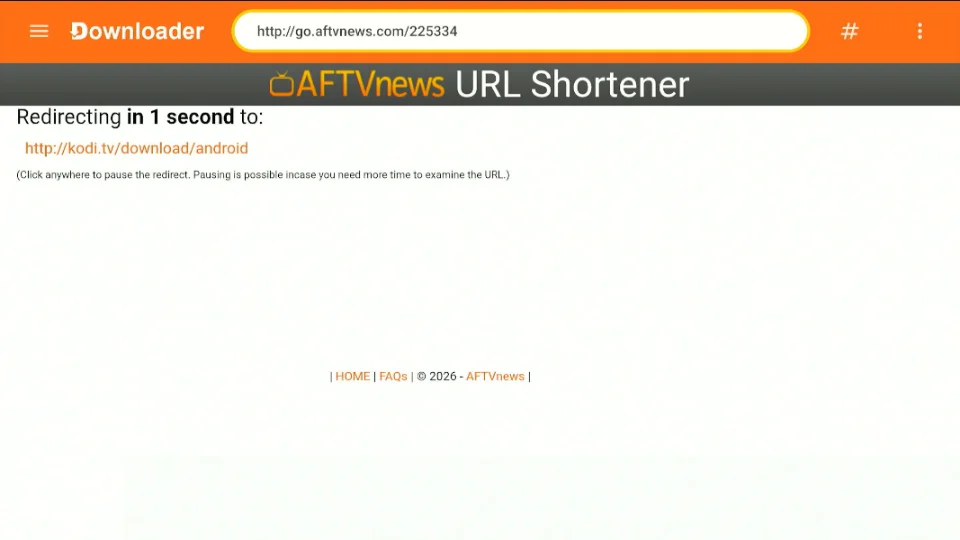
3. Downloader will redirect you to where the APK is hosted.
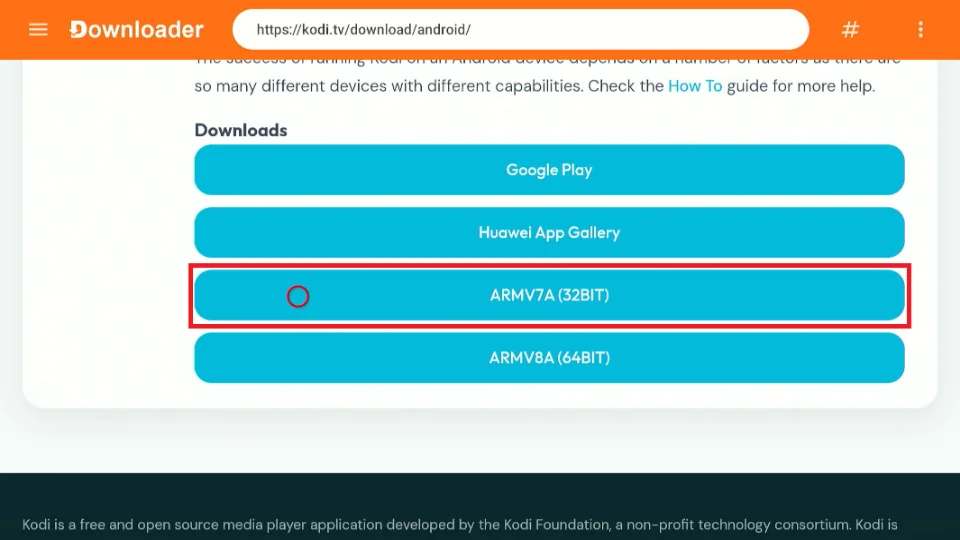
4. Scroll down and, under Downloads, select ARMV7A (32BIT).
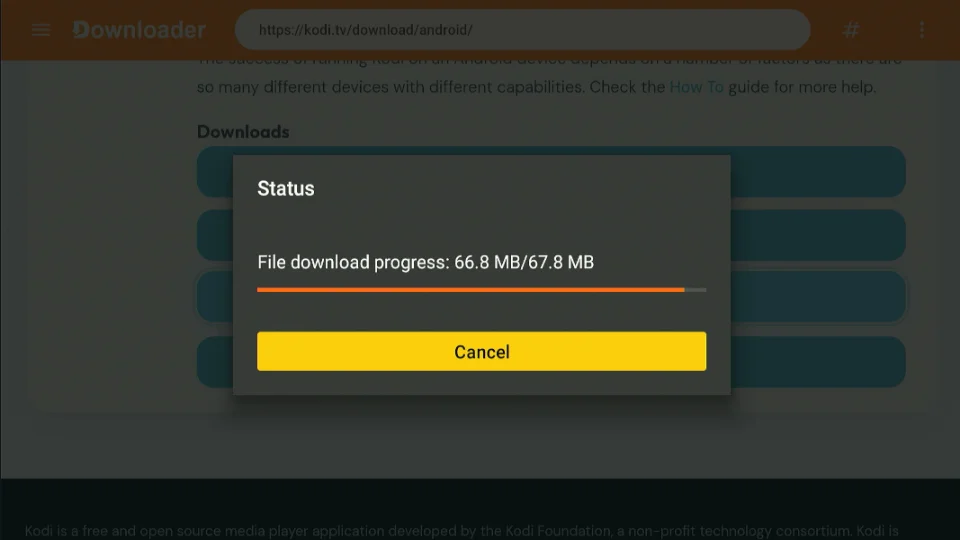
5. The download process begins, and you can track its progress on the screen.
6. When the download finishes, the Downloader app will prompt you to install Kodi. Choose Install.
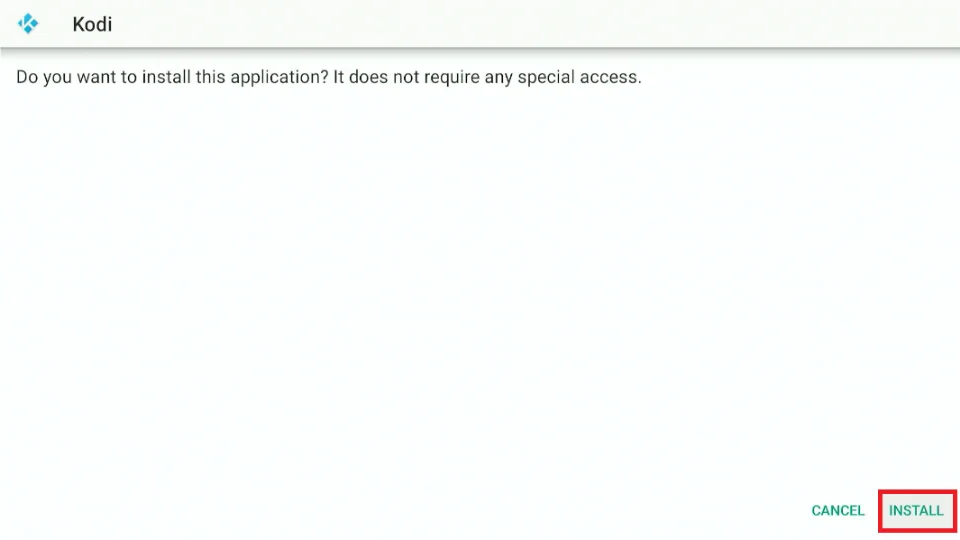
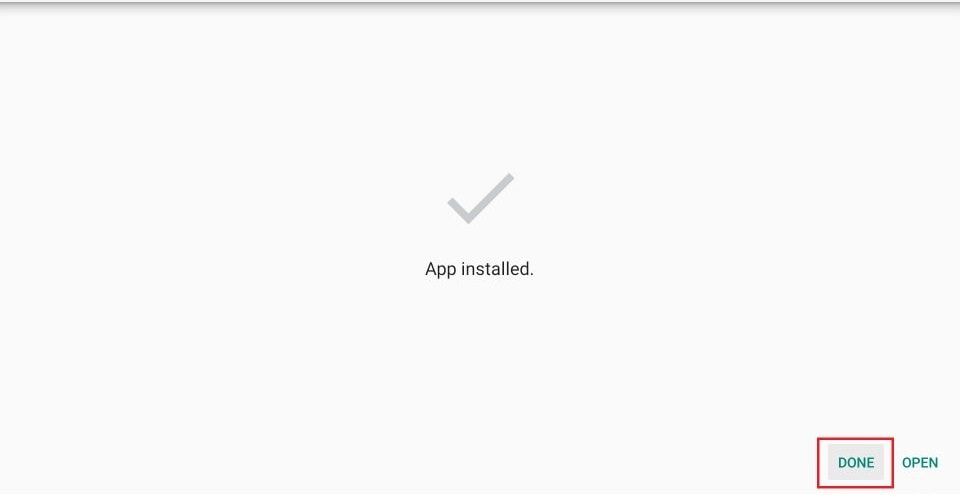
7. Once the app is installed, you will see a notification indicating that the app has been installed. You will also see two buttons at the bottom—Done and Open. Select Done to open the installed app later. Click Open to start using the app immediately.
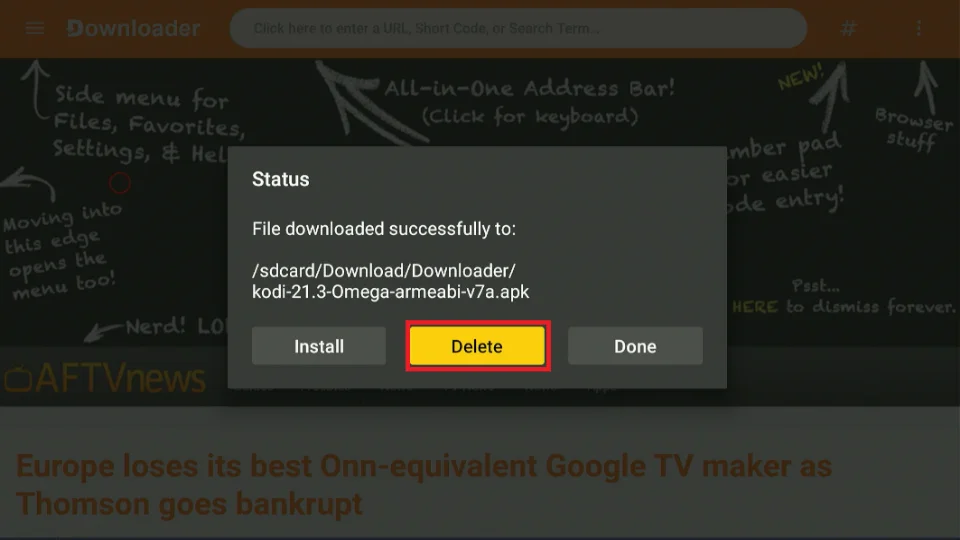
8. Press the Delete button to remove the APK file from your storage. You don’t need it anymore.
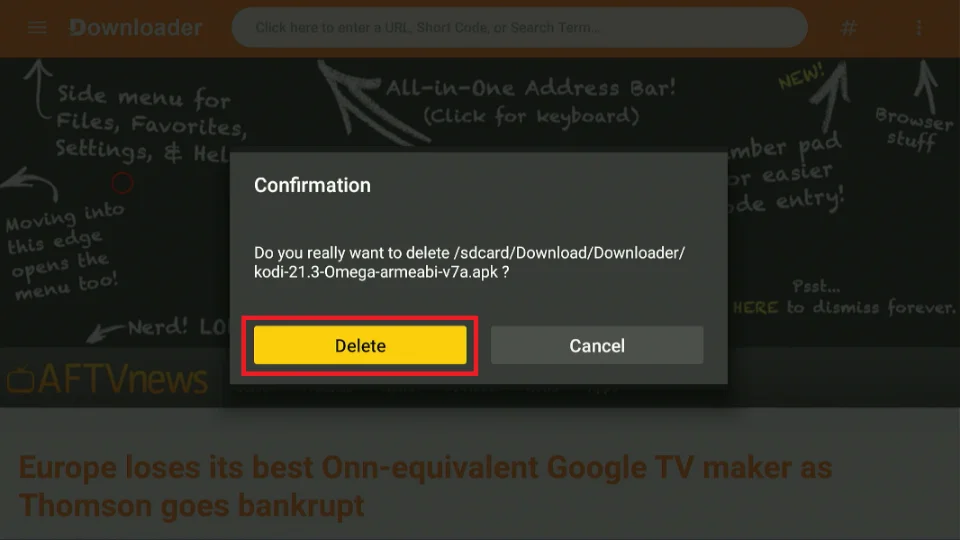
9. Click Delete again to confirm.
That’s how you install APKs using the Downloader app.
Highly recommended for FireStick👇
How to Use a VPN on FireStick
Your internet provider and many websites/apps can see your IP address and some details about your connection. Using a VPN encrypts your traffic and masks your IP address, which helps protect your online privacy.
I recommend ExpressVPN. It’s a reputable VPN with strong encryption and fast connections, and it’s straightforward to install on Fire TV/FireStick and other devices.
Next, I’ll show you how to set up and use ExpressVPN on your Fire TV/Stick.
Step 1: Subscribe to ExpressVPN HERE. It comes with a 30-day money-back guarantee. Meaning, you can use it for free for the first 30 days, and if you are not satisfied with the performance (which is highly unlikely), you can ask for a full refund.
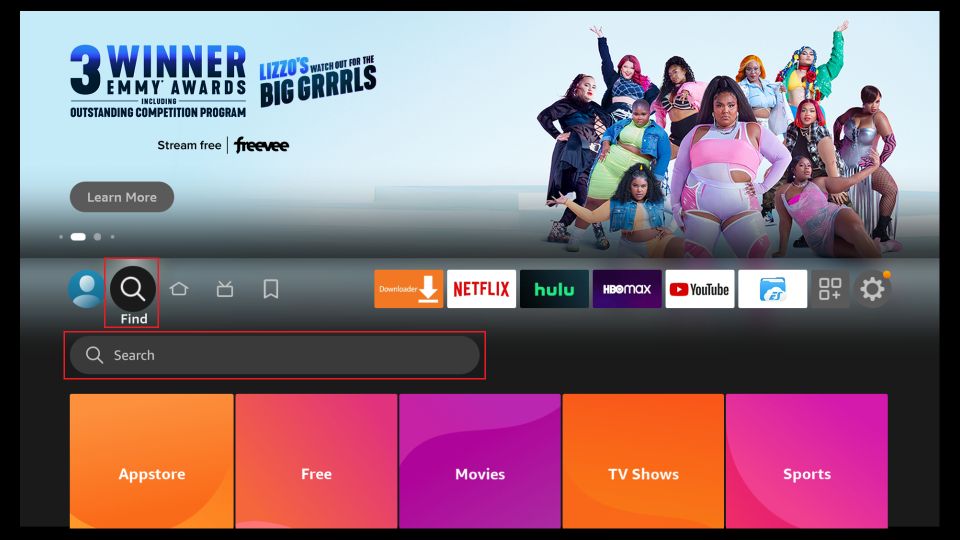
Step 2: Power ON your Fire TV Stick and go to Find, followed by the Search option.
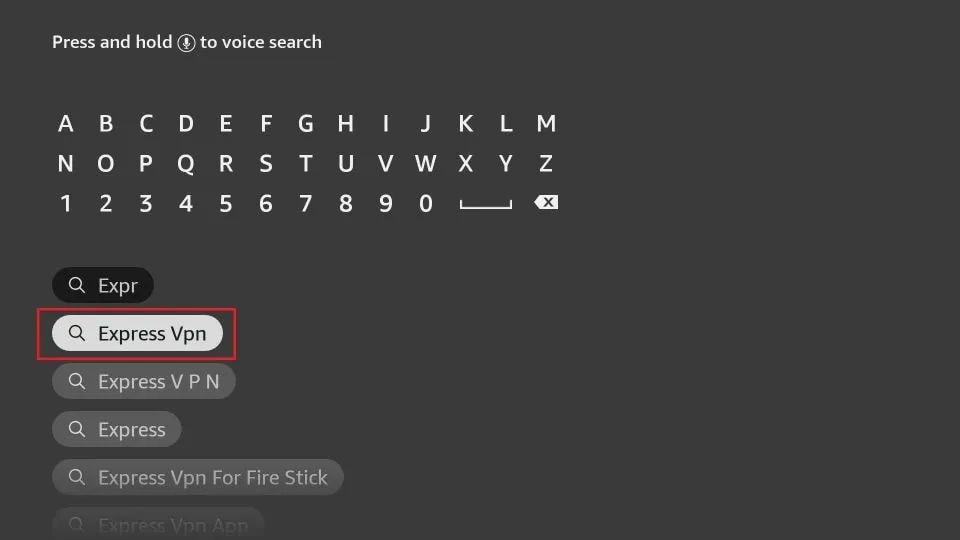
Step 3: Now type “Expressvpn” (without quotes) in the search bar and select ExpressVPN when it shows up in the search results.
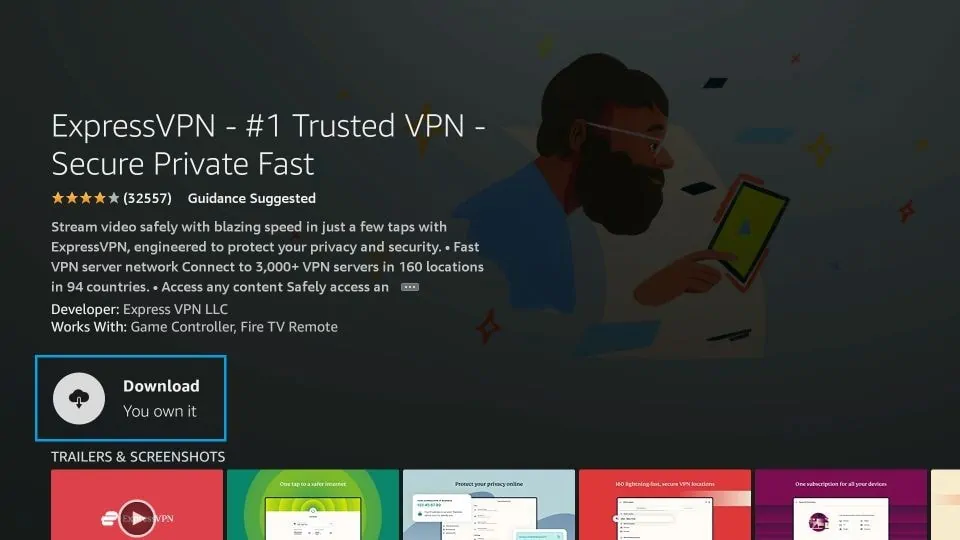
Step 4: Click Download to install the ExpressVPN app on Fire TV / Stick.
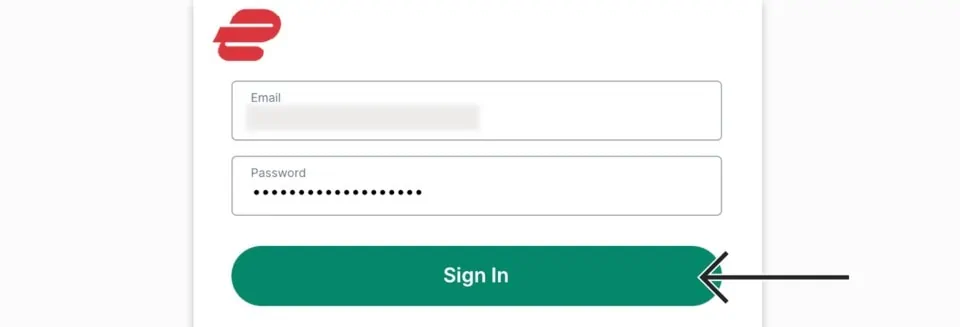
Step 5: Open the app and enter the login credentials that you created when you purchased the ExpressVPN subscription. Click Sign in.
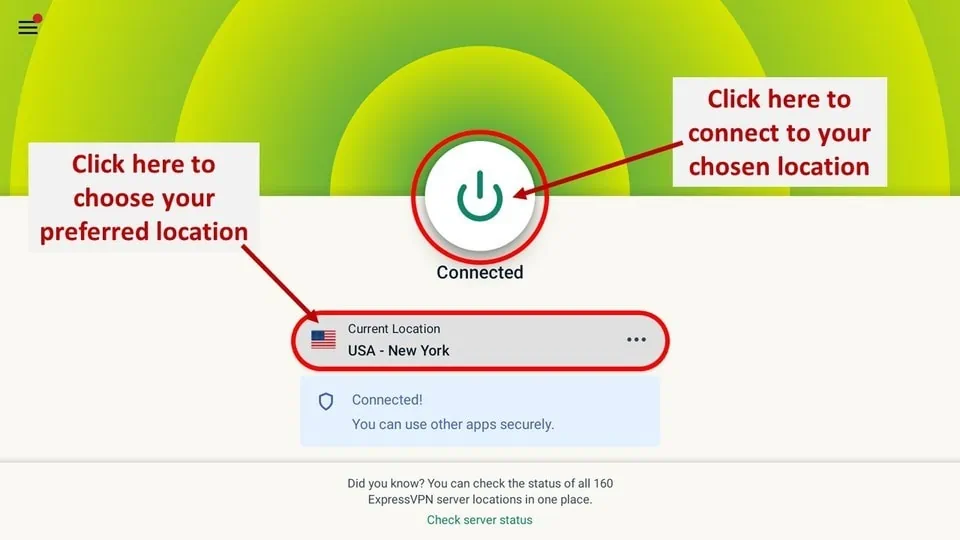
Step 6: Click the Power icon to connect to a VPN server. That’s all. Your connection is now secure with the fastest and best VPN for FireStick.
Can’t Find Downloader?
NOTE: If you are using the latest Fire TV Stick HD (Select model), the Downloader app may not be available. This is because newer Fire TV devices now run on Vega OS, which replaces Android and does not support sideloading. As a result, you cannot install apps from outside the Amazon Appstore, including Downloader. Amazon has confirmed that these newer devices are limited to official App Store apps only, meaning third-party APK installation is no longer possible on these models.
The Downloader app is available in most countries where the Amazon Appstore operates, but not in all. It may be restricted or unavailable in some countries due to local policies or licensing. If you don’t find Downloader in your App Store, you need to:
- Deregister your FireStick from your Amazon account
- Create a new Amazon ID with a different region, like the US
Deregister Your Amazon Account and Register with a New One
If the Downloader is unavailable in the FireStick App Store, you will need to create a new universal Amazon account to access the app. Before creating a new account on Amazon, don’t forget to:
- Choose a different email address.
- Select the USA as your region.
Although this process will help you install the Downloader app, it also has a downside. You will lose access to your downloaded applications, files, data, and history.
This can be particularly inconvenient for FireStick users who have long used the same Amazon account. Ultimately, the decision is yours to make.
Please follow these instructions to register/deregister an Amazon ID:
1. Access the Fire TV home menu and select the Cog icon to load the Settings menu.
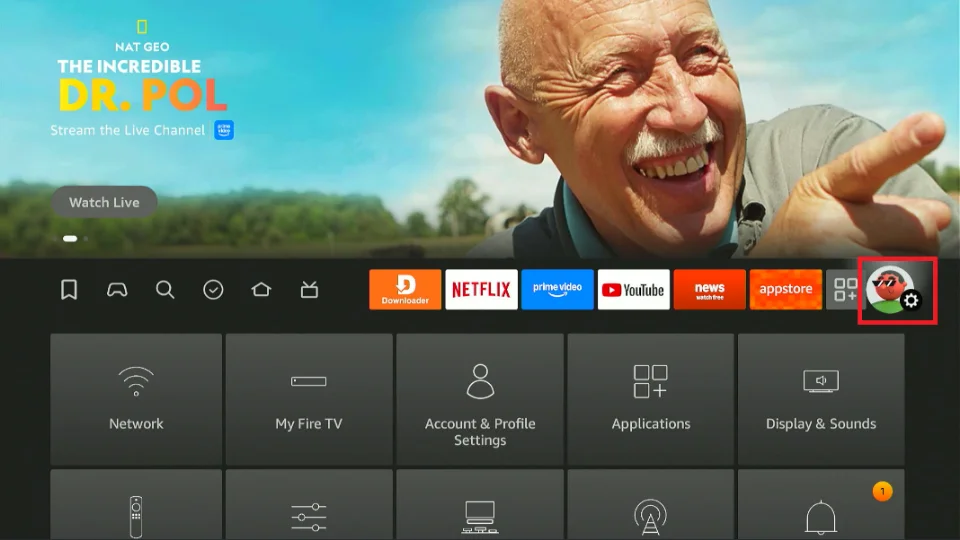
2. Next, access Account & Profiles.
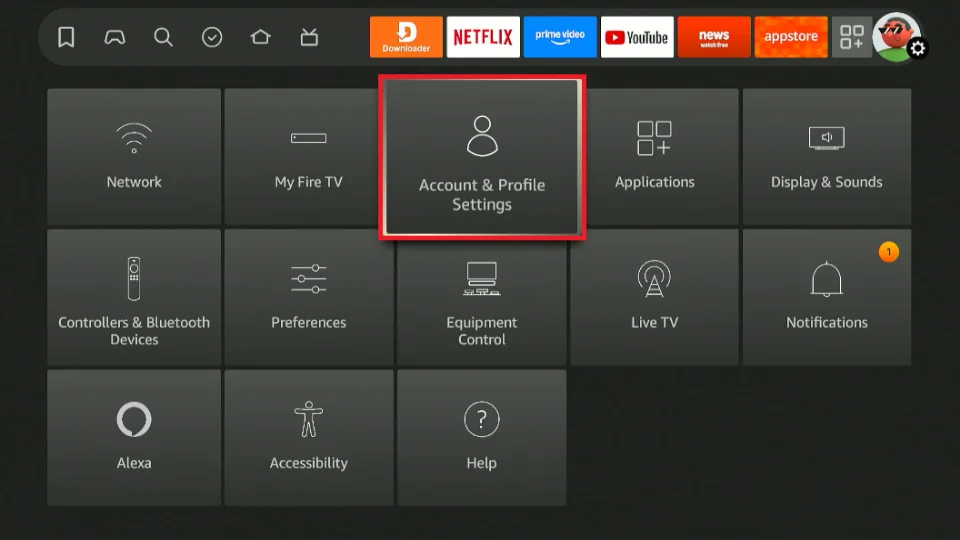
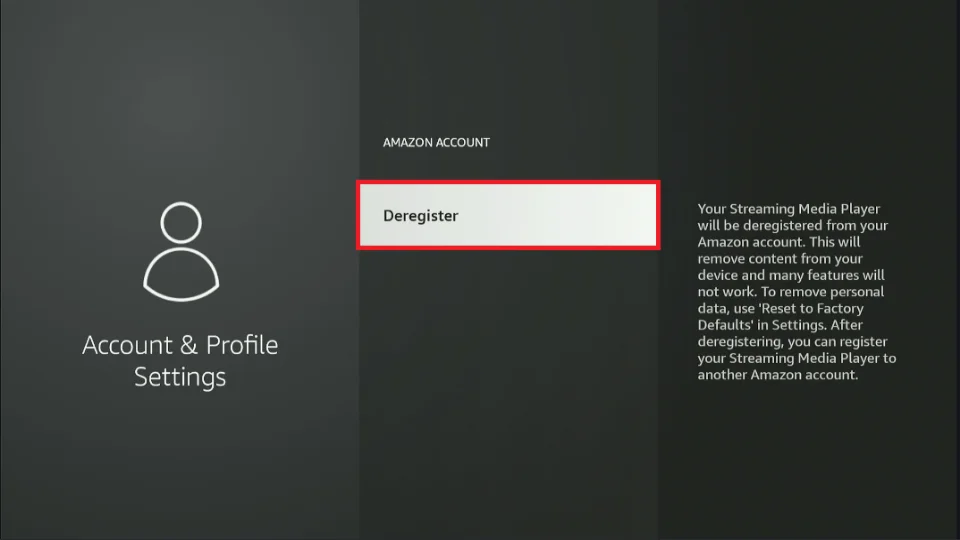
3. You will get one of the following two options:
- If you haven’t signed in, a Register button will appear. Press it and enter your Amazon.com account credentials.
- If you’ve already registered, you will see a list of devices registered to the account. Select the relevant account and press Deregister. You will be signed out of the account immediately. You can then follow the instructions above to register with a new Amazon.com account.
Wrapping Up
With Downloader, you can easily sideload your favorite third-party apps on FireStick. This lightweight and secure app features an easy-to-use interface and supports multiple file types, making it one of the best tools for unlocking your Fire TV’s full potential.
It includes a built-in browser that lets you enter URLs or short codes to quickly download files and install apps without relying on additional tools. Downloader also offers smooth navigation with the Fire TV remote, making sideloading simple for beginners while providing the speed and convenience experienced users appreciate.
Frequently Asked Questions
A: To sideload apps, install the Downloader app from the Amazon App Store, then enter the APK URL in the app to download and install the file directly on your FireStick.
A: Yes, it is safe if you're using Downloader to install APK files from reputable sources.
A: No, you don’t need to jailbreak your FireStick. Enabling apps from unknown sources is enough to allow Downloader to install third-party apps.
A: This usually happens if permissions for unknown apps haven’t been enabled. Make sure Downloader is allowed under Install Unknown Apps in your device’s settings.
A: Go to Settings > My Fire TV > Developer Options, then enable “Apps from Unknown Sources” and allow the Downloader app to install third-party APK files.
No. You cannot sideload apps on the latest Fire TV Stick HD (Select model). Newer Fire TV Stick models run on Vega OS instead of the older Fire OS, and this new operating system removes support for sideloading entirely. That means apps like Downloader and any APK installation methods are not supported, and you are limited to apps available only in the Amazon Appstore.
Suberboost Your FireStick with My Free Guide
Stay Ahead: Weekly Insights on the Latest in Free Streaming!
No spam, ever. Unsubscribe anytime.





Your instructions are very helpful. I needed to upgrade an installed app that was not yet available at the Amazon App store. Be sure to uninstall the old version first. Took me a couple of Fails before I thought to do that.
Hi Bradford. Happy to help and I’m glad you figured it out!
Hi there I lost all my downloaded apps
Hi, hold down the Home button on your remote for about 5 seconds. Click Apps on the window that pops up. You will find all your installed apps here. However, if you do not see your apps, you may need to reinstall them. Here is our list of best apps for FireStick: https://www.firesticktricks.com/amazon-fire-stick-apps.html
I downloaded and installed an app using downloader. I was able to run it just fine if I click run. However I cannot find the app anywhere now that I am trying to launch it again. If I go to the apk in downloader I have the option to install it again, after which I can choose to open it again like normal, but it doesn’t put an app in my list of apps. Do I really have to reinstall the app every time I want to use it? Or is the new app just hidden somewhere?
Hi Eoin, hold down the Home key on your remote for about 5 seconds. When you see a popup window, click Apps. Here, you will find all your installed apps.