This guide will show you how to sideload apps on Android TV and Google TV. I have tested the steps on Android TV, Android TV Box, and Google 4K Streamer.
What is Sideloading?
Sideloading is the process of installing apps that aren’t available on official app stores. For Google TV and Android TV, the official app store is the Google Play Store.
Sideloading on TV devices differs from sideloading on Android phones. On mobile devices, you can download APK files for sideloading via any browser. TV devices do not support browser downloads. You need a special utility called Downloader.
The Downloader app is officially available on the Play Store.
You need to enter the URL of the source hosting the APK file you want to install. The Downloader app first downloads the file, then starts the installation process.
You can also type a Downloader code if you don’t want to type a long URL.
Downloader codes are numeric codes that function as URL shorteners. Let me give you an example.
Imagine typing this URL in the Downloader app:
https://download2300.mediafire.com/1e7xem4p5wpgzpYarAgZR7g1Skk8sL8ECPUb87qcGz_eKCsD_R3JPSNllokZ3MnEO9RX50IxklJQrvXmwwF0AMBCu8pSgmDyvagKtBxCyh0KULAzW5y5v1Np1R4If5gx3IVwFAjGaq4LMnLFqUisfqAb-9Skk4mm2lZUREkEeDUSpjw/8miioqg59zs29wg/kodi-21.3-Omega-armeabi-v7a.apk
The Downloader code for the same URL is this:
6075994
Instead of typing the full URL, enter just these 7 digits.
- 👉 Read: Best Downloader Codes
Attention!
Governments and ISPs worldwide monitor users' online activities. You should always use a good VPN and hide your identity so your online experience doesn’t take a bad turn. Currently, your IP is visible to everyone.
I use ExpressVPN, the fastest and most secure VPN in the industry. It is easy to install on any device, including Amazon Fire TV Stick, PC, Mac, and Smartphones. It also includes a 30-day money-back guarantee. If you're not satisfied with their service, you can request a refund. ExpressVPN has a special NEW YEAR deal: get 4 months free and save 81% on the 2-year plan.
How to Sideload on Google TV/Android TV
There are two ways to sideload on Google and Android TVs:
I will cover both. But first, let’s install the Downloader app.
Legal Disclaimer: This guide is for informational purposes only. FireStickTricks.com does not own, host, operate, resell, or distribute any apps, services, or content mentioned.
Steps to Install Downloader
Here is how it goes:
1. Go to the Google TV/Android TV home screen.
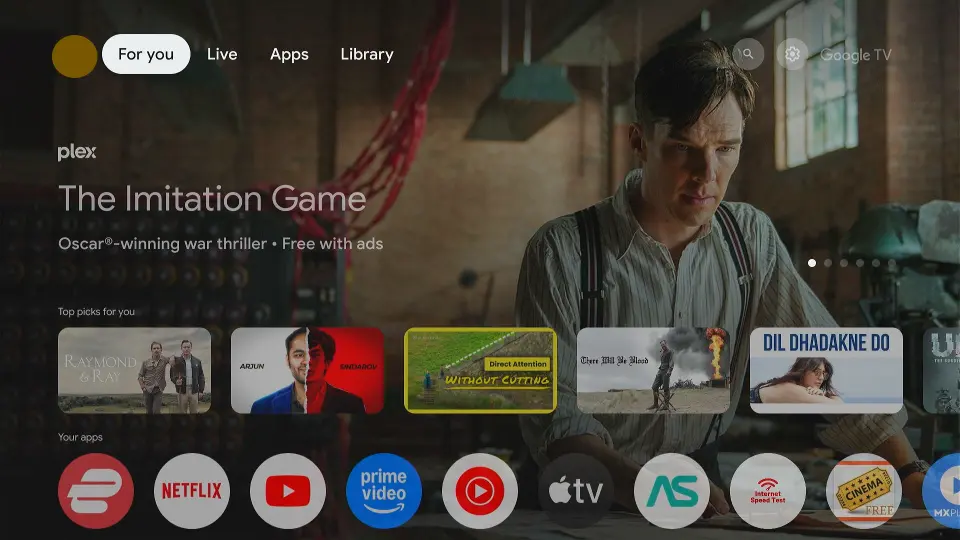
2. Select Apps in the menu at the top
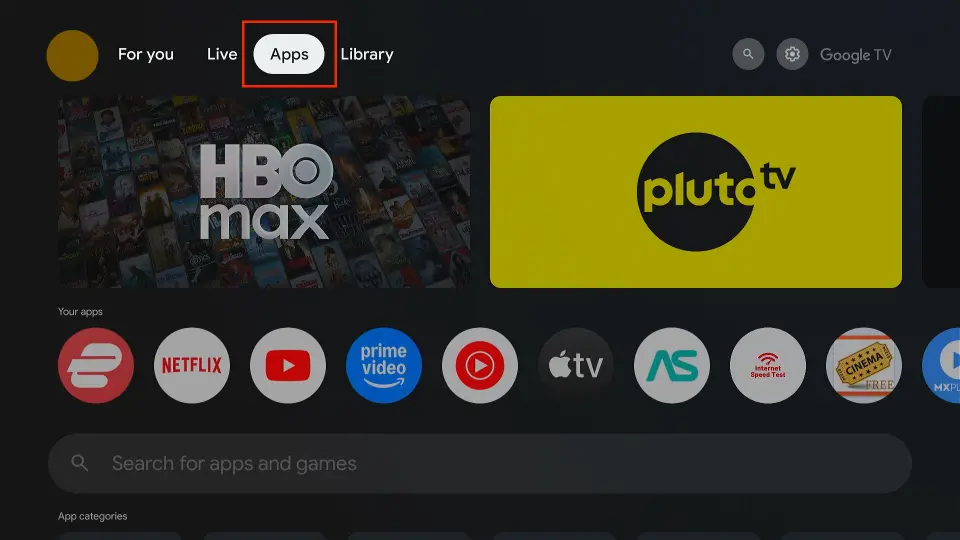
3. Click the Search box.
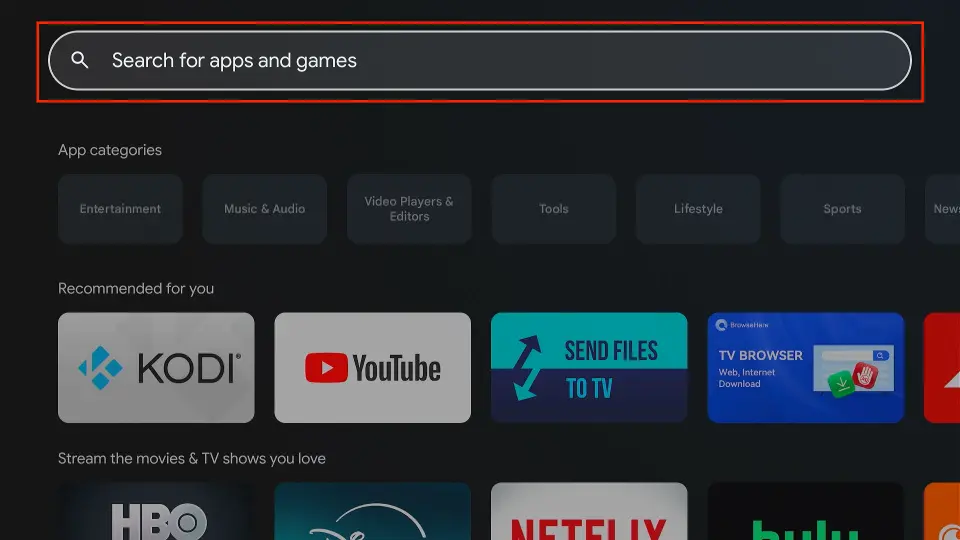
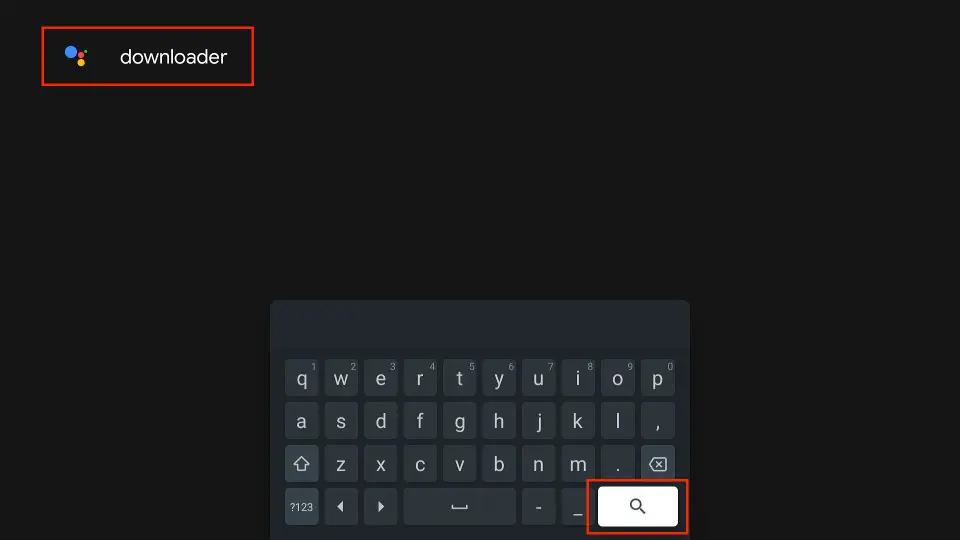
4. Type “Downloader” and click the lens icon in the keyboard.
5. Click Downloader by AFTVnews.
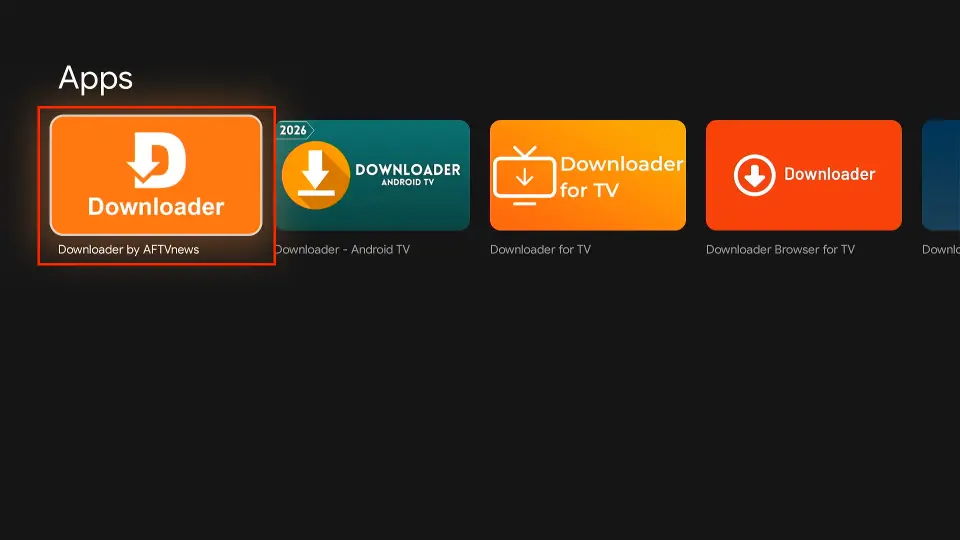
6. Click Install.
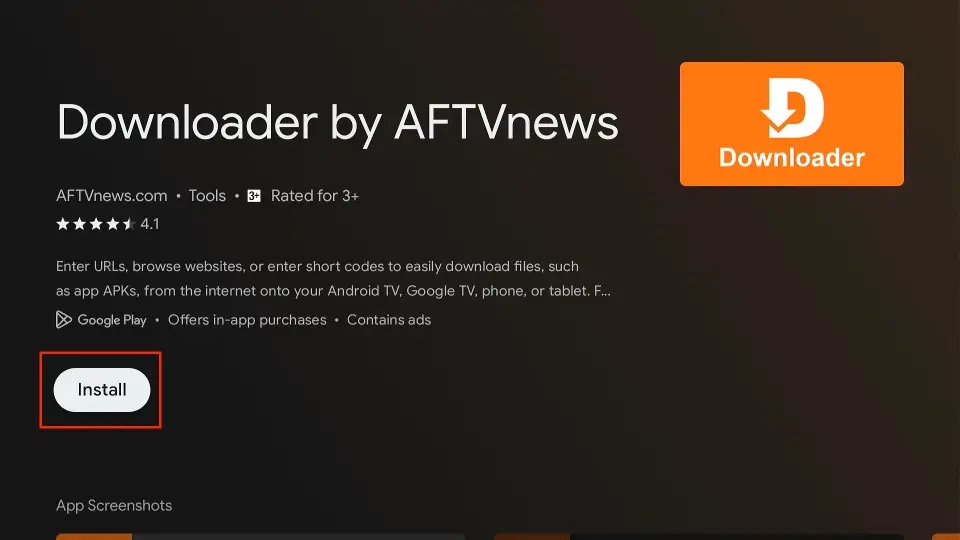
7. Wait for the installation to finish. Click Open to start the Downloader app, or you can open it from the home screen.
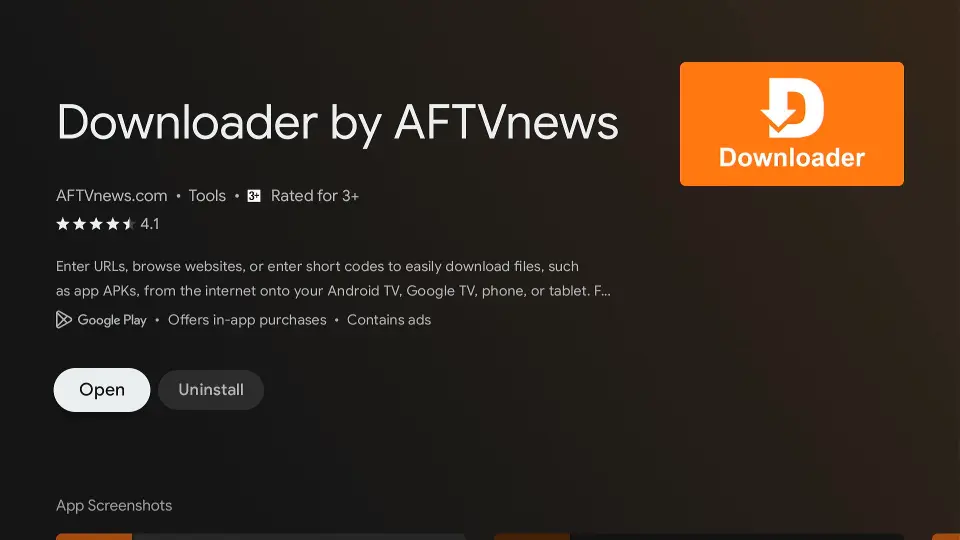
8. Go back to the home screen and scroll down to the Your Apps section. Scroll horizontally to find and open the Downloader app.
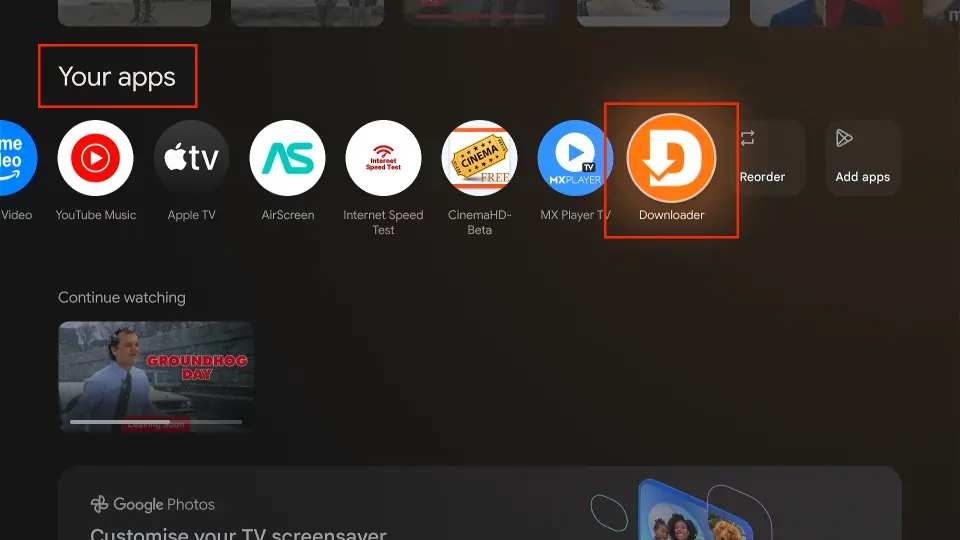
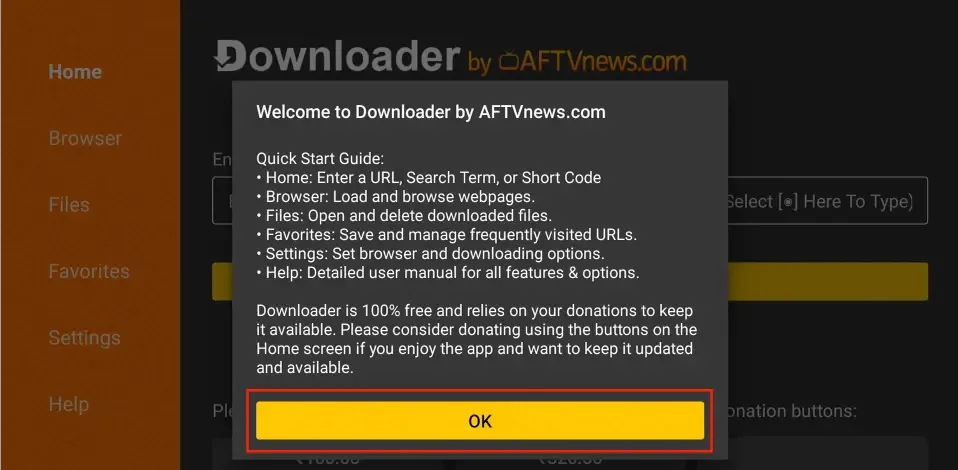
9. Click OK to dismiss this prompt (appears only the first time).
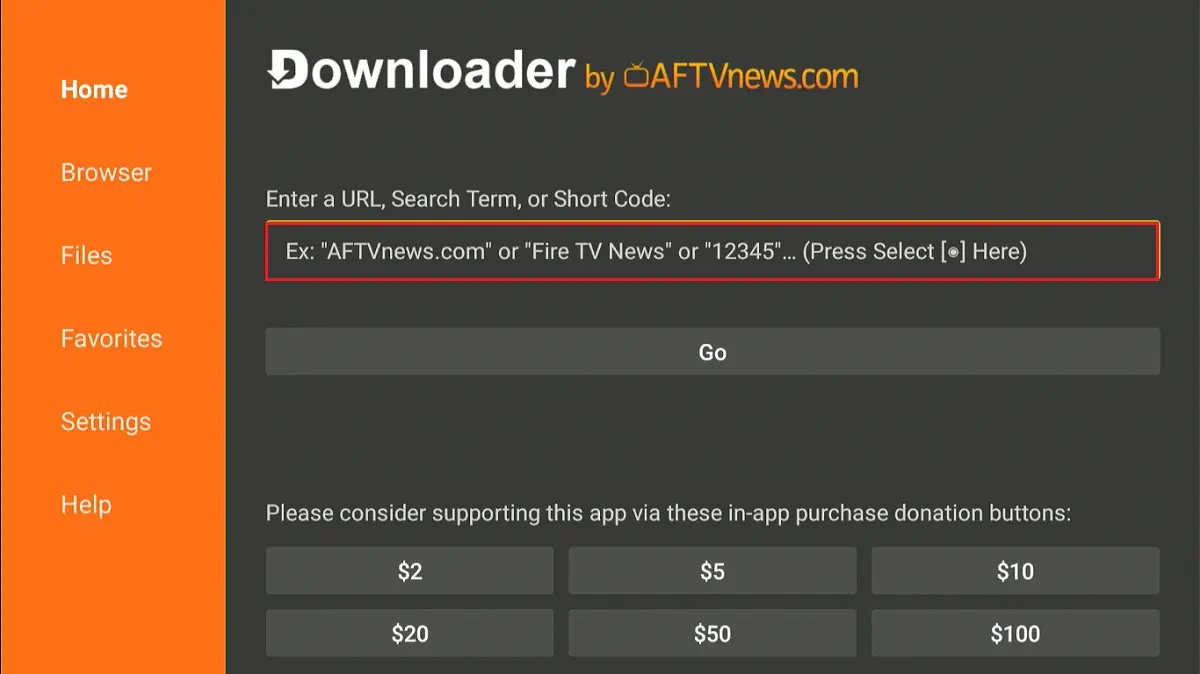
10. This is the home screen of the Downloader app.
Method 1: Sideload with the direct APK URL
A direct APK URL immediately starts downloading the file without redirecting you to a webpage. Here are the steps:
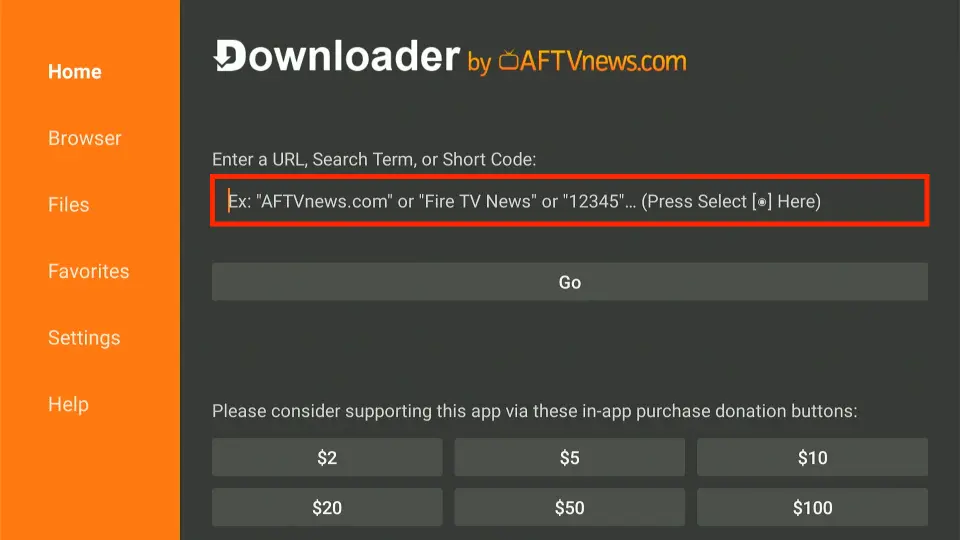
1. Click the textbox on the Downloader home screen.
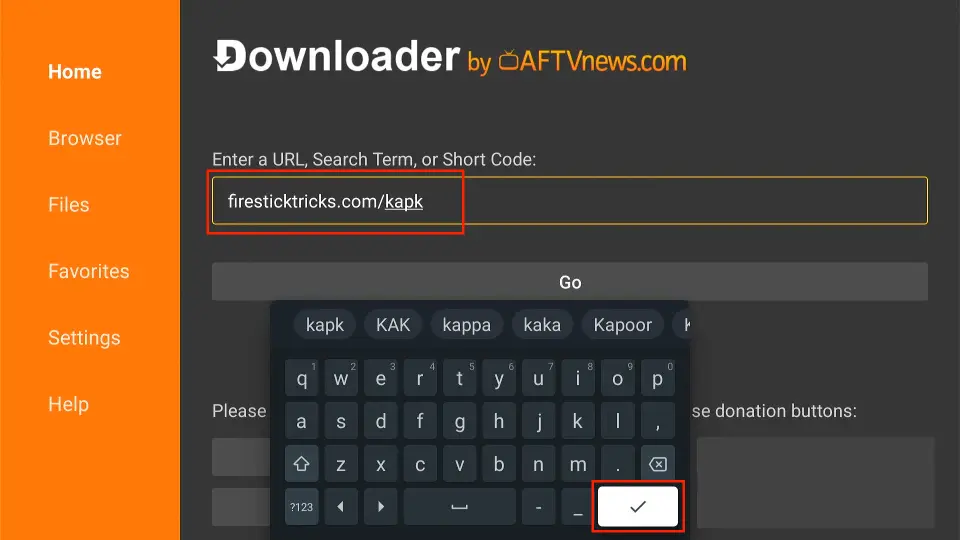
2. Type the URL or the Downloader code and click the checkmark button on the keyboard.
3. Click Go.
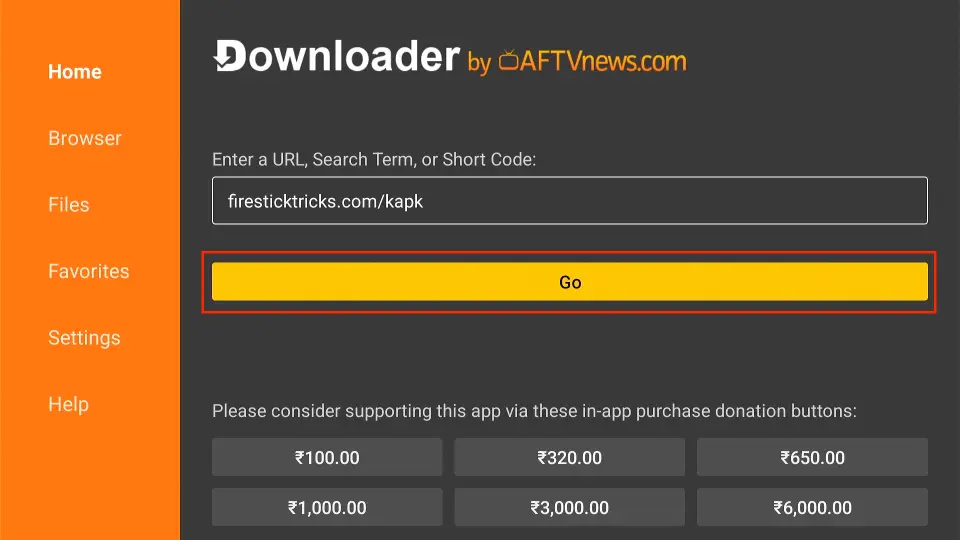
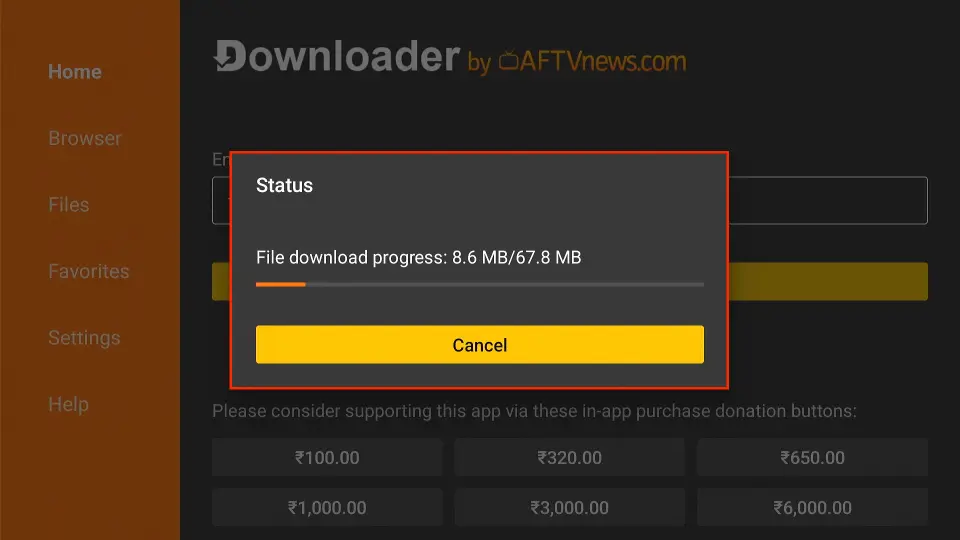
4. Wait for the download to complete.
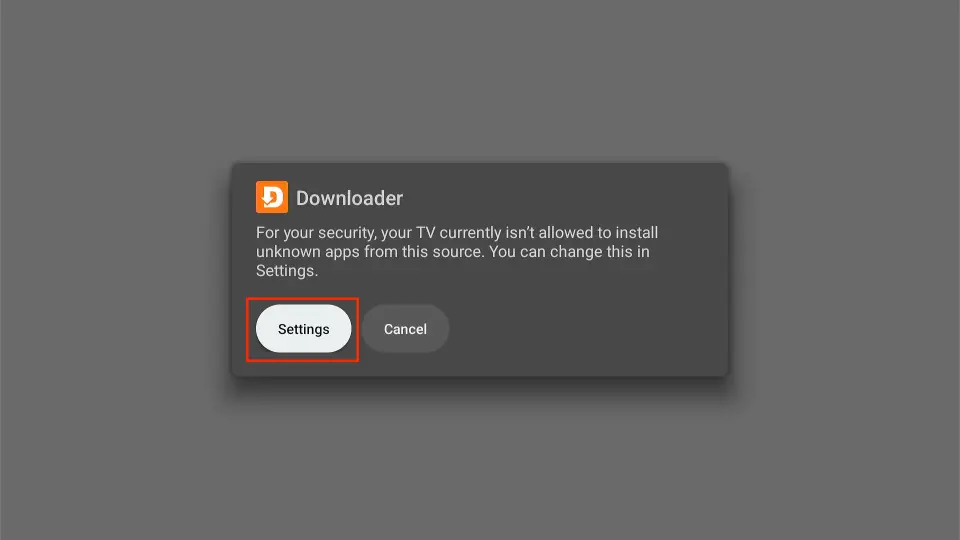
5. A one-time permission is required to allow Downlaoder to sideload apps. Click Settings when prompted.
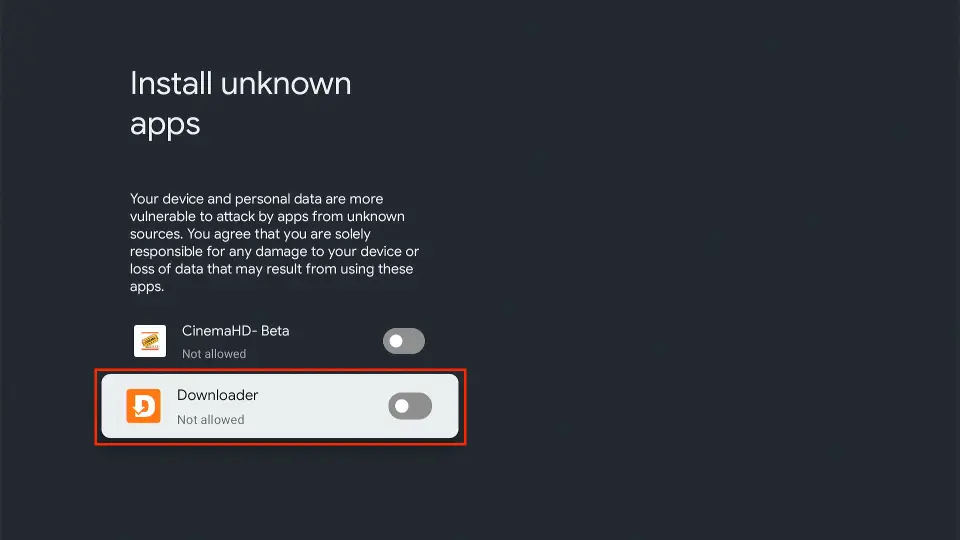
6. Select and click the Downloader to allow it.
7. Once allowed, click Install on the prompt.
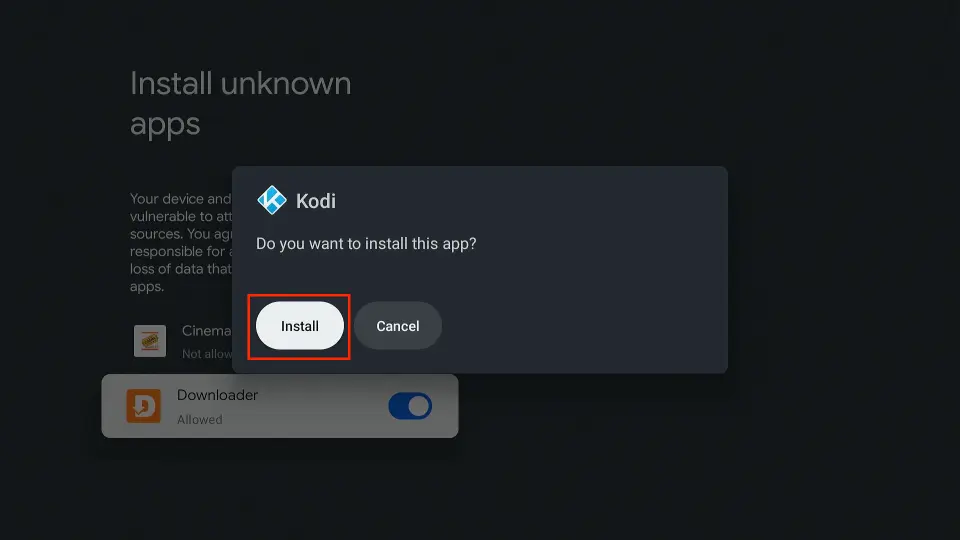
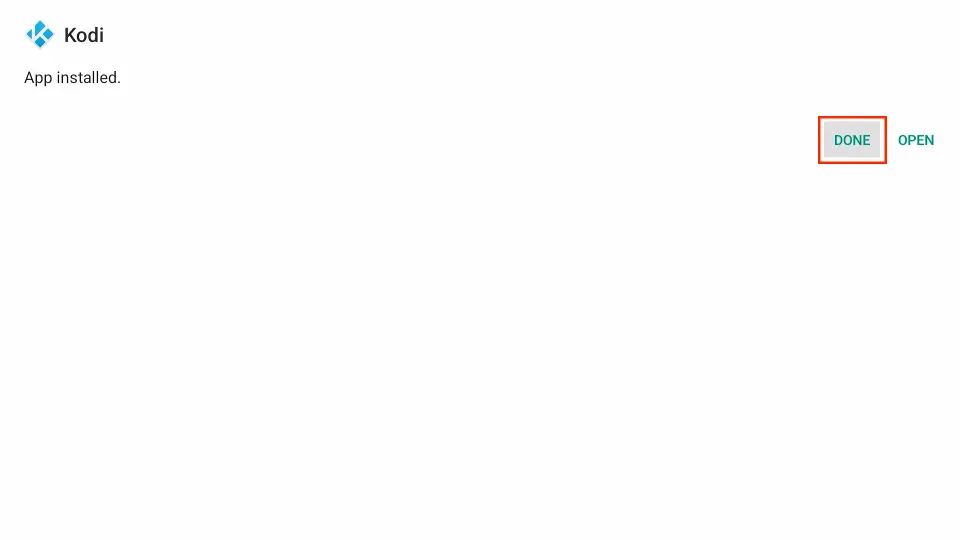
8. When the installation is complete, click Done (recommended) to delete the installation file and free up the storage. You may also click Open, but it’s best to remove the file.
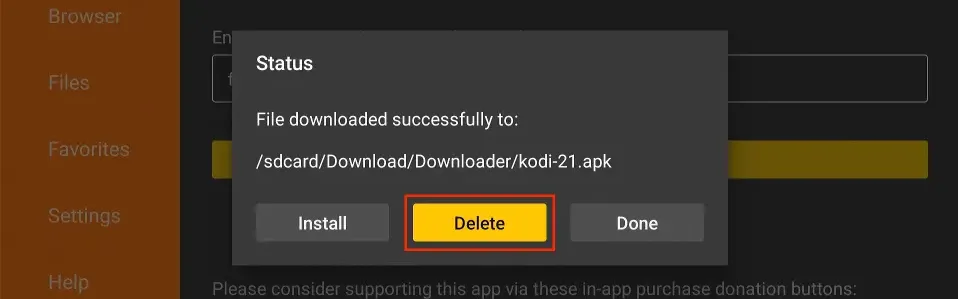
9. Click Delete when prompted.
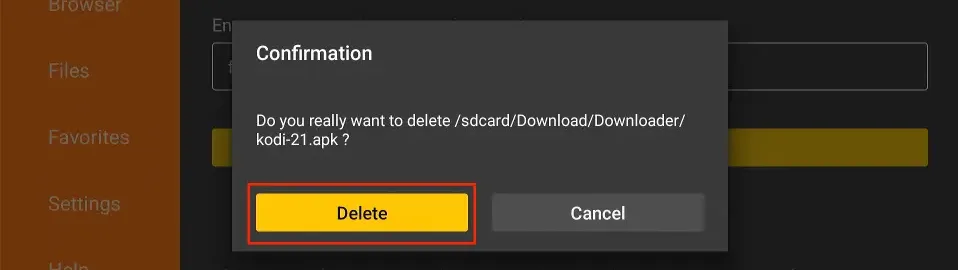
10. Click Delete again.
You have successfully sideloaded an APK on Android TV using the direct APK link.
Method 2: Sideload from a webpage
The Downloader app also includes a browser that lets you download files from web pages. Here’s how it works:
1. Click the textbox on the home screen of the Downlaoder app.
2. Type the download URL or the Downlaoder code and click the checkmark button on the keyboard.
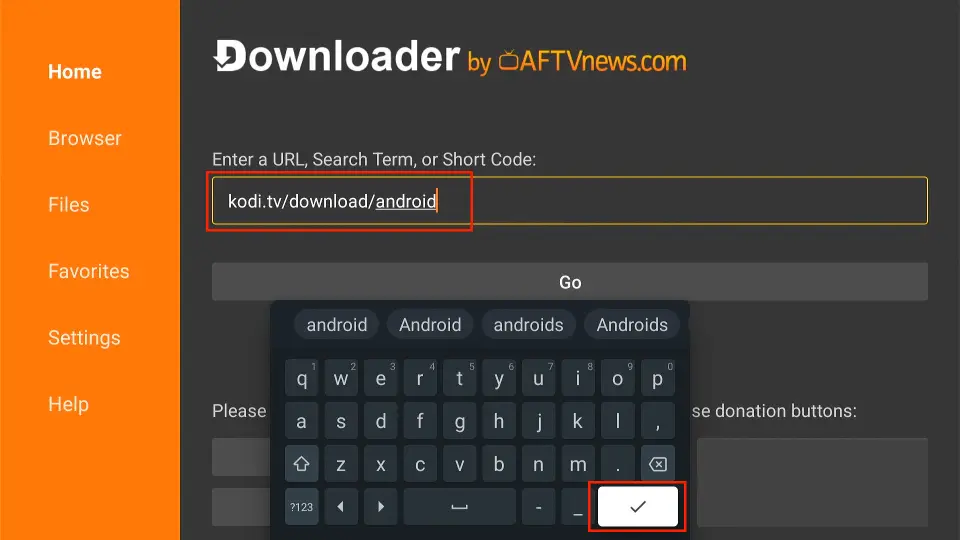
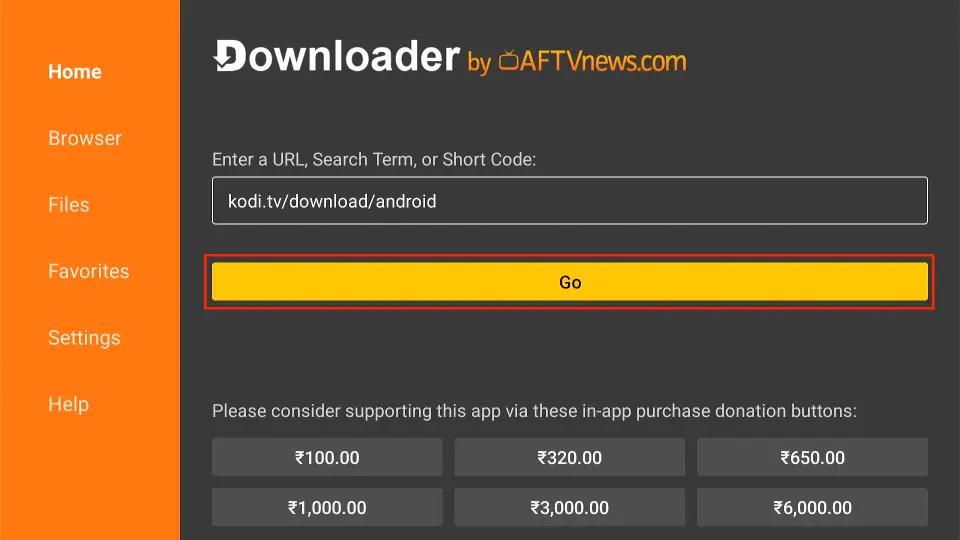
3. Click Go.
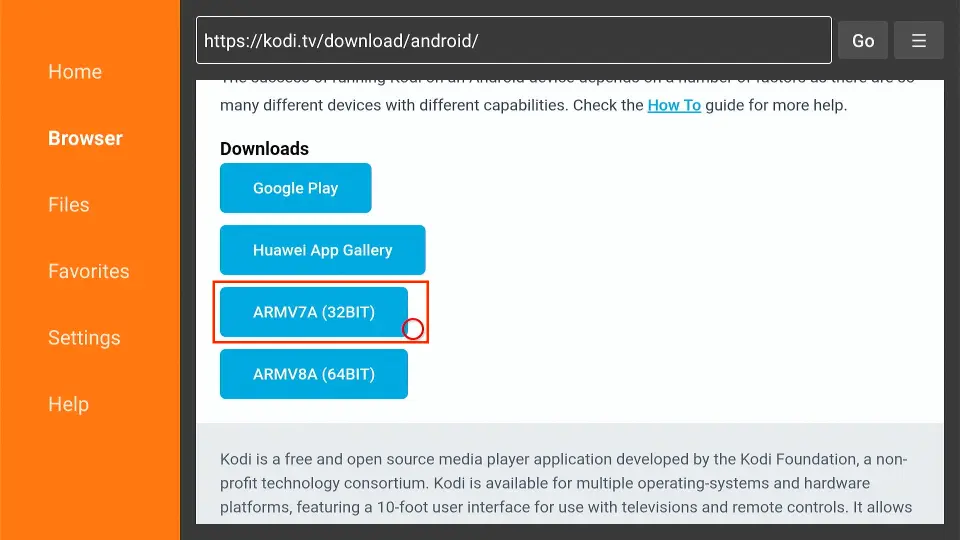
4. Click the download link or button on the webpage.
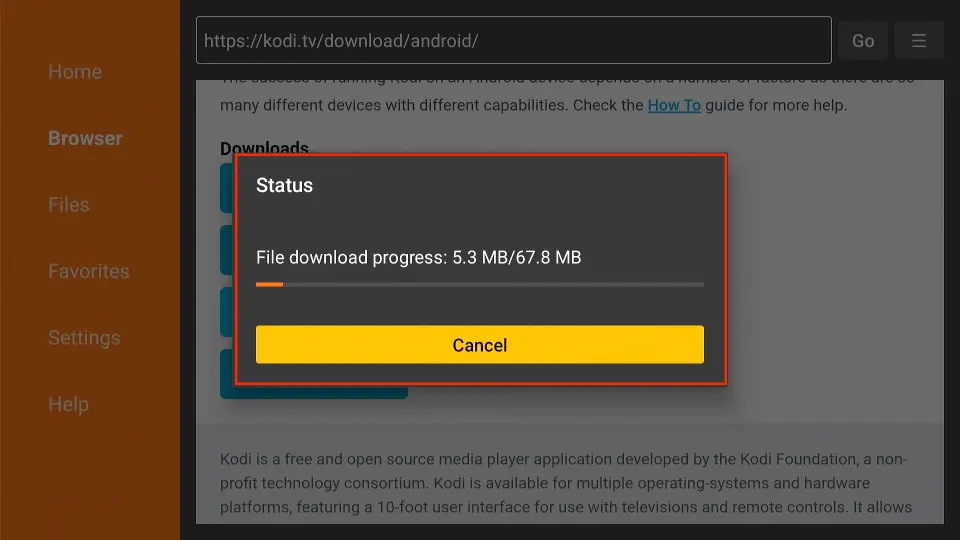
5. Wait for the download to complete.
6. Again, if it is your first time, you will be asked to allow sideloading. Click Settings.
7. Click Downloader to allow it.
8. Click Install.
9. Click Done.
10. Click Delete.
11. Click Delete again.
This is how you sideload on Google TV/Android TV from a webpage using the Downloader app.
Wrapping Up
This is how you sideload apps on Android TV and Google TV. All you need is the Downloader tool, and you can install any compatible third-party app on your device. If you have any feedback or comments, please let us know in the comments box below.
Suberboost Your FireStick with My Free Guide
Stay Ahead: Weekly Insights on the Latest in Free Streaming!
No spam, ever. Unsubscribe anytime.




hey, I have the same problem, I am trying to install the stremio APK on my mi box4 and get the same message that max had. followed all the steps, do you have a fix?
thanks
Hi Noam, are you installing from the official website https://strem.io
Thanks for this!! But, after clicking “install” when asked, I get a message that says “App not installed”… HELP!!
Hi Sebastien, which app are you trying to install?
Thank you for the clear and concise guide
Thanks for sharing. I just bought a used MeCool 4×64 Mk3 not realizing it is Droid9 TV so am saving this so I can load Opera & other. The APS for TV are pathetic.
Regards, diAnne
Thank you.
The struggle before I found this website was real!!!