
In this step-by-step guide, I will show you how to install Kodi on FireStick in 2 minutes. The same guide will also work for FireStick 4K, Fire TV Stick 4K Max, Fire TV, FireStick Lite, FireStick HD, and Fire TV Cube.
What is Kodi?
Kodi is a free, open-source media player compatible with various devices and operating systems. Originally known as the Xbox Media Center (XBMC), it was initially designed for the Xbox gaming console.
Over time, it was rebranded as Kodi and expanded to support multiple platforms, including computers, smart TVs, mobile devices, and streaming gadgets.
It now serves multiple purposes, from organizing and playing local files such as photos, music, and videos to streaming content from the Internet.
Kodi is popular for its versatility. It is compatible with all major platforms and supports multiple content formats. The app works seamlessly with Android, Windows, Linux, iOS, macOS, webOS, Raspberry Pi, and tvOS. It also supports various audio formats, including MP3 and WAV, and video formats such as MP4, MPEG, and AVI.
One of Kodi’s standout features is its intuitive interface and straightforward layout, which make navigation easy for users.
Kodi also allows you to customize the themes and widgets, commonly referred to as Kodi skins. You can install Kodi builds to personalize your Kodi application. These builds are pre-packaged plugins developed by third parties to give your Kodi player a custom look, theme, and skin.
For Kodi Users!
ISPs, hackers, and other third-party entities worldwide may monitor your online activities. For security, privacy, and smooth streaming, it is recommended to use a reliable VPN for Kodi. Your IP address is visible to sites you visit.
I recommend ExpressVPN, a fast and secure VPN. It is very easy to install on any device, including Amazon Fire TV Stick, PC, Mac, and Smartphones. Also, it comes with a 30-day money-back guarantee. If you're not satisfied with their service, you can request a refund. ExpressVPN also has a special deal where you can get 4 months free and save 81% on the 2-year plan.
Read: How to Install and Use the Best VPN for Kodi
Is Kodi Safe & Legal?
Kodi is a safe and legal application available on official app stores, including Google Play and the Microsoft Store. While this is assuring, Kodi still raises safety and legal issues among users. The reason is that it allows installing add-ons from third-party sources. The safety and legality of these sources are questionable.
We can determine Kodi’s safety by scanning the APK file on VirusTotal, a popular security tool. I checked the Kodi APK on VirusTotal, and none of the 65 security vendors flagged it as malicious. See the screenshot below:

Regarding legality, there is no doubt that Kodi is 100% legal. That is why it is hosted on official app stores. The application also offers official addons that only stream legal content.
However, legal issues arise when you use unofficial add-ons. Most third-party add-ons may contain unlicensed content.
Piracy is illegal in most countries and may result in legal trouble. FireStickTricks.com does not encourage the breach of copyright protection laws.
How to Install Kodi on FireStick
While Kodi is a legal and official app available in the Google Play Store and Microsoft Store, it is still unavailable in the Amazon App Store.
The only way to get Kodi on FireStick is by sideloading it from the official website using an app like Downloader. This process involves jailbreaking, which consists of changing FireStick settings to allow the installation of apps from unknown sources.
In brief, installing Kodi on FireStick involves two steps. These are:
- Part 1: Preparing Fire TV FireStick to Sideload Kodi
- Part 2: Installing Kodi on FireStick using the Downloader app
Let’s discuss the process below.
Legal Disclaimer: This tutorial is purely educational. FireStickTricks.com doesn’t own, host, operate, resell, or distribute any streaming apps, addons, websites, IPTV or services. The page contains some unverified services, and we are not certain whether they hold legal licenses to distribute the content. FireStickTricks.com does not verify the legality of each app/service in all regions. Do your due diligence if you use any of the unverified apps/services, and stream only content that is available in the public domain. The end-user shall be solely responsible for the media accessed.
Part 1: Prepare Fire TV FireStick for Sideloading Kodi
Sideloading allows you to install third-party apps on a FireStick. However, by default, the Amazon FireStick restricts the installation of apps that aren’t available on the Amazon App Store. To sideload apps, you need to change this setting under Developer Options.
Moreover, you need a downloader app because the Fire OS doesn’t permit direct downloads from external sources. The Downloader app by AFTVnews is a reliable way to sideload FireStick apps, and you can get it from the Amazon Store. It lets you install apps via APK files. All you need is the correct Downloader code or link.
If you already have the Downloader app installed and the Developer Options settings adjusted, skip to the installation steps.
Otherwise, follow the steps below to prepare your FireStick for sideloading.
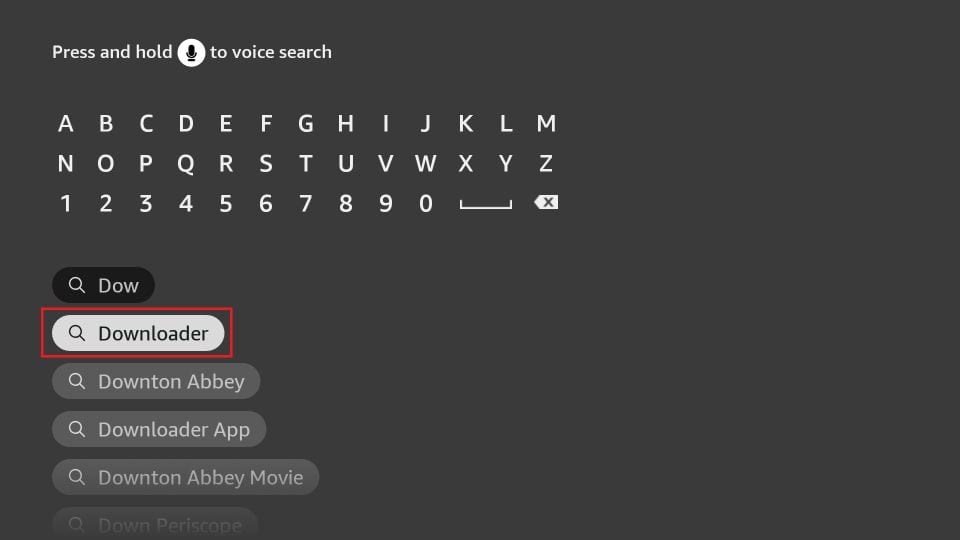
1. From the FireStick home screen, click Find>Search. Search for the Downloader app in the app store, then follow the on-screen instructions to install it on your device.
2. Return to the FireStick home screen. Navigate to Settings>My Fire TV> Developer Options.
You will see one of the following two options depending on your FireStick device version:
- Option 1 (new devices) - Install Unknown Apps: Click it and proceed to the next step to enable Downloader.
- Option 2 (old devices) - Apps from Unknown Sources: Click this option and then click Turn On on the following prompt. Skip the next step.
Now, select Fire TV Stick and click it 7 times to enable Developer Options. If you’re still not sure how to do it, here’s a step-by-step guide to enable developer options.
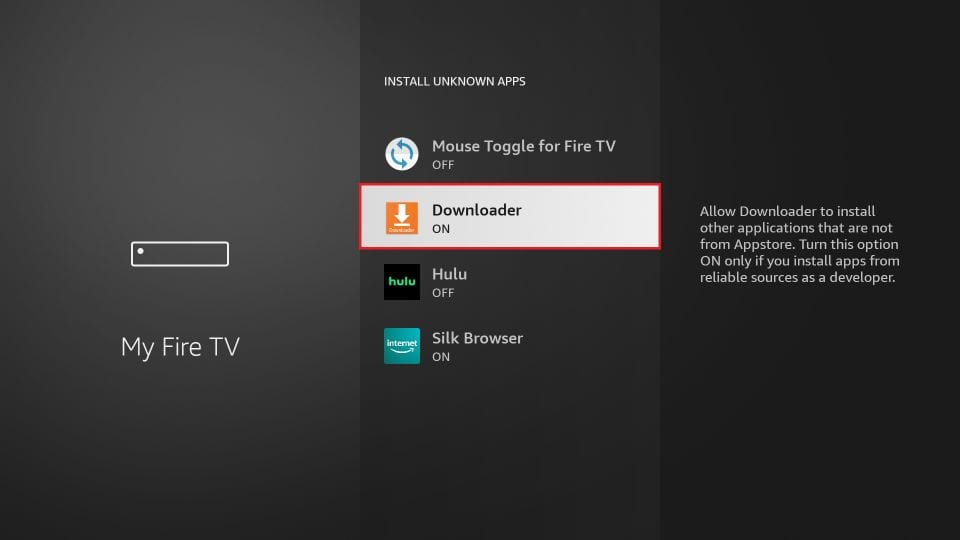
Your Amazon Fire TV Stick is now set; you can install Kodi. For a detailed guide on sideloading, check out our tutorial on sideloading apps on FireStick using Downloader.
Part 2: Install Kodi on FireStick
Follow the following steps to install Kodi 21.3 Omega on FireStick:
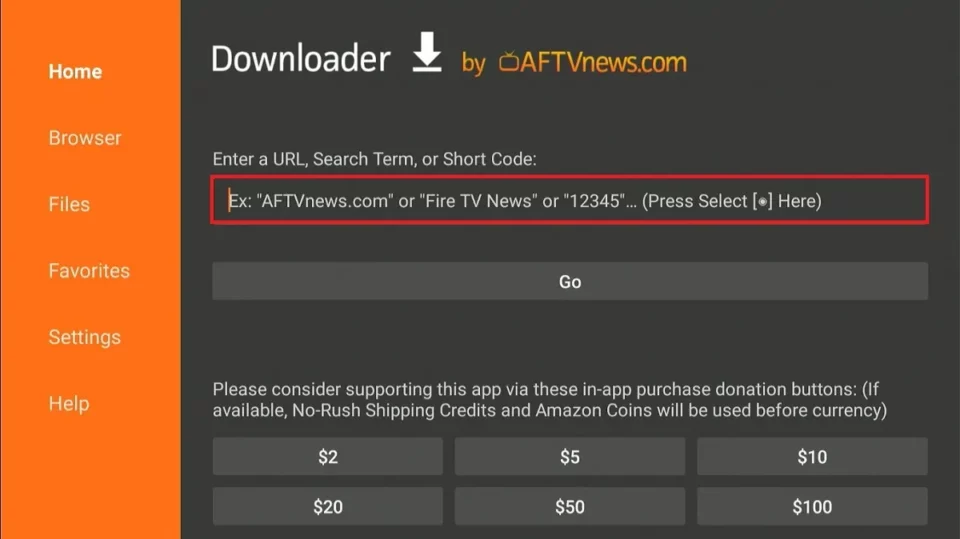
1. Launch the Downloader app and click the URL box.
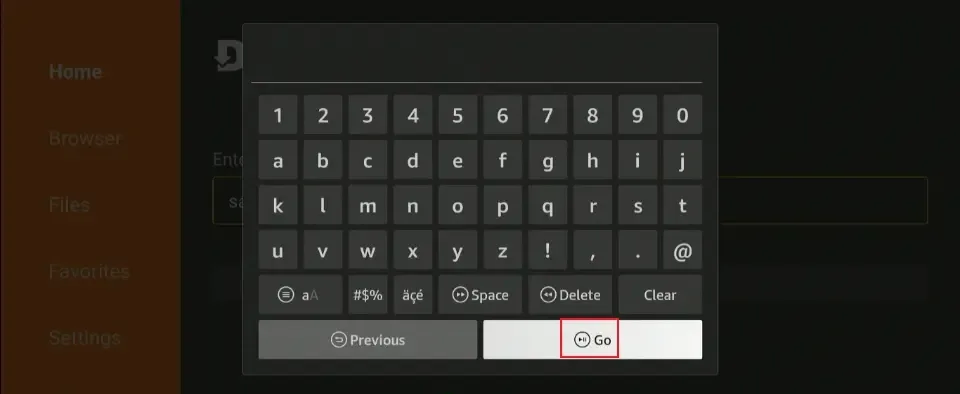
2. Enter the Downloder code 225334 or type the URL kodi.tv/download/android, and click Go. When the webpage opens, click ARMV7A (32BIT).
Note: FireStickTricks.com does not host any APKs or URLs. The URL above redirects to the official website of Kodi.
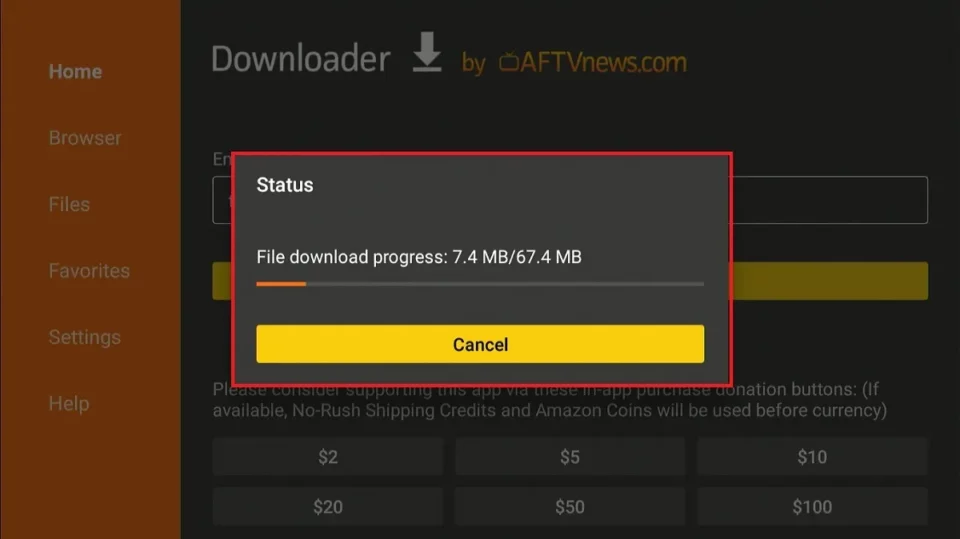
3. The download process begins, and you can track its progress on the screen.
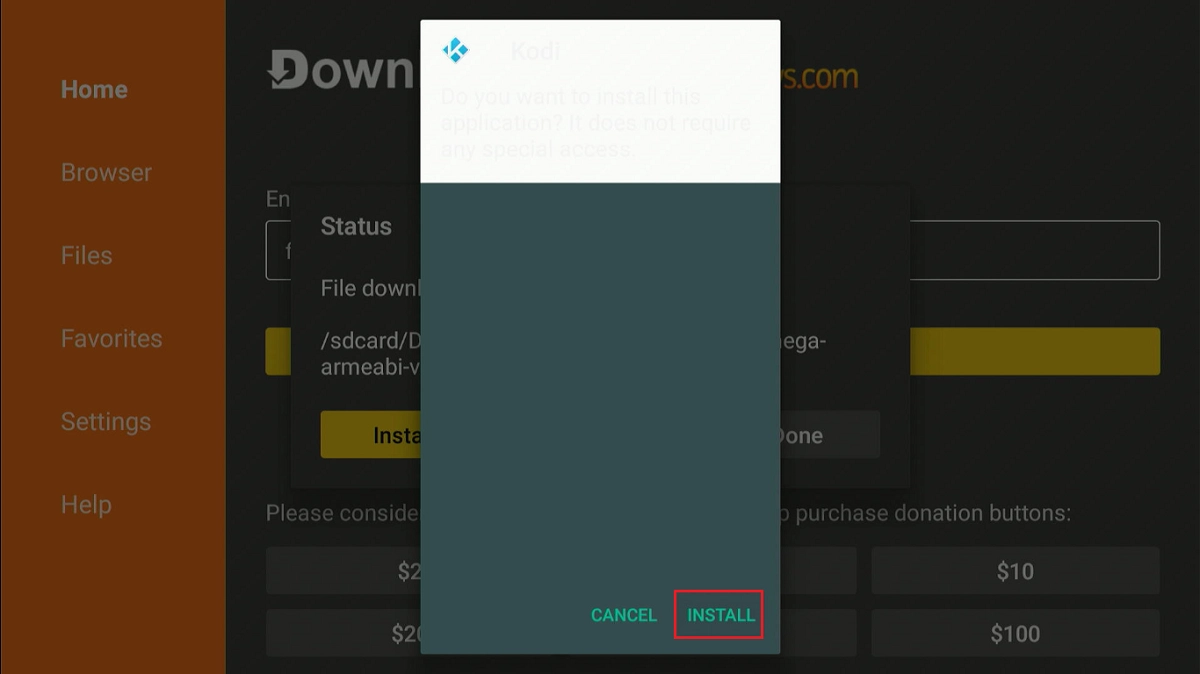
4. Once the APK file has been downloaded, the Downloader app will prompt you to install Kodi. Choose Install.
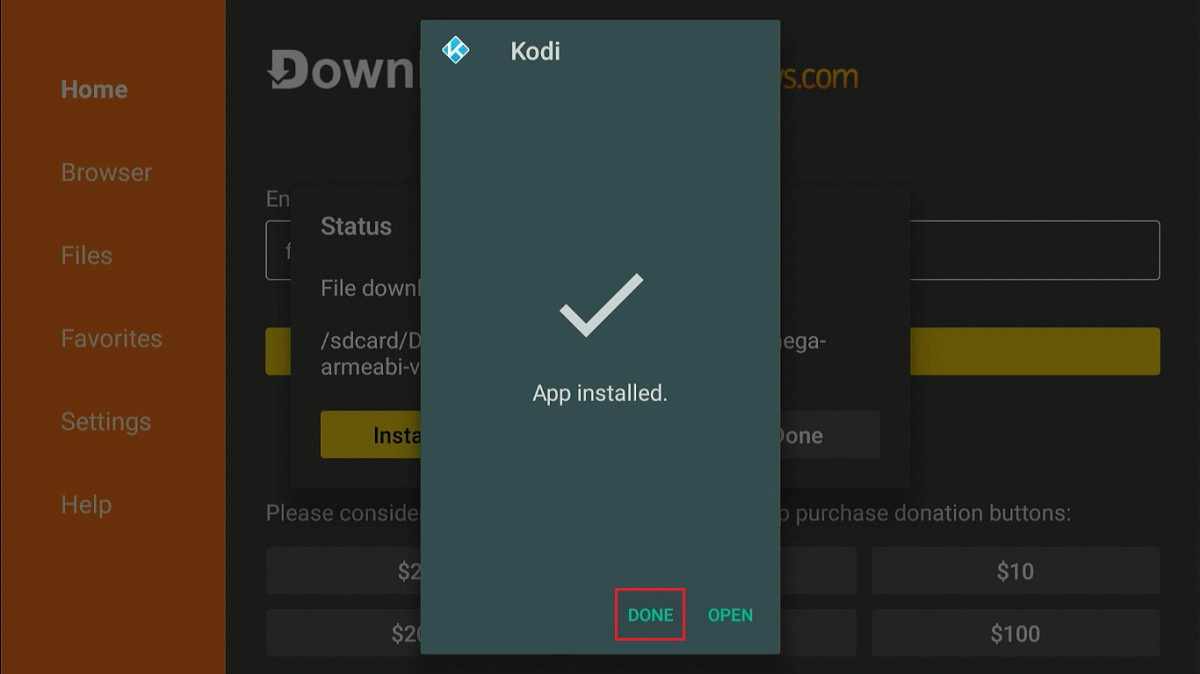
5. The app installation will begin. Wait for the download to complete. When it’s done, you’ll see two options: Open and Done. Select Done.
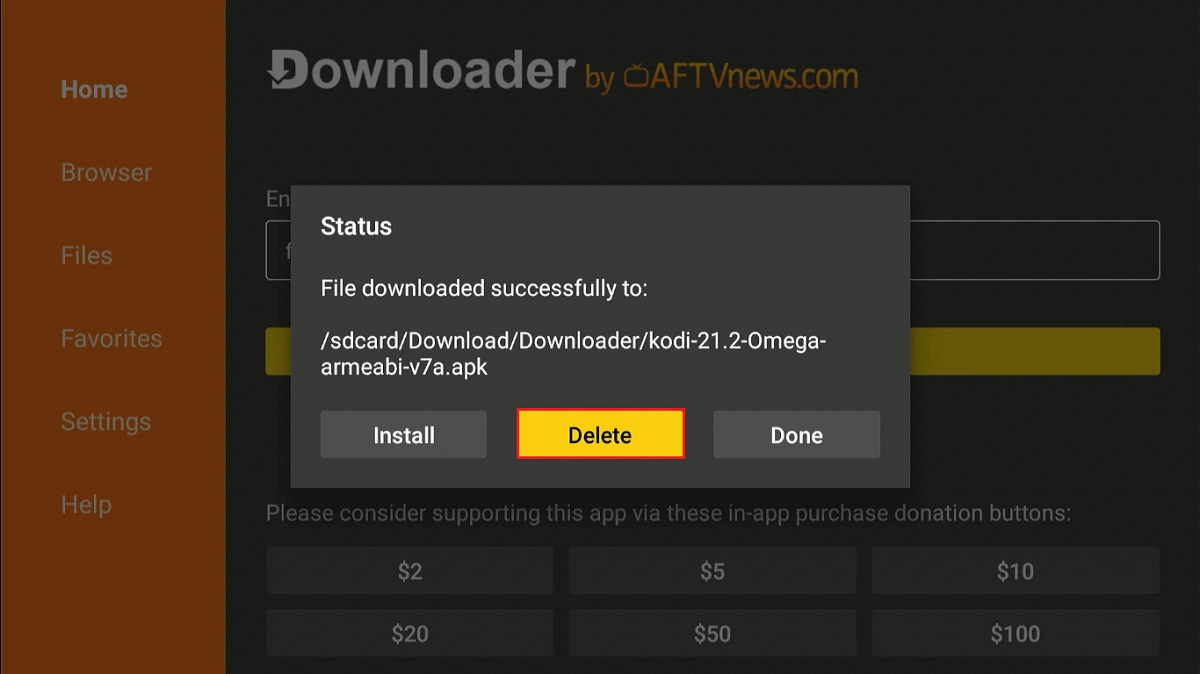
Note: Choosing Done allows you to remove the APK file in the following steps. You no longer need this file, and deleting it will free up space on your device’s storage for other apps.
6. Click Delete to remove the Kodi APK file.
7. Click Delete again to confirm.
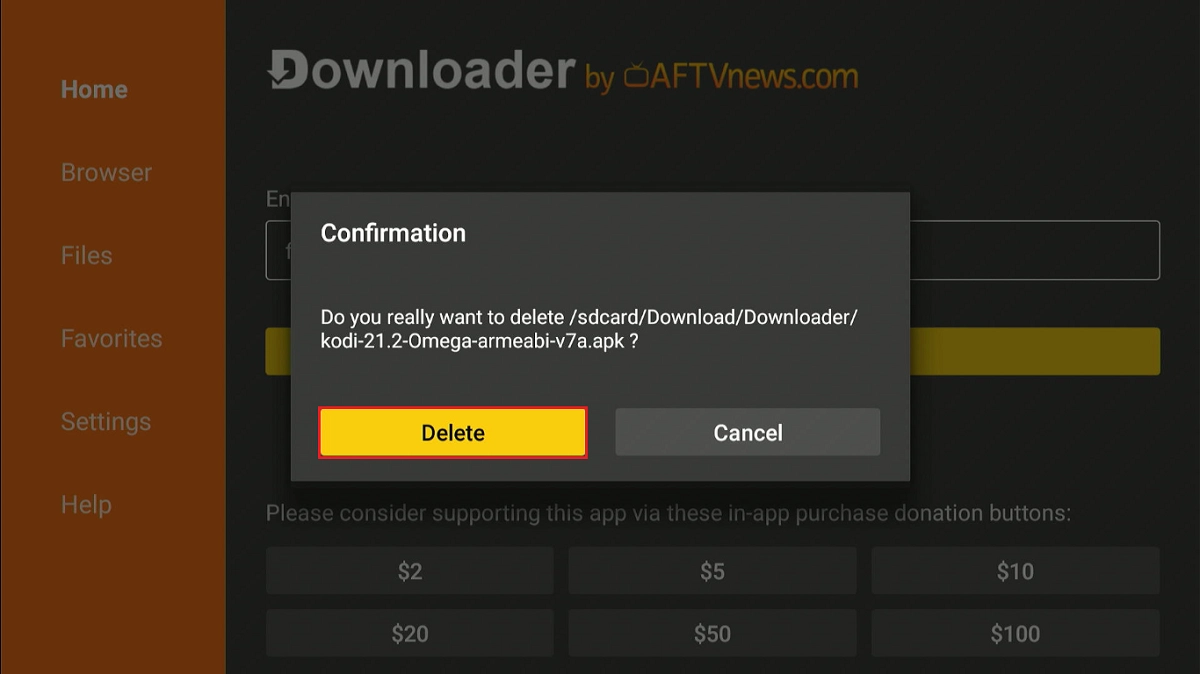
You’ve successfully installed Kodi 21.3 Omega on your FireStick. You can now access the app from the app library.
How to Use Kodi on FireStick
If you intend to use Kodi regularly, consider creating a Kodi home screen shortcut. You can also access the app from your Apps and Channels window. Press the Home button on your remote for 5 seconds to access your installed apps.
With Kodi, you can watch a vast range of content.
A quick reminder: Your ISP can throttle your internet connection. This can cause buffering issues. However, you can avoid it with a reliable VPN.
I recommend ExpressVPN. It’s a reputable VPN with strong encryption and fast connections, and it’s straightforward to install on Fire TV/FireStick and other devices.
Step 1: Click HERE to subscribe to the ExpressVPN service. There is a 30-day, full, no-questions-asked money-back guarantee; if you are not satisfied with it (which is highly unlikely), you can request a full refund within the first 30 days.
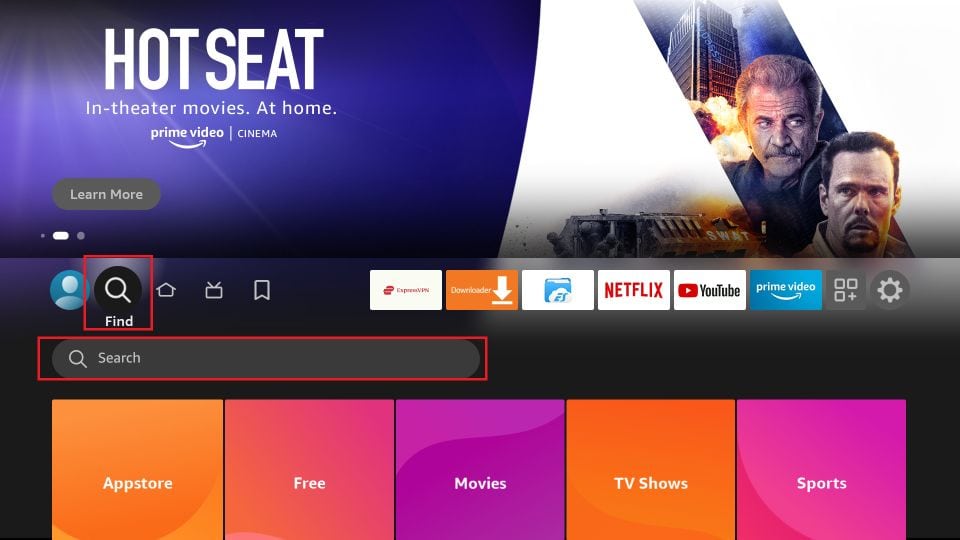
Step 2: Turn on your Fire TV or Stick and select “Find” followed by “Search.”
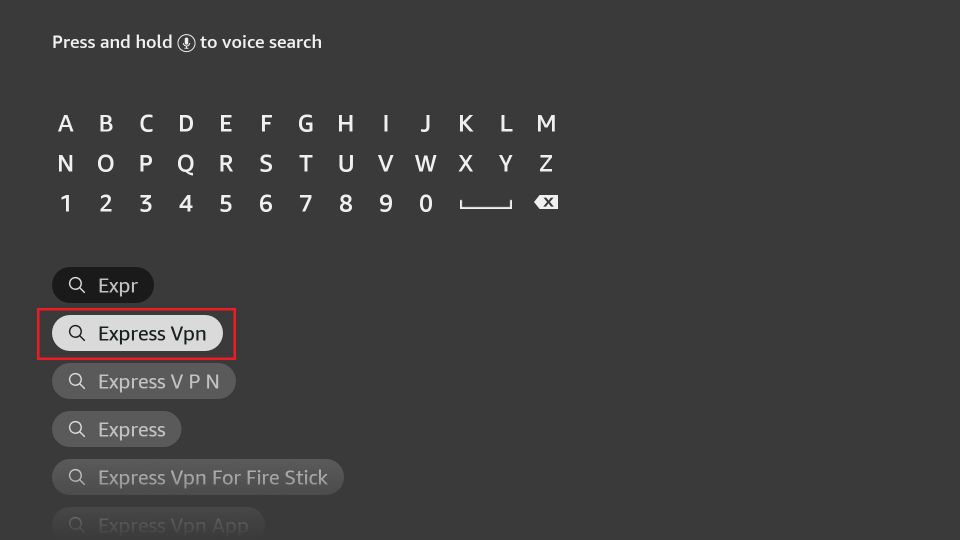
Start typing Expressvpn in the search bar and select ExpressVPN when it appears in the search results.
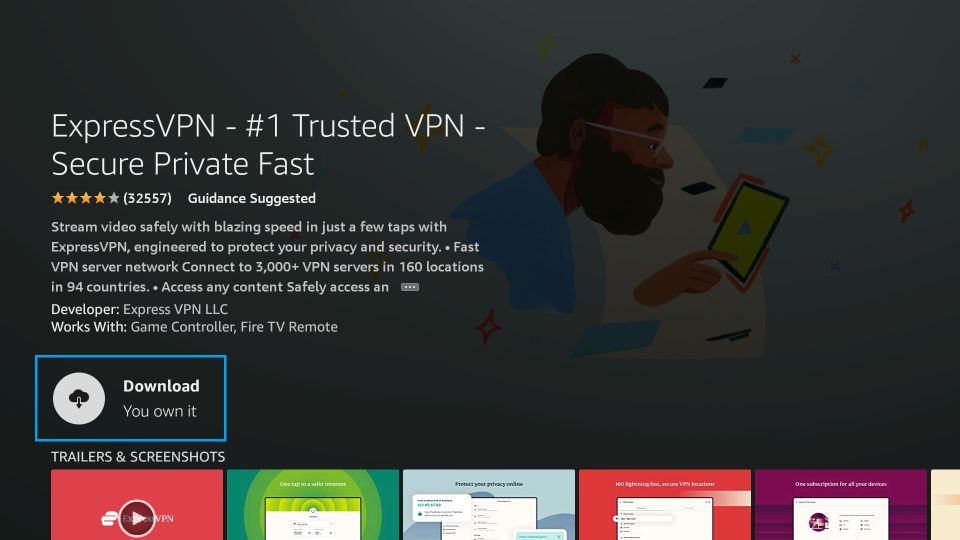
Step 3: Click “Get” to download and install the ExpressVPN application on your Fire TV or Stick.
Step 4: Launch the ExpressVPN app and log in with the Email ID/password you created when you bought the ExpressVPN subscription.
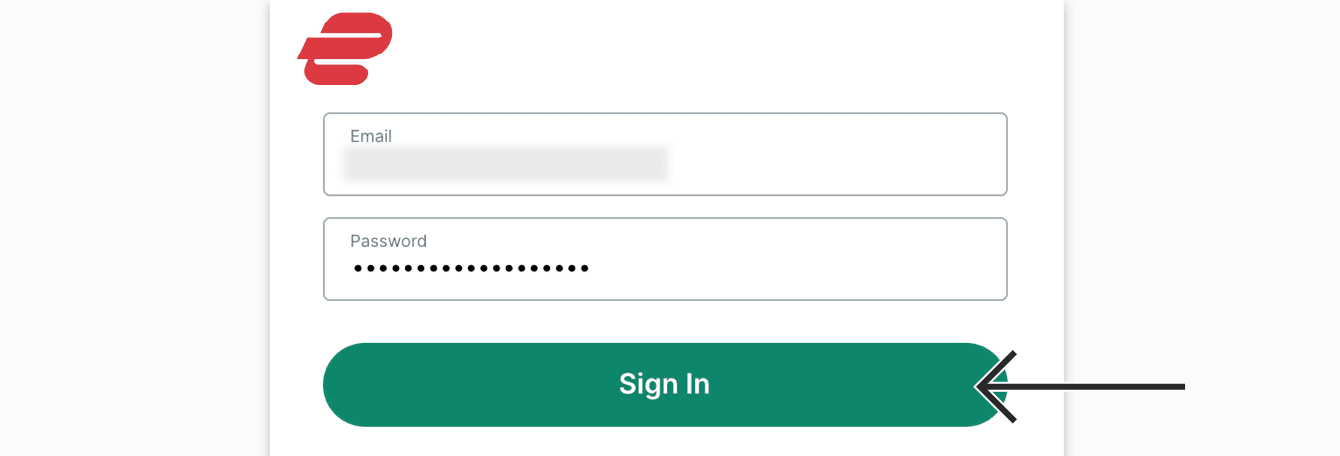
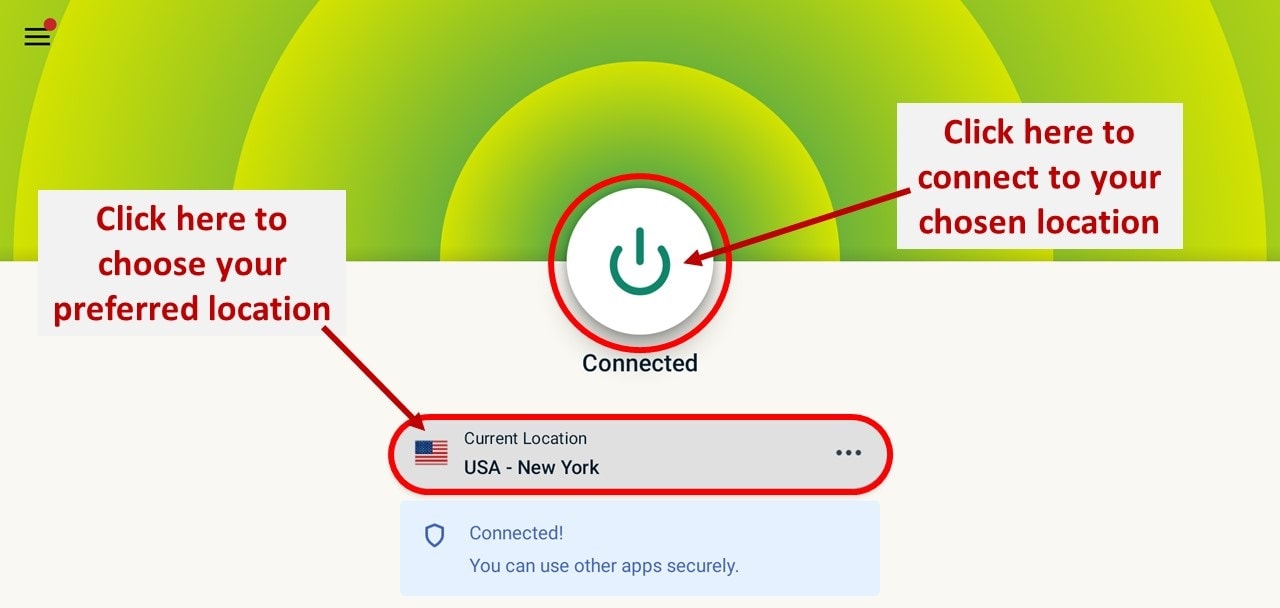
Step 5: Now, click the Power icon to connect to a VPN server (see the image below). You can also change your preferred location by clicking “Choose Location,” as shown in the image below. That’s all. Your connection is now secure with the fastest and best VPN for FireStick.
Let us now explore how to use Kodi on a Fire TV Stick.
As I mentioned earlier, Kodi is an open-source media player that lets you manage your local files and stream content from the internet. It doesn’t host any content. Therefore, to fully experience the power of Kodi, you need to install Kodi addons or builds to stream content.
How to Install Kodi on FireStick Using AppStarter
If you find it challenging to install Kodi using the Downloader app or ES File Explorer, try using AppStarter instead.
AppStarter works similarly to Downloader, allowing the installation of unregistered apps or apps from unknown sources.
The installation process is similar to installing third-party apps on your FireStick, and disabling the “Collect App Usage Data” feature. The steps to make these adjustments are the same as those for the Downloader app.
After completing all the required changes, proceed with installing Kodi via AppStarter using the steps below:
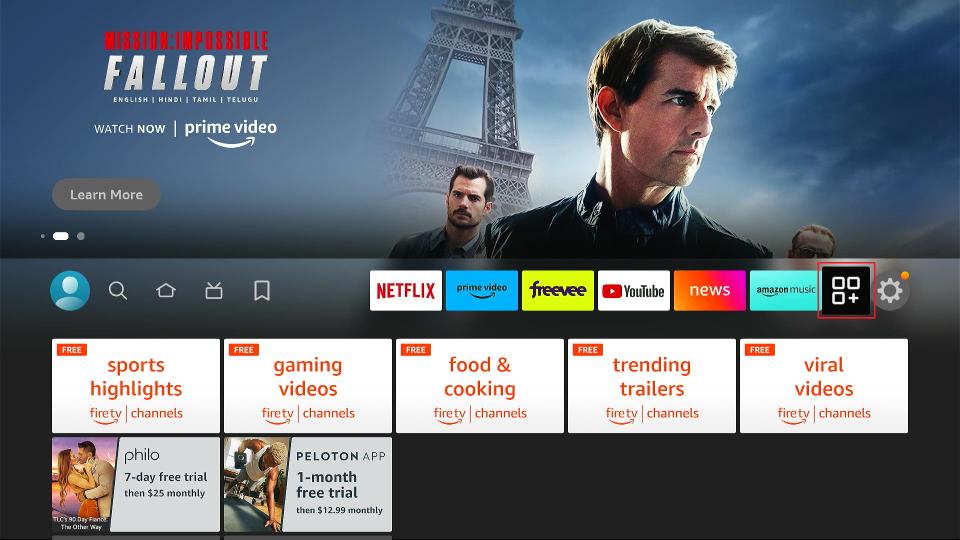
1. Go to your Fire TV home page and click the Apps icon on the right side of the icon bar.
2. Select the Downloader tile from the list of apps.
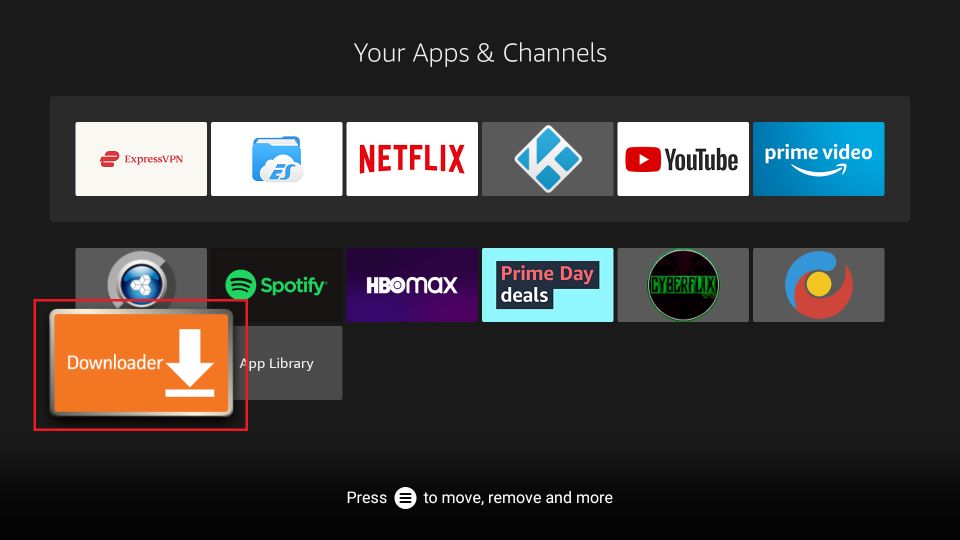
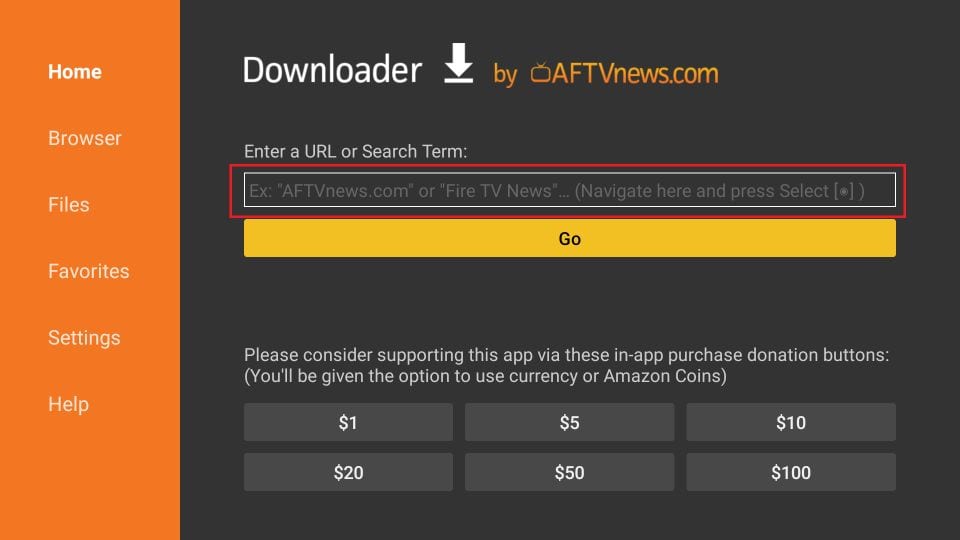
3. Click the URL box highlighted in the image below.
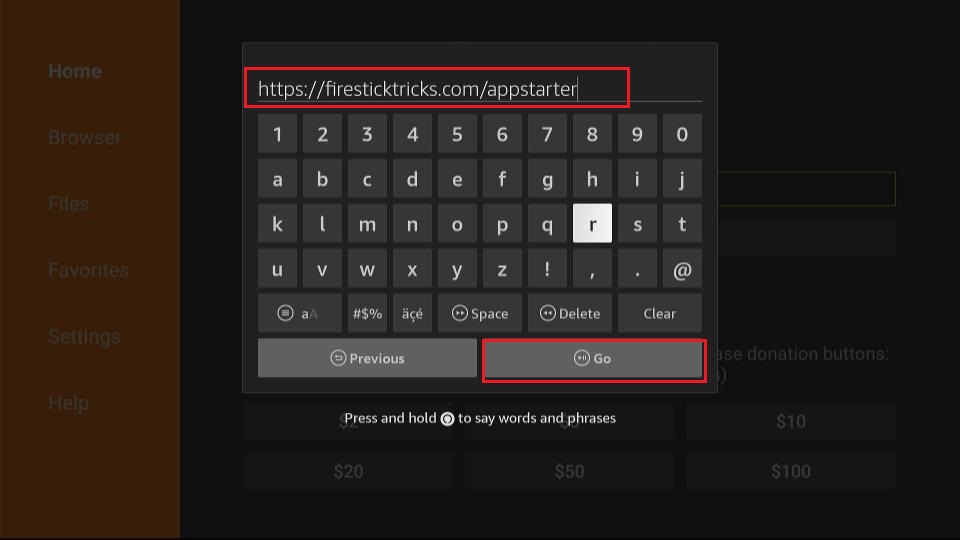
4. A new window will now appear. Enter firesticktricks.com/appstarter and click GO.
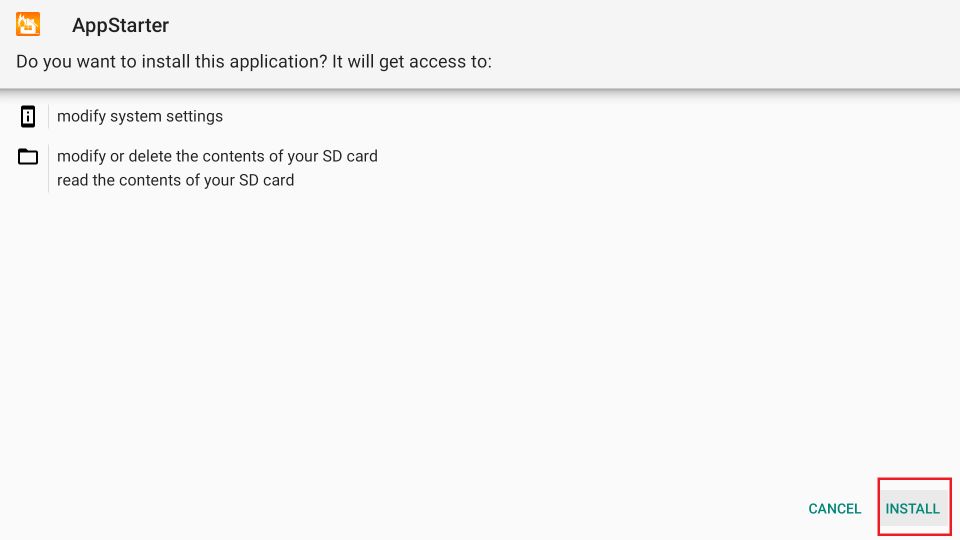
5. Once the AppStarter is downloaded, click Install.
6. After installing AppStarter, launch it. To install Kodi, go to Updates on the left-hand menu of AppStarter. Now, click “Install” on the right side, where Kodi is displayed.
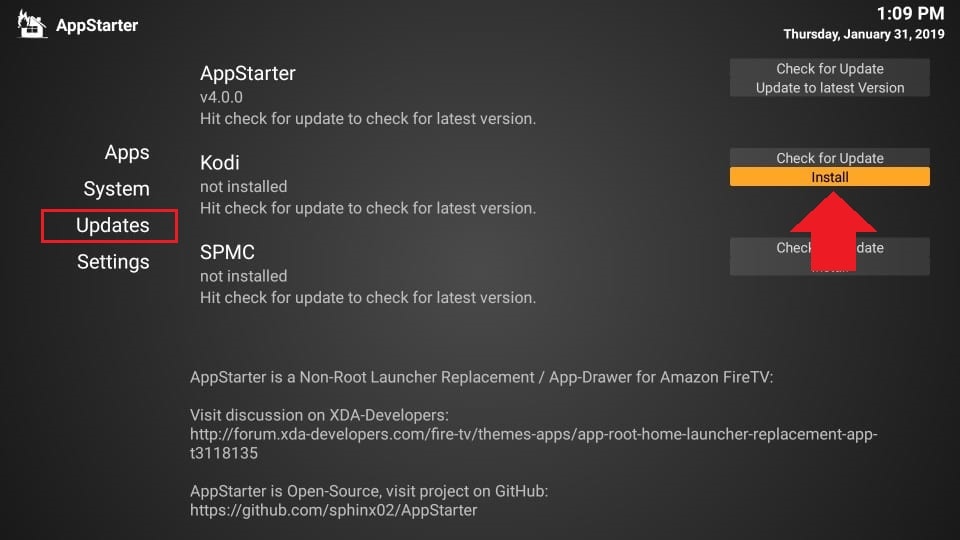
That’s it! You’ve successfully jailbroken your Amazon Fire Stick and installed Kodi using AppStarter.
Winding Up
Kodi is an excellent FireStick app that lets you organize and play local media, including photos, videos, and music. Additionally, with official Kodi addons, you can stream online content, including movies, TV shows, anime, and live TV, on any compatible device.
This comprehensive guide covers several methods for installing Kodi on a FireStick. Hopefully, you found it helpful and successfully installed Kodi 21.3 Omega on your device. Give it a try and let us know in the comments which installation method worked best for you.
Frequently Asked Questions
A: Yes, Kodi itself is completely legal and safe - it's available on official app stores. However, only use official Kodi add-ons from the official repository to stay within legal boundaries and avoid security risks.
A: No, sideloading Kodi won't void your warranty since you're only using Amazon's built-in developer settings. The process is reversible by simply uninstalling the app.
A: Amazon doesn't include Kodi in their App Store, likely due to concerns about potential misuse with unofficial add-ons. However, sideloading the official version from kodi.tv is perfectly legitimate.
A: A VPN isn't required for Kodi itself. VPNs are useful for general privacy and security, but aren't necessary if you're only using official add-ons and legal content sources.
A: Official add-ons come from Kodi's verified repository and only access legal content. Unofficial add-ons are from third-party sources and may contain unlicensed content, which could lead to legal issues.RetryClaude can make mistakes. Please double-check responses.
Suberboost Your FireStick with My Free Guide
Stay Ahead: Weekly Insights on the Latest in Free Streaming!
No spam, ever. Unsubscribe anytime.




I downloaded kodi but when I click on a movie it wont download it so that I can watch it
Hi Jalene, Kodi wouldn’t download movies. It will stream directly onto your device. Which addon are you trying to use?
Here is our list of working addons for Kodi: https://www.firesticktricks.com/best-kodi-addons.html
Everything installed fine, but when I start Kodi, it just says “Database migration in progress – please wait…” and it never changes from that. At least I’ve been waiting for one hour, and no change.
Hi Toro, this usually happens when you install a build. However, it looks like you have just started. I think uninstalling and reinstalling Kodi will do the trick. So, try it.
My TV keeps giving me a message that ( the app you are using is not original. Your TV service provider has not provided your the original app. Such kind of apps could send the data to legal authorities. I have applied all the apps suggested
Hi Nancy, using a VPN is the best way to go about it – https://www.firesticktricks.com/install-best-vpn-firestick.html
Sorry for the typo in my previous post…retyped
Hi, Is there an off-the-shelf installed kodi Fire stick one can buy or is there anyone that can be paid to install Kodi and post out the firestick for a price?
Hi Dotun, we don’t recommend buying or selling FireStick with preinstalled Kodi or any other app. I have a very simple step-by-step guide that will help you get Kodi as well as other streaming apps without any tech knowledge. Check this – https://www.firesticktricks.com/jailbreak-fire-stick.html
Hi, Is there an off the shelf installed kodi Fire stick on can buy or is there anyone can be be paid to install Kodi and post out the firestick for a price.
Very cool I followed it all step-by-step and now I’m watching . He did a very good job describing how to do this I’m not even a computer guy I fix carburetors not computers
Thanks for providing such a nice information.
I have a firestick and use 17.6 but yesterday it just seemed to vanish and dumped all the addons and went back to the blue screen. Help
Hi Peter, looks like your Kodi got reset for some reason. From the home-screen go to Add-ons > Video add-ons and check if your addons are still there. If not, you will need to install them again. Here is our list of the best Kodi addons: https://www.firesticktricks.com/best-kodi-addons.html
I also recommend you to update to the latest Kodi 18 Leia. Here is our guide: https://www.firesticktricks.com/kodi-update.html
I just loaded Kodi 18 however I have a buffering issue as the video stops. How can I fix this?
Hi, here is our guide on how to fix buffering issues on Kodi: https://www.firesticktricks.com/fix-kodi-buffering.html
I checked. I’m on 18.0. Should I uninstall and add 17.6? If so, how do I uninstall?
The stable version of Kodi 18 is not released yet, so you might encounter some bugs here and there while using it. If you want to uninstall it, here you can find the steps – https://www.firesticktricks.com/kodi-update.html#uninstall