
This guide provides detailed instructions for installing MX Player on Fire TV. The installation steps also work on FireStick 4K Max, FireStick 2nd Generation, FireStick Lite, All-New FireStick 4K Max, and more.
What is MX Player?
MX Player is a versatile media player designed for Android devices. It lets you play video and audio files stored locally on your device or from the internet. It provides advanced playback options such as gesture control for volume, brightness, and search, making it user-friendly and efficient.
Unlike other media players like VLC, the MX Player stands out for its ability to function efficiently in the background. It allows users to multitask without disrupting their viewing or listening experience.
Given its compatibility, advanced features, and widespread usage, MX Player is an essential tool for Android users. Its reliable performance and ability to enhance the functionality of other applications make it a valuable addition to any Android device.
Follow this guide to do the same.
Note: The MX Player video player is unavailable on the Amazon Store. In some regions, you may find an MX Player app on the Amazon Store. However, it is not the same.
The Amazon Store app is an OTT platform that hosts content. On the other hand, the MX Player video player is just a video player with no content. Also, it must be sideloaded on your FireStick.
For FireStick Users
ISPs, hackers, and other third-party entities worldwide may monitor your online activities. For security, privacy, and smooth streaming, it is recommended to use a reliable VPN for FireStick. Your IP address is visible to sites you visit.
I recommend ExpressVPN, a fast and secure VPN. It is very easy to install on any device, including an Amazon Fire TV Stick. Also, it comes with a 30-day money-back guarantee. If you don't like their service, you can always ask for a refund. ExpressVPN also has a special deal where you can get 4 months free and save 81% on the 2-year plan.
Read: How to Install and Use the Best VPN for FireStick
Is MX Player Safe & Legal?
Yes! Even though MX Player is not available on the Amazon Store, it is a 100% legal application available on all other major app stores. I also checked its APK on VirusTotal to be careful; the proof is loud and clear.
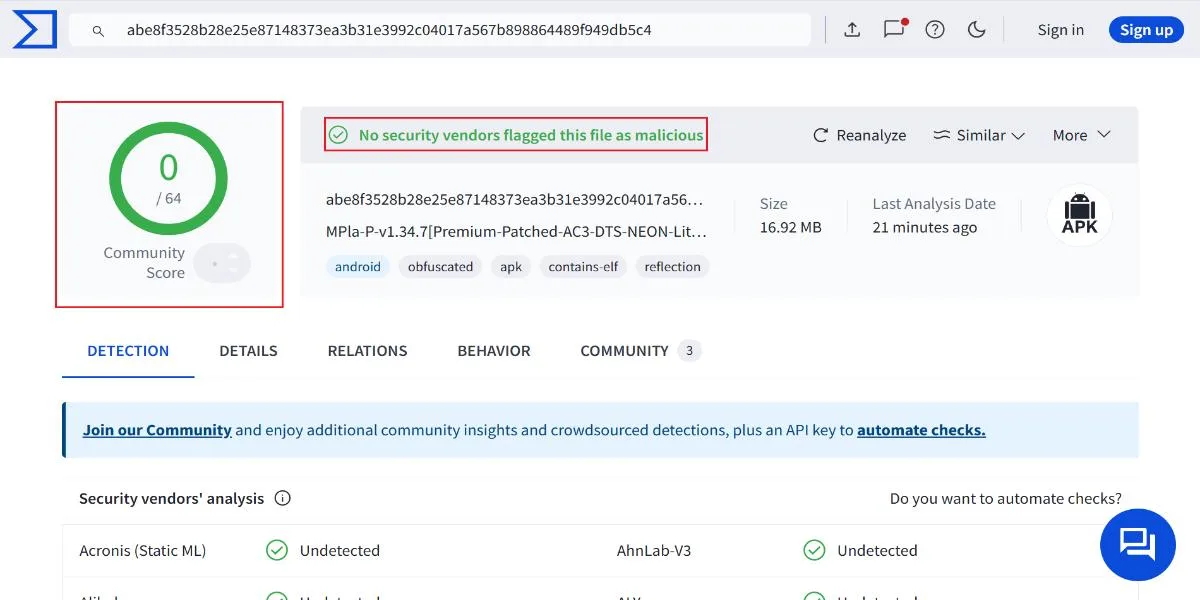
MX Player’s legality status is positive since it is an official app. This app can stream your local media library, online videos, and more.
Features of MX Player
- Supports hardware acceleration for smooth playback.
- Multi-core decoding.
- Features file transfer feature.
- Kids lock.
- Support the majority of video, audio, and subtitle formats.
How to Sideload MX Player on FireStick
MX Player is a third-party app not available in the Amazon Store. Therefore, it will be sideloaded onto your FireStick.
We will use Downloader as the primary method to install MX Player, the most straightforward and easy-to-use sideloading tool. Please read our detailed guide on how to sideload apps using Downloader.
Legal Disclaimer: This tutorial is purely educational. FireStickTricks.com doesn’t own, host, operate, resell, or distribute any streaming apps, addons, websites, IPTV or services. The page contains some unverified services, and we are not certain whether they hold legal licenses to distribute the content. FireStickTricks.com does not verify the legality of each app/service in all regions. Do your due diligence if you use any of the unverified apps/services, and stream only content that is available in the public domain. The end-user shall be solely responsible for the media accessed.
Preparing FireStick to Install MX Player on Fire TV
Installing the Downloader is the first thing we must do (if you don’t already have it). Follow the steps below:
1. Go to Find > Search from the home screen of your FireStick. Search for Downloader. When you see it in the search suggestions, click it and then follow the onscreen instructions to install it.

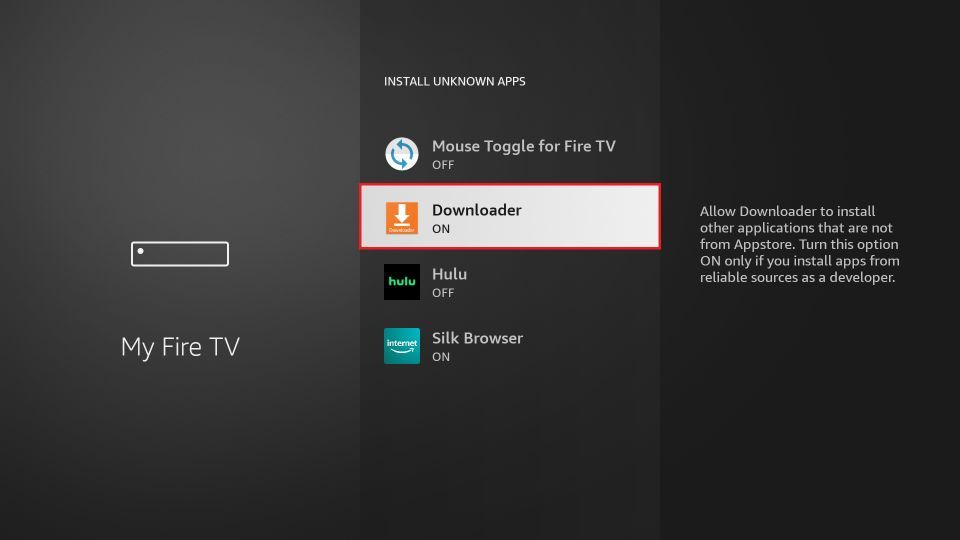
2. Go to the FireStick home screen and select Settings. Then, select My Fire TV. After that, click Developer Options. Then, select Install unknown apps (or click Apps from Unknown Sources). Lastly, turn ON Downloader.
Now, select Fire TV Stick and click it 7 times to enable Developer Options. If you’re still not sure how to do it, here’s a step-by-step guide to enable developer options.
Installing MX Player on FireStick via Downloader
Please follow these steps:
1. Open the Downloader app. You will find a URL field on the right part of the window. Select it.

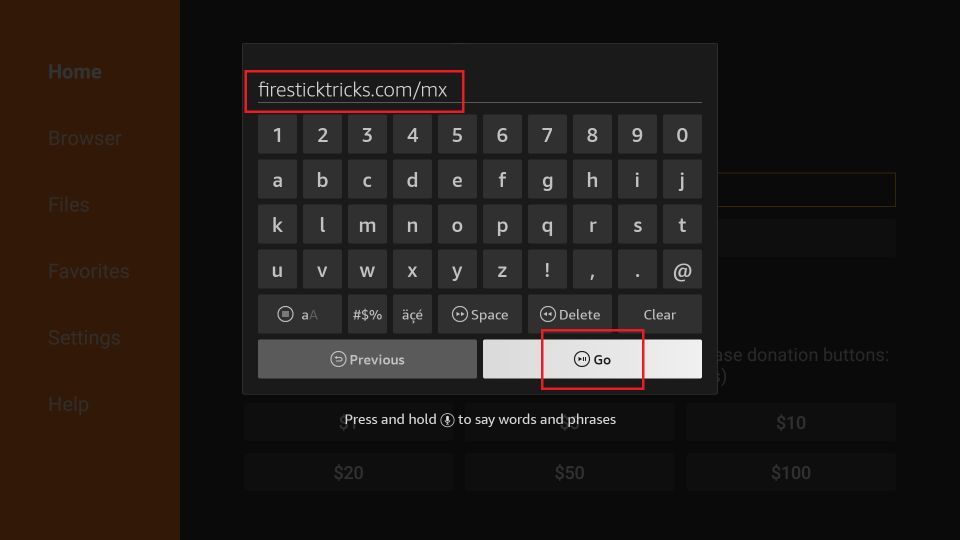
2. You’ll now see an onscreen keyboard. Go ahead and enter firesticktricks.com/mx and select Go.
Note: This URL points to an external source. We do not host any APK files.
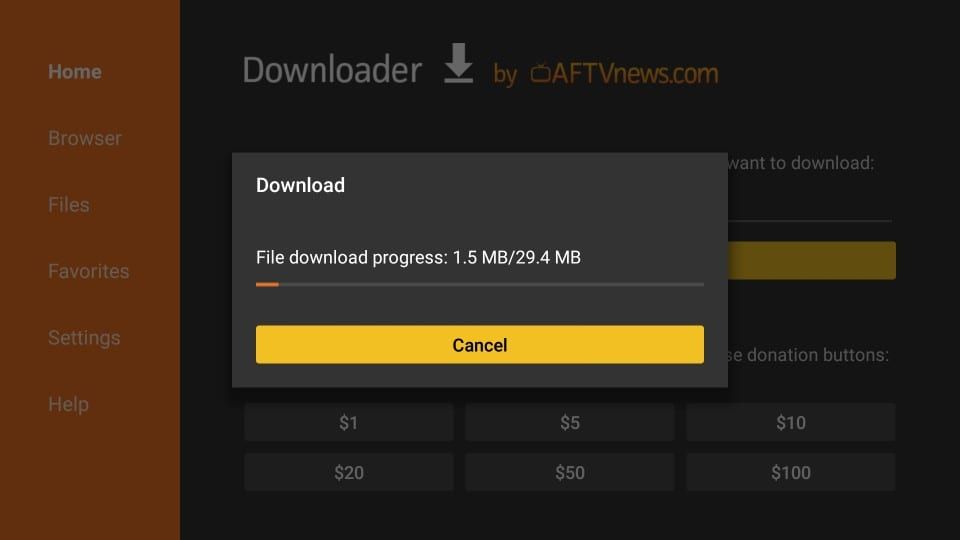
3. Wait while the Downloader downloads MX Player file on your FireStick device.
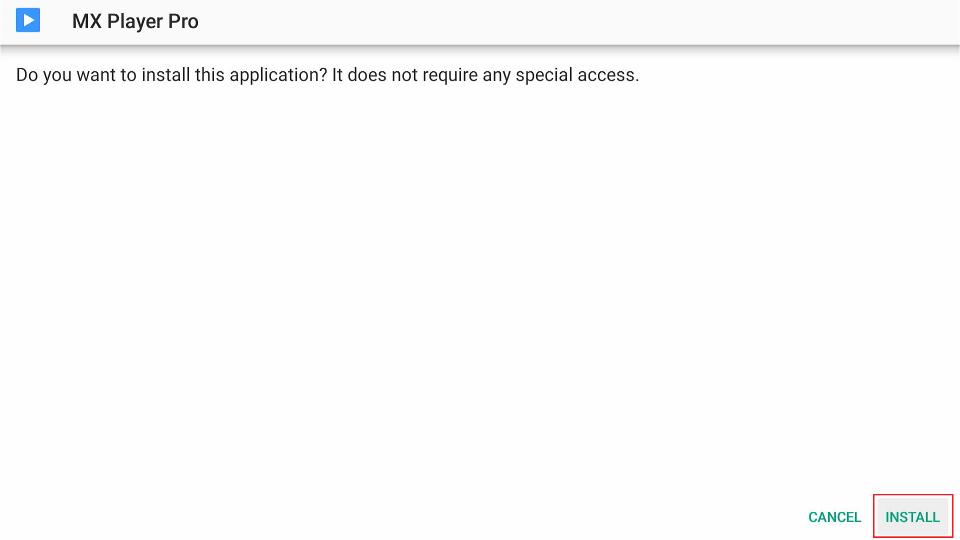
4. When the following screen is displayed, click Install in the bottom right.
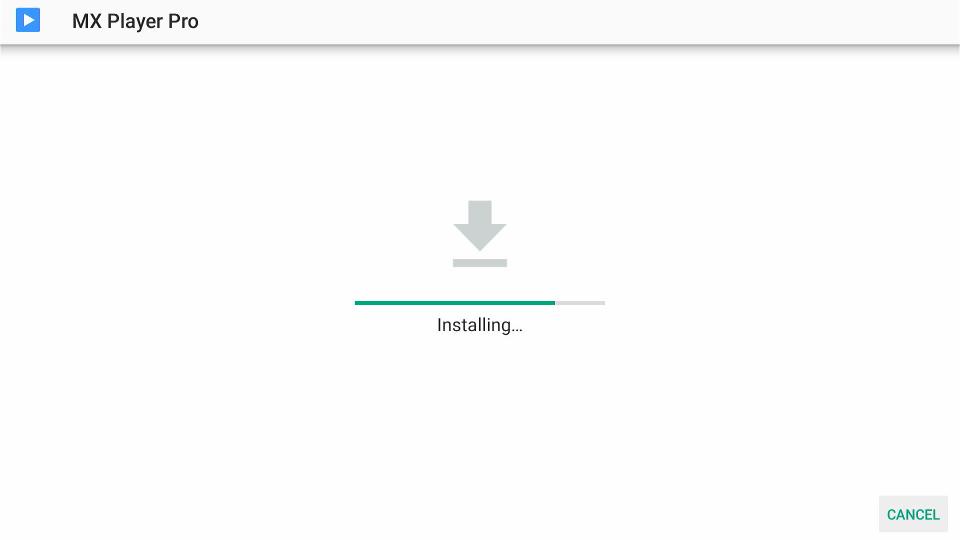
5. The installation of the MX Player will start. It takes about a minute or a little more.
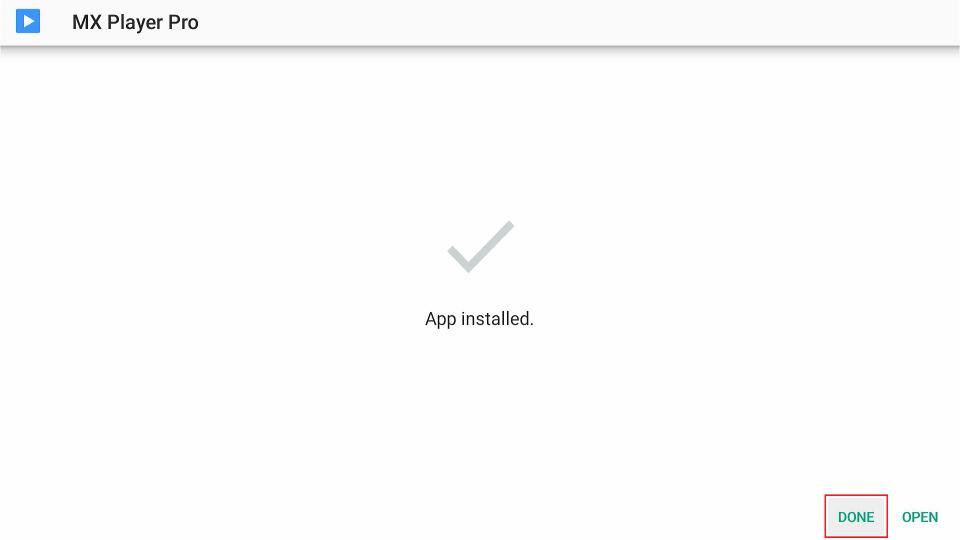
6. When you see the App installed confirmation, it means MX Player has been installed. Click Done.
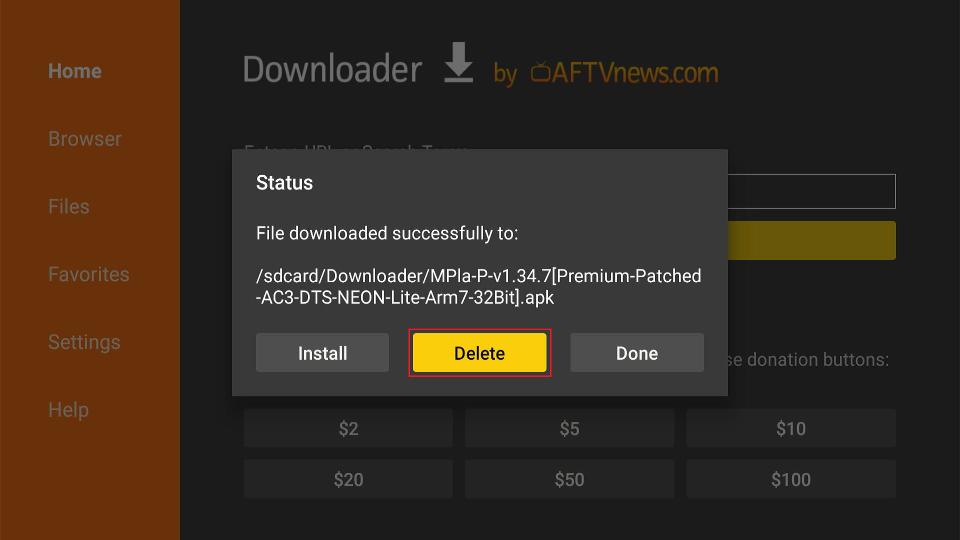
7. Now we are back in the Downloader window. Once you have installed the app, it is best to delete the APK file. The file is no longer required, and it will occupy space unnecessarily on your limited FireStick storage. Select Delete.
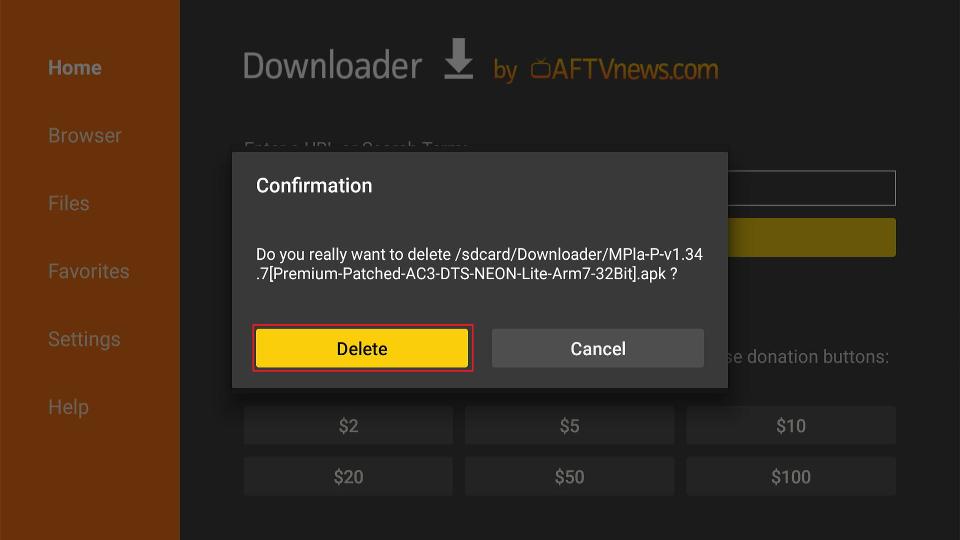
8. Choose Delete again to confirm your intent to delete the MX Player APK.
This is how you install MX Player on Firestick.
You’re now all set. A quick reminder: your internet provider and many websites/apps can see your IP address and some details about your connection. Using a VPN encrypts your traffic and masks your IP address, which helps protect your online privacy.
I recommend ExpressVPN. It’s a reputable VPN with strong encryption and fast connections, and it’s straightforward to install on Fire TV/FireStick and other devices.
Next, I’ll show you how to set up and use ExpressVPN on your Fire TV/Stick.
Step 1: Subscribe to ExpressVPN HERE. It comes with a 30-day money-back guarantee. Meaning you can use it for free for the first 30 days, and if you are not satisfied with the performance (which is highly unlikely), you can request a full refund.
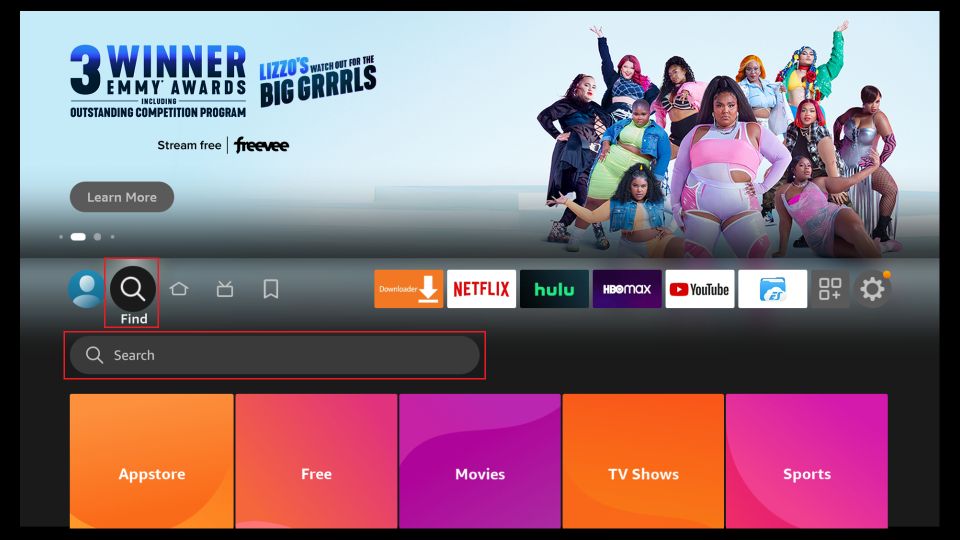
Step 2: Power on your Fire TV Stick, then go to Find> Search.
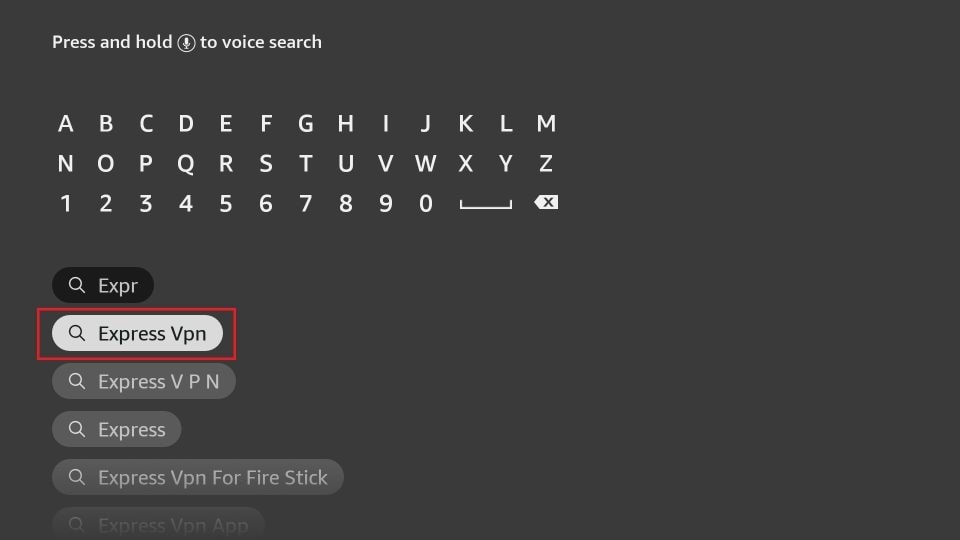
Step 3: Now type “Expressvpn” (without quotes) in the search bar and select ExpressVPN when it shows up in the search results.
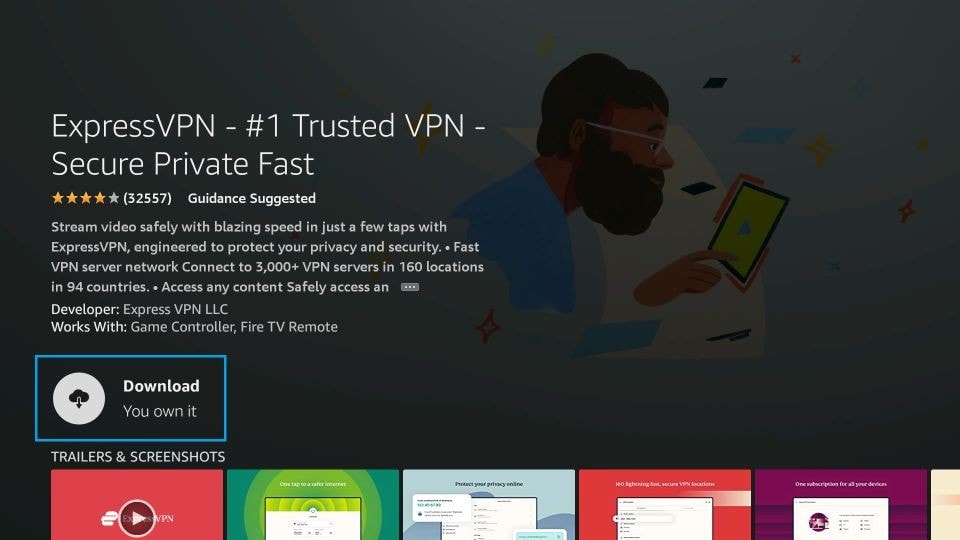
Step 4: Click Download to install the ExpressVPN app on Fire TV / Stick.
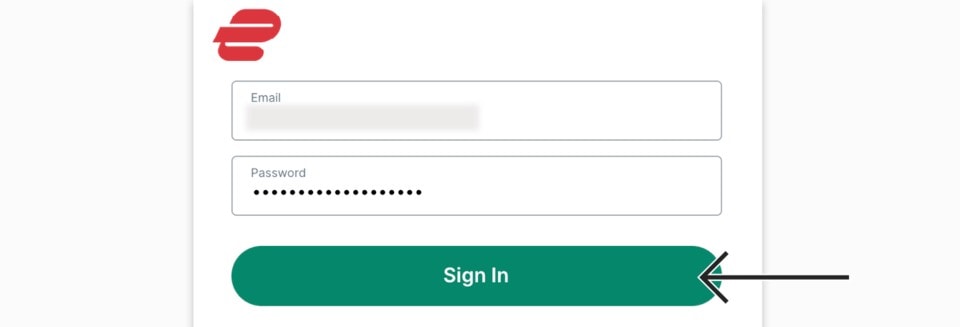
Step 5: Open the app and enter the login credentials you created when you bought the ExpressVPN subscription. Click Sign in.
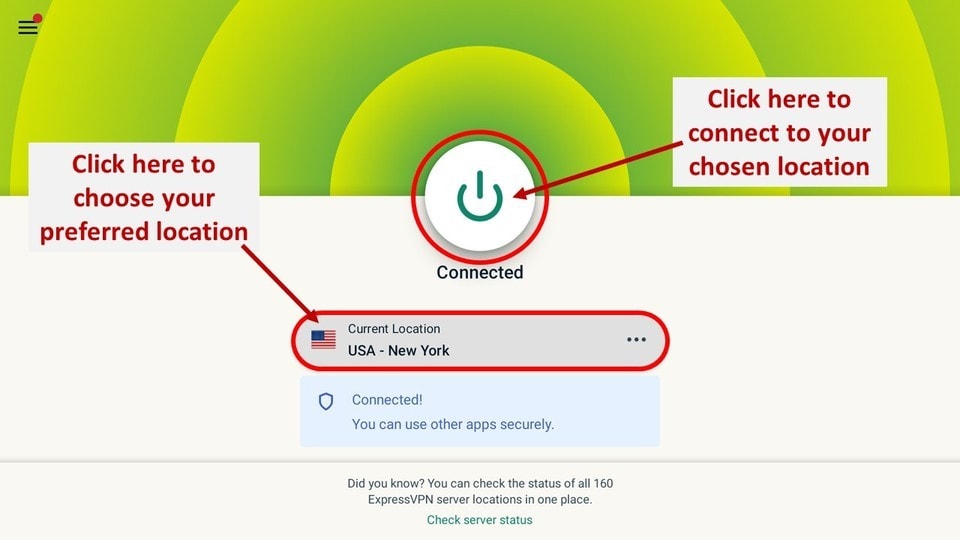
Step 6: Click the Power icon to connect to a VPN server. That’s all. Your connection is now secure with the fastest and best VPN for FireStick.
How to Use MX Player on FireStick
Launch MX Player from Your Apps & Channels screen.

To let MX Player access your files, click Allow.

Welcome to the MX Player main screen! All your local videos will be available here.
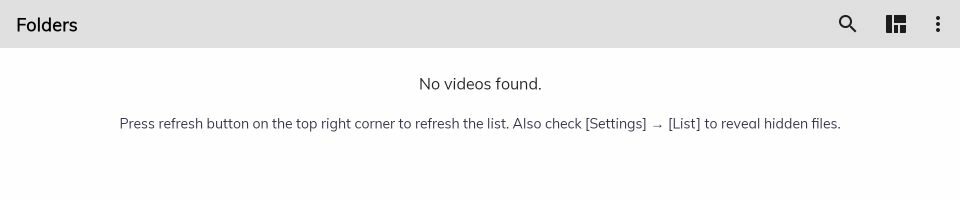
Select the Three-Dots button on the top right side.
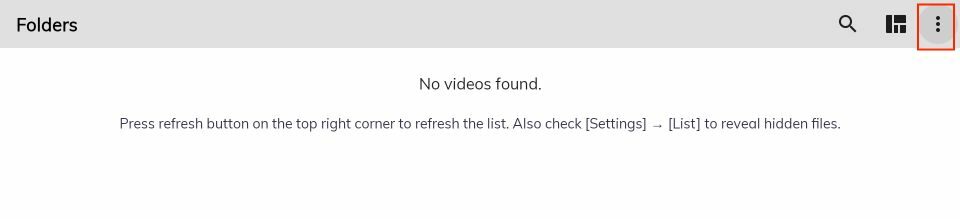
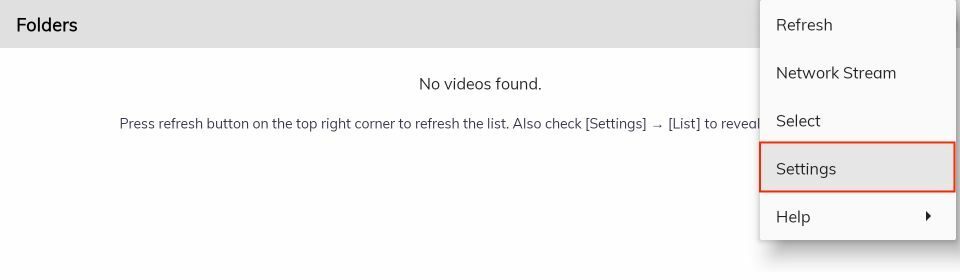
Here, you can see multiple options. Go inside Settings.
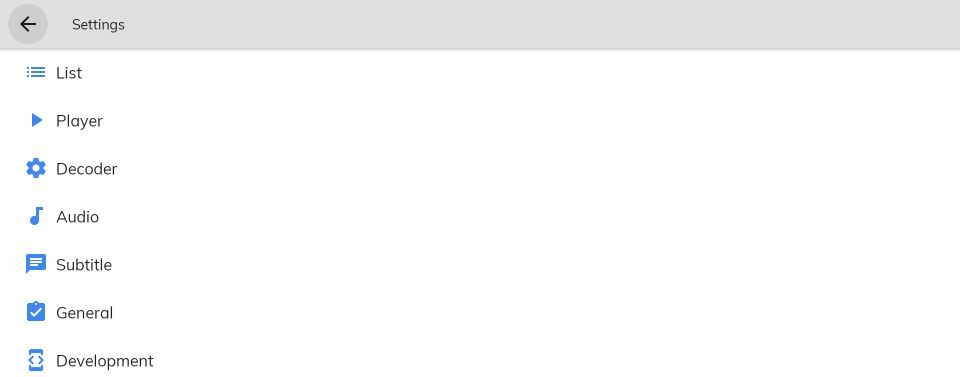
Here, you can see multiple options like List, Player, Audio, etc.
Winding Up
This guide shows how to install MX Player on FireStick. While you can use MX Player to play local media files, you won’t be very impressed as it offers only a few features. I recommend that VLC, available on the Amazon Store, play local media.
Suberboost Your FireStick with My Free Guide
Stay Ahead: Weekly Insights on the Latest in Free Streaming!
No spam, ever. Unsubscribe anytime.





Hi, I’m trying to add the armv7 neon codec to the Mx player and it will not allow me. Is there a way to do so on firestick?
Hi Andy, yes, you can do that. I just did. However, you will need to download the codec from the internet first and transfer the file to your device.
Read the instructions here to learn how to transfer files from your computer to FireStick: https://www.firesticktricks.com/es-file-explorer.html#How_to_sideload_apps_from_your_computer_and_transfer_files
Make sure you save the codec APK file in the ‘Downloader’ folder.
Next, close the ES File Explorer app, open the Downloader app, and go to Files. Run the APK file to install the codec.
just installed MX Pro (again). Does not seem to work with UnlockmyTV. when selecting source it just spins and never opens the video. Reloaded Unlockmytv and MX – same. What could the problem be? Using a Firestick.
Hi James, it may not necessarily be the problem with MX Player. It could be UnlockMyTV too. Have you tried using it another app? Here is our list of apps https://www.firesticktricks.com/amazon-fire-stick-apps.html
Hi. I’m having trouble with my mx player on my firestick. It stopped downloading subtitles. So I uninstalled it, cleared cache and data and then re-installed a newer version. It worked for awhile, then stopped working again. It gives the message that the subtitles failed to download or it doesn’t even show a list to pick subtitles from then says that the subtitles are downloaded, but there are no subtitles. Are there settings within the app itself I should be adjusting?
Hi Susan, with which app are you using MX Player with? It could be the issue with the app and not MX Player.
me neither, I would like an easy solution to add the mx player codec needed for firestick, like an apk from downloader,,
Do you have a mx player that blocks the ads? There is a gambling ad that runs on the screen the whole movie!!
Hi Patty, I am not sure if there is an ad-free version of MX Player. However, here is our guide on how to block ads on FireStick: https://www.firesticktricks.com/block-ads-firestick-blokada.html
How do you update MX Player? This isn’t the latest version.
Hi Ian, the link has now been updated and points to the latest version of the app.
I cannot download mx player it says not available and I cant watch movies on cyberflix nothing plays
Hi Lori, you may have run into a temporary issue. It just worked for me. Please try again.
Hi, yes sound works fine with default player. I downloaded the neon codec which was supposed to fix the sound issue but it still didn’t work.