Want to install an older version of Kodi? This guide shows you how to install Kodi 18.4 Leia on your device. Kodi 18.4 is compatible with various devices, including the Amazon FireStick, Windows, and Android.
Why is Kodi 18.4 Still in Use?
Kodi 18.4 is an older release from the Kodi Leia series, originally launched in January 2019. The latest version is Kodi 21.3, released in 2025.
Although most Kodi addons are designed to work with the latest version, some work only with older versions. Exodus Redux is one such example.
Additionally, I still use a few older devices that do not perform well on newer Kodi versions. On these devices, older versions such as Kodi 18 and 17, offer better performance and a smoother experience.
Here are some reasons why I prefer Kodi 18.4:
- Some of my preferred Kodi addons and builds work better on Kodi 18.4.
- Kodi 18.4 is perfect for my older devices because it utilizes fewer resources and storage than the newer versions.
- Kodi 18.4 has some of my favorite skins, fanart, and display widgets.
- It’s the last Kodi version to support Python 2. Some of my favorite addons, like Exodus, are still based on Python 2.
Attention Kodi Users!
Governments and ISPs worldwide monitor your online activities. If you use third-party Kodi addons, you should always use a reliable Kodi VPN to hide your identity and prevent issues with your streaming experience. Currently, your IP is visible to everyone.
I use ExpressVPN, the fastest and most secure VPN in the industry. It is very easy to install on any device, including Amazon Fire TV Stick, PC, Mac, and Smartphones. It also includes a 30-day money-back guarantee. If you're not satisfied with their service, you can request a refund. ExpressVPN is offering a special NEW YEAR deal: get 4 months free and save 78% on the 2-year plan.
Install and Use Best Kodi VPN | Why you must use a VPN at all times
Is Kodi 18.4 Safe and Legal
You won’t find Kodi 18.4 on the official Kodi website. Instead, it’s hosted on another website, Kodi Mirrors. Additionally, Team Kodi stops maintaining older versions once they upgrade to a new update. This raises safety and legality concerns.
I scanned the Kodi 18.4 APK file on VirusTotal to check for viruses and other malware. As shown in the screenshot below, one of 61 security vendors flagged the APK file as malicious.
I haven’t encountered any issues with it, but it’s best to be careful when using Kodi 18.4.

Kodi is 100% legal. However, the app allows the installation of unverified addons, raising legal concerns.
FireSticktricks.com does not support illegal streaming or piracy. Use Kodi responsibly. Stick to official addons, and if you choose to use third-party addons, only stream content that is in the public domain.
Also, consider using a VPN with Kodi to stream content securely. I use and recommend ExpressVPN.
How to Install Older Version Kodi 18.4 on Your Device
I’ll show you how to install Kodi 18.4 on FireStick, Windows PC, and an Android mobile device.
How to Install Kodi 18.4 on FireStick
Here’s how I installed Kodi 18.4 on FireStick:
1. Launch the Downloader app.
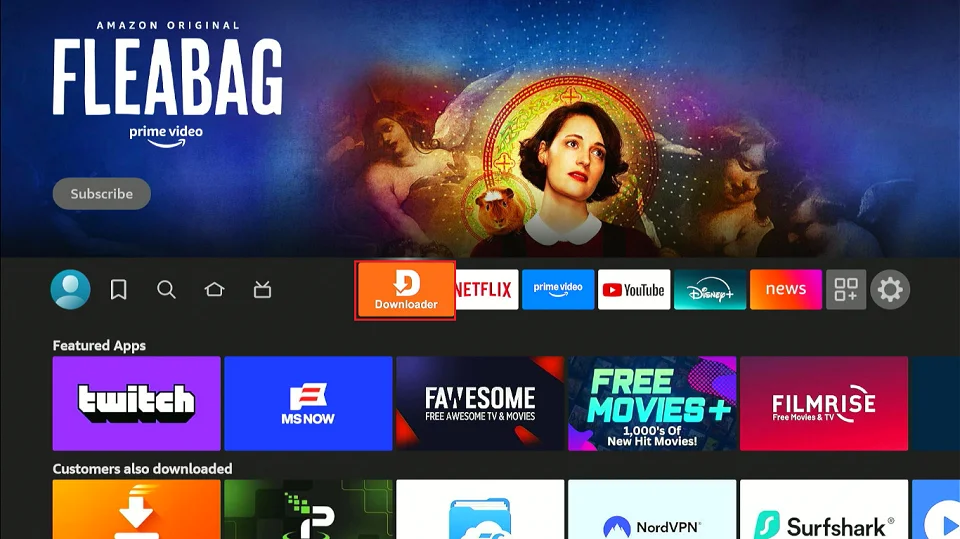
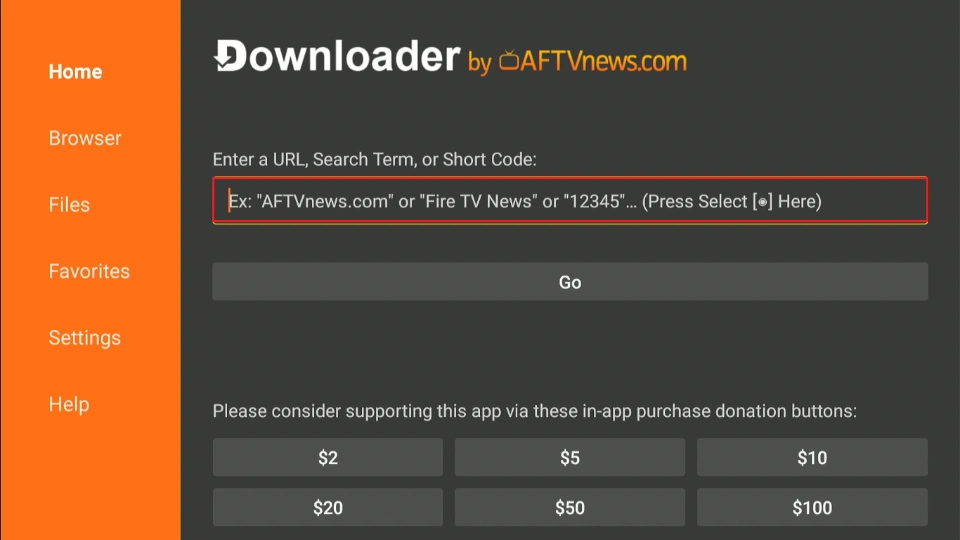
2. Click on the URL/Search term box.
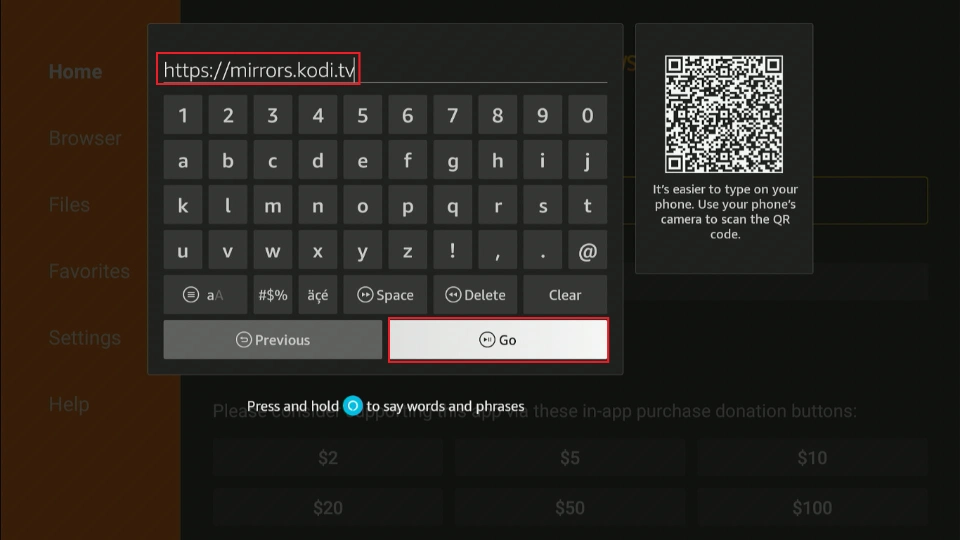
3. Enter the following URL: https://mirrors.kodi.tv, and click Go.
4. You’ll land on the Kodi Mirrors website. Select Releases.
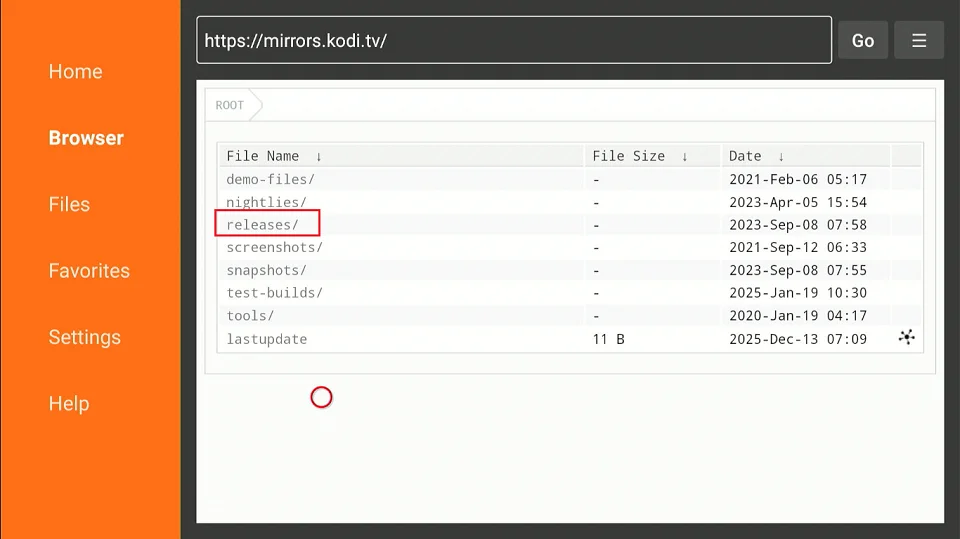
5. Click on android/.
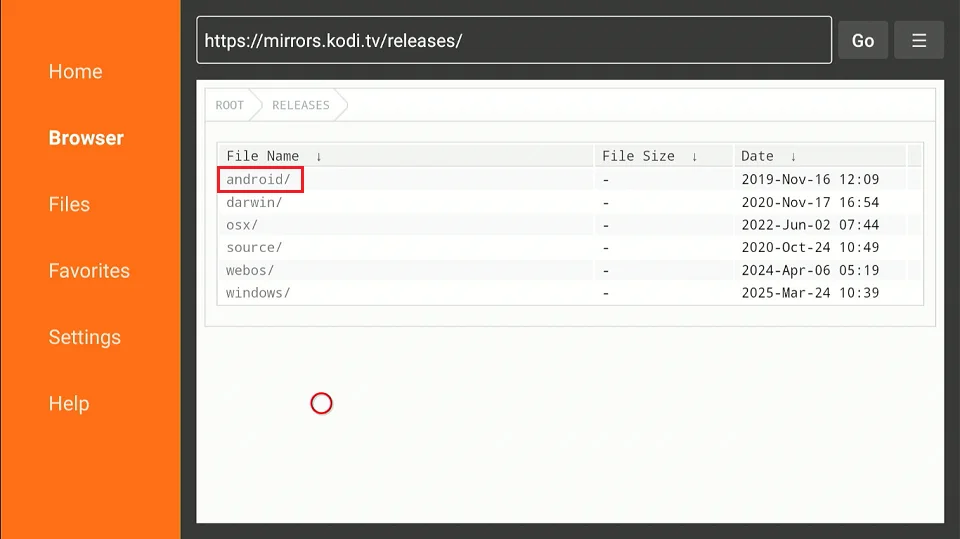
6. Select arm/.
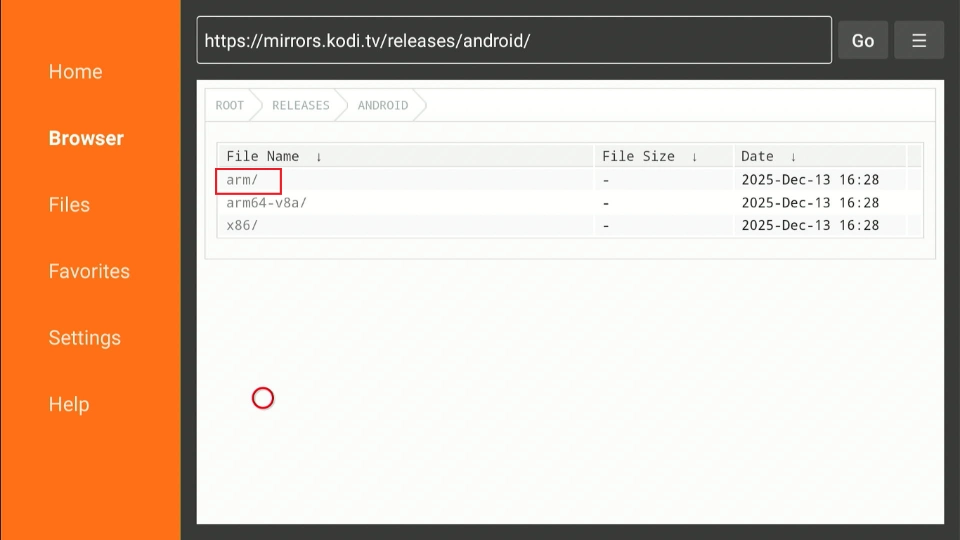
7. Click kodi-18.4-Leia-armeabi-v7a.apk.
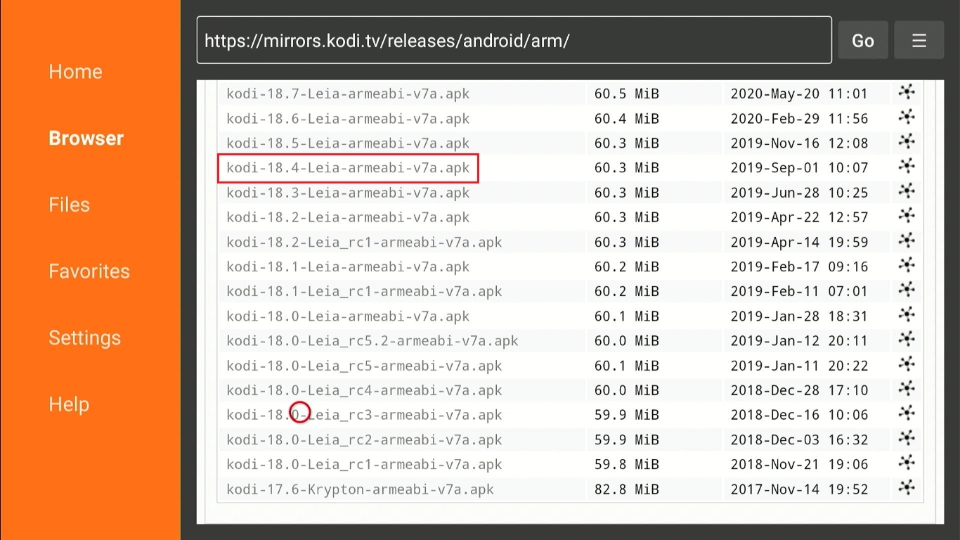
8. The Kodi 18.4 APK file will start downloading.
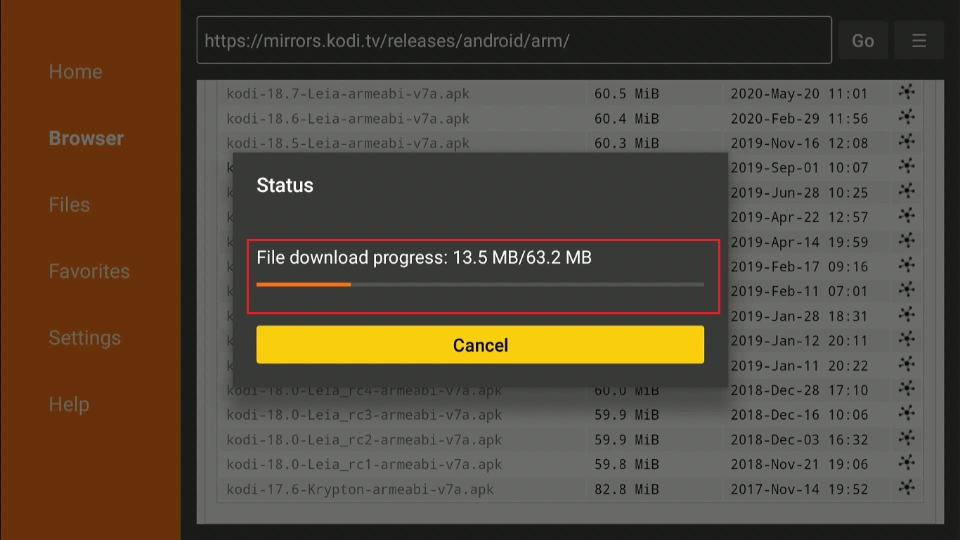
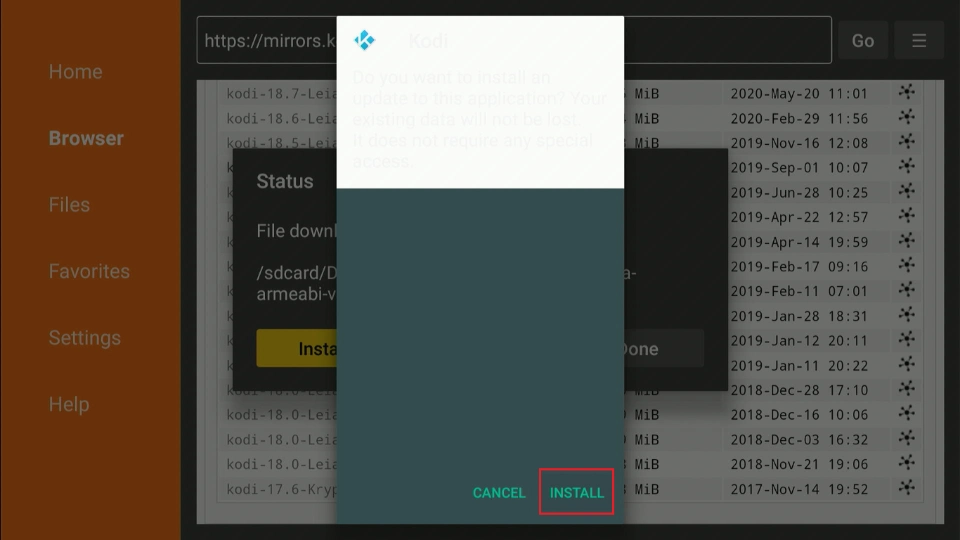
9. Click Install.
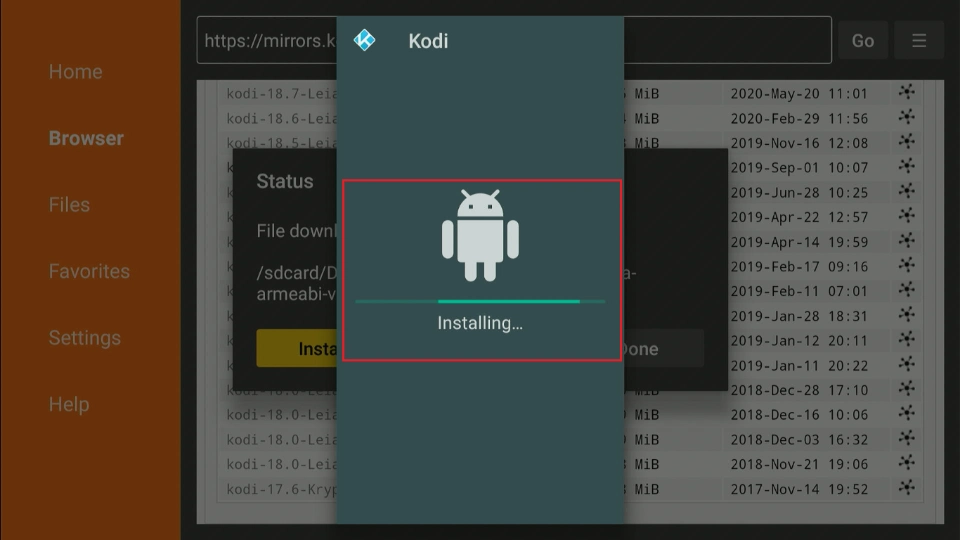
10. Wait for the Kodi 18.4 app to install.
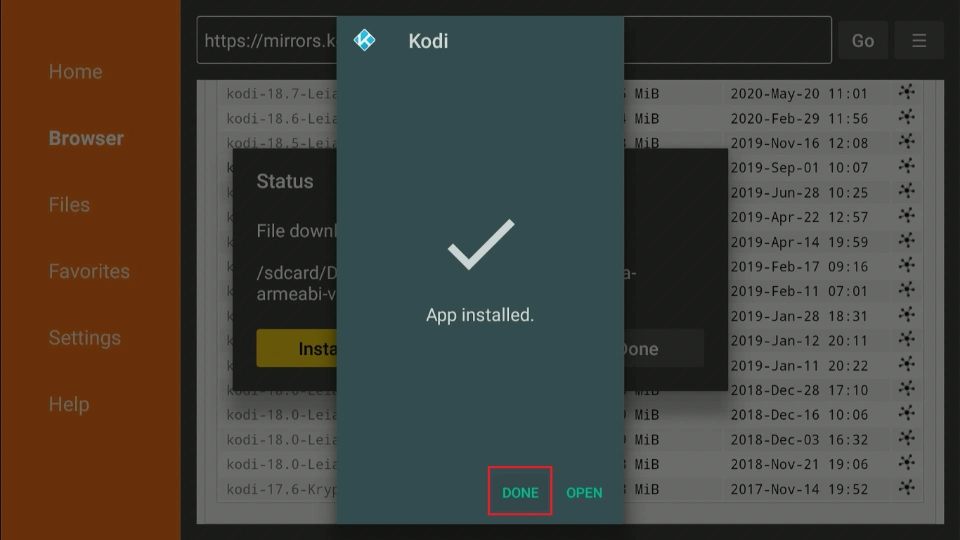
11. Select Done once the app has been installed.
12. You no longer need the APK file, so it’s best to remove it from your device. Click Delete.
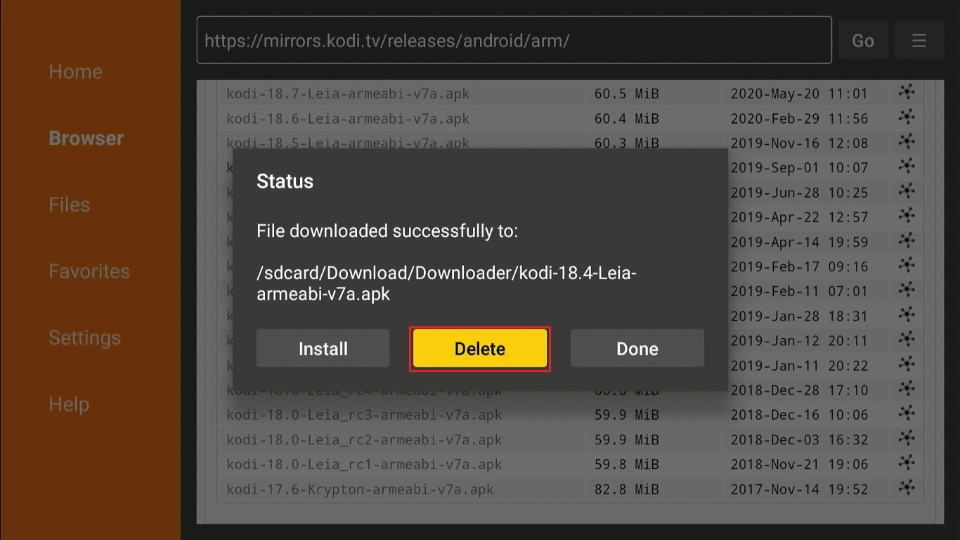
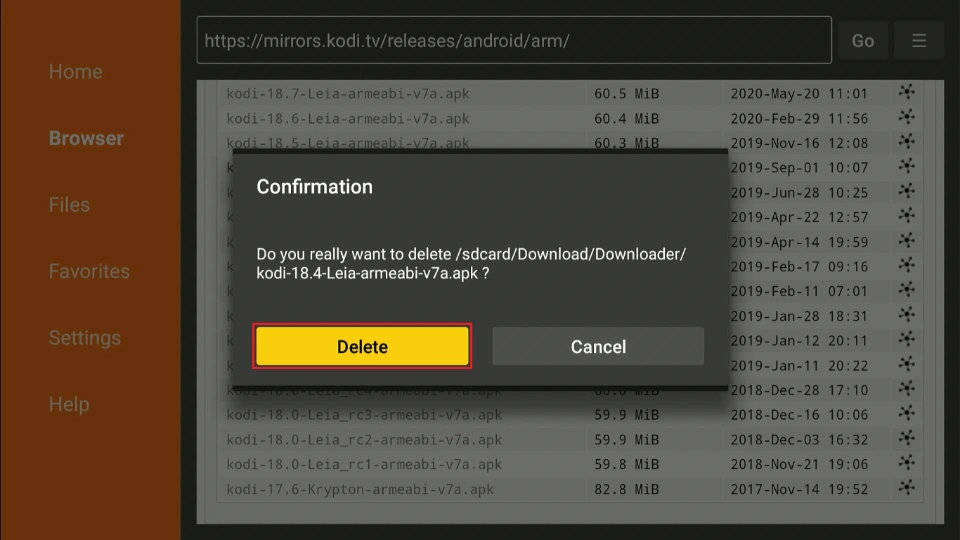
13. Click Delete again.
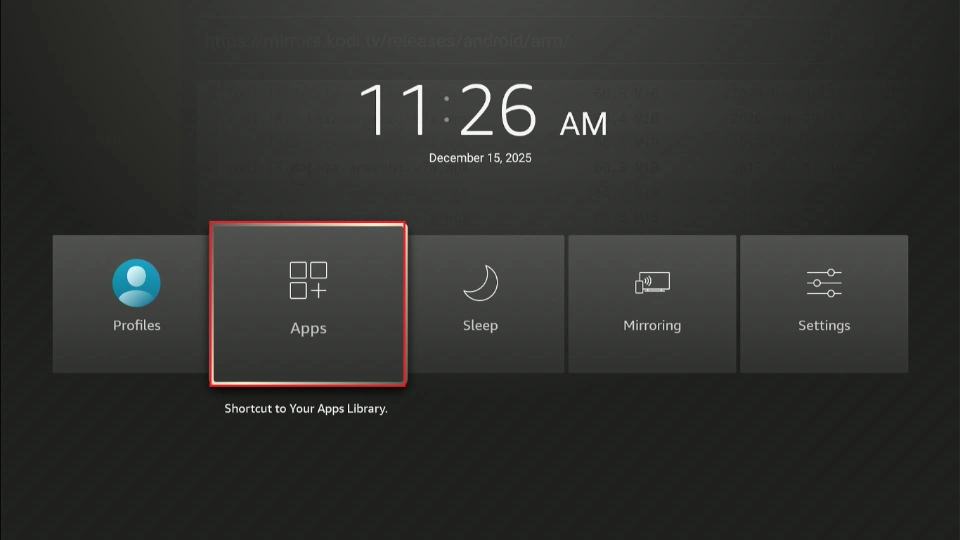
14. You have installed Kodi 18.4 on FireStick. Press the Home button on your Fire TV remote and select Apps.
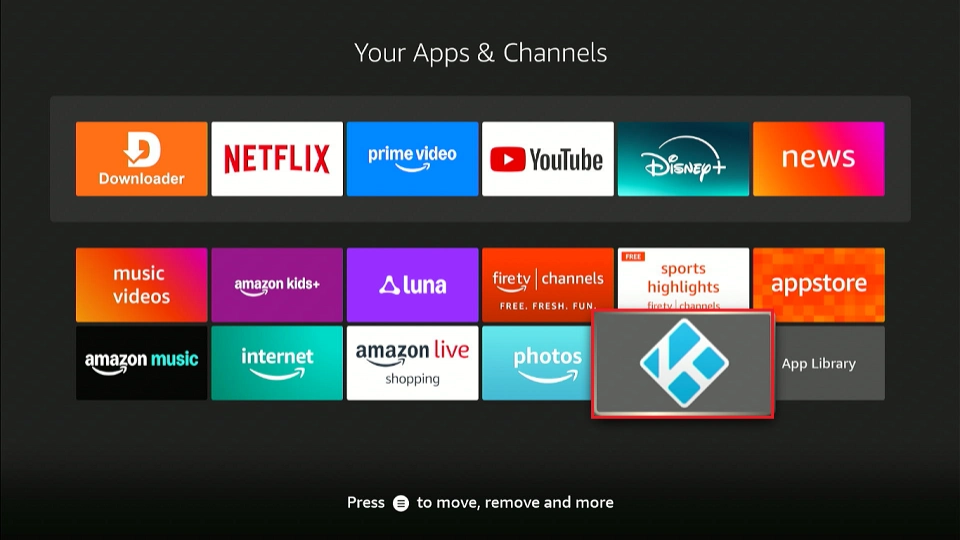
15. Launch Kodi from your app library.
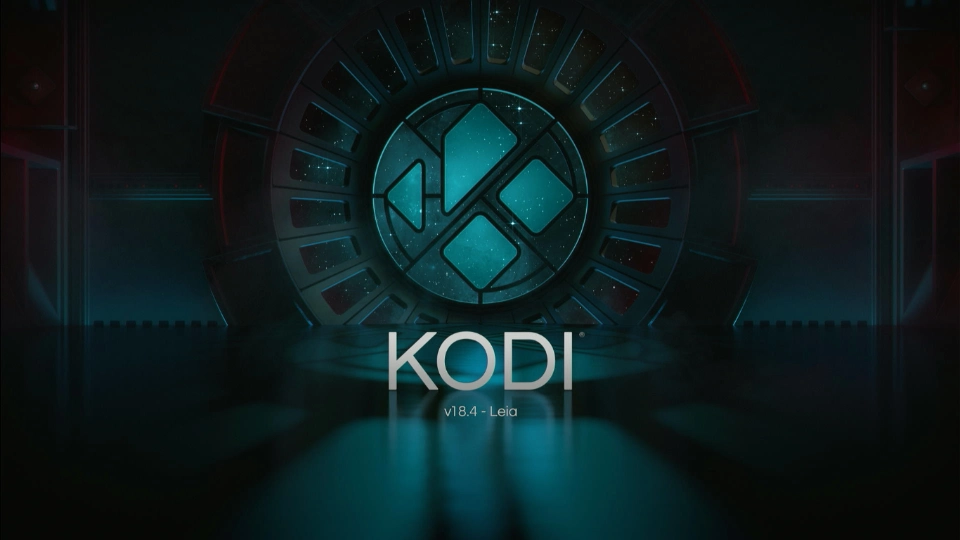
16. Wait for Kodi 18.4 to load.
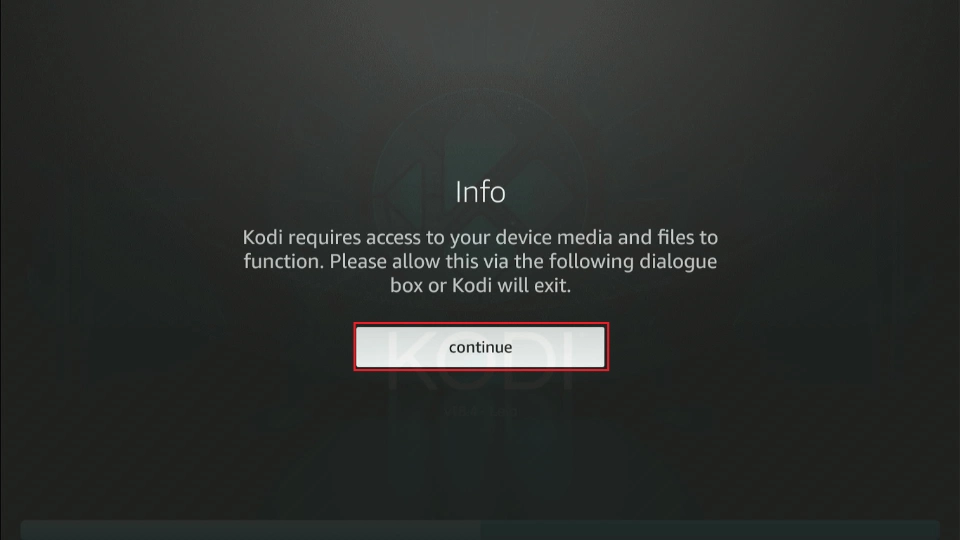
17. Give Kodi the necessary permissions to access your files. Click Continue, then select Allow to allow the app to access your files.
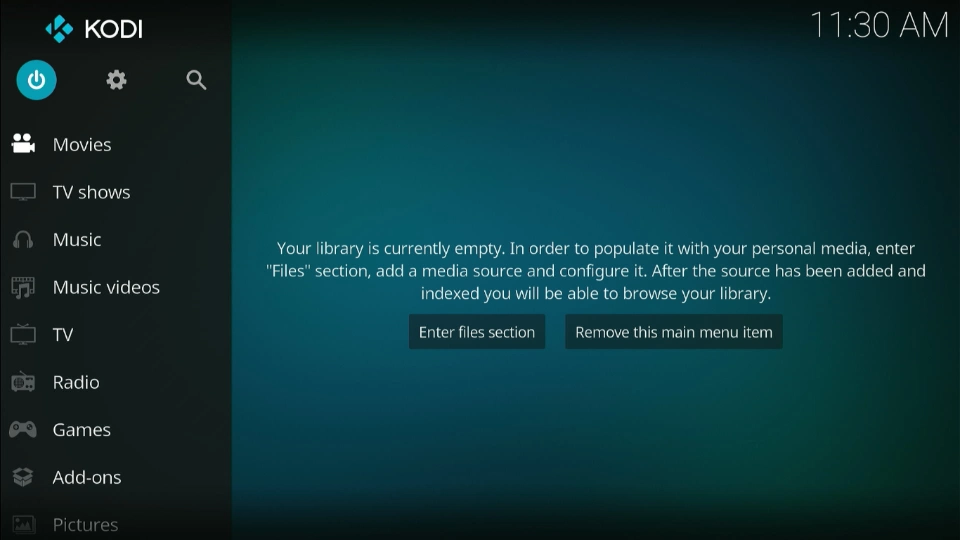
18. This is what the Kodi 18.4 home screen looks like.
19. Navigate to Settings>System Information to confirm the version information. It should read Kodi 18.4.
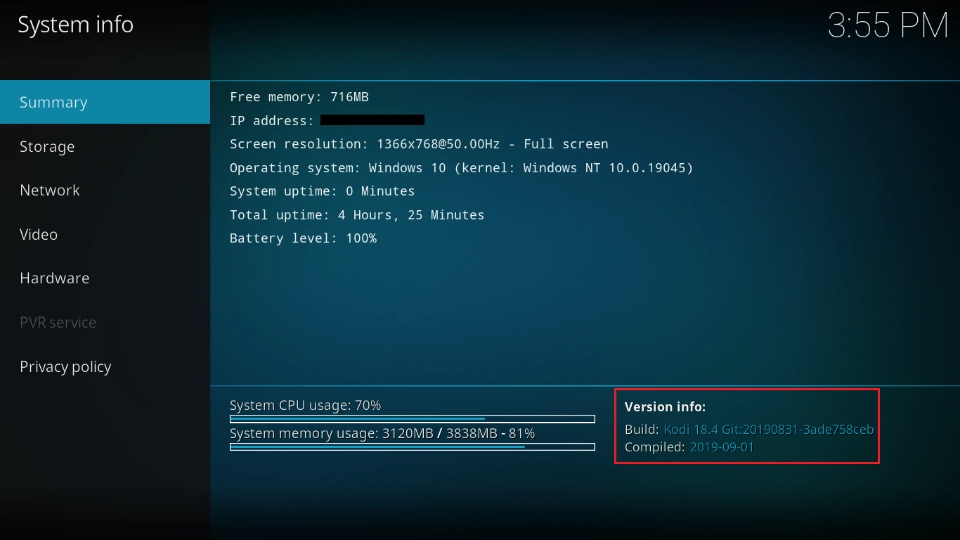
You’re all set to use Kodi 18.4 on FireStick.
How to Install Kodi 18.4 on Windows
Follow these steps:
1. Open your web browser (I’m using Chrome) and go to https://mirrors.kodi.tv. Click Releases.
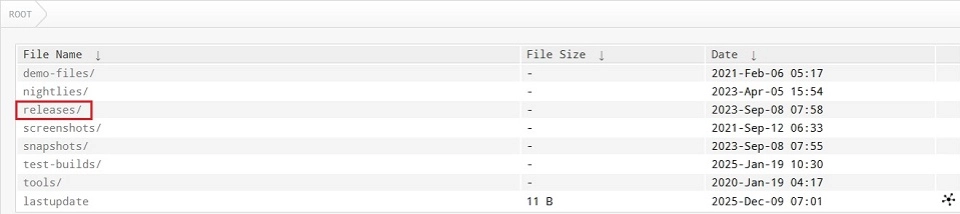
2. Select windows/.
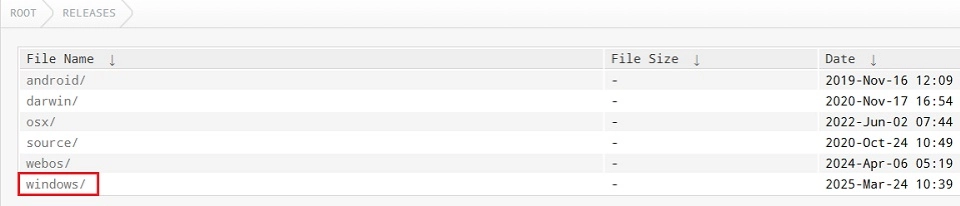
3. Choose win32/.

4. You’ll see the various older versions of Kodi. Scroll to Kodi 18.4 Leia. Select Kodi-18.4-Leia-x86.exe.
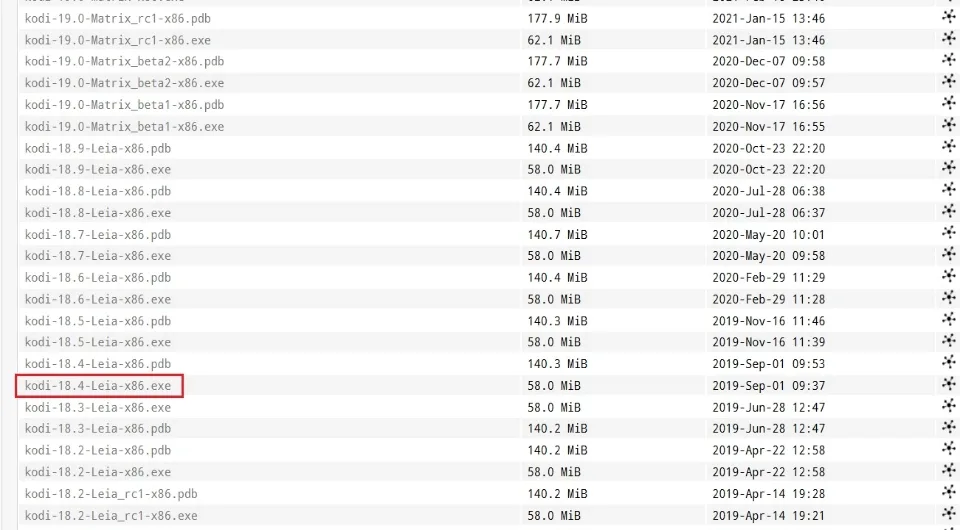
5. The file will begin downloading. You should see a notification on your screen once the download is complete.

6. Go to your Downloads folder and locate the downloaded exe file.
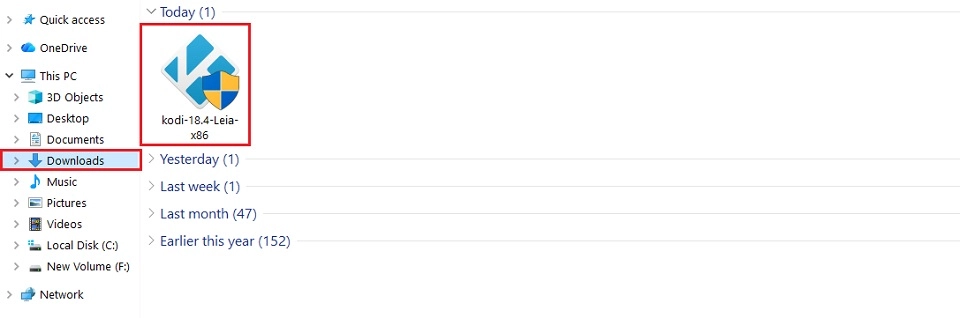
7. Run the file and give the necessary permissions for it to make changes to your computer. The Kodi installation wizard will appear. Click Next.
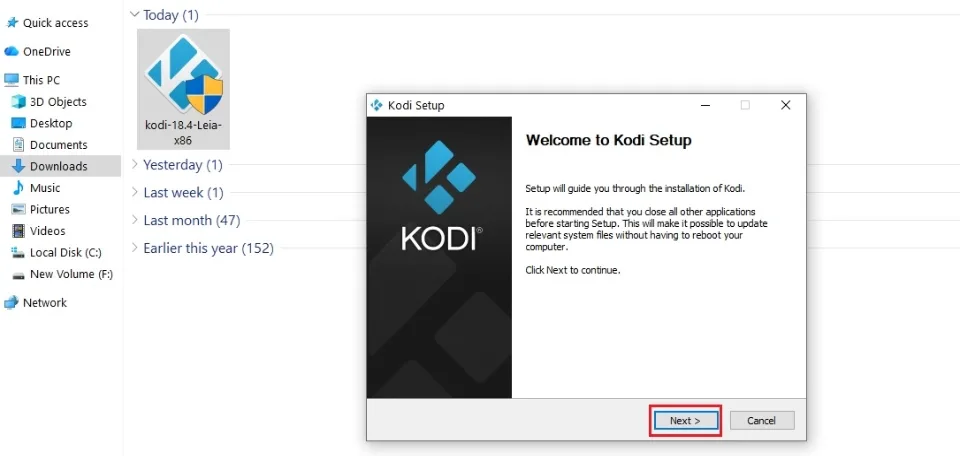
8. Select I agree on the next window.
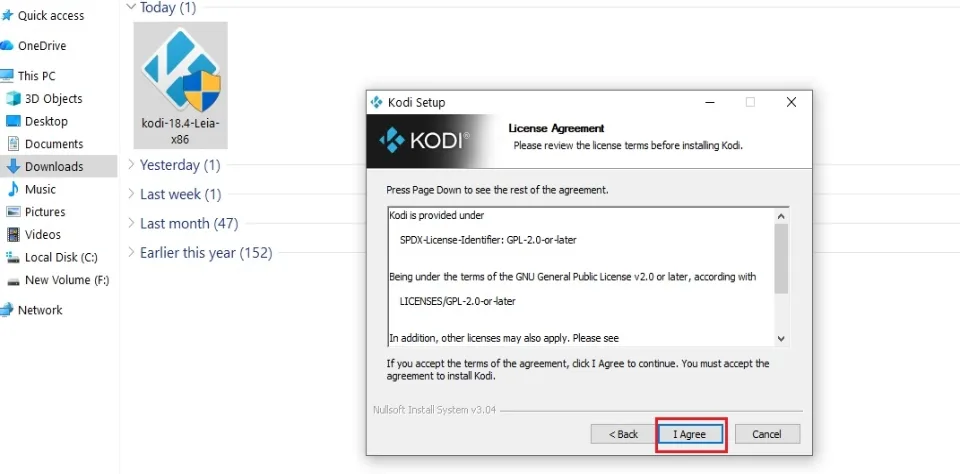
9. Click Next until you get to the final installation step. Choose Install.
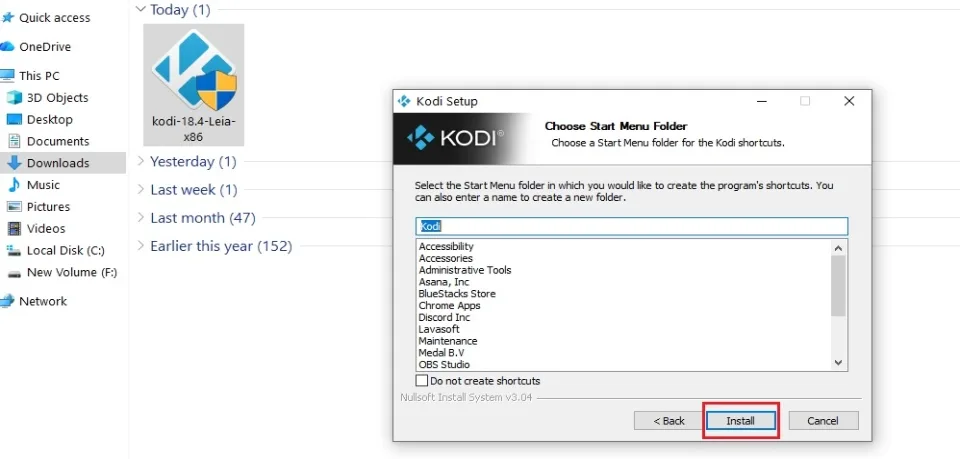
10. Wait as the app installs. You should see the installation progress on the screen.
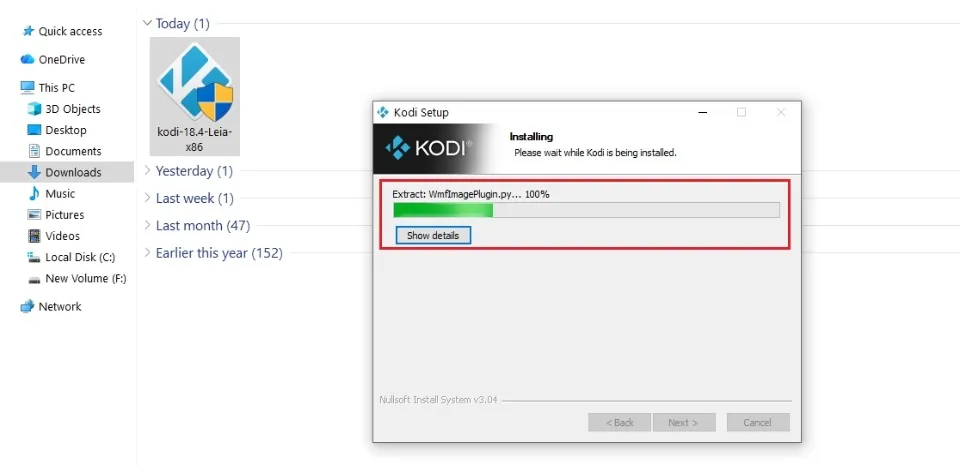
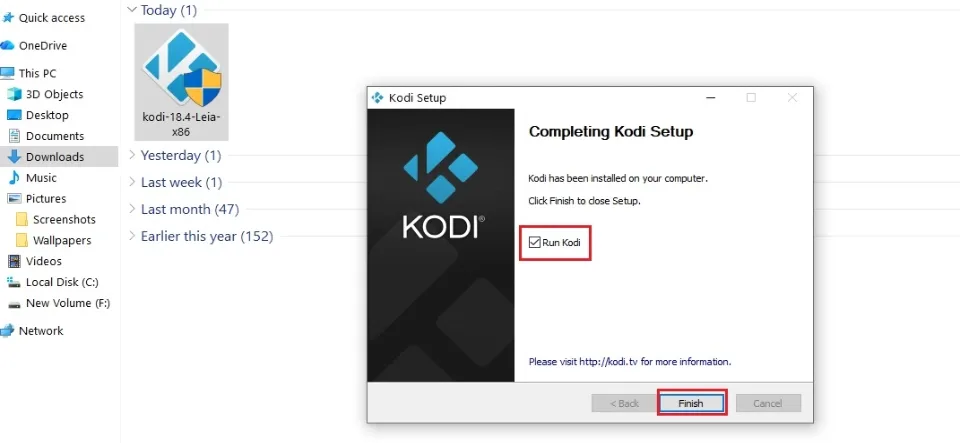
11. Check the Run Kodi box and click Finish.
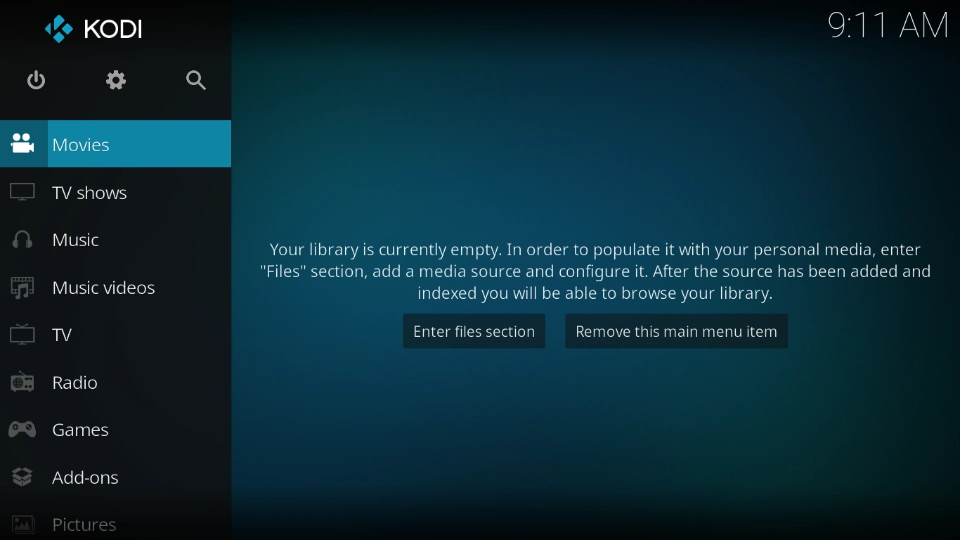
12. The app will run automatically. This is what the Kodi 18.4 home screen looks like.
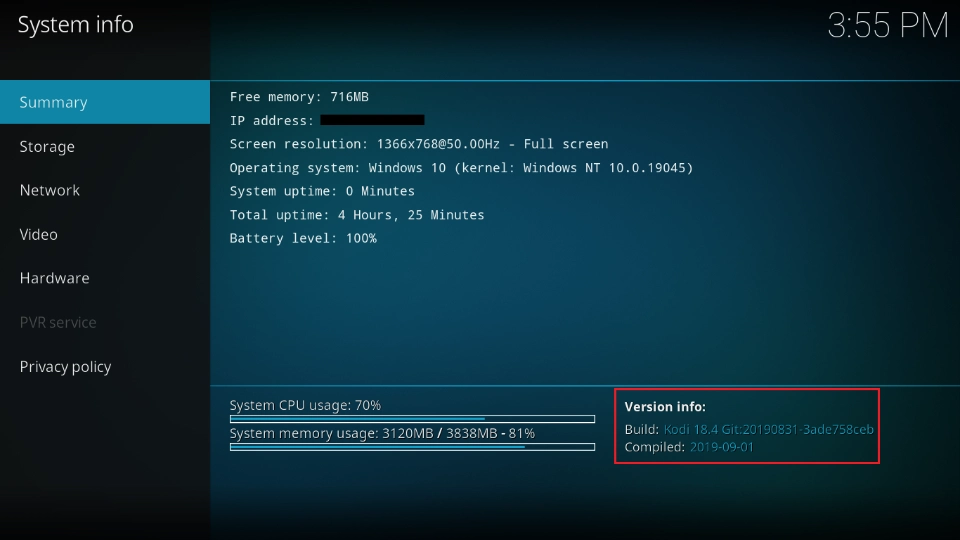
13. Navigate to Settings>System Information to confirm the Kodi version. The Version Info should be Kodi 18.4.
That’s how I installed Kodi 18.4 on Windows.
Before you start streaming with Kodi Addons or Builds, I would like to warn you that everything you stream on Kodi is visible to your ISP and Government. This means, streaming copyrighted content (free movies, TV shows, live TV, and Sports) might get you into legal trouble.
Thankfully, there is a foolproof way to keep all your streaming activities hidden from your ISP and the Government. All you need is a good VPN for Kodi. A VPN will mask your original IP which is and will help you bypass Online Surveillance, ISP throttling, and content geo-restrictions.
I personally use and recommend ExpressVPN, which is the fastest and most secure VPN. It is compatible with all kinds of streaming apps and devices.
NOTE: We do not encourage the violation of copyright laws. But, what if you end up streaming content from an illegitimate source unintentionally? It is not always easy to tell the difference between a legit and illegal source.
So, before you start streaming on Kodi, here's how to get VPN protection in 3 simple steps.
Step 1: Get the ExpressVPN subscription HERE. It comes with a 30-day money-back guarantee. Meaning, you can use it free for the first 30-days and if you are not satisfied with the performance (which is highly unlikely), you can ask for a full refund.
Step 2: Click HERE to download and install the ExpressVPN app on your streaming device. If you are using a FireStick, I have given the exact steps starting with Step 4 below.
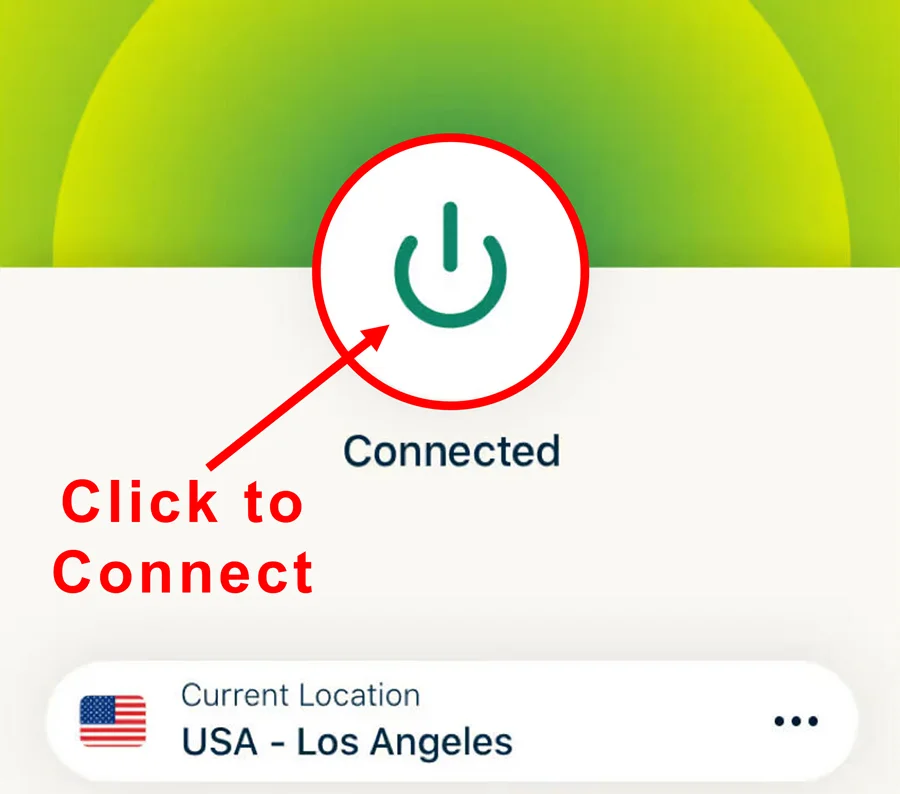
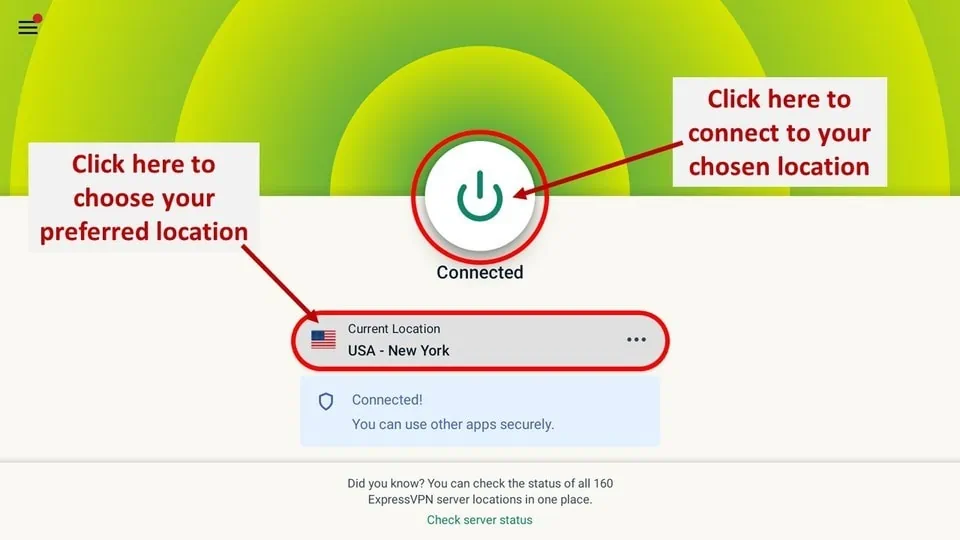
Step 3: Click the Power icon to connect to a VPN server. That's all. Your connection is now secure with the fastest and best VPN for Kodi.
The following are the steps to install Kodi VPN on your Fire TV devices. If you have other streaming devices, follow Step 1-3 above.
Step 4: Subscribe to ExpressVPN HERE (if not subscribed already).
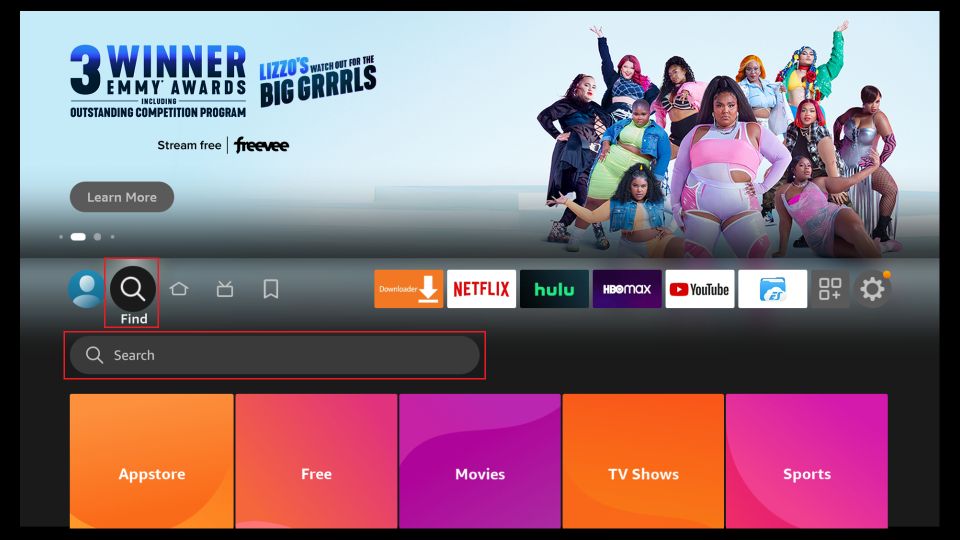
Step 5: Go to Fire TV Stick home screen. Click Find followed by Search option (see image below).
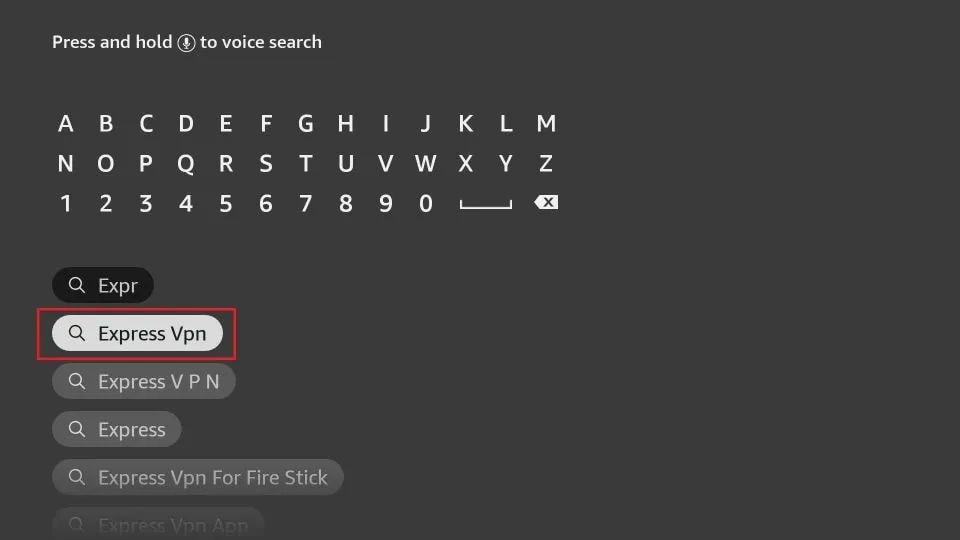
Step 6: Type Expressvpn in the search bar and select when it shows up.
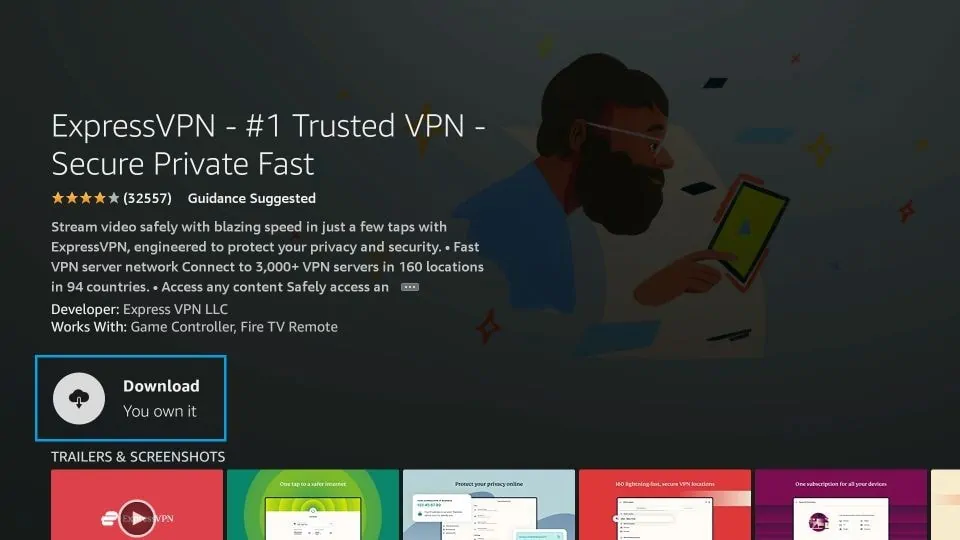
Step 7: Click Download.
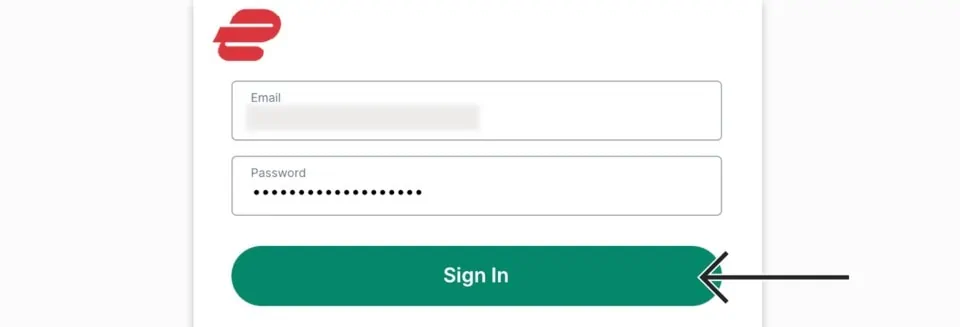
Step 8: Open the ExpressVPN app and Sign in using the email ID and password that you created while buying the ExpressVPN subscription.
Step 9: Click the Power icon to connect to a VPN server. That’s all. Your FireStick is now secured with the fastest VPN.
How to Install Kodi 18.4 on Android
The Kodi version available in the Google Play Store is the latest stable release, Kodi 21.3 Omega. To install Kodi 18.4 on Android, sideload it from the Kodi Mirrors website.
I’m using the Chrome browser on my Android smartphone, but the same steps work with any other browser, including Opera and Firefox.
Here’s how to install Kodi 18.4 on Android:
1. Launch your web browser and go to https://mirrors.kodi.tv. Select Releases/.
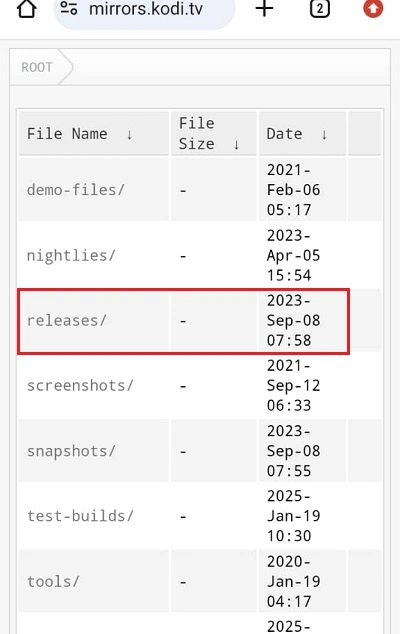
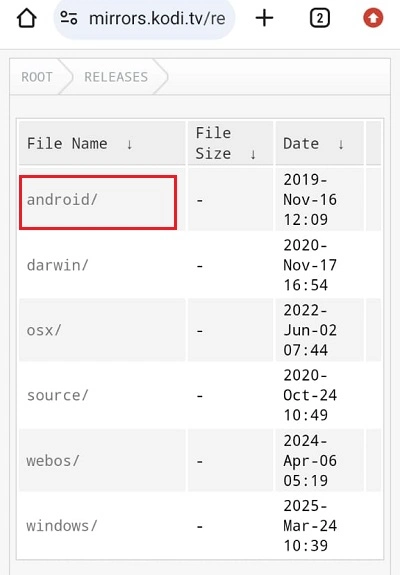
2. Choose Android/.
3. Select arm/.
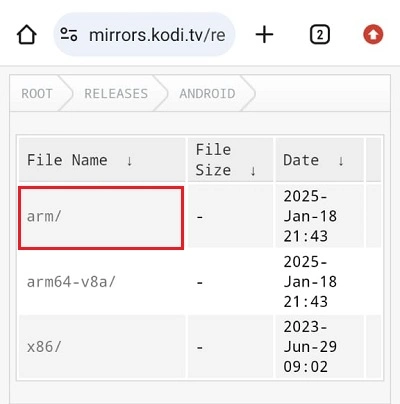
4. You’ll see the various Kodi versions available for Android. Navigate to and select Kodi-18.4-Leia-armeabi-47a.apk.
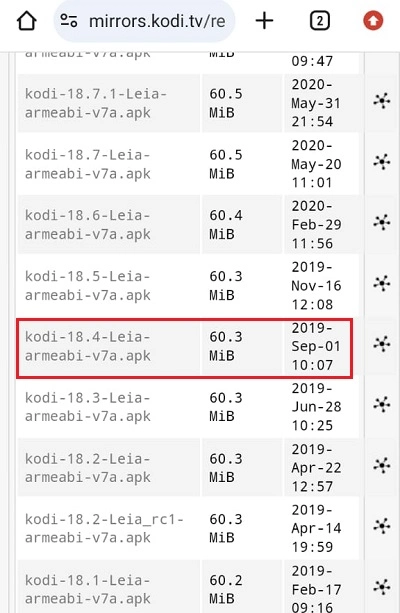
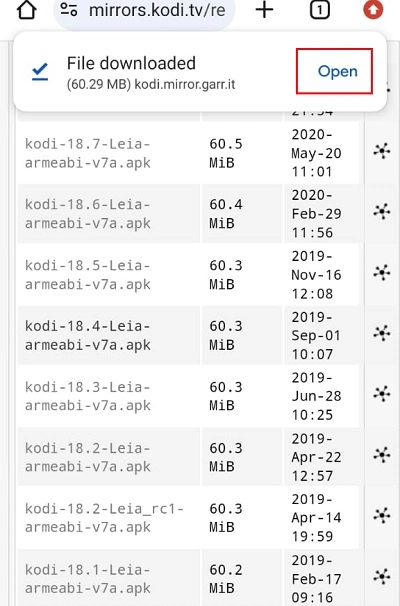
5. The APK file will start downloading. You should see the progress on your screen. Once the download is complete, tap Open.
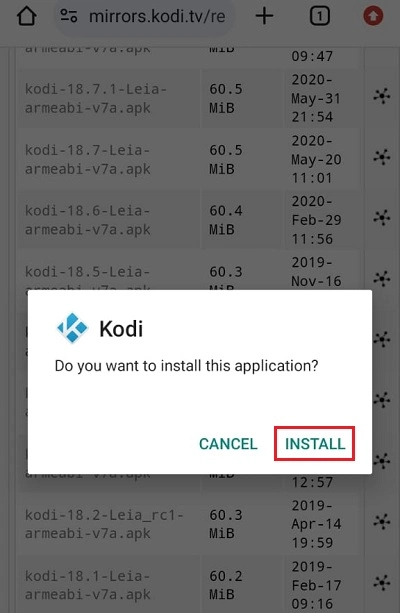
6. Tap Install to install Kodi.
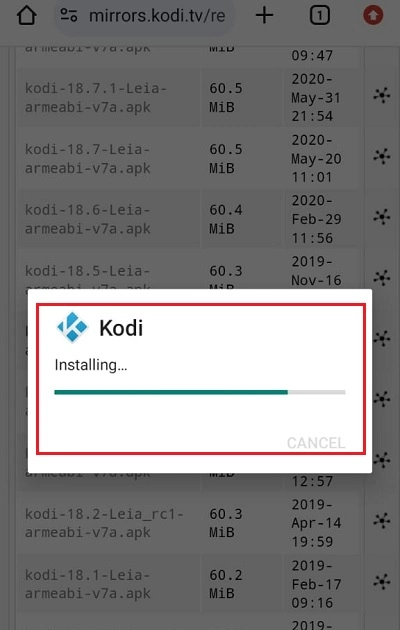
7. Wait for the application to install.
8. Tap Open once the installation is complete.
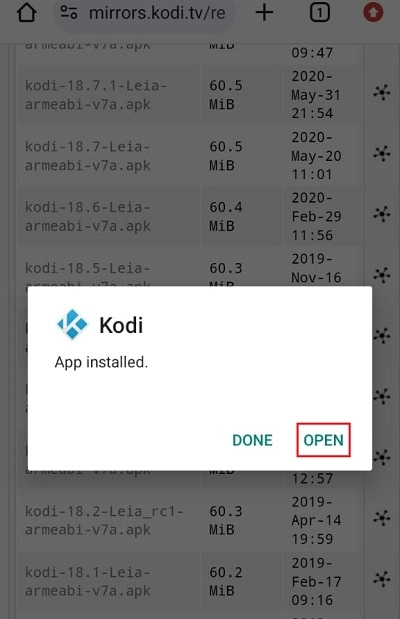
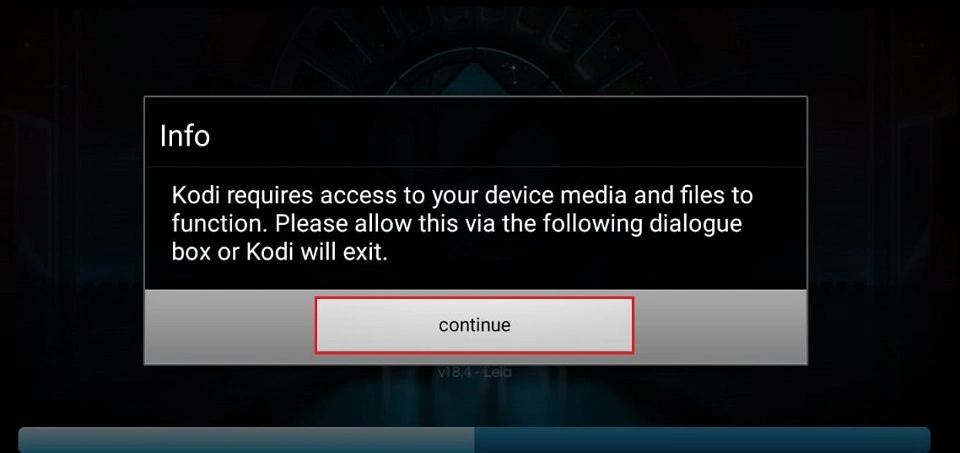
9. Give the app the necessary permissions when you see the prompt.
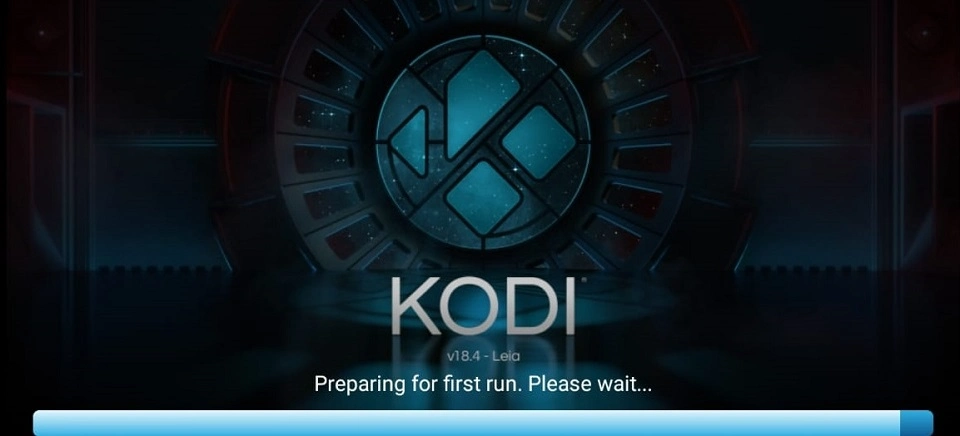
10. Wait for the app to launch.
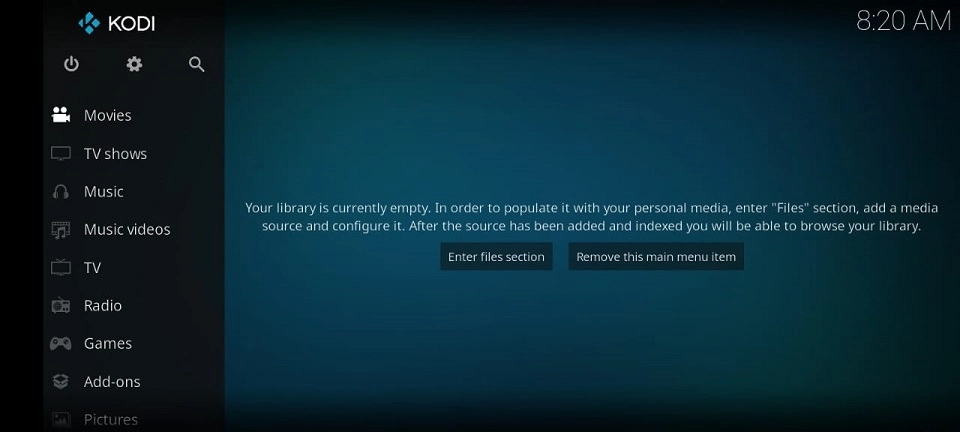
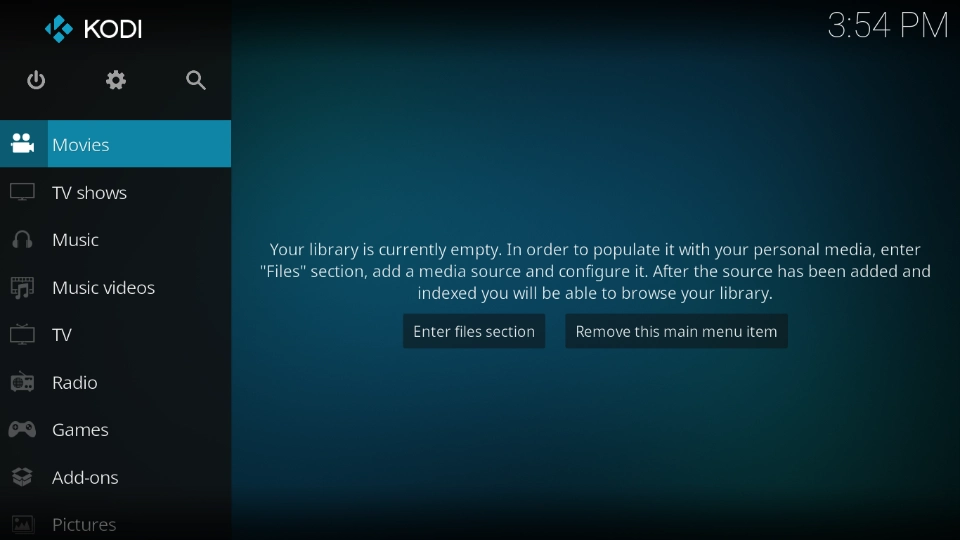
11. This is what the Kodi 18.4 Leia home screen looks like.
12. Navigate to Settings>System Information to confirm the version information.
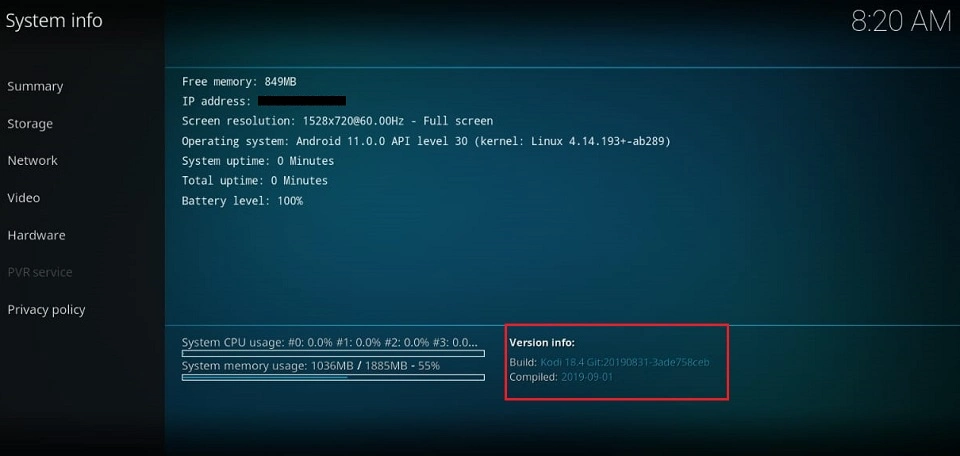
That’s how I installed the older version of Kodi 18.4 on my Android device.
Kodi 18.4 Review
Kodi 18.4 is one of the most stable versions of Kodi. While Kodi 17 introduced the Estuary skin, Kodi 18 masters it. Kodi 18.4 feels like the most stable version of this look, from the main menu on the left to navigation and animation.
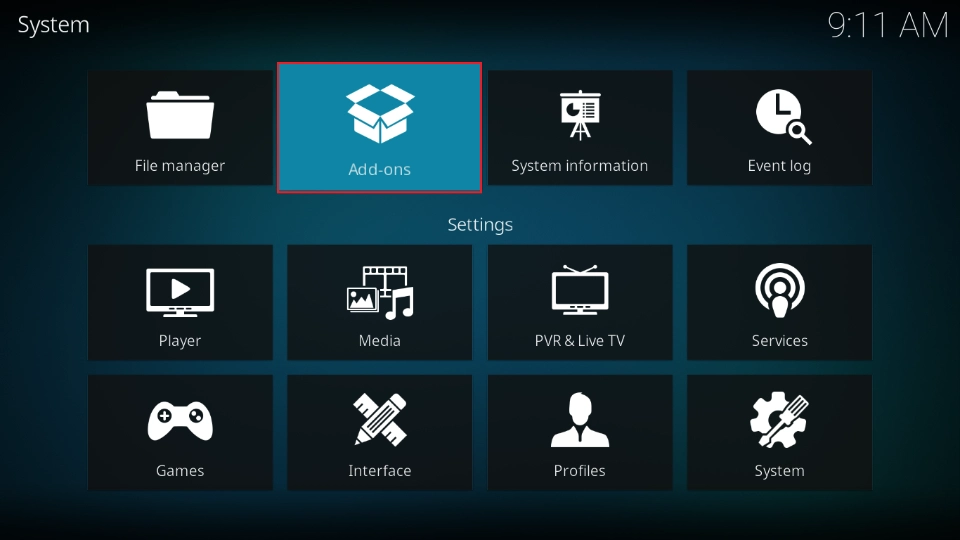
Kodi Addons are the heart of the media center. Installing addons on Kodi 18.4 is easy. Most of my favorite addons come from the official Kodi repository. Some customize the interface and appearance, while others provide content such as TV and live sports channels, including CNN and DAZN.
To install official addons on Kodi, open the Addons folder.
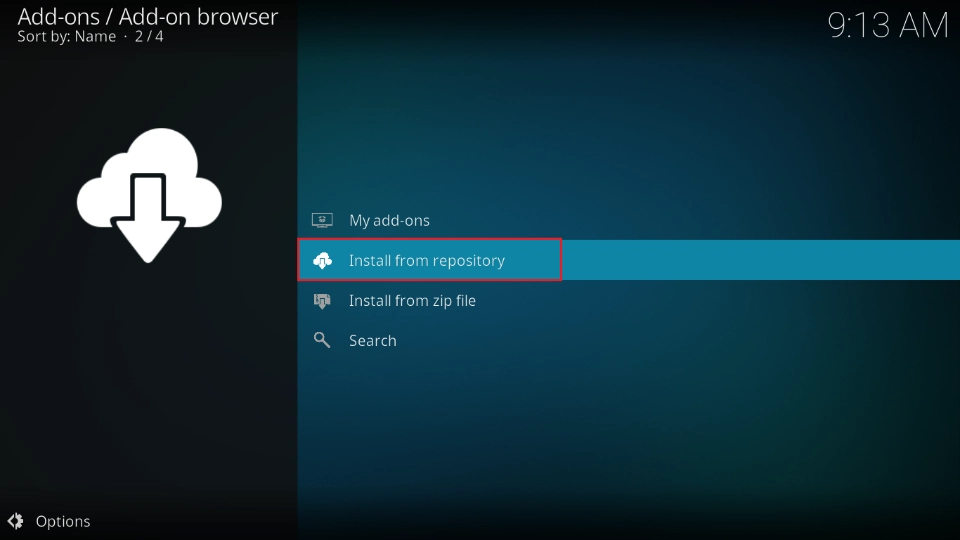
Select Install from repository.
I like customizing Kodi before exploring other features. To install a different skin, select Look and Feel, then select Skin.
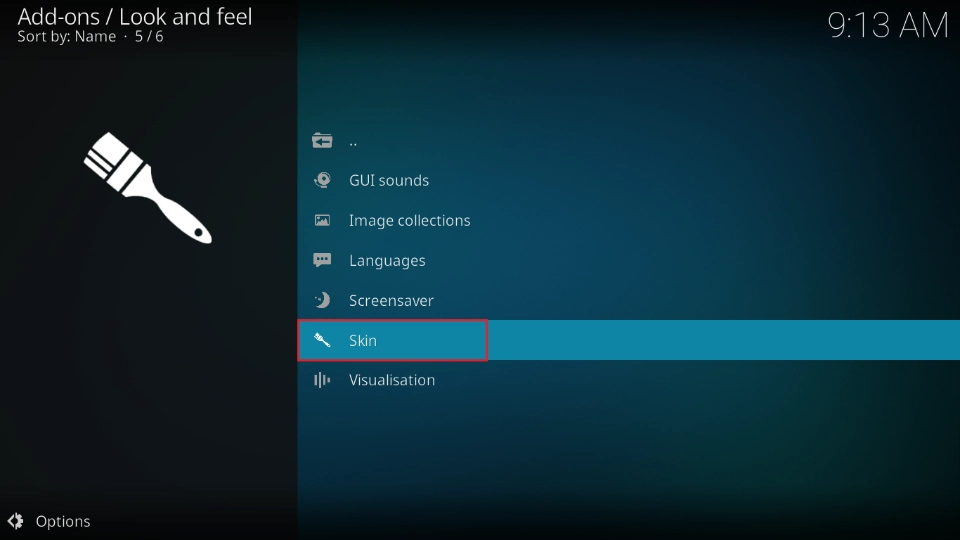
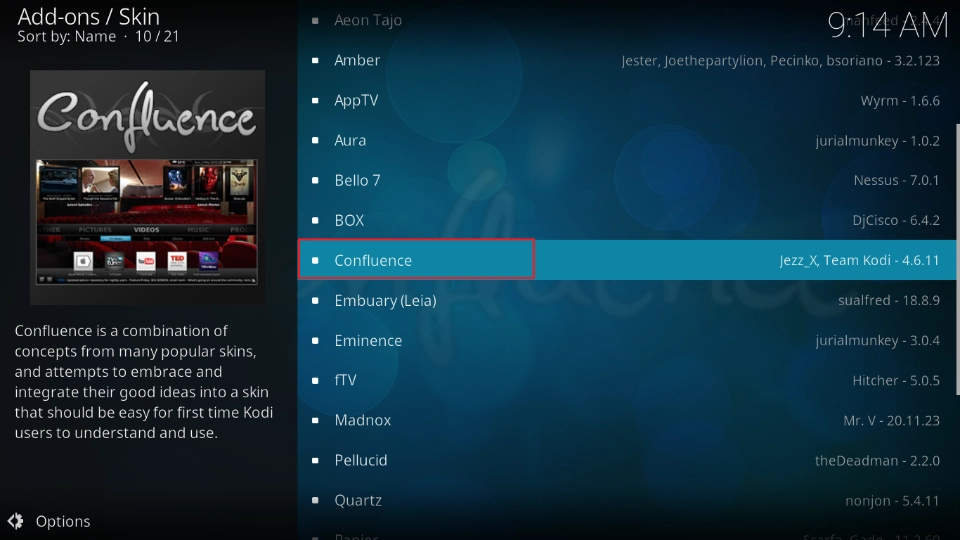
Kodi has a couple of skins to choose from. I like the Confluence look, so I use it when I want a different look from Estuary.
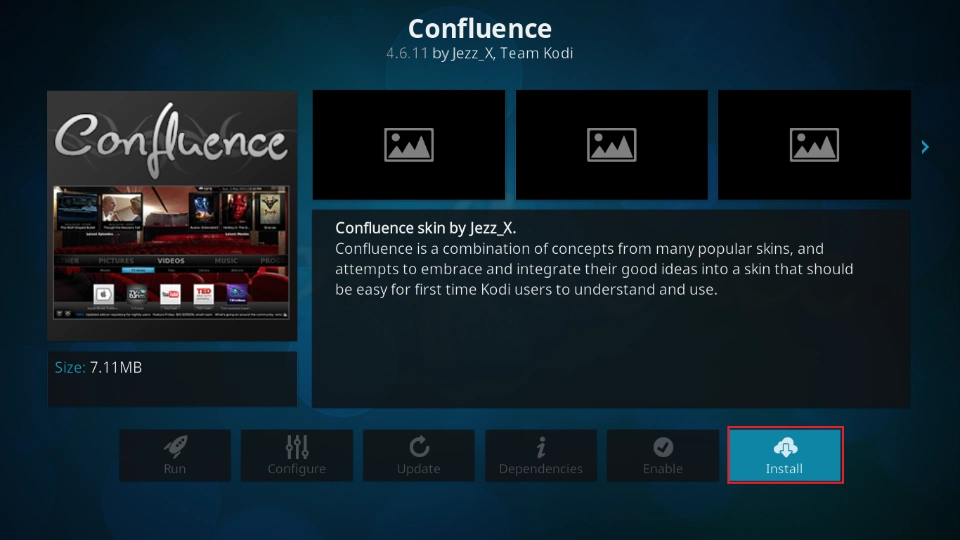
To install a skin, select it to open a new window. Click Install.
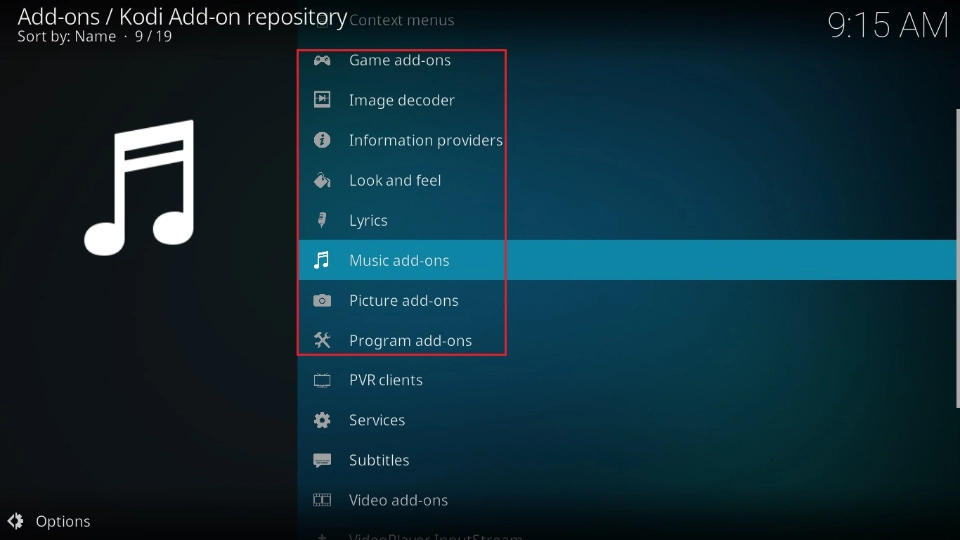
Move on to other addons, including Music, Program, and Video addons, to install your favorite addons.
Third-party Kodi addons are controversial because they raise safety and legal concerns. However, they are reliable sources of free content like movies, TV shows, sports, and anime. By default, Kodi doesn’t allow installation of addons from unknown sources. To install unofficial addons, you need to change this setting.
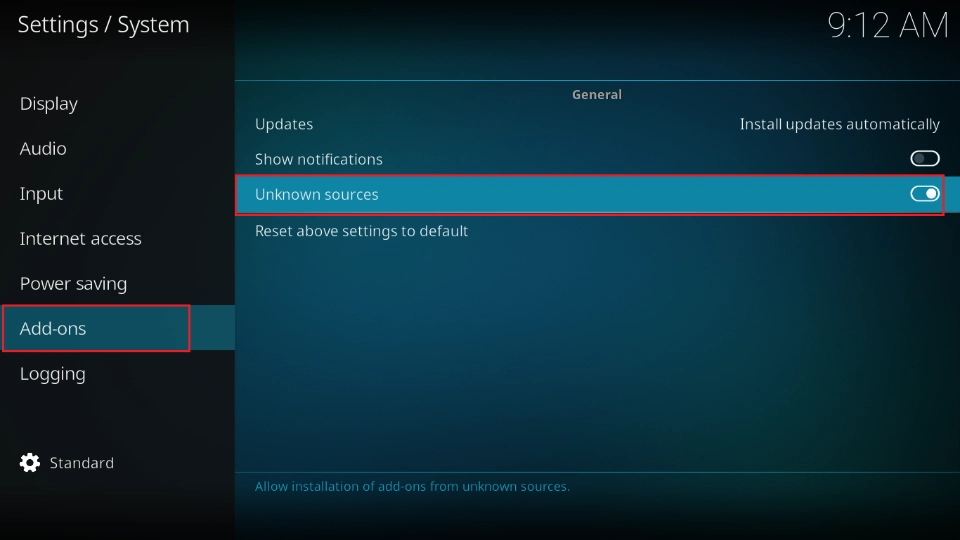
To do so, navigate to Settings>System>Addons>Unknown Sources, and turn ON the toggle. Click Yes when a warning appears.
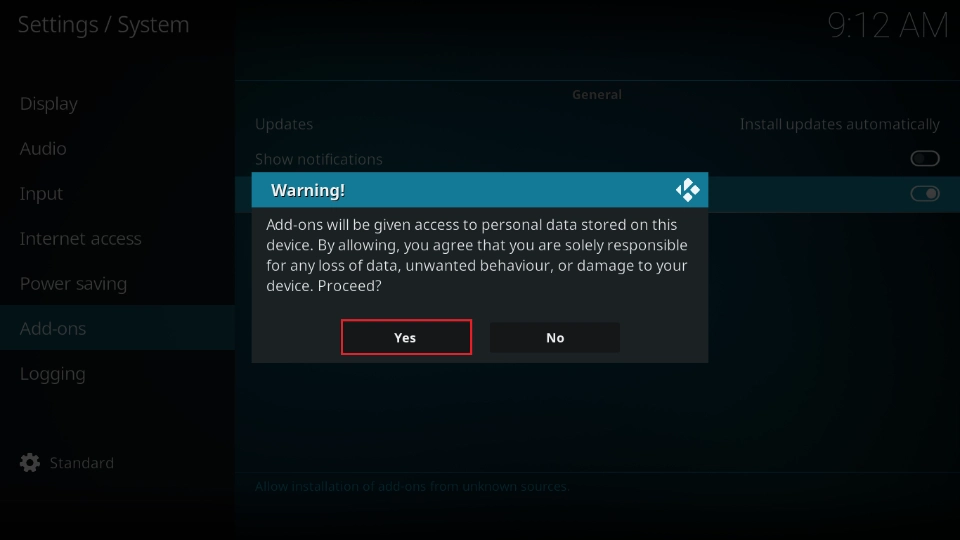
You can now install third-party addons on Kodi 18.4.
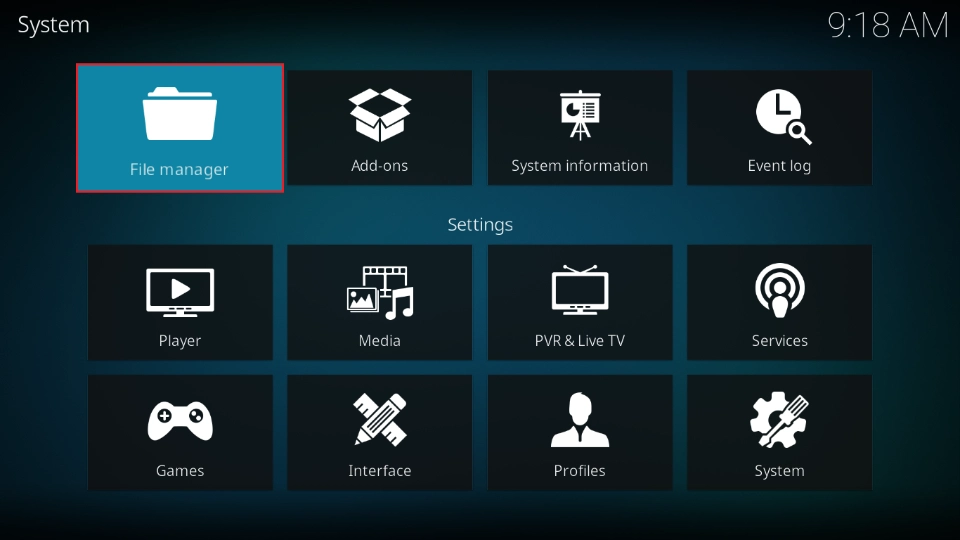
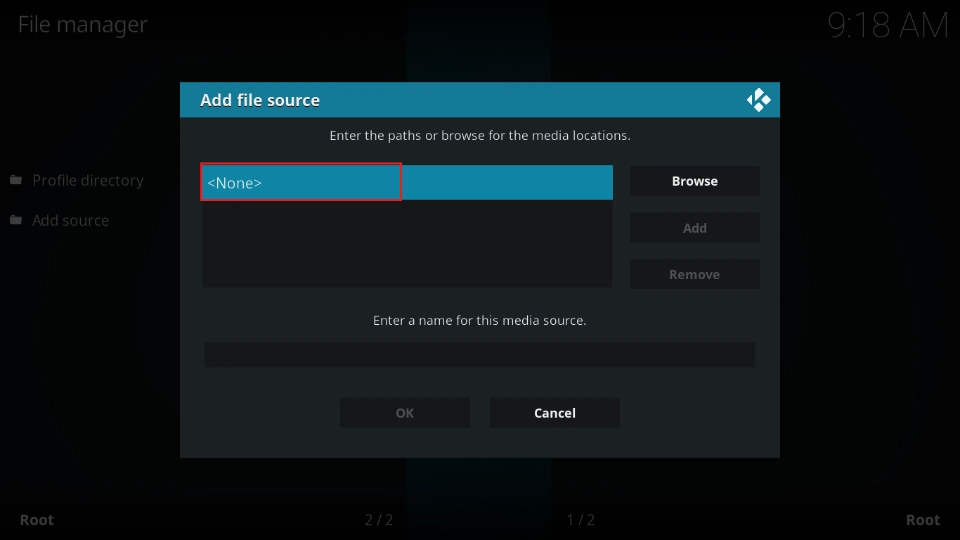
Navigate to File Manager.
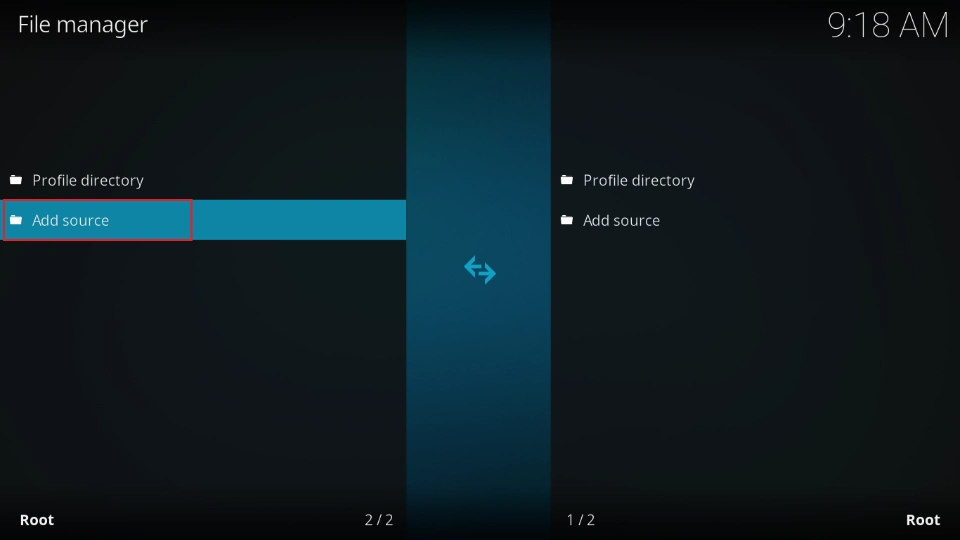
Click Add Source.
Select None.
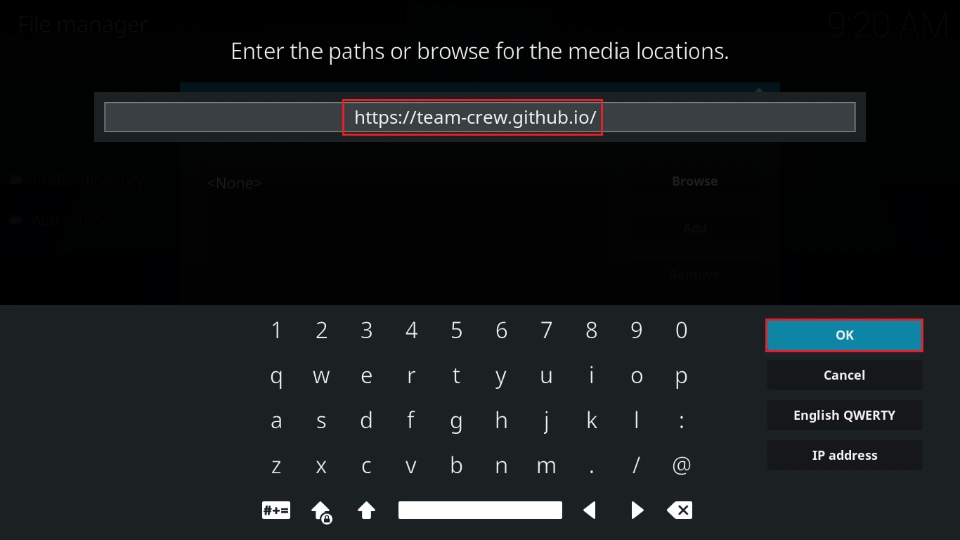
Enter the source URL of the repository hosting your favorite third-party addon. In my case, I wanted to install the The Crew repository. Click OK.
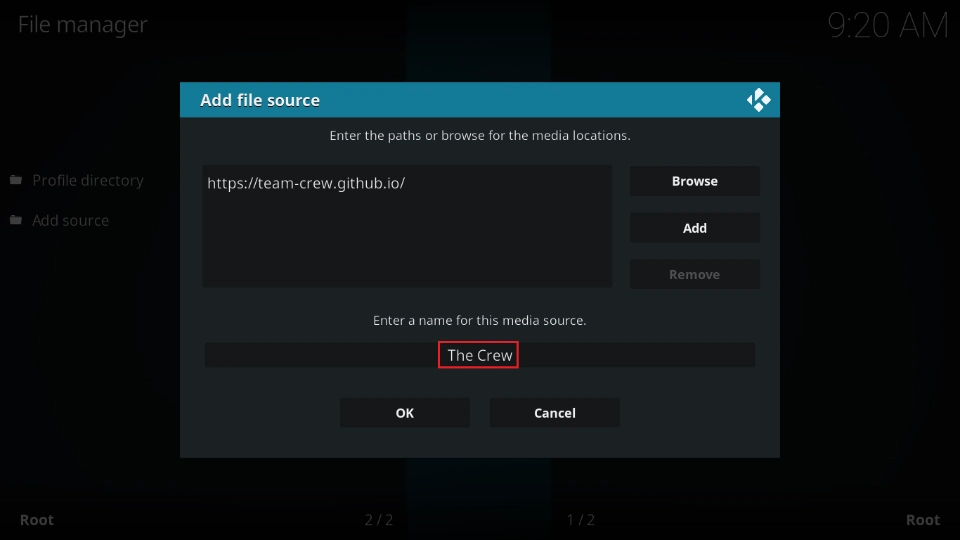
Enter a name for this source, e.g, The Crew.
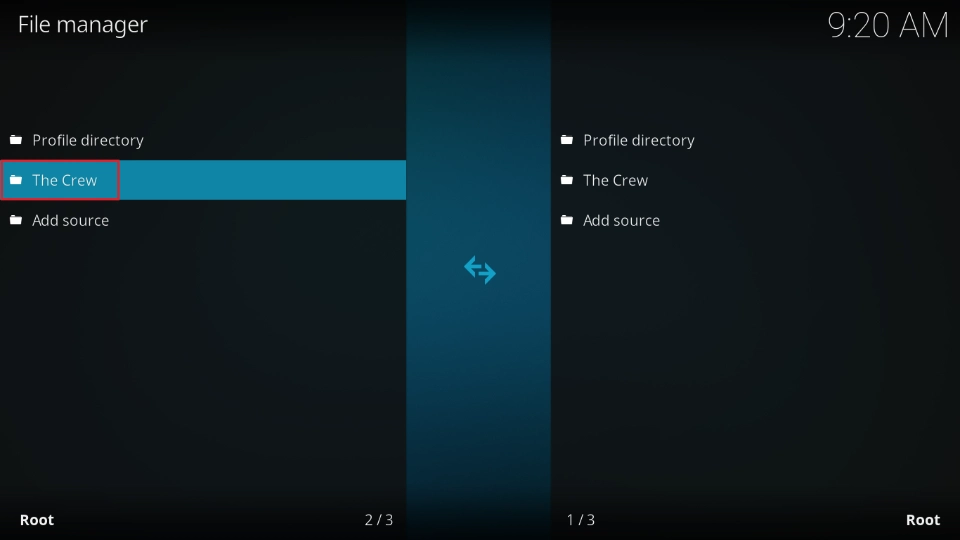
Click OK. The Repository zip file will be added to your list.
Navigate to Addons>Install from zip file.
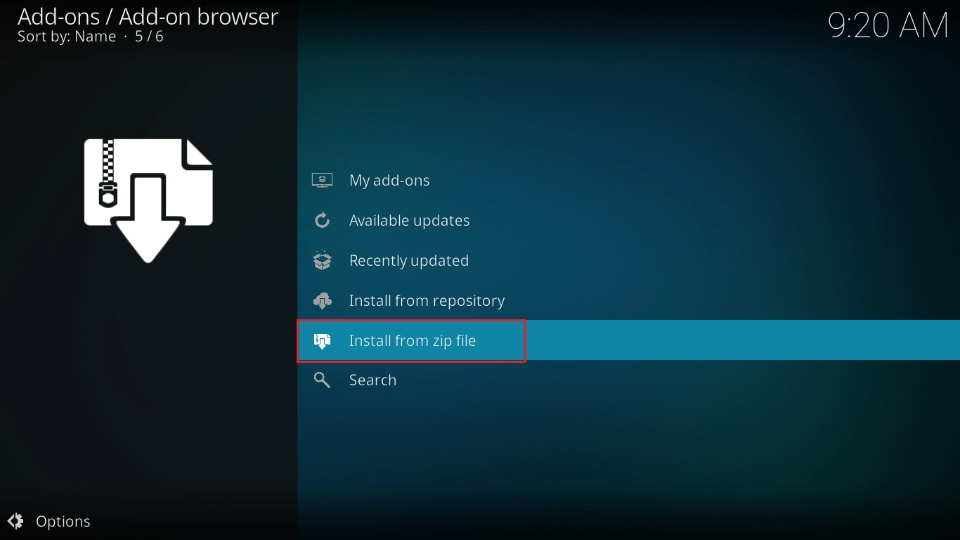
Select the source, e.g., The Crew.
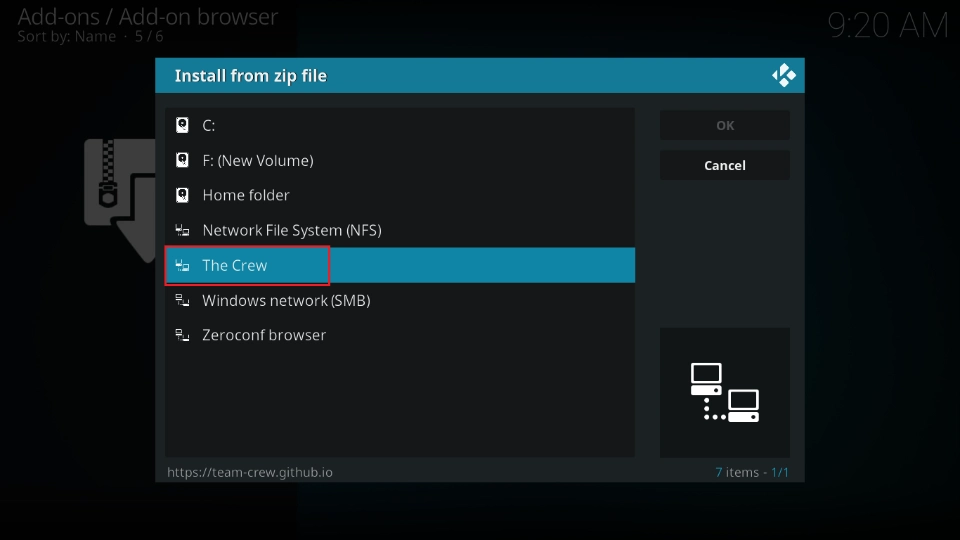
Click on the zip file (repository.thecrew-0.3.8.zip).
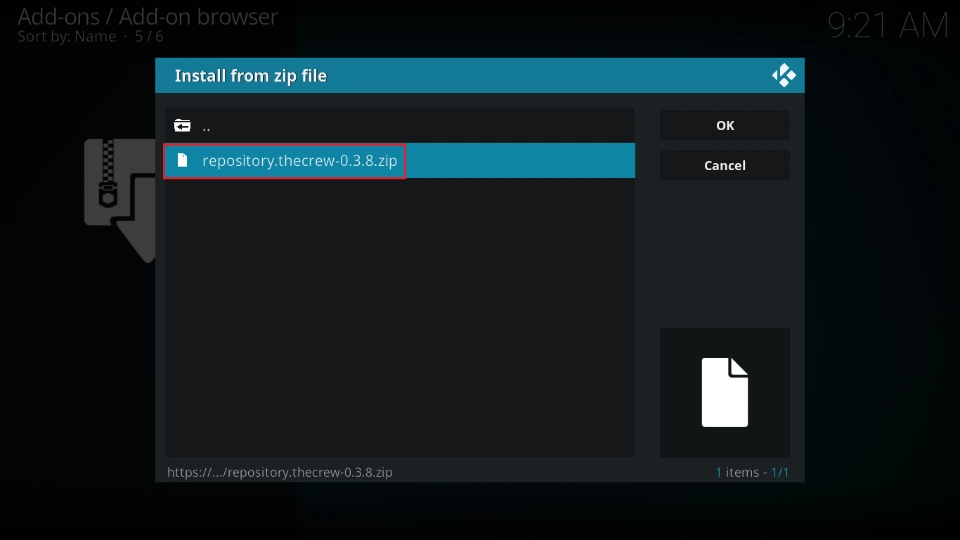
The repository will be installed.
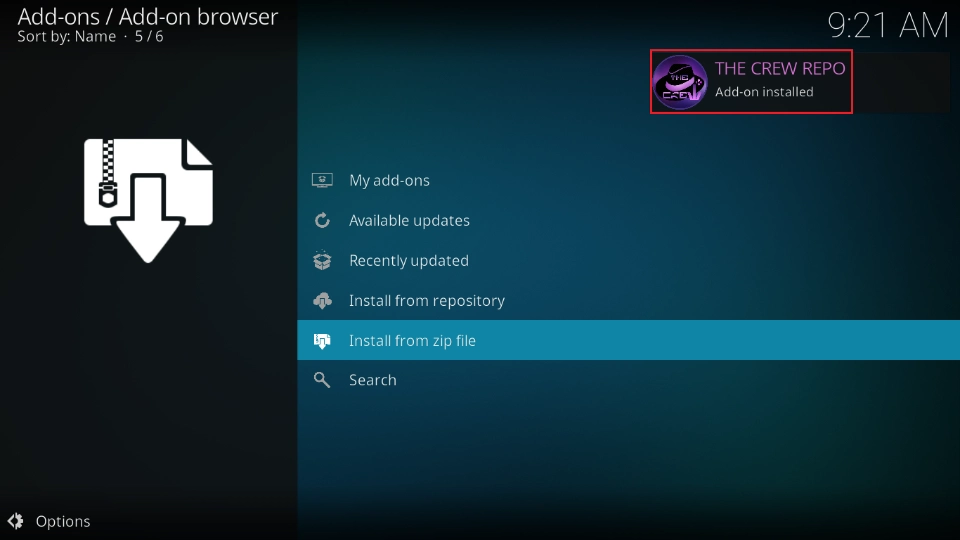
Click Install from repository.
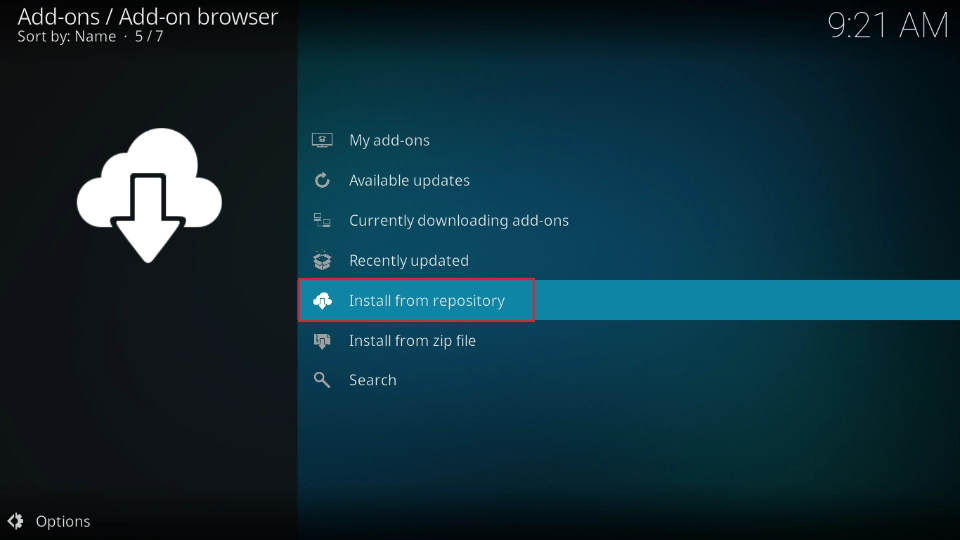
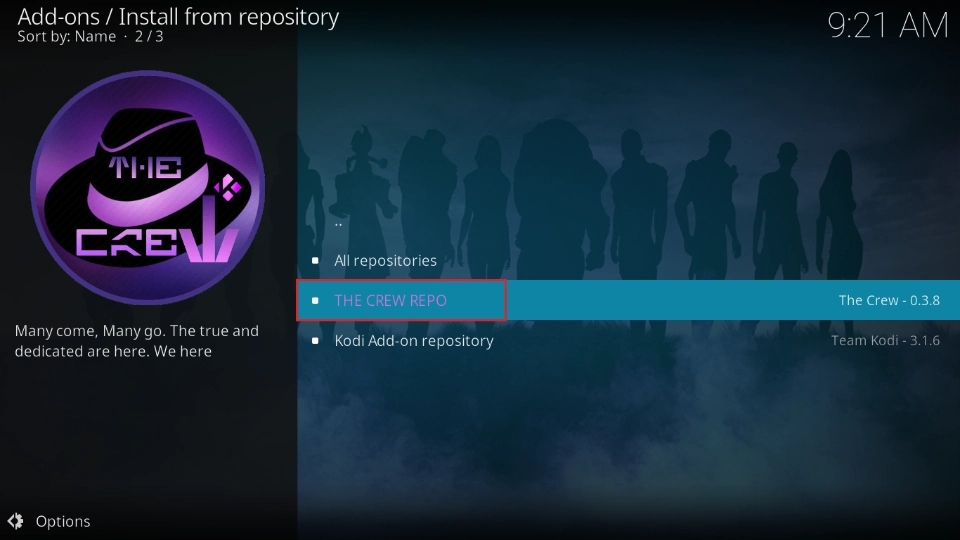
Select the third-party repository you just installed.
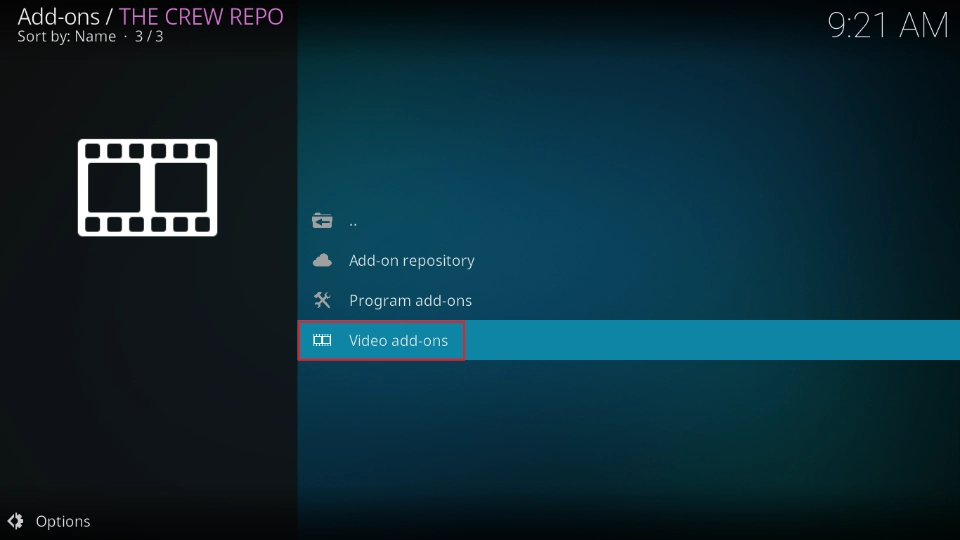
Choose the type of addon, e.g., Video Addons.
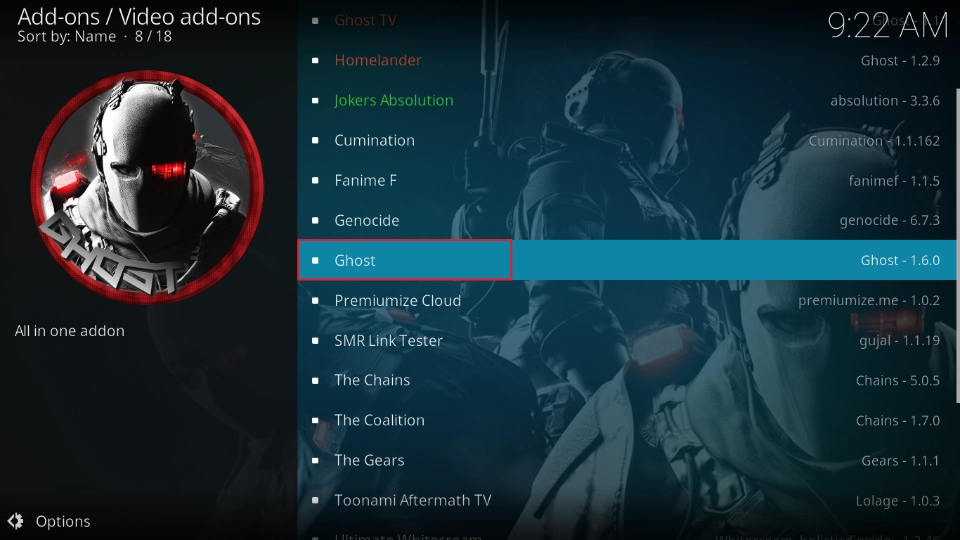
Select your preferred addon.
Click Install.
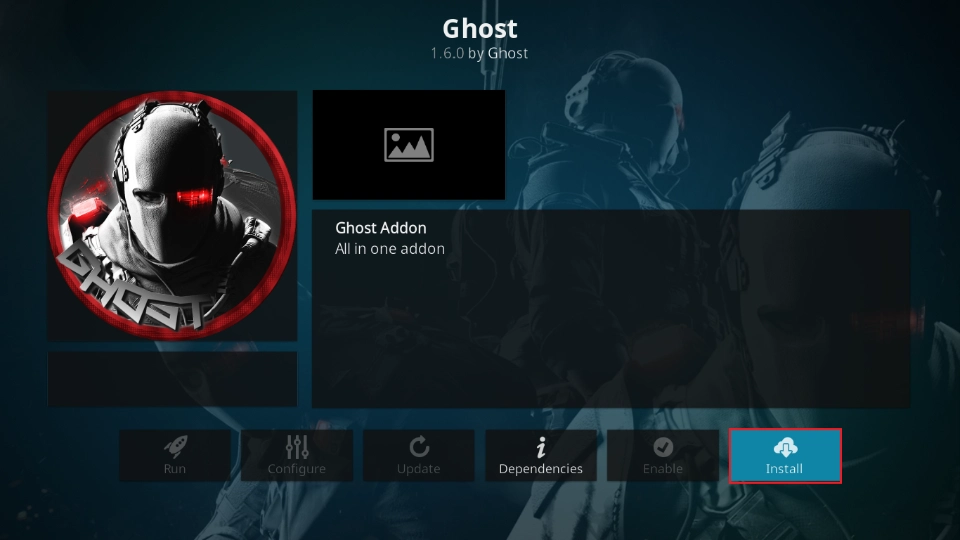
That’s how you install a third-party addon on Kodi 18.4.
I did run into a few issues with some addons on Kodi 18.4. For example, a few failed to install because of dependency errors. Despite that, most of my favorite addons worked perfectly. WatchNixtoons 2, for example, installed and ran without any problem.
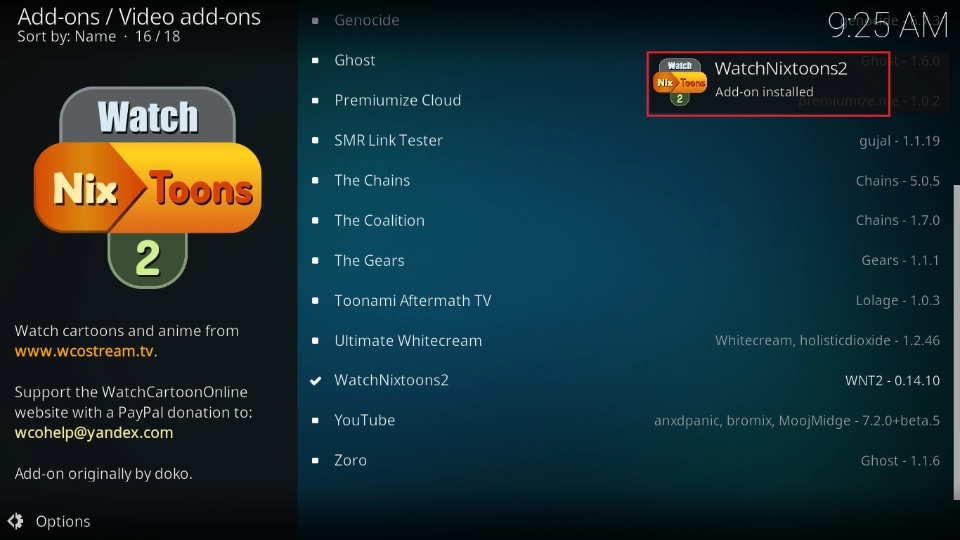
As shown in the screenshot below, the addon worked seamlessly.
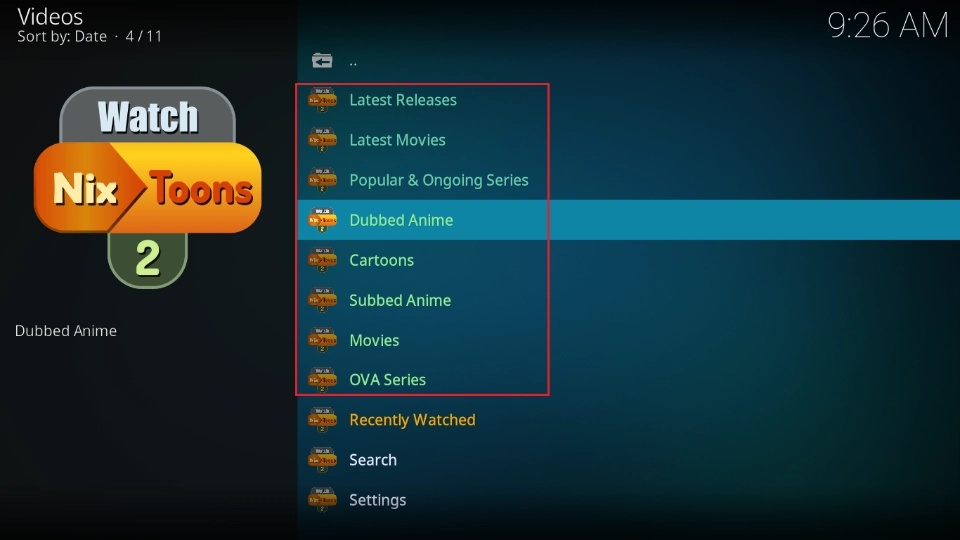
I even tested a few titles, and playback started immediately.

Overall, Kodi 18.4 is a suitable choice if you’re looking for a stable, older version of Kodi.
Frequently Asked Questions
A: The most stable version of Kodi is Kodi 21.3. It is the updated version of Kodi 21 Omega, the latest Kodi release.
A: Kodi 18.4 Leia is still a good Kodi release. It offers great network and system features that are compatible with older devices like the Raspberry Pi 4, old Android TV boxes, desktops, and smart TVs. However, it's now considered an older version because newer releases like Kodi 19, 20, and 21 are available. These newer versions offer better performance and features.
A: Kodi 18.4 Leia is safe as long as you install the application from the official Kodi Mirrors website and use the official Kodi addons. Safety issues arise when you sideload the app from an unknown source or use illegitimate addons to stream content on Kodi.
Wrapping Up
Kodi 18.4 Leia remains a favorite among Kodi users. It’s lighter than the newer updates and utilizes fewer system resources than its successors. This makes it an ideal choice for older devices. This post explained how to install Kodi 18.4 on FireStick, Windows, and Android devices.
Have you installed Kodi 18.4 on your device? Share your experience and concerns in the comments.
Suberboost Your FireStick with My Free Guide
Stay Ahead: Weekly Insights on the Latest in Free Streaming!
No spam, ever. Unsubscribe anytime.





Leave a Reply