🕒 Time Needed: 10 minutes
This detailed post covers everything you need to know about the NetMirror app, including what it offers, its safety and legal status, and how to install it on various devices. I’ll also include a few NetMirror alternatives.
What is NetMirror?
NetMirror is an unofficial, third-party streaming service for movies and TV shows. It appears to be a mirror of Netflix.
You don’t need a paid subscription to access NetMirror. However, the browser version requires registration, which is not typical for unofficial websites.
The app version of the service doesn’t require any registration. If you are using the app on a mobile, you will need to watch an ad in a browser to unlock the content library.
The NetMirror app for FireStick and Android TV will not force you to watch an ad. It displays a one-time password on the screen, which you can use to access the app.
While NetMirror mirrors Netflix, it offers more than Netflix content. I also found movies and TV shows from other streaming platforms.
Contents (Click to Jump to Desired Section)
- What is NetMirror?
- Is NetMirror Safe & Legal?
- How to Install NetMirror on FireStick/Android TV/Google TV
- NetMirror Review
- How to Install NetMirror App on an Android Mobile Device
- How to Access NetMirror on PC
- Poll
- NetMirror Alternatives
- Frequently Asked Questions
- Wrapping Up
- Suberboost Your FireStick with My Free Guide
Is NetMirror Safe & Legal?
Users have reported safety concerns online after noticing warning signs about NetMirror. One Reddit user even claimed that “they want to download the app on their phone, but the phone has already shown them a lot of warnings not to download [it].”
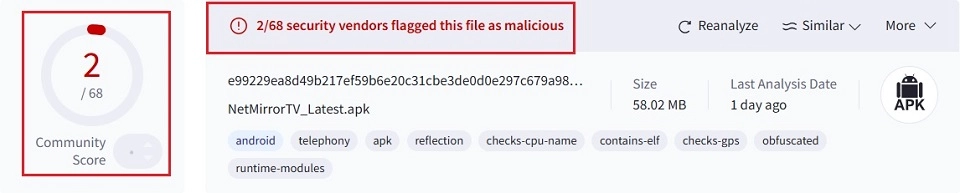
I scanned the NetMirror APK file using VirusTotal, and 2 of 68 security vendors flagged it as malicious. Be cautious when using NetMirror on your devices.
FireStickTricks cannot determine whether the NetMirror app is legal. It offers free content, which is typically available only through a paid subscription. Therefore, it is likely that the app contains pirated content and may be illegal.
How to Install NetMirror on FireStick/Android TV/Google TV
Legal Disclaimer: This tutorial is purely educational. FireStickTricks.com doesn’t own, host, operate, resell, or distribute any streaming apps, addons, websites, IPTV or services. The page contains some unverified services, and we are not certain whether they hold legal licenses to distribute the content. FireStickTricks.com does not verify the legality of each app/service in all regions. Do your due diligence if you use any of the unverified apps/services, and stream only content that is available in the public domain. The end-user shall be solely responsible for the media accessed.
NetMirror is a third-party app, not available on the Amazon Store or Google Play Store. To install it on FireStick, I sideloaded it from an external site using the Downloader app.
Please follow these steps:
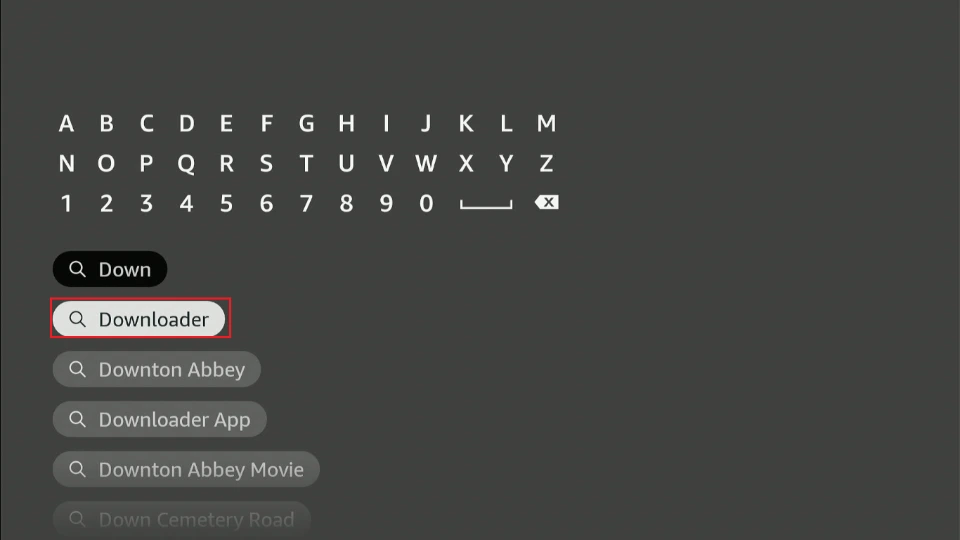
1. Click Find>Search on the Fire TV home screen. Type Downloader in the search bar and select the Downloader app in the suggested results. Click Get or Download to install the app on your device.
You can install the Downloader app from the Play Store on your Android or Google TV.
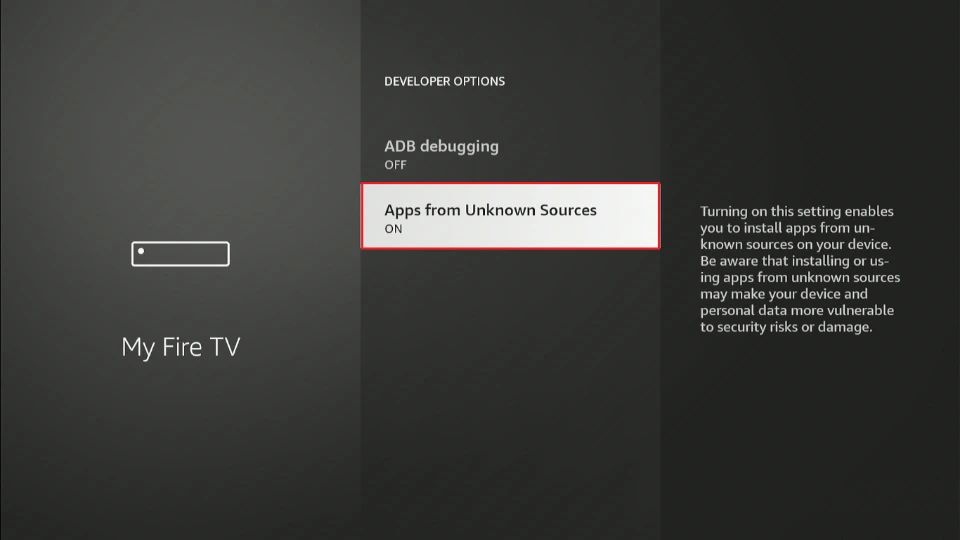
2. Navigate to Settings>My Fire TV>Developer Options.
You will find a similar option in Android and Google TV settings.
Now, select Fire TV Stick and click it 7 times to enable Developer Options. If you’re still not sure how to do it, here’s a step-by-step guide to enable developer options.
You will see one of the following two options depending on your FireStick device version:
- Option 1 (new devices) - Install Unknown Apps: Click it and proceed to the next step to enable Downloader.
- Option 2 (old devices) - Apps from Unknown Sources: Click this option and then click Turn On on the following prompt. Skip the next step.
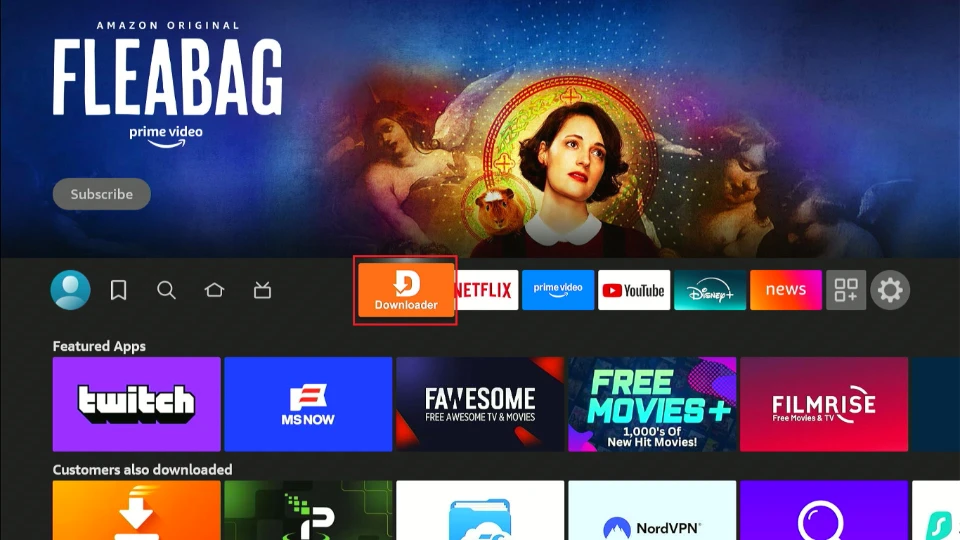
3. Launch the Downloader app.
4. Navigate to the URL section and click on it.
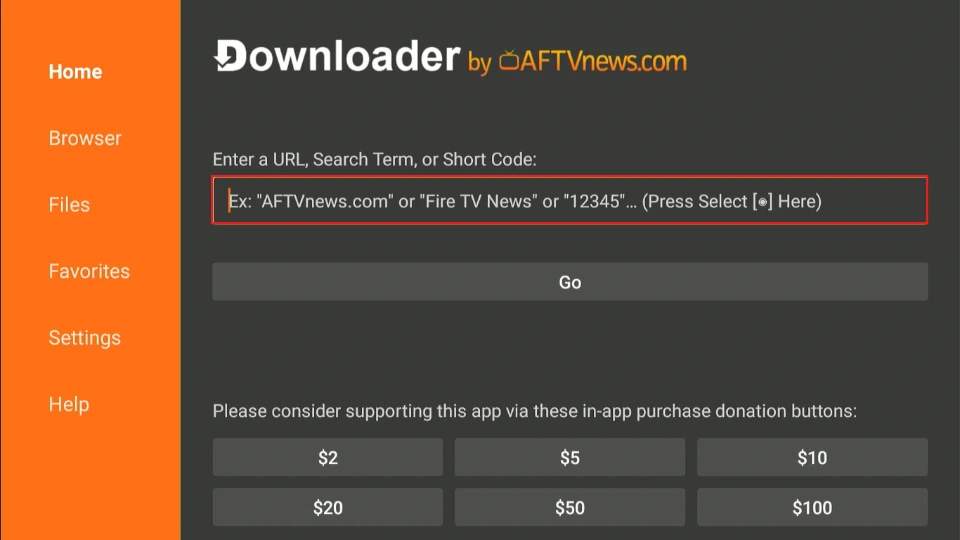
5. Type the following URL: netmirror.app/1/en, and click Go.
Disclaimer: FireStickTricks.com does not own this URL. We are not affiliated with the developers of the NetMirror app.
Attention FireStick Users
Governments and ISPs across the world monitor their users' online activities. If you use third-party streaming apps on your Fire TV Stick, you should always use a good FireStick VPN and hide your identity so your movie-viewing experience doesn’t take a bad turn. Currently, your IP is visible to everyone.
I use ExpressVPN, the fastest and most secure VPN in the industry. It is very easy to install on any device, including Amazon Fire TV Stick. Also, it comes with a 30-day money-back guarantee. If you don't like their service, you can always ask for a refund. ExpressVPN also has a special deal where you can get 4 months free and save 61% on the 2-year plan.
Read: How to Install and Use Best VPN for FireStick
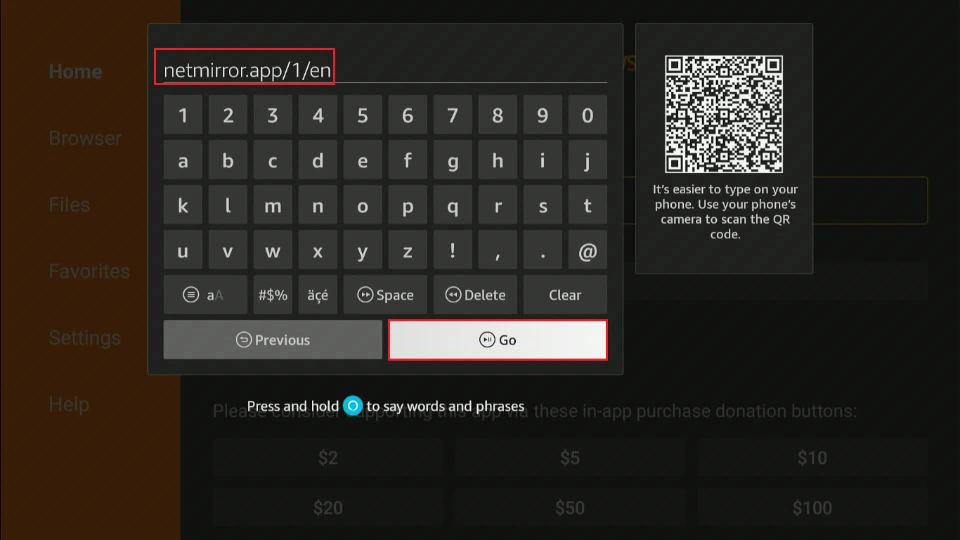
6. This URL will take you to the official NetMirror website. Scroll to the bottom of the page to locate the TV APK file. Select Download TV APK.
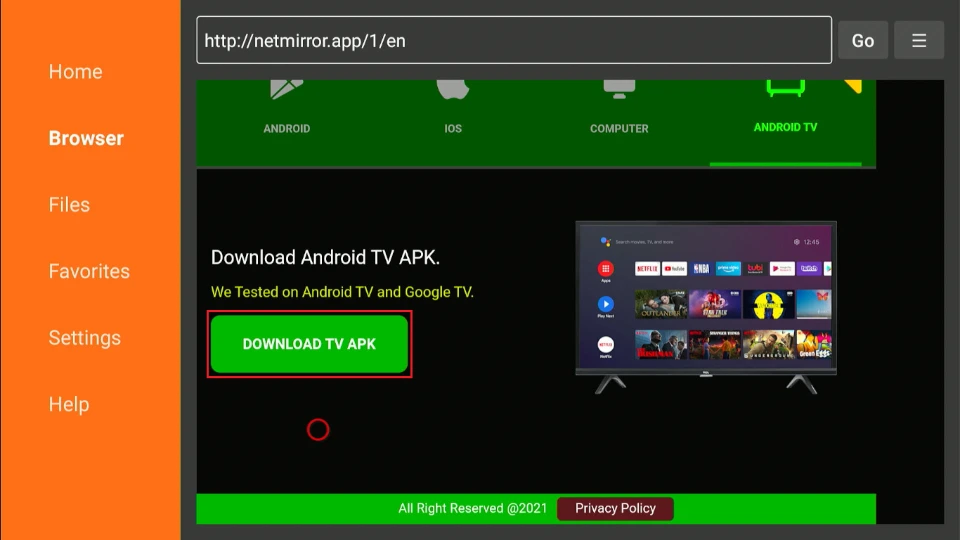
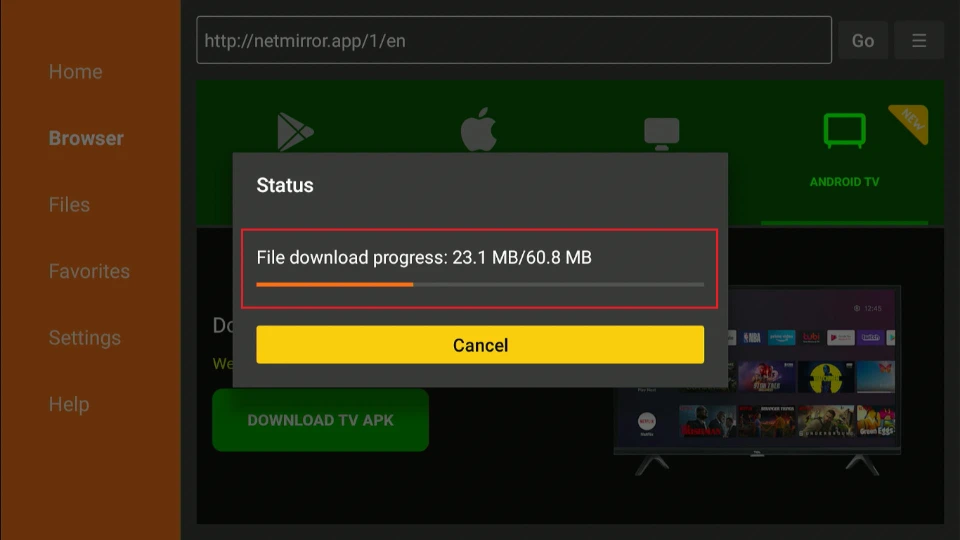
7. The APK file will start downloading.
8. Click Install.
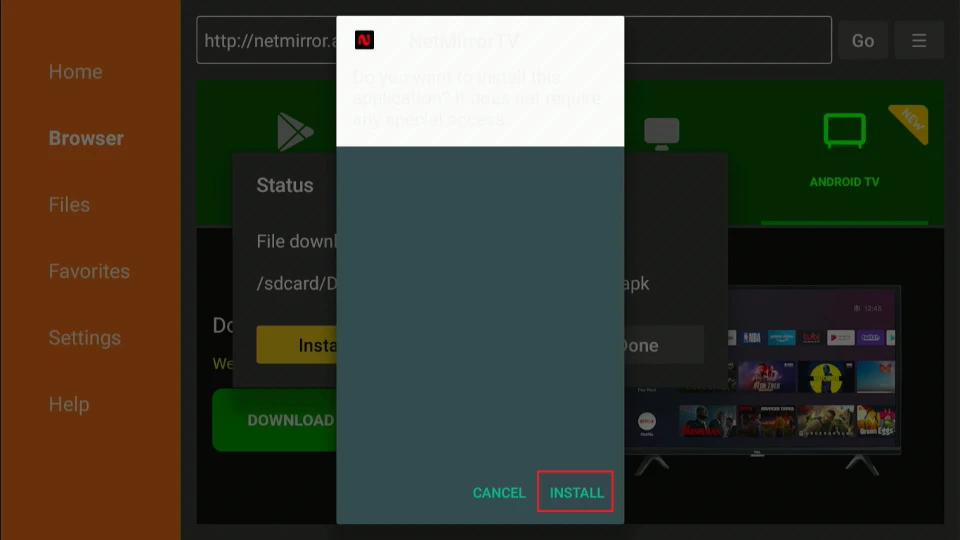
9. Wait for the NetMirror app to install.
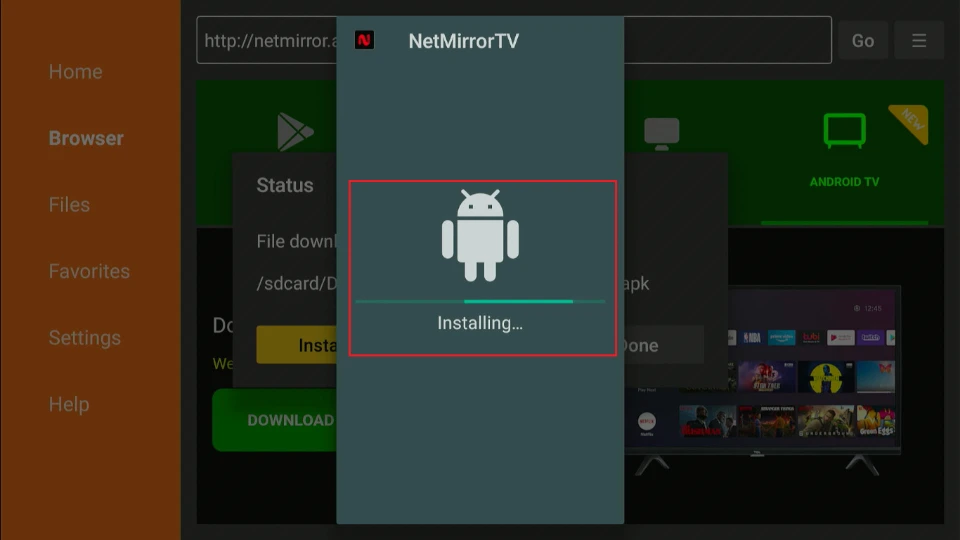
10. Click Done once the installation is complete.

11. Select Delete to erase the NetMirror APK file from your device, as you no longer need it.

12. Select Delete again to confirm.

13. You have successfully installed the NetMirror app on your FireStick. Press the Home button on your remote and click Apps.
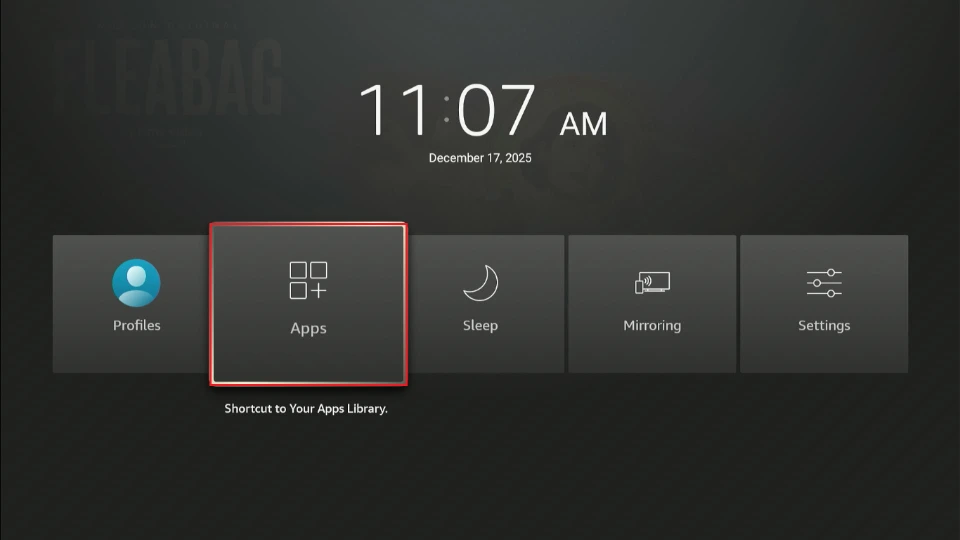
14. You should see the NetMirror app in your app library.

15. You need to enter a one-time password (OTP).

NetMirror Review
Online Reviews
NetMirror self-describes as a go-to platform for streaming thousands of TV series and movies, with original audio and HD video quality.
User reviews are mixed: some praise the app’s free, high-quality content, while others raise concerns about the app’s safety and legality.
One user on Trustpilot gave the app 5 stars, describing their experience as ‘mindblown for all the paid shows they are getting for free on NetMirror’. However, another user complained about ‘buffering after updating the app.’
On Reddit, the reviews on the r/AndroidTVApps subreddit are mostly positive, but there is a fair share of negative feedback.
Some of the positive reviews on Reddit say the app ‘works good enough.’ In the same thread, another user says, ‘previously worked great on TV, but now forces an ad first, which is not a good experience.’
My Take
I will say that for a third-party app, NetMirror is quite decent.
I tested it on FireStick, Android, and Google TV. I also tested a few titles on the PC, via the official NetMirror website.
As promised, NetMirror is a mirror of Netflix and other popular streaming platforms. While the app promises access to over 50 OTT platforms, only four worked.
The remaining platforms didn’t load. Instead, I received an error message. This happened with the mobile app.

My best NetMirror experience was on the Amazon FireStick. I encountered no ads, and the playback started immediately when I selected a title. However, I was required to enter a one-time password (OTP) when I first launched the app.

I found most of the movies and TV shows I searched for.
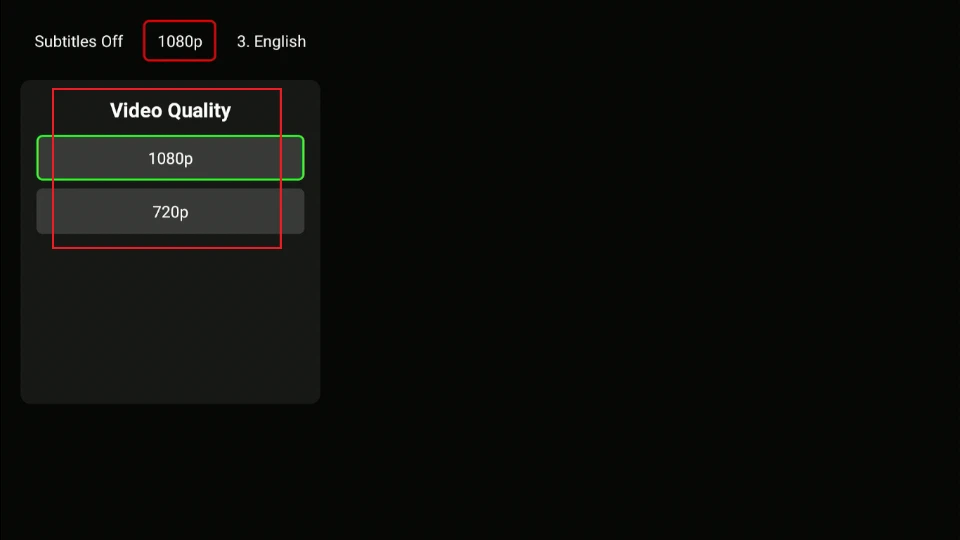
I like NetMirror’s built-in media player because it has all the playback features I need. These include subtitles in multiple languages, multiple video quality levels up to 1080p, and forward and rewind options.
While navigation is largely seamless on NetMirror, I noticed some lagging. However, once you get used to the interface, browsing through titles becomes easy.
I had mixed feelings about NetMirror on PC. The requirement to sign up with an email address or a Google account didn’t sit right with me, given the security risks of most third-party APKs. However, the option to sign out gave me some reassurance. That said, I recommend using a temporary email such as Temp Mail to access unofficial sites like NetMirror.
Overall, my NetMirror experience on PC was decent. Navigation was easy, I didn’t encounter any ads, and playback started immediately once I selected a movie or TV show.
How to Install NetMirror App on an Android Mobile Device
Follow these steps to install the NetMirror APK on an Android mobile device:
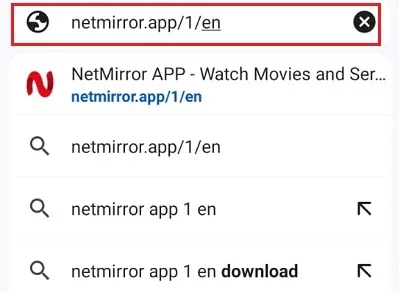
1. Open your web browser and enter the following URL: netmirror.app/1/en. Click Enter.
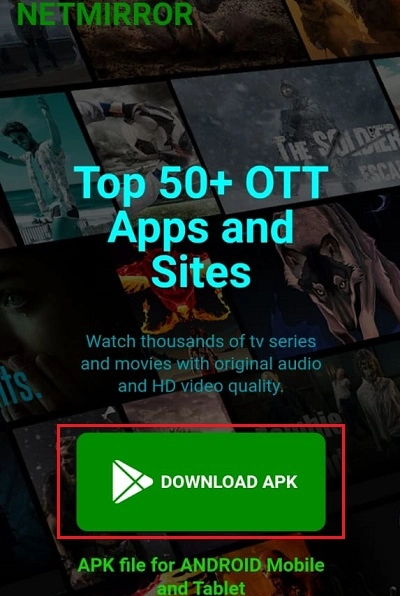
2. The NetMirror website loads. Click Download APK.
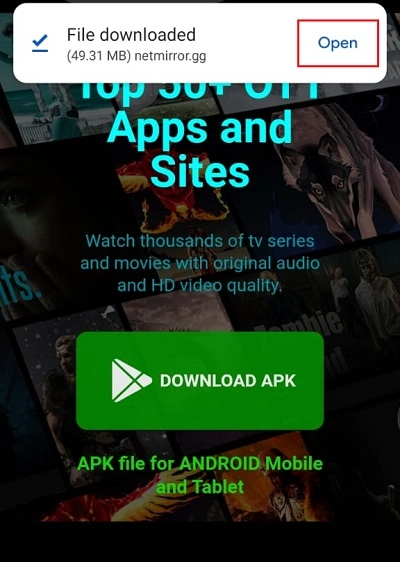
3. Click Open to run the downloaded APK file.
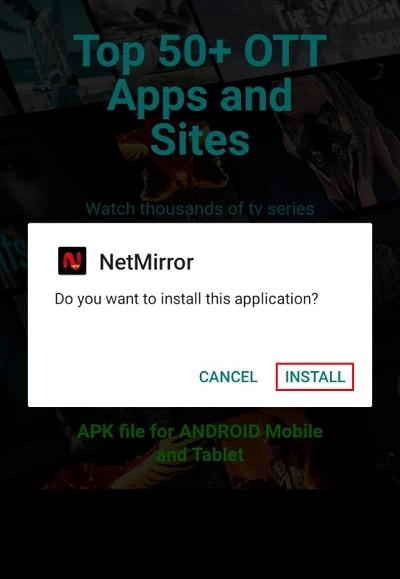
4. Select Install when prompted to install NetMirror.
5. Wait a few moments as the app installs.
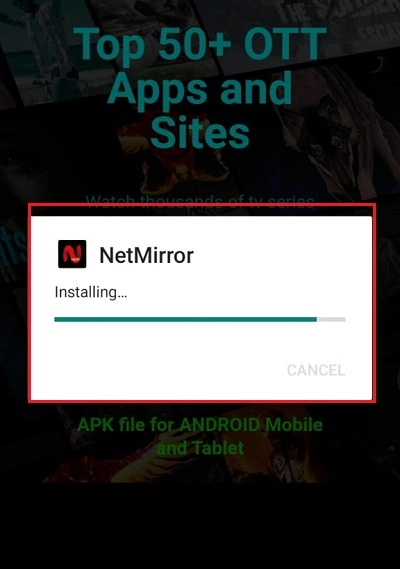
6. Select Open to launch the app.

7. NetMirror is ad-supported, at least the mobile APK. You need to view an ad to access the content library. Select Click Here to open the ad.
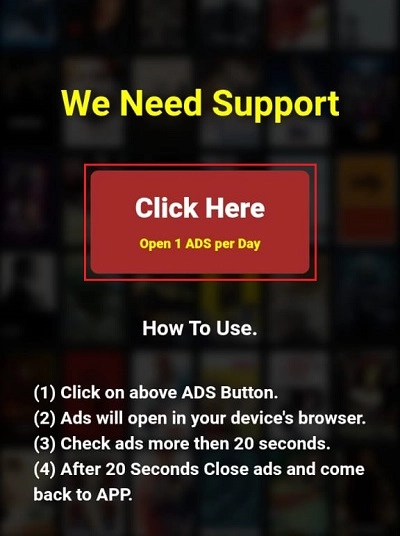
8. Make sure that you’ve viewed the ad for at least 20 seconds. Otherwise, you won’t be able to access the content library. This is what the NetMirror home screen looks like.

That’s how I installed the NetMirror app on my Android mobile device.
How to Access NetMirror on PC
Accessing NetMirror is easy. All you need is a supported browser. I accessed it on my PC using Chrome, but you can use any other browser, including Opera and Firefox.
Here’s how to do it:
1. Open your web browser and enter the following URL in the URL box: netmirror.app/1/en, and click Enter.

2. The NetMirror website loads. Select Go To Home.
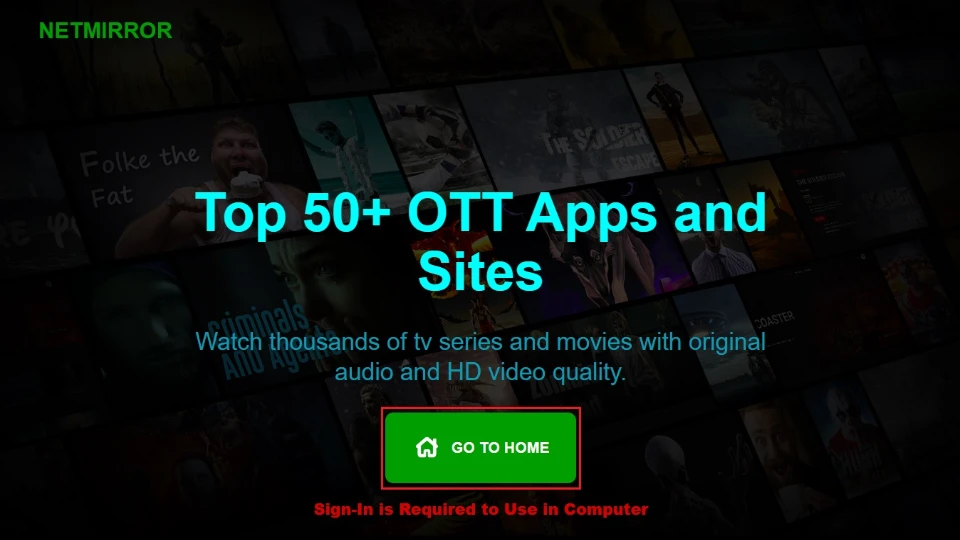
3. You must sign up for an account to access NetMirror’s content library. Enter your email address in the provided field and click Sign In.

4. This is what the NetMirror home page looks like on a PC.

Poll
NetMirror Alternatives
If you’re looking for a similar app, consider the following NetMirror alternatives:
1. Pluto TV (Official)

Pluto TV offers thousands of ad-supported free movies and TV shows, as well as live TV.
I mostly watch Pluto TV on my desktop, but you can also install the app on compatible devices, such as Android mobile, iOS, Android TV, and FireStick.
How to Install Pluto TV on FireStick
2. Tubi (Official)

Tubi is another free streaming platform that offers movies and TV shows in an ad-supported format.
Like Pluto TV, Tubi is accessible via a web browser and a downloadable app supported on multiple devices.
I mostly use Tubi on my FireStick to watch classic sitcoms, such as Everybody Hates Chris.
3. Cinema HD (Unofficial)

This third-party streaming app offers a wide range of movies, TV shows, documentaries, anime, and animation.
It’s an Android APK that you can sideload on devices like FireStick, Android TV box, smart TV, and Android mobile devices.
How to Install Cinema HD on FireStick
4. Tea TV (Unofficial)

Tea TV also has a decent collection of movies and shows and works on various devices, including FireStick and Google TV.
It supports Trakt and debrid services. It lets you filter content by categories and year.
How to Install Tea TV on FireStick
5. Kodi (Official)
Kodi is a popular media player that lets you stream a variety of online content, including movies, TV shows, sports, live TV, music, and anime.
Kodi doesn’t host any content but lets you install official and third-party addons. You can also customize Kodi with numerous builds.
6. 1HD (Unofficial)

1HD is another option you may consider if you are looking for an alternative to NetMirror.
The site has been around for a while, but is known to change domains occasionally.
You will find some ads and popups on the site.
Frequently Asked Questions
NetMirror's legitimacy is unverified. The platform looks like an illegal mirror copy of official platforms like Netflix, Prime Video, and Disney+. Be careful with this app to avoid legal woes and potential security risks.
A VirusTotal scan of the NetMirror APK file revealed a few suspicious files. While we can't confirm the safety status of this app, take precautions to avoid security risks. Consider using a VPN to encrypt your data. Additionally, use the app version instead of the web version, which requires you to sign in with a Google or email account. If you must use the web version, sign out at the end of the streaming session to end future access.
Yes, you can watch NetMirror on an iPhone. However, you need to install another app called the DODO WebView app, then access the NetMirror website. Alternatively, you can use the Safari browser to access the NetMirror website and watch your favorite content.
Wrapping Up
NetMirror APK is one of the fastest-growing apps for streaming movies and TV shows without a subscription. It mirrors Netflix and other popular OTT platforms such as Disney+ and Prime Video. This post sums up everything you need to know about the app.
Suberboost Your FireStick with My Free Guide
Stay Ahead: Weekly Insights on the Latest in Free Streaming!
No spam, ever. Unsubscribe anytime.





Leave a Reply