 In this guide, I will take you through the installation steps for Titanium Kodi build on FireStick and Fire TV devices. The same guide will also work on other Kodi devices, including other smart TV systems, computers, smartphones, and tablets.
Kodi is nothing without its addons. For most users, no single add-on is enough to fulfill all their Kodi needs. Therefore, we have to install multiple add-ons for various purposes, which makes management tricky. Not to mention how inconvenient it is to look up each add-on individually and then install it separately.
Titanium for Kodi takes care of all of this for you. Titanium build is one of the most widely used Kodi builds presently. The build has received rave reviews from experts and users alike. This tool puts all your favorite add-ons in one place, allowing you to install them quickly with just the touch of a button. Titanium also transforms the Kodi interface into something more functional and visually appealing. Let us now learn how to install Titanium on Kodi.
Check out here how to install Kodi on FireStick if you haven’t done that already.
Legal Disclaimer: This tutorial is purely educational. FireStickTricks.com doesn’t own, host, operate, resell, or distribute any streaming apps, addons, websites, IPTV or services. The page contains some unverified services, and we are not certain whether they hold legal licenses to distribute the content. FireStickTricks.com does not verify the legality of each app/service in all regions. Do your due diligence if you use any of the unverified apps/services, and stream only content that is available in the public domain. The end-user shall be solely responsible for the media accessed.
Prepare Kodi to Install Titanium Build
There Is a Kodi security feature that prevents the installation of third-party add-ons that are not hosted on the official Kodi Add-on Repository. This feature prevents the installation of malicious add-ons or builds that might cause harm to your device.
Kodi Titanium build is extremely popular and used by hundreds of thousands of Kodi users. This build is absolutely safe. Therefore, to install this Titanium build, we will have to disable this security feature by enabling ‘Unknown Sources.’
Follow these steps:
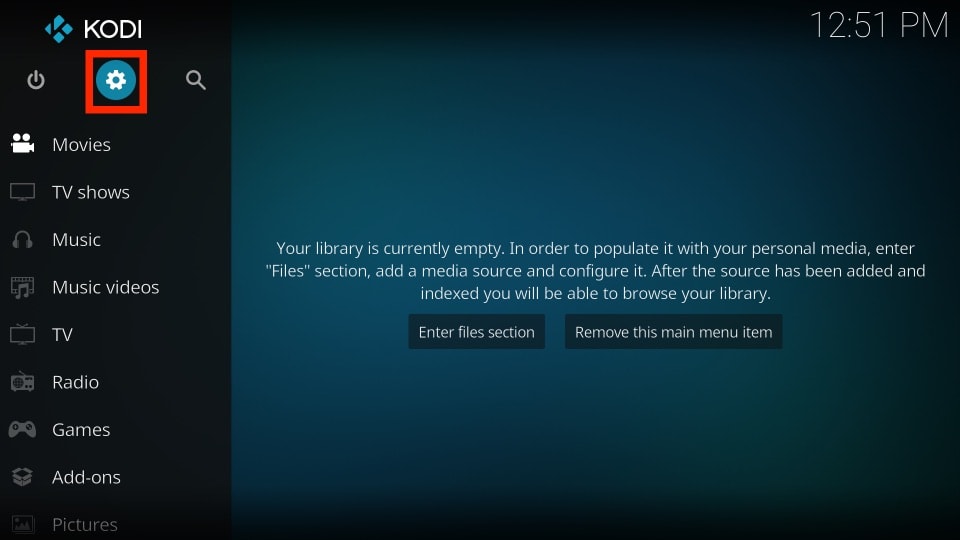
1. Open Settings from the Kodi home screen (it is the cog icon on the top, just under the Kodi logo on the left side).
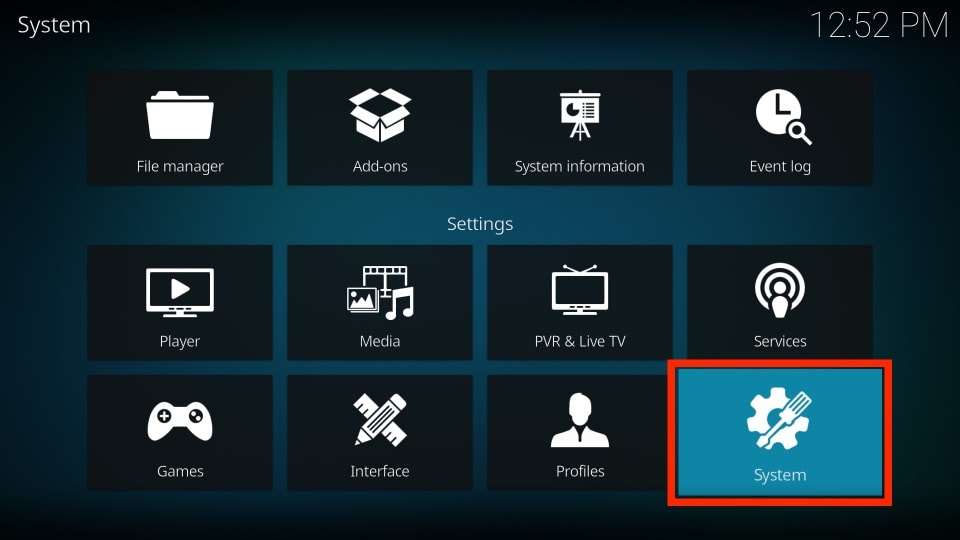
2. Now open System Settings (on Kodi 17) or open System if you use Kodi 18.
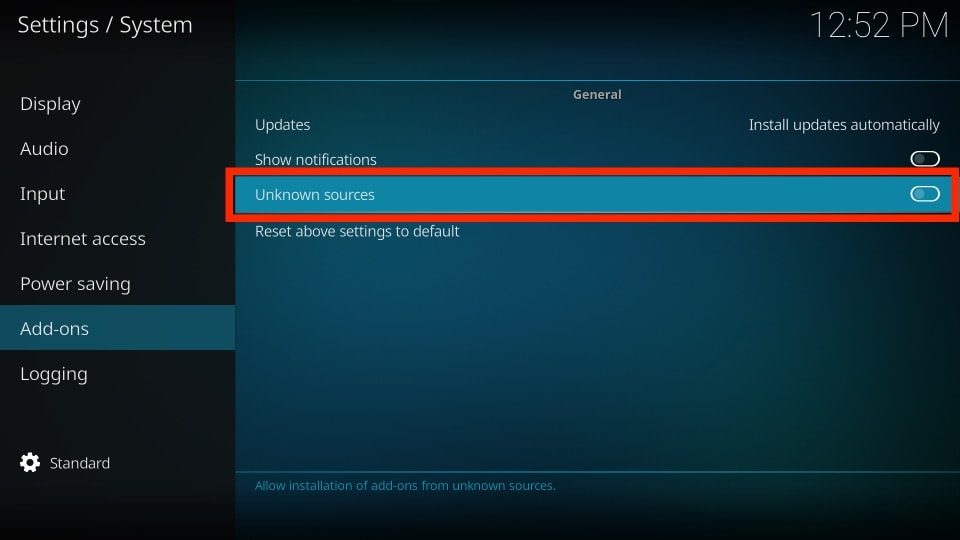
3. Select Add-ons on the left panel and click Unknown Sources.
4. You will now see this warning message. Ignore it and press Yes as Titanium Kodi build is safe to install.
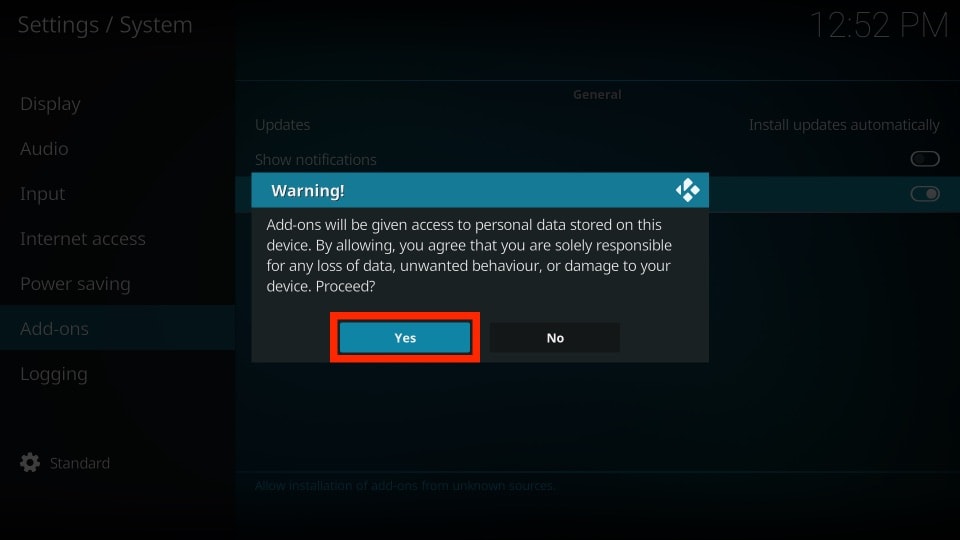
You are all set to install third-party add-ons. We will now learn to install Titanium Build on Kodi.
Attention Kodi Users!
Governments and ISPs across the world monitor your online activities. If you use third-party Kodi addons, you should always use a good Kodi VPN and hide your identity so your streaming experience doesn’t take a bad turn. Currently, your IP is visible to everyone.
I use ExpressVPN, the fastest and most secure VPN in the industry. It is very easy to install on any device, including Amazon Fire TV Stick, PC, Mac, and Smartphones. Also, it comes with a 30-day money-back guarantee. If you don't like their service, you can always ask for a refund. ExpressVPN also has a special deal where you can get 4 months free and save 61% on the 2-year plan.
Read: How to Install and Use Best VPN for Kodi
How to Install Titanium Build on Kodi 18.9 and Kodi 17.6
Titanium Build is available as part of the Supreme Builds Wizards. Therefore, we will first need to install Supreme Builds Repository. From this repository, we will install the Supreme Builds Wizard. We will use the wizard to get Titanium for Kodi.
Part 1: Install Supreme Builds
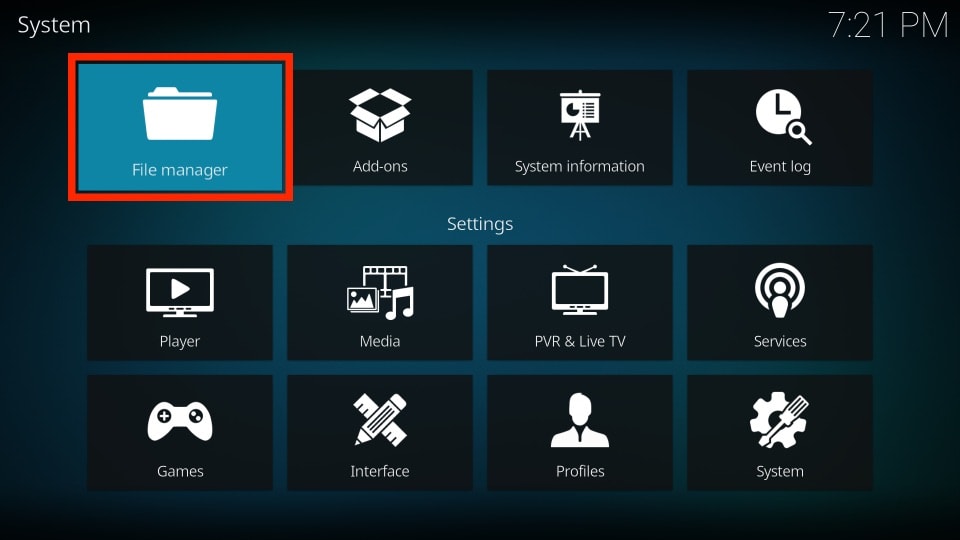
1. Open Settings by clicking the cog icon on the top of the Kodi home screen. Now, click File manager from the list of the options.
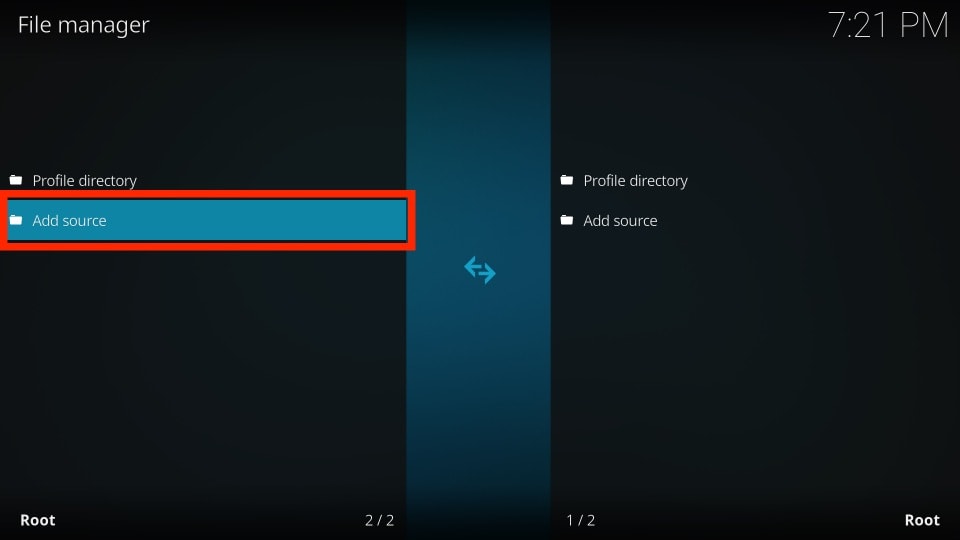
2. Click Add-source on the next screen.
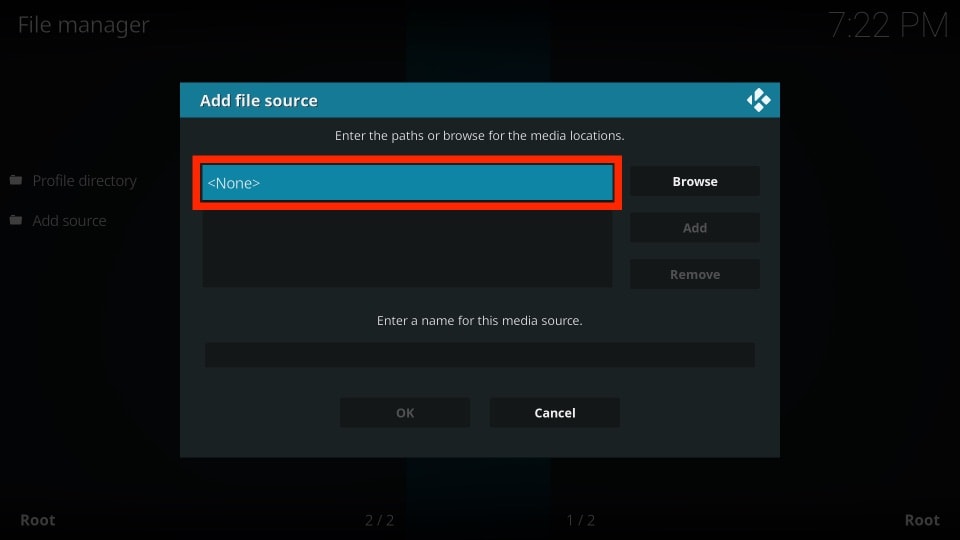
3. Now, click <None> to type in the URL of the source from which you will install Supreme Builds.
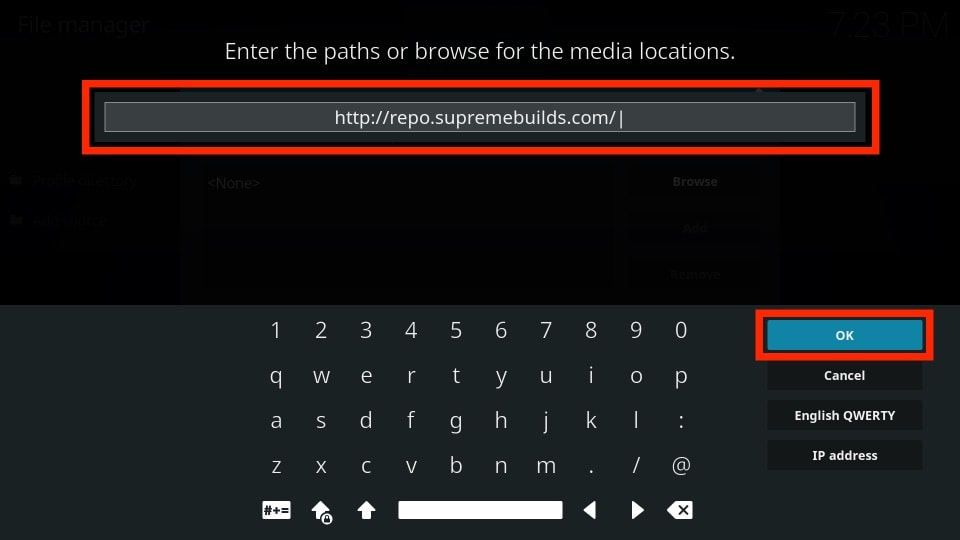
4. Use your remote and the onscreen keyboard to type in http://repo.supremebuilds.com as shown in the image below. Type the URL carefully as it should be exactly as it is shown. Otherwise, you will not be able to get the Titanium Kodi build.
Update: Titanium Build is no longer available. Please try one of the other available builds from our list of Best Builds for Kodi.
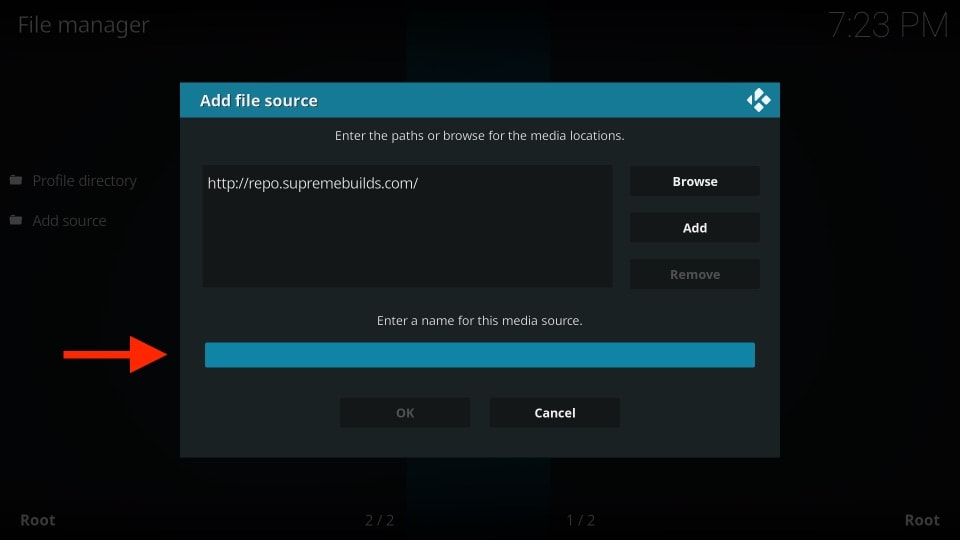
5. Select the input box under Enter a name for this media source.
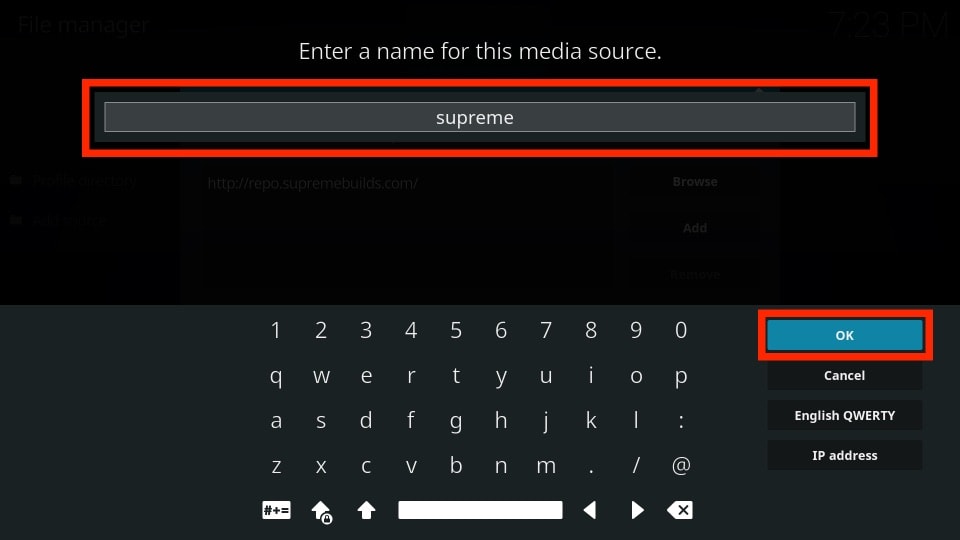
6. Now enter the name of the source whose URL you just added. You may choose any name you wish to identify this source with. Making the name relevant to the source will help you find it easily later. I will choose supreme in this article.
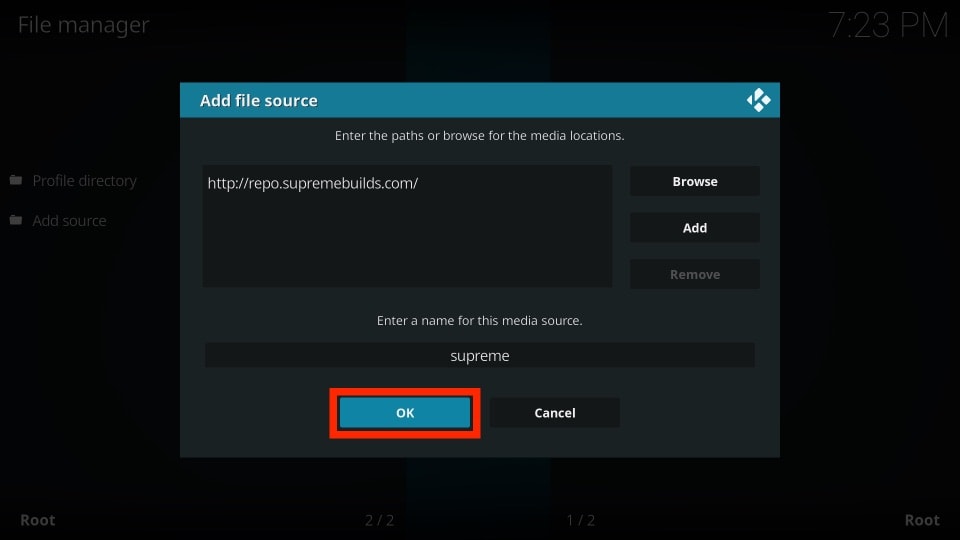
7. Now, press the OK button to save the changes.
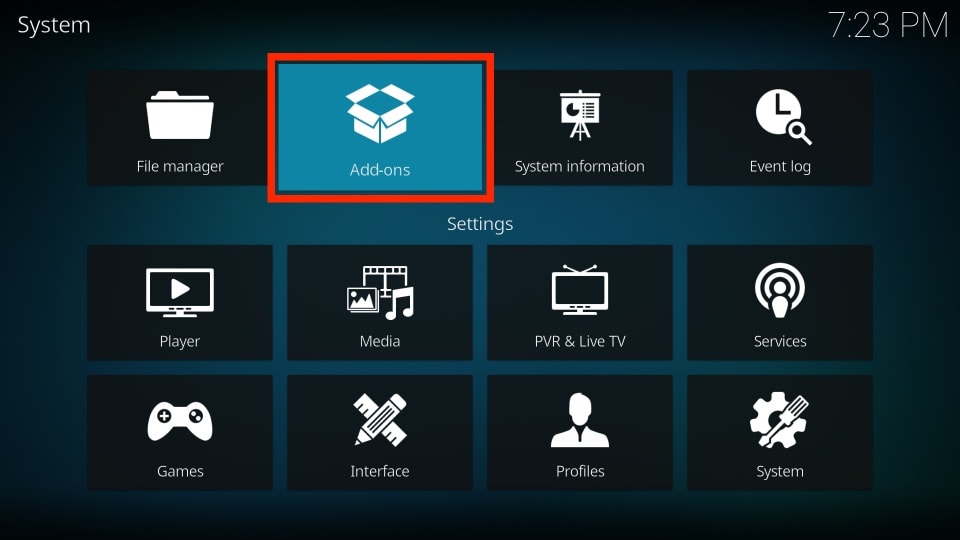
8. Now return to the Settings screen by pressing back one time and click Add-ons.
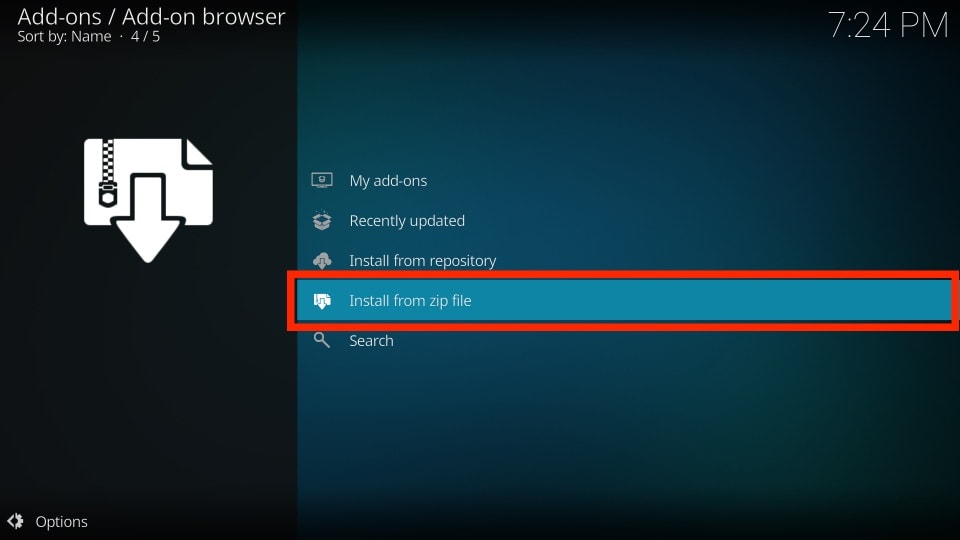
9. Now, scroll down and click the Install from zip file option.
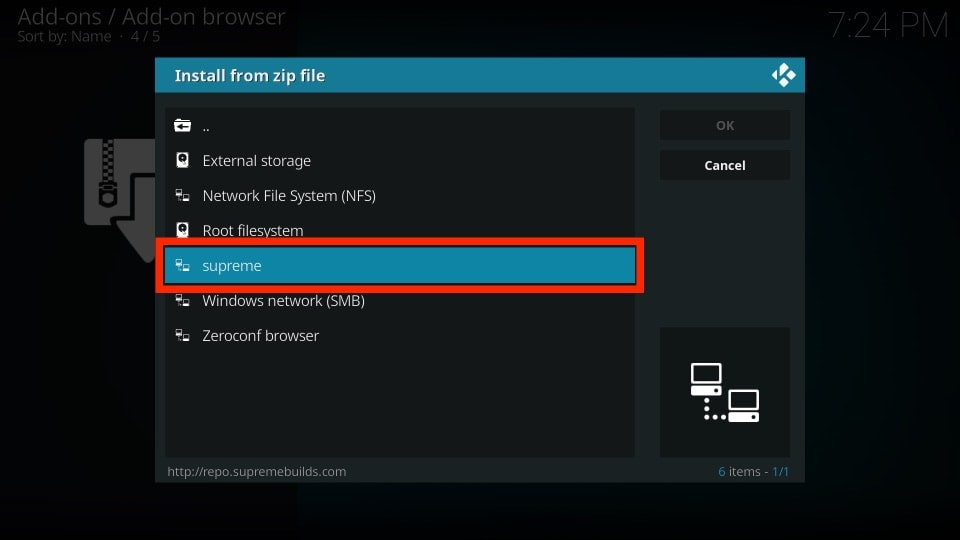
10. Click supreme from the list (or the name you gave to the media source earlier).
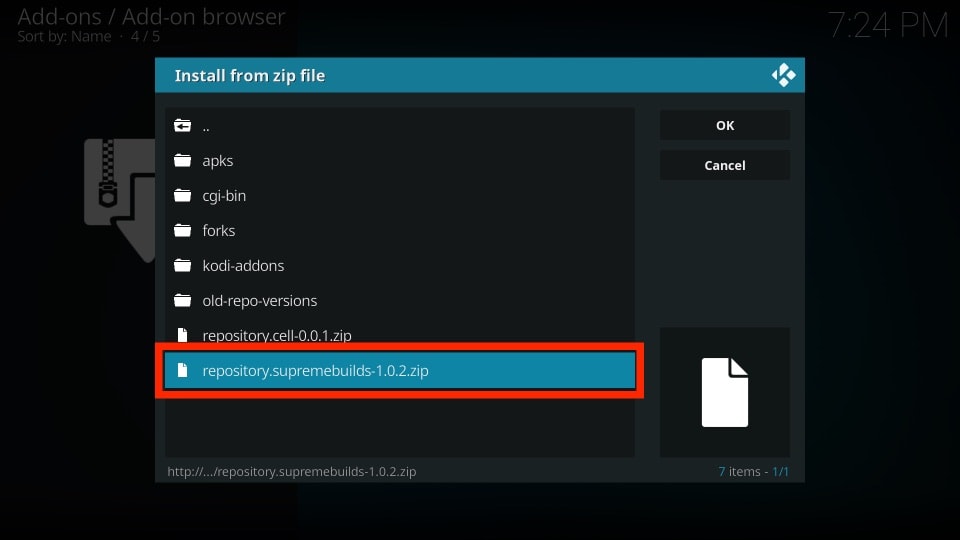
11. Now click repository.supremebuilds-X.X.X.zip file that you see. Here, X.X.X represents the version number. At the time of writing this article, 1.0.2 was the latest version.
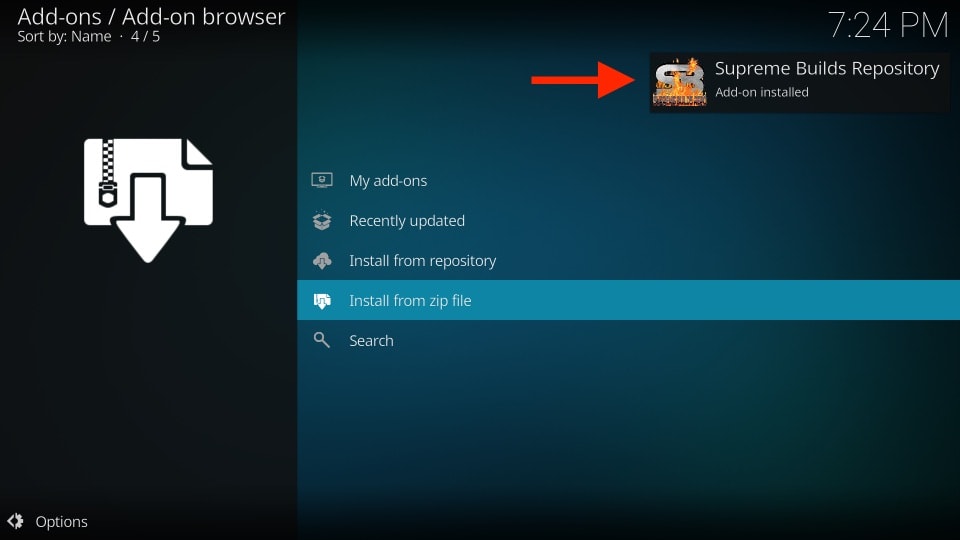
12. Now, wait for the Add-on installed notification to appear on the top right of the Kodi window (see the image below).
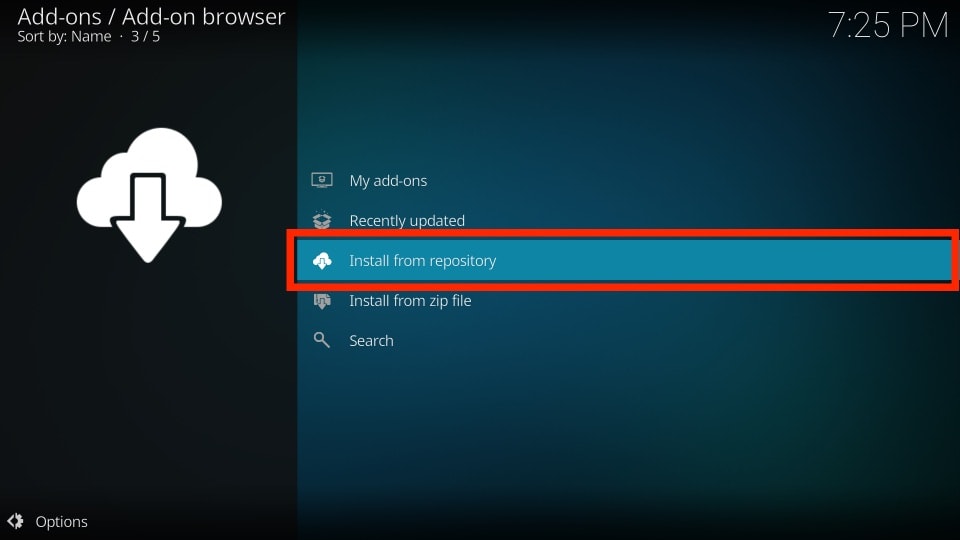
13. From the same window select and click Install from repository.
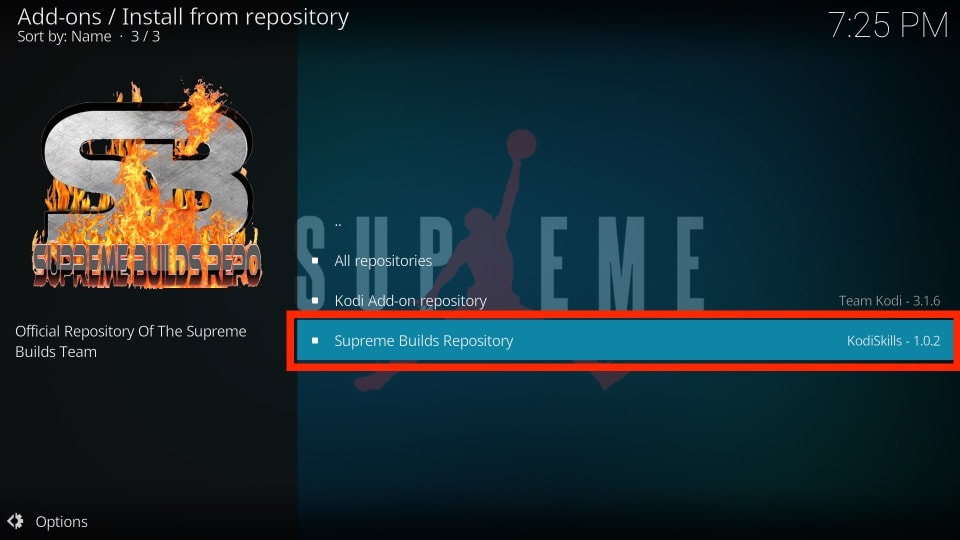
14. Click Supreme Builds Repository from the list of the available repositories.
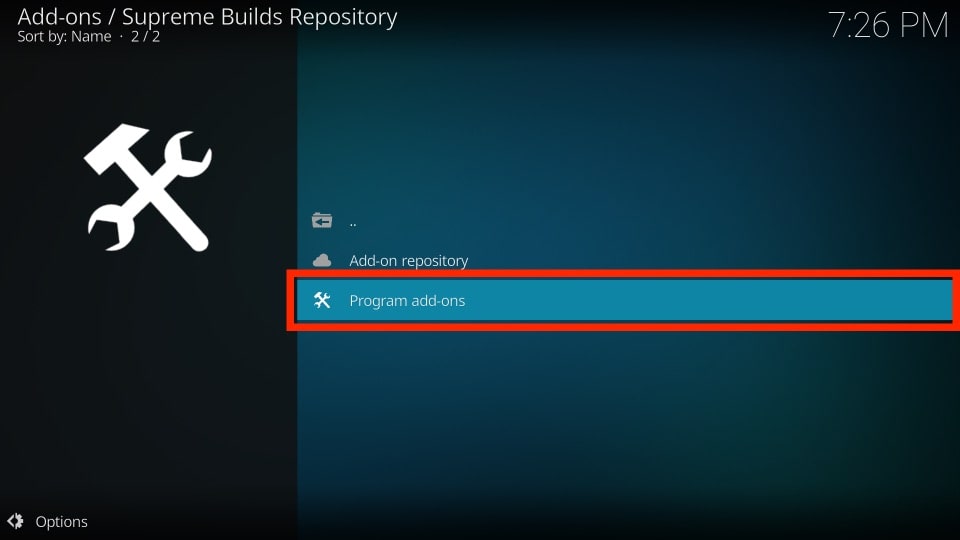
15. Click Program add-ons in the next window.
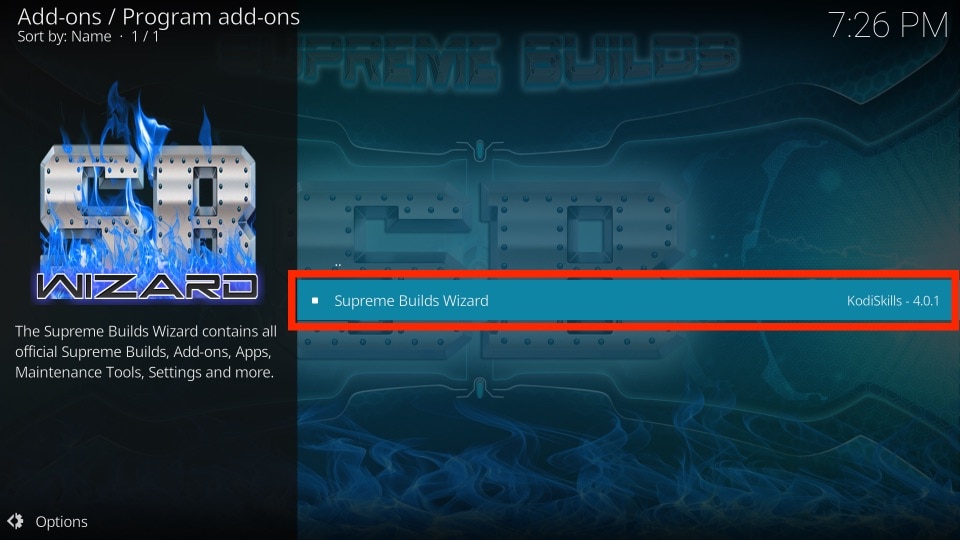
16. Now click Supreme Builds Wizard to proceed.
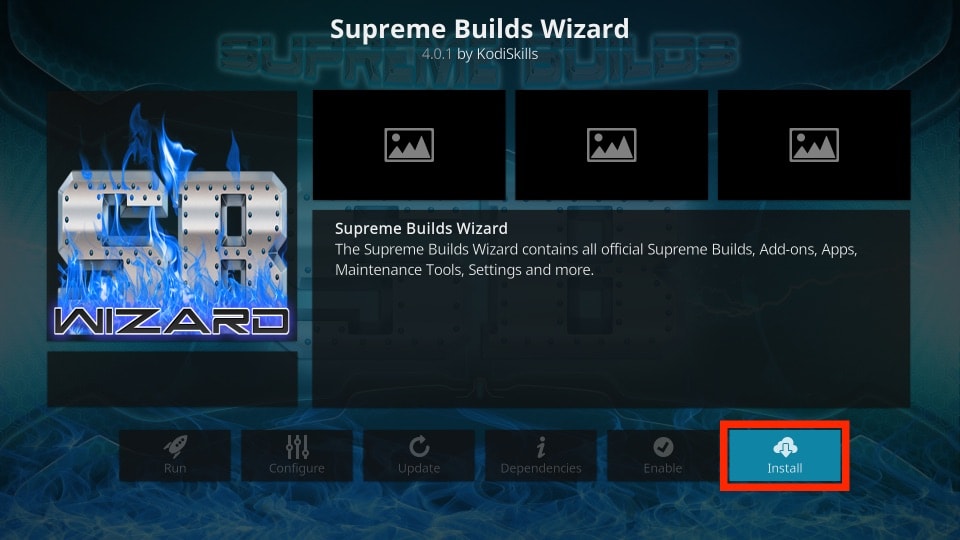
17. Click the Install button on the bottom right of the next screen to install Supreme Builds Wizard.
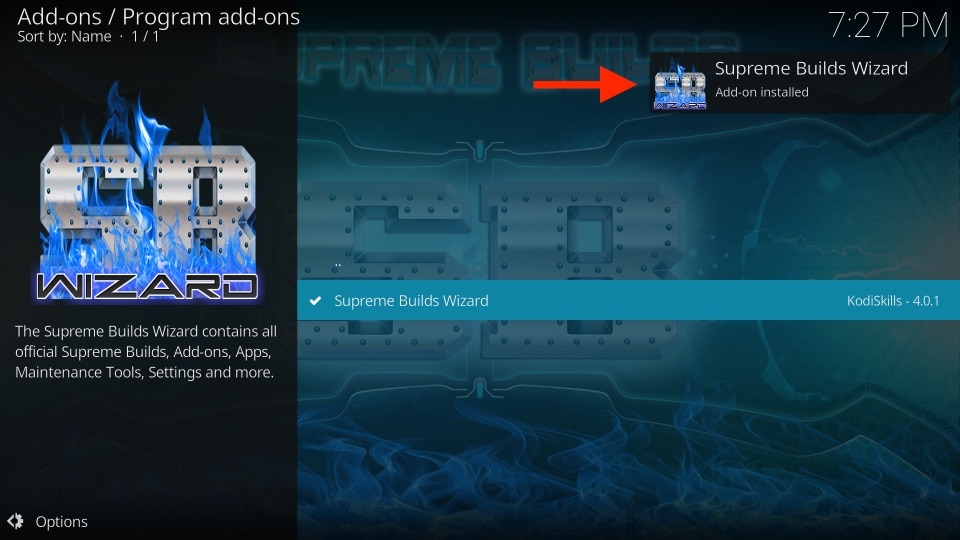
18. When the installation is complete, you should see the notification on the top right of the window (image below).
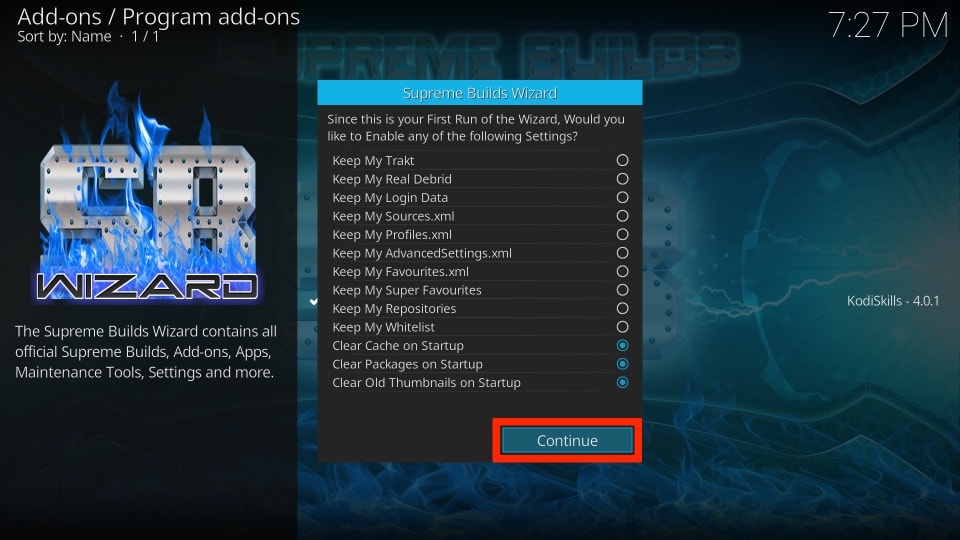
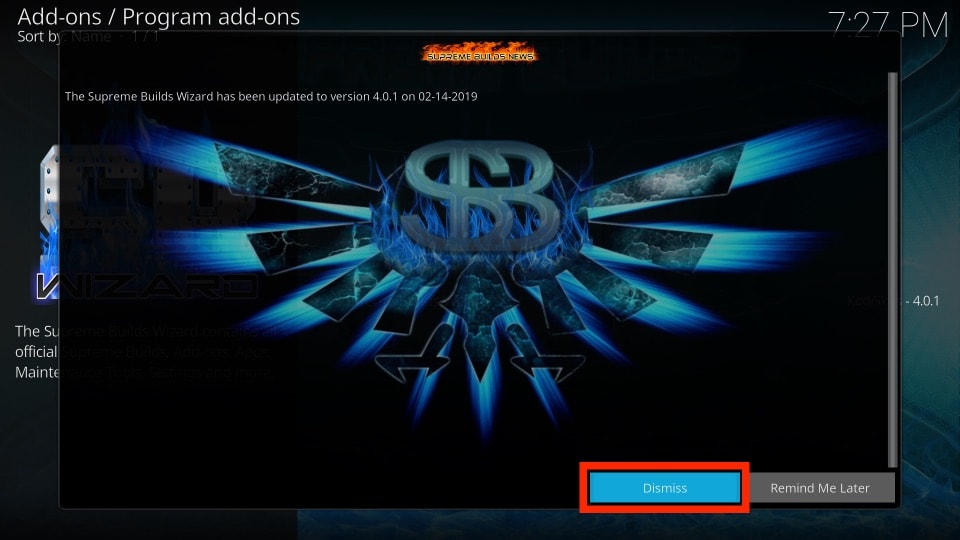
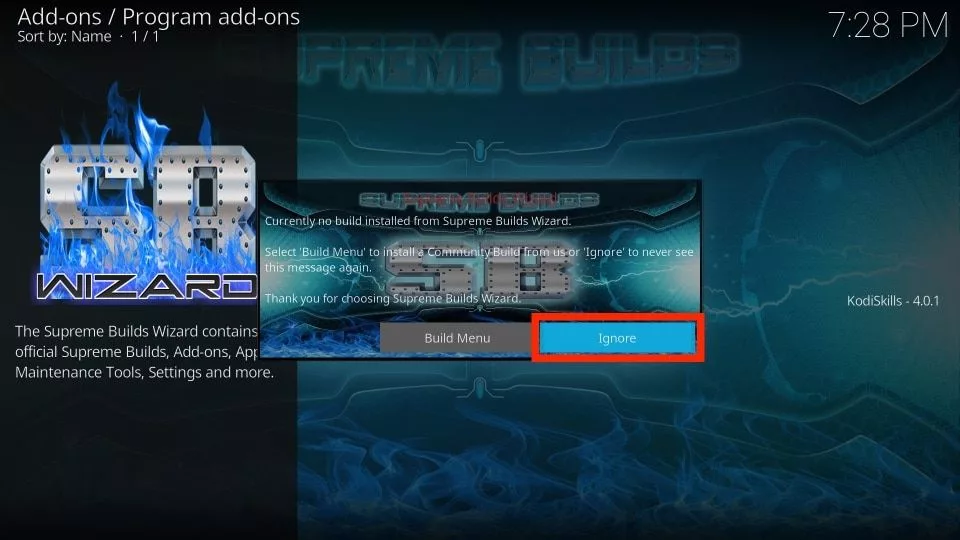
19. The moment Supreme Builds Wizard is installed, you will see a bunch of pop-ups like these. There is nothing you need to do. Simply ignore them by pressing Continue, Dismiss, or Ignore.
Part 2: Steps to Install Titanium Kodi Build
Now we will learn how to install Titanium build on Kodi through the Supreme Builds Wizard. Here is what you need to do:
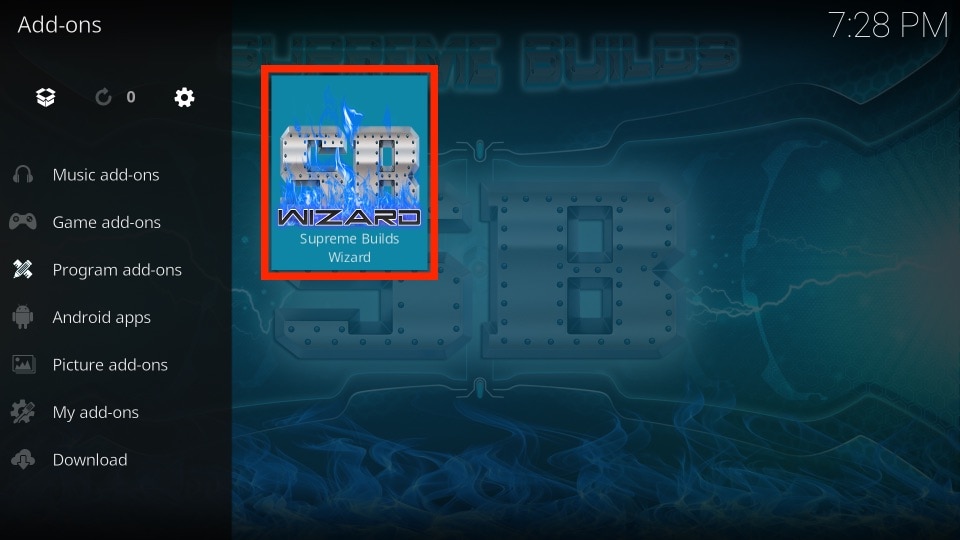
1. From the Kodi home screen, navigate to Add-ons > Program Add-ons. You will see the Supreme Builds Wizard icon here. Click it to run it!
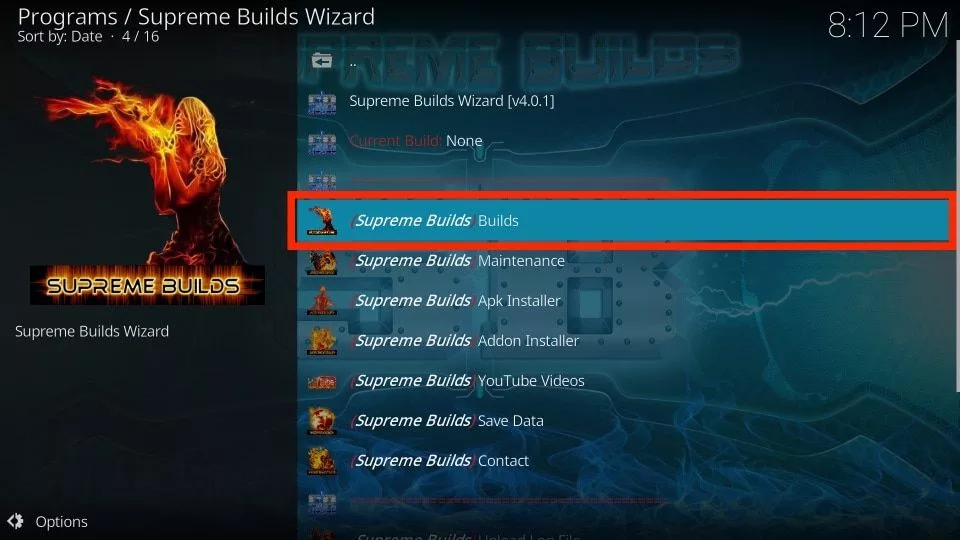
2. Now open (Supreme Builds) Builds option.
3. This build is available for download through multiple servers. It doesn’t matter which server you install the build from as all of them have the same files. Choosing the server closer to you may result in a faster download though. Also, if one server doesn’t work, you can always use the other server. I will choose the USA Server.
If you use Krypton, scroll down to the Kodi 17.6 section.
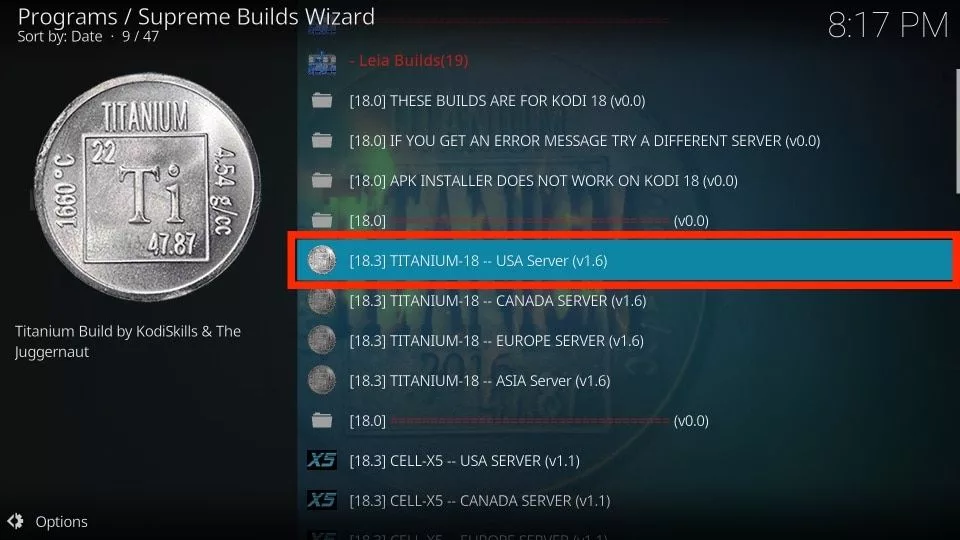
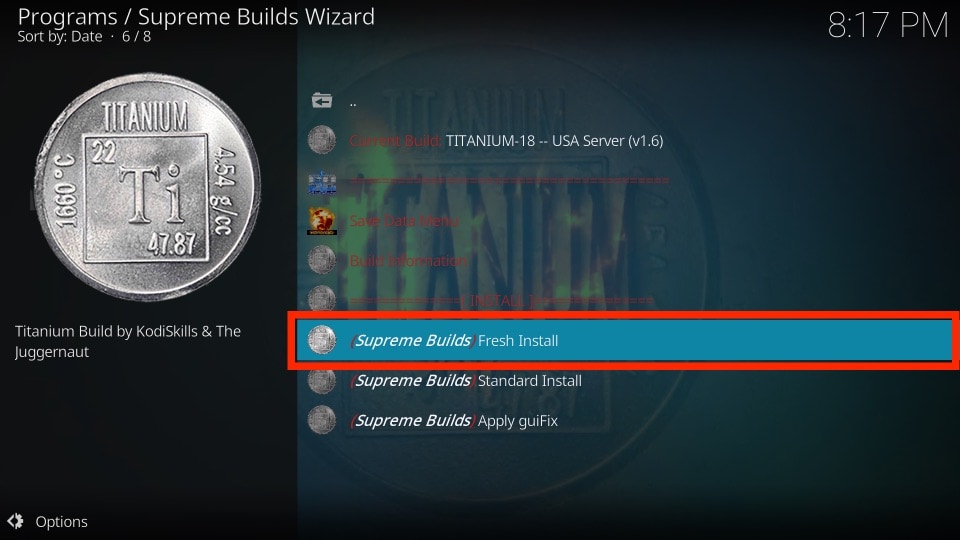
4. Now you will get two options – Fresh Install or Standard Install. Click Fresh Install.
Note: Fresh Install will wipe all the existing Kodi data clean (including the existing add-ons) and then install Titanium Build. It will be like using Kodi fresh. Standard Install will keep your existing add-ons. I personally feel that once you have Titanium for Kodi, you do not need anything else. This is why I will go with Fresh Install. But, if you want to keep your add-ons, you can always select Standard Install.
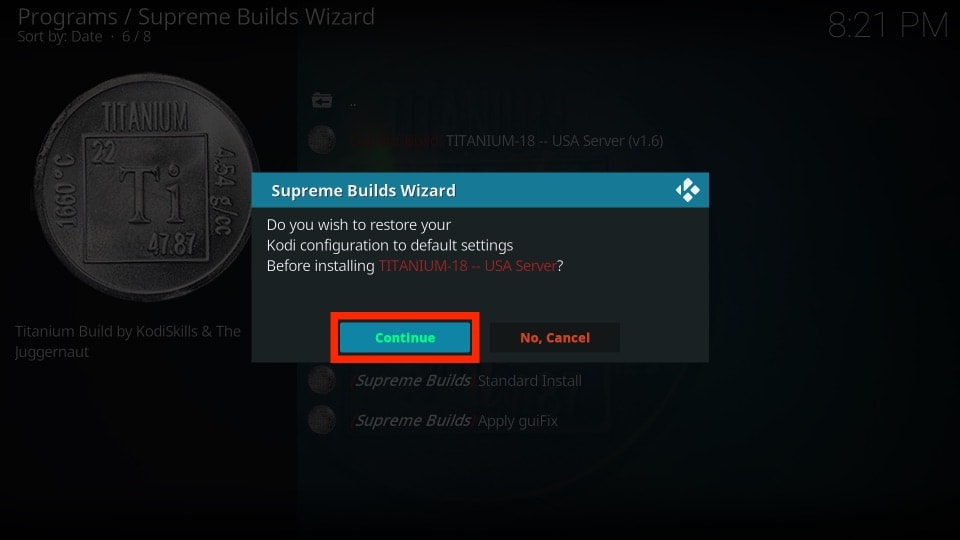
5. This is the message I see when I choose Fresh Install. It asks you whether you wish to restore Kodi to the default factory settings. Confirm your action by pressing Continue.
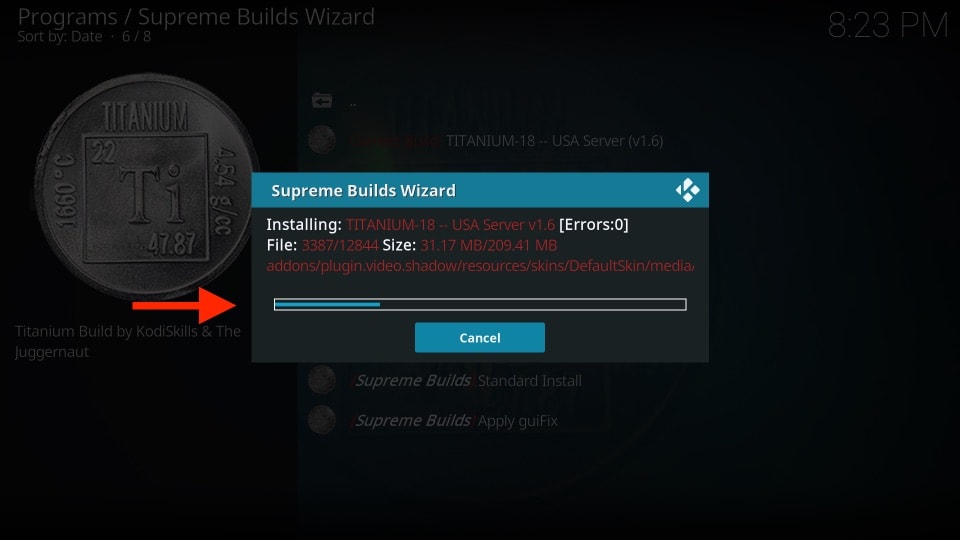
6. Titanium Kodi build will start to download and then install. This is what you will see.
7. Once the installation is complete, you will see the message asking whether you wish to Force Close Kodi or Reload Profile. Select Force Close. However, in Kodi 18, the Kodi app will automatically force close.
8. Once the Kodi Titanium build has been installed, this is how the home screen of your Kodi app will look.
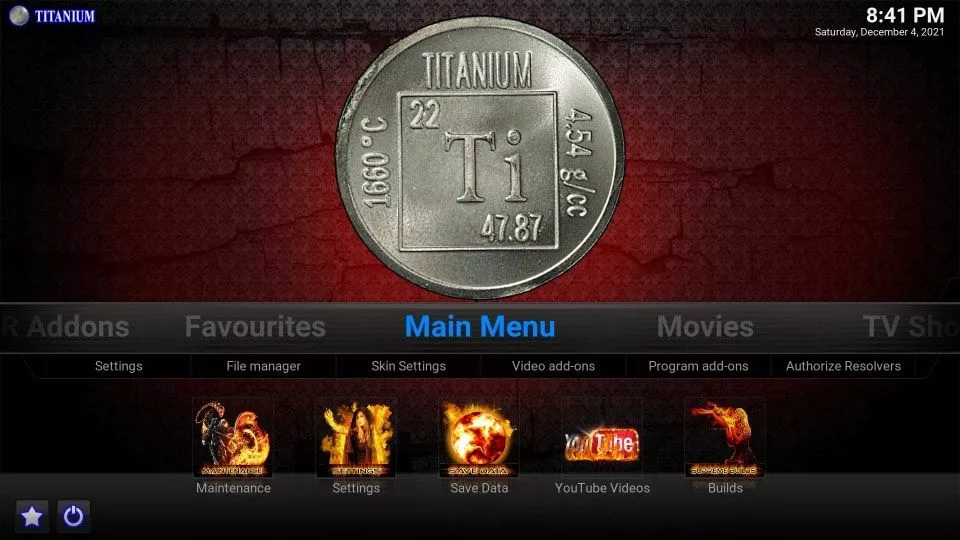
So, now we have learned how to install Titanium on Kodi.
Before you start streaming with Kodi Addons or Builds, I would like to warn you that everything you stream on Kodi is visible to your ISP and Government. This means, streaming copyrighted content (free movies, TV shows, live TV, and Sports) might get you into legal trouble.
Thankfully, there is a foolproof way to keep all your streaming activities hidden from your ISP and the Government. All you need is a good VPN for Kodi. A VPN will mask your original IP which is and will help you bypass Online Surveillance, ISP throttling, and content geo-restrictions.
I personally use and recommend ExpressVPN, which is the fastest and most secure VPN. It is compatible with all kinds of streaming apps and devices.
NOTE: We do not encourage the violation of copyright laws. But, what if you end up streaming content from an illegitimate source unintentionally? It is not always easy to tell the difference between a legit and illegal source.
So, before you start streaming on Kodi, here's how to get VPN protection in 3 simple steps.
Step 1: Get the ExpressVPN subscription HERE. It comes with a 30-day money-back guarantee. Meaning, you can use it free for the first 30-days and if you are not satisfied with the performance (which is highly unlikely), you can ask for a full refund.
Step 2: Click HERE to download and install the ExpressVPN app on your streaming device. If you are using a FireStick, I have given the exact steps starting with Step 4 below.
Step 3: Click the Power icon to connect to a VPN server. That's all. Your connection is now secure with the fastest and best VPN for Kodi.
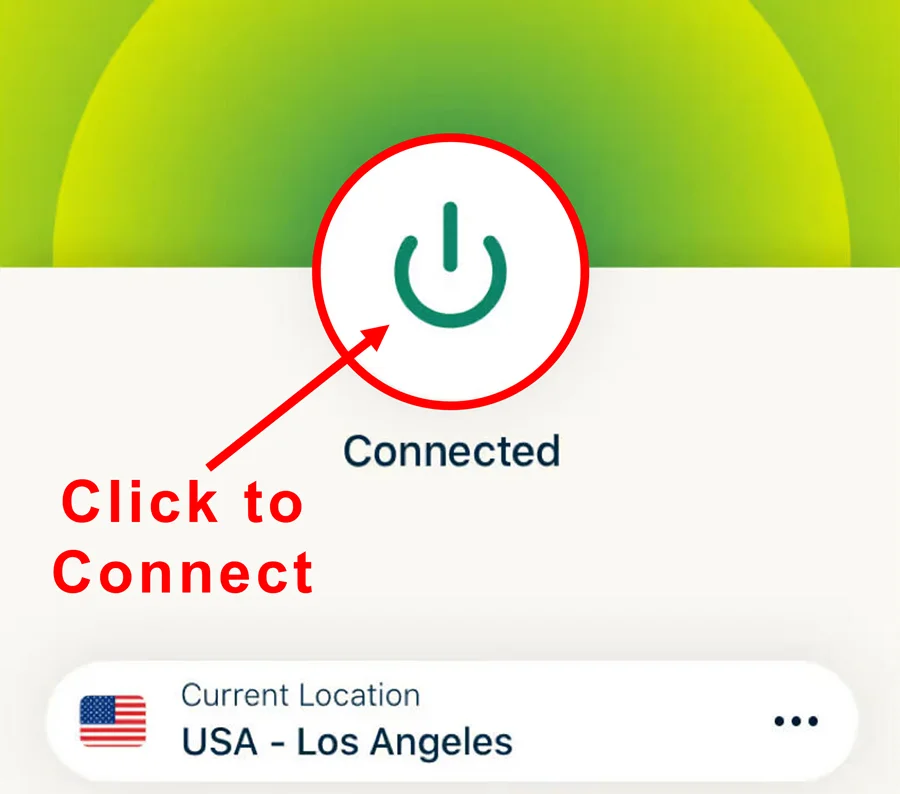
The following are the steps to install Kodi VPN on your Fire TV devices. If you have other streaming devices, follow Step 1-3 above.
Step 4: Subscribe to ExpressVPN HERE (if not subscribed already).
Step 5: Go to Fire TV Stick home screen. Click Find followed by Search option (see image below).
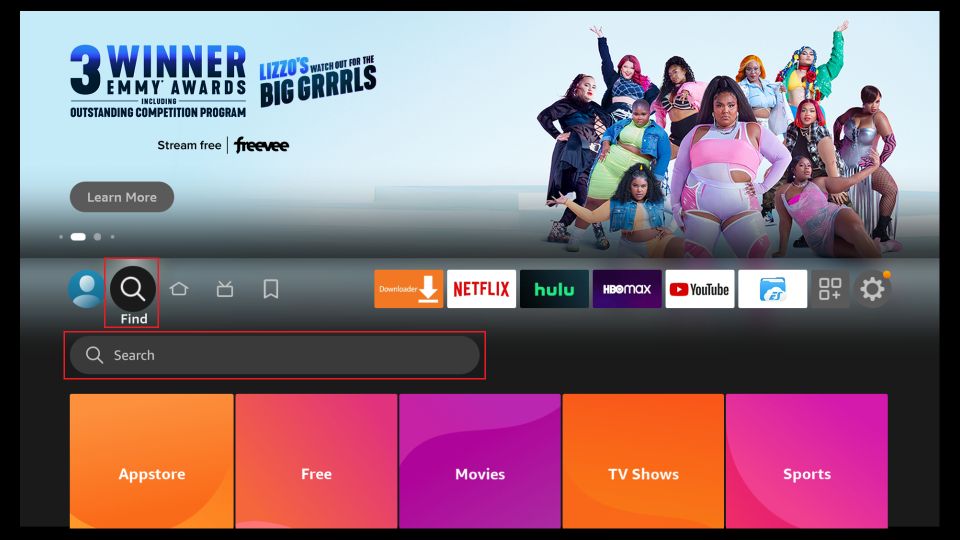
Step 6: Type Expressvpn in the search bar and select when it shows up.
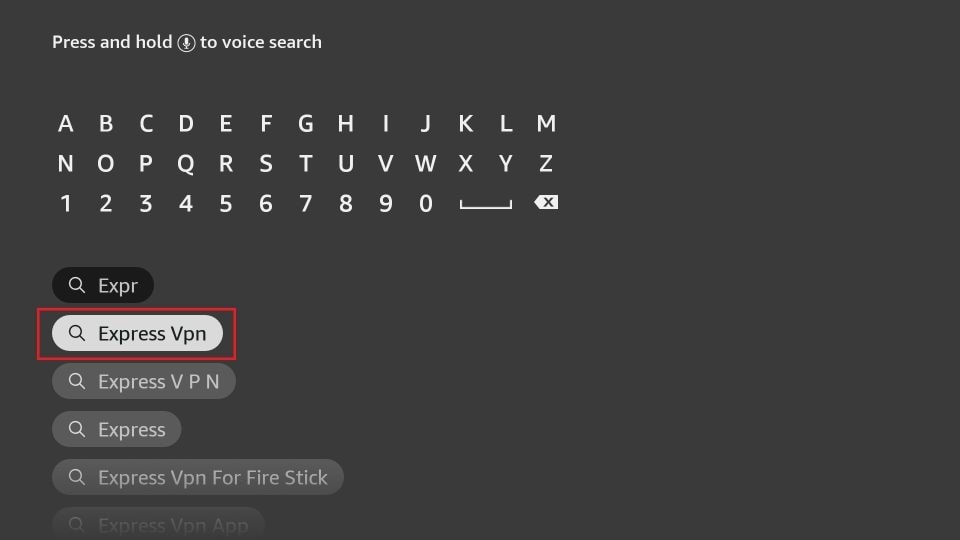
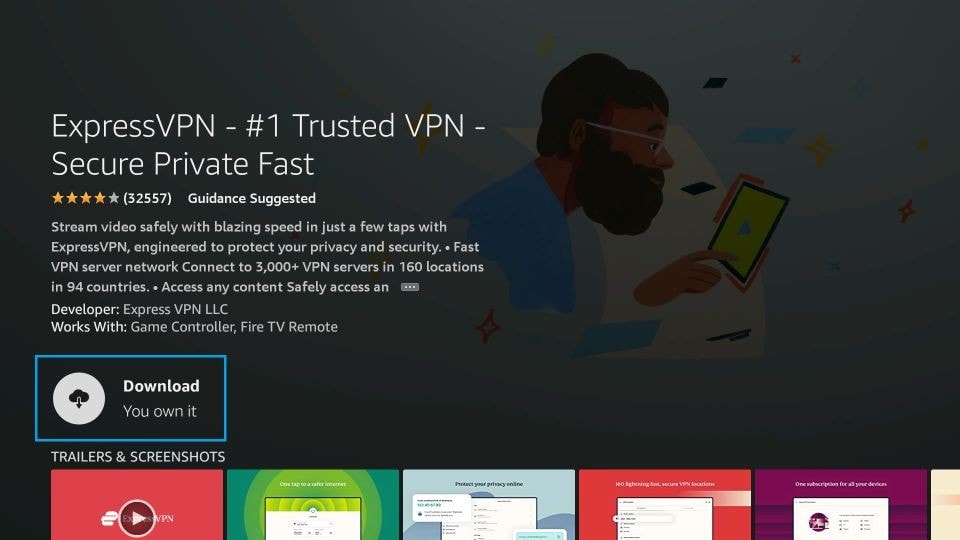
Step 7: Click Download.
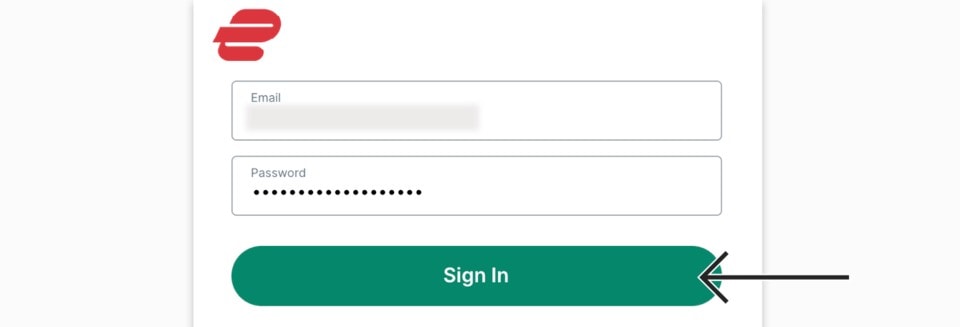
Step 8: Open the ExpressVPN app and Sign in using the email ID and password that you created while buying the ExpressVPN subscription.
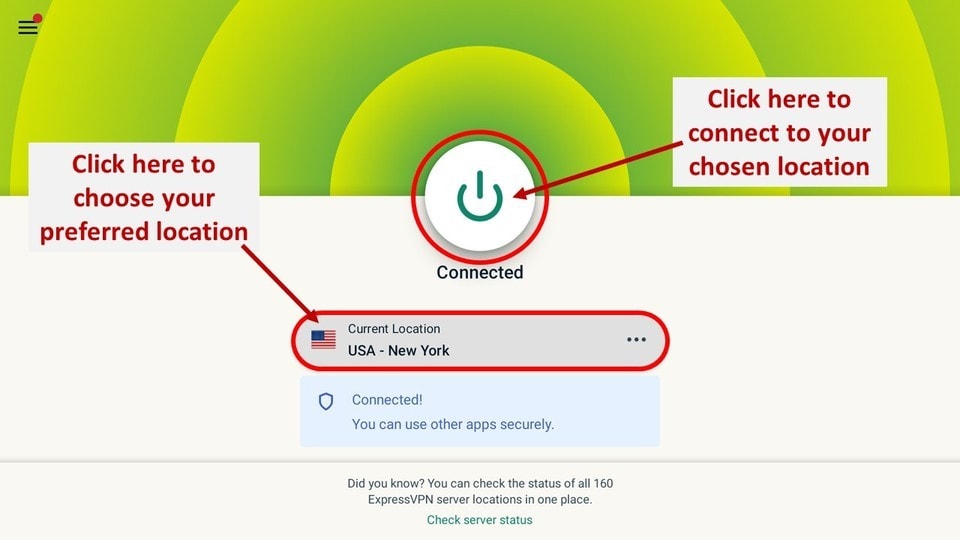
Step 9: Click the Power icon to connect to a VPN server. That’s all. Your FireStick is now secured with the fastest VPN.
If you need more builds or Addons, you can check out the links below.
Video Guide to Install Titanium Build on Kodi
https://youtu.be/R2XTD82M_PU
Wrapping Up
Titanium Kodi build gives Kodi a complete cosmetic makeover. It dramatically changes the way you interact with Kodi. However, Titanium Build is probably the least about the aesthetics and largely about the overall Kodi experience. This build converts Kodi into a more functional, feature-rich media center. And, it makes things a lot more convenient. Titanium Kodi build is easily one of the most popular and highly rated builds. It is featured in many Kodi discussions and is recommended by many experts. When you have Titanium build, you hardly need any other add-on. In this article, we learned how to install Titanium on Kodi using the Supreme Builds Wizard. If you have any questions, feedback or suggestions, feel free to let us know through the comments section. Thank you for reading!
Related:
- How to Install Fallout Kodi Build
- How to Install Luxray Kodi Builds
- How to Install The Grind Build on Kodi & FireStick
- How to Install No Limits Magic Builds

Suberboost Your FireStick with My Free Guide
Stay Ahead: Weekly Insights on the Latest in Free Streaming!
No spam, ever. Unsubscribe anytime.




Ok, I just tried to install ares wizard, but nothing happens after I try to upload it from the script folder. I’m a novice at this but i’m trying to follow all the directions but having no luck!
This did not work. There was no Ares Wizard in my version of program add-ons. Please advise.
Everything seems to have installed correctly, but nothing works when I try to stream.
Hi Reggie, from the home-screen of the build, go to Main Menu > Video Addons. Pick one of the working addons like DeathStar, Exodus Redux etc. and try to stream directly from it. Let me know if this helps.
Hi. I just followed these instructions but wound up getting the black screen. I searched online how to delete the database to “resolve” the problem but it wound up deleting the add_on. Ugh. I’m going in circles here! Please help. This is my first time ever trying to get my 2015 firestick to work with kodi.
Hi Leslie, first follow this guide to reset Kodi on FireStick: https://www.firesticktricks.com/reset-kodi-firestick.html
Once that’s done, try installing the Titanium Build again. Let me know if it works.
hi I’m trying to install titanium on my android pad tried us server Canadian server (I’m in Canada)got the supreme build on but when I try fresh install or standard install it stops and says an error has occurred at about 6 min left to go I had durex build on it before but it stopped working today on the tab was working fine last night
I have lots of memory and a decent internet connection it is also plugged in and charging android is model 90240 with android version 7.1.1 security patch November 6 2017 if that helps
thank you
Hi Will, I just tried Canada server and it worked for me. You may have run into a temporary glitch. Please try again.
If the problem persists, uninstall and reinstall Kodi before trying again.
Thank you
Hi Patrick, I’ve loaded ti build. It hangs when looking for streams, doesn’t allow me to cancel, so have to remove power cord. I’m running a raspberry pi. How do I remove ti and revert to original Kodi.
Hi Jacques, since you already have Titanium Build, you must also have Supreme Builds Wizard. Here is how you can reset Kodi to original state:
-Select Main Menu on the menu bar on the Titanium Build home-screen
-Click Program Add-ons in the submenu
-Open Supreme Builds Wizard
-Click Maintenance
-Turn ON the option Show All Maintenance (it will take a few seconds)
-Scroll up a bit and click Fresh Start
This will reset Kodi to the original state and retain only the Supreme Builds Wizard.
I’ve just installed the new Titanium. My background doesn’t look like yours but it seems to be working okay. Couple questions please….
1.) The description above says I can watch Live TV. I can’t seem to find any live tv?
2.) Does this Live TV include programs like boxing matches? I’d like to watch boxing when it’s on.
3.) I seem to recall a buffering fix somewhere on this site but can’t seem to find it now. Is there a way to fix the buffering?
4.) I have one Firestick sans XXX, and one with. Can I update the XXX one with Titanium and keep the adult films too?
Thank you! .:c.line
Hi Caroline, let me answer your questions one by one:
1) Titanium Build does not have a separate category for free Live TV on the home-screen, but you can get to Main Menu > Video addons and find many free live TV addons like Rising Tides, Maverick TV, Sports Devil, Planet MMA, Joker Sports, Supremacy Sports, FireCat, Replay Me
There is an IPTV section on the main-screen but it only features paid addons.
2) Supremacy Sports, Replay Me, have separate sections for Boxing. You may also find Boxing streams on sports addons like Rising Tides, Maverick TV, Joker Sports, SportsDevil.
3) Here is our guide on how to fix buffering issues on Kodi: https://www.firesticktricks.com/fix-kodi-buffering.html
4) You may lose any existing addons (including the adult ones you have) upon installing Titanium Build (or any other build), even if you choose Standard Install during the process.
I’ve just tried to install from all servers and each time it tells me ‘file is not a zip file’
Hey Sarah, you might have run into a temporary server issue. I just installed the build from the US server and it worked for me. Please try again and let me know.
I just installed titanium from the US server and I have an error
Hi Jamie, I just installed the build from the US server and it worked fine for me. What’s the error message you encountered? Maybe it was something temporary.